
A character counter tool is only useful if it counts the same way as whoever set your limit. If a form counts spaces and your counter leaves them out, the two figures will never agree.
So pick one by how it treats spaces, line breaks and emoji, and by where the text you paste ends up. Below, four free online counters are lined up against the counts already built into Word and Google Docs.
What to check before picking a free character counter tool
Three questions settle most of the choice: does the figure include spaces, do you need other counts besides characters, and where does your text get counted. Answer them before comparing features, because a tool with a long feature list can still give you the wrong number for your limit.
Character count with spaces vs. without spaces
A character count with spaces includes every letter, digit, punctuation mark and space, and the version without spaces drops only the spaces. Neither one is "correct"; what matters is which one the place you are submitting to uses, so check the brief, the form or the platform's help page first.
Line breaks and emoji are where tools quietly part ways, and sakuttoAI shows the choices involved: its character counts treat each character you see on screen as one, so an emoji stored as several code units still counts once. Its no-spaces count removes spaces and tabs but keeps line breaks. Put the same draft into another counter that handles either point differently and you will get a different number, even though both tools are working as designed.
Beyond characters: word, paragraph, and byte counts
A byte count is not a character count: it measures how much storage the text takes, and the figure changes with the encoding. You only need it when a system states its limit in bytes rather than characters.
Word and paragraph counts are easier to find than byte counts. Grammarly's page has separate word, sentence and paragraph counters, and CharacterCounter.com's guide covers paragraphs, unique words and lines.
If a word limit is what you are up against, check how the tool decides where one word ends and the next begins. sakuttoAI counts runs of the letters a to z, so "don't" comes out as two words and accented letters split a word. For word limits, Word or Google Docs is the safer choice.
Where your text goes in an online character counter
When you paste into an online character counter, the page decides whether the text is counted inside your browser or sent to a server. You usually cannot tell from the page itself, so look for a statement from the tool.
sakuttoAI does the counting in your browser. The tool contains no code that sends your text anywhere, it does not save the text to browser storage, and there is no sign-in.
For the other online counters, read what each one says in its own privacy terms before you paste a contract, an unpublished article or anything else you would not hand to a stranger. Counting in Word or Google Docs avoids the question altogether, because the text is already in a document you use.
Four online character counters compared side by side
All four run in a web page and take pasted text; they differ in what else they count and in what the page is built around. Only sakuttoAI's row names where the text is counted. The counter pages of the other three do not say, so the table points you to their privacy terms instead.
| Tool | What the page covers | Where text is counted |
|---|---|---|
| WordCounter.net | Characters, letter density | See its privacy terms |
| CharacterCounter.com | Spaces, paragraphs, unique words, lines, emoji, symbols, numbers | See its privacy terms |
| Grammarly | Characters, words, sentences, paragraphs | See its privacy terms |
| sakuttoAI | Spaces, lines, paragraphs, English words, bytes | In your browser |
The rows for the first three follow the sections each tool's own page lists. They describe what the page covers, not the results of a test.
WordCounter.net and CharacterCounter.com
WordCounter.net is the one to use when you only want the number, and CharacterCounter.com when you also want a guide to what each figure means. WordCounter.net's character count page is short: next to the counter it has a Letter Density section and little else in the way of explanation.
CharacterCounter.com puts a long guide under its counter. There are sections on characters with and without spaces, on paragraphs, unique characters and unique words, and on lines, words per sentence, emoji, symbols and numbers.
It also has sections on reading and speaking time and on common platform character limits. Its FAQ takes up whether you can set a character limit and whether the counter is free.
Grammarly's character counter and its writing checks
Grammarly's page is titled as a free online character counter, but the counter is the entry point to its writing tools. The page promotes instant proofreading, rewriting and generative AI, and it has separate word, sentence and paragraph counters.
Grammarly suits a draft you want to cut down to size and fix in the same place. As with the other two, read Grammarly's privacy terms before you paste anything confidential.
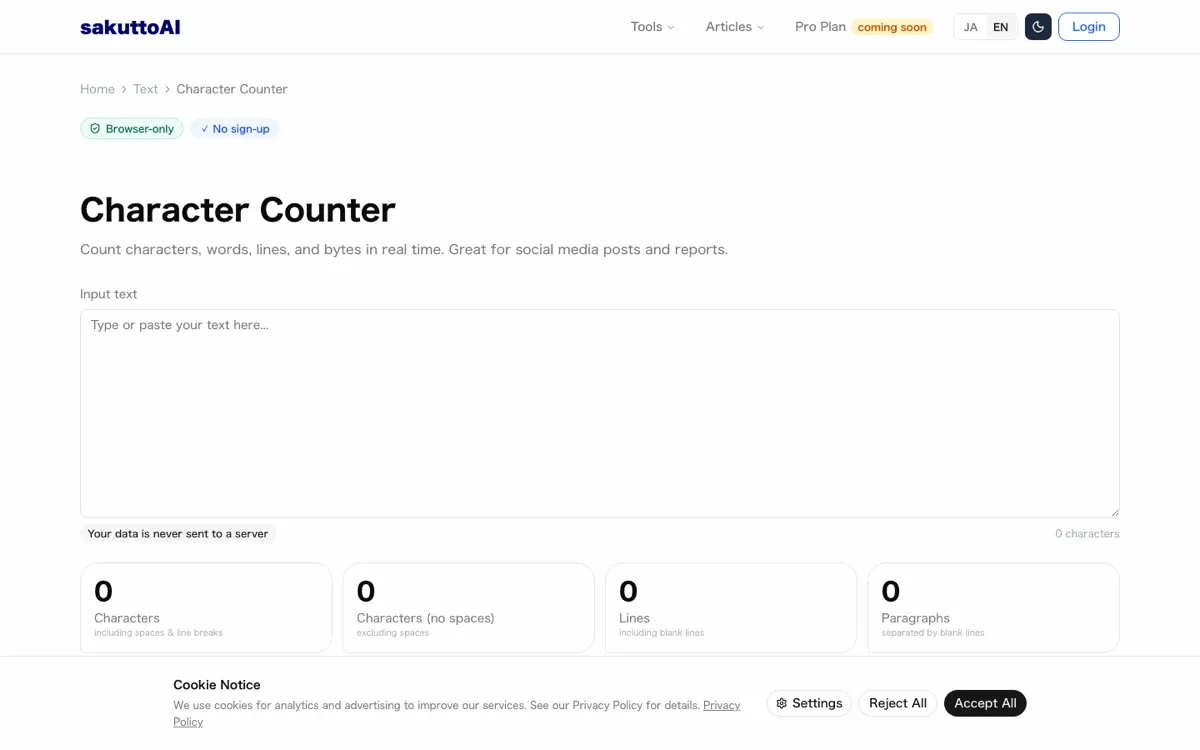
sakuttoAI character counter with byte counts
sakuttoAI shows every figure at once as you paste or type, including byte counts in three encodings. Alongside the counts with and without spaces you get lines, paragraphs, English words, full-width and half-width totals and a breakdown by character type. Click any figure and it goes to your clipboard.
The byte counts are where it differs from the other three. UTF-8 is measured from the actual text, UTF-16 is the stored length of the text times two, and Shift_JIS is an estimate that counts full-width characters as two bytes and half-width as one. Everything is counted in your browser.
It was built for Japanese first, and not every figure fits English text. The manuscript-page count uses Japanese manuscript sheets, the reading time assumes Japanese reading speed, and the English word count treats "don't" as two words. There is no file upload either, so text has to be pasted or typed in.
Built-in character count in Word and Google Docs
If your text is already in Word or Google Docs, you do not need another tool. Both count characters inside the document you are writing, and nothing has to be pasted anywhere.
How to check the character count in Word
Click the word count in Word's status bar to open the Word Count box, which shows characters, paragraphs and lines. The status bar at the bottom of the window counts words as you type.
To count only part of a document, select the text first. The status bar then shows the count for your selection and for the whole document.
Word for the web counts while you type as well. If the figure is missing at the bottom of the window, switch to Editing view. You can turn the count display on or off under Review > Word Count with the Show Word Count checkbox.
Microsoft's help page lists characters among the counts but does not say there whether spaces are included. Read the labels in the Word Count box before you compare its number with a limit or another tool.
"Word counts the number of words in a document while you type. Word also counts pages, paragraphs, lines, and characters."/"For a partial word count, select the words you want to count. The status bar shows the word count for that selection and for the entire document."View official source →
Google Docs character count while you type
Tick "Display word count while typing" in Google Docs, and a box in the bottom left keeps the count on screen as you write. You reach that option from Tools > Word count, which also shows words, characters and pages; click OK to keep the box, or Done to close the window. Click the box to switch between pages, words, characters and characters without spaces.
Note what the Google Docs count covers. Unless you select part of the document, it leaves out headers, footers and footnotes. If your limit covers footnotes, select them and count them separately.
"Unless you select a section of the document, word count applies to everything except headers, footers, and footnotes."/"To find the word count while you type, check "Display word count while typing" OK ."(Count the number of words while you type)View official source →
Which counter to use for SEO, social posts, and SMS
Match the counter to where the text is going, and do the final count in the same place the limit is enforced. The table below pairs each use with the tool that fits it.
| Use | Counter | Why |
|---|---|---|
| SEO title and meta description | Any counter with a with-spaces figure | Check against the limit your SEO plugin or style guide sets |
| Social posts | A counter for drafting, then the platform's own post box | The platform decides the final count |
| SMS | A counter that shows how emoji are counted | Emoji can count as two in one tool and one in another |
| Coursework | Word or Google Docs | Your figure matches the app the essay is checked in |
| Confidential text | Word or Google Docs, or sakuttoAI | The text stays in your document, or is counted in your browser |
| Limits set in bytes | sakuttoAI | UTF-8 bytes are measured from the text |
For a meta description, sakuttoAI is still handy as a counter, but ignore its title and description score. That score uses fixed ranges set for Japanese text, and they do not carry over to English.
For social posts, CharacterCounter.com's section on common platform limits is a reasonable starting point while you draft. The platform's own post box has the last word, so paste the finished text there before you publish.
SMS drafts are where emoji counts need a second look. sakuttoAI counts each emoji as one character, even a combined one such as a family emoji or a flag. A tool that counts the stored length of the text can show the same emoji as two or more, so check the final message in the app you will send it from.
For coursework, use whichever app the essay will be checked in. If your instructor opens the file in Word, count in Word; if it is checked in Google Docs, select any headers, footers and footnotes as well, because the count leaves them out otherwise. The online counters are quicker for drafts, but they cannot tell you how a platform or a teacher will count your text.
Summary
Choose a character counter tool by how it counts first, and by where your text goes second. Find out whether your limit includes spaces and how the place you are submitting to handles line breaks and emoji.
WordCounter.net keeps things minimal, CharacterCounter.com adds a guide and platform limits, Grammarly bundles writing checks, and sakuttoAI adds byte counts and keeps the text in your browser. If the text is already in Word or Google Docs, their built-in figures are right there, and for coursework they are the ones to trust.
FAQ
- Why does Word show a different count than an online character counter?
- Tools disagree on spaces, line breaks and emoji, and on which parts of a document they include. sakuttoAI counts each emoji as one character, even a combined one such as a family emoji or a flag, while Google Docs leaves headers, footers and footnotes out unless you select them. Count in the same tool your limit is checked with.
- Is text I paste into a character counter saved somewhere?
- That depends on the tool, so read its own privacy terms. sakuttoAI counts in your browser and has no code that sends or stores your text. If you would rather not paste at all, Word counts the document you are already writing.
- Can I use a character counter on my phone?
- A counter that runs in a web page works in a phone's browser too, with nothing to install; sakuttoAI is one of these. Word for the web also counts in the browser as you type.
- Can I count characters straight from a file?
- Not in sakuttoAI, which only takes pasted or typed text. Open the file in Word or Google Docs and use the built-in count; Google Docs shows characters and characters without spaces under Tools > Word count.
Related articles
 Best online diff checkers for text, code, and PDFsFive online diff checkers compared on data handling, file-type support, and price, with picks for everyday text, code, and scanned PDF or Excel work.
 PDF to image converter: 5 free tools comparedPDF to image converter comparison of five free tools: which upload your file, how long servers keep it, output formats and image extraction.
 Essay word count: what actually gets countedEssay word count, measured: the same paragraph gives 17 characters with spaces and line breaks, 16 without, one emoji as two and a family emoji as eight.
 Japanese Era Converter Compared: Reiwa and DatesJapanese era converter tools compared by year, date and calendar handling, with Reiwa and gannen checks to help you pick one for forms, resumes or bulk dates.