
The first tool to try is sakuttoAI's free AI Image Detector. Drop an image in and it reads any AI-generation records stored in the file's C2PA, XMP, EXIF or PNG data, without the image ever leaving your browser.
Check AI images with free tools before you look closer
Three free tools for AI image detection
| Tool | What it checks | What it can miss |
|---|---|---|
| sakuttoAI AI Image Detector | Records saved inside the file | Images whose records were stripped by an upload or a screenshot |
| SynthID Detector | A watermark hidden in the pixels | Images from AI models that don't add the watermark |
| Hive | Patterns in the pixels that suggest AI | Cropped images and real photos with a small AI edit |
AI image detection means working out whether a photo or illustration was made by AI, and the easiest way to do it is to let free tools do the looking. The three tools in the table each check something different, so put the same image through all three and see whether they agree.
Image generators now produce photo-quality fakes
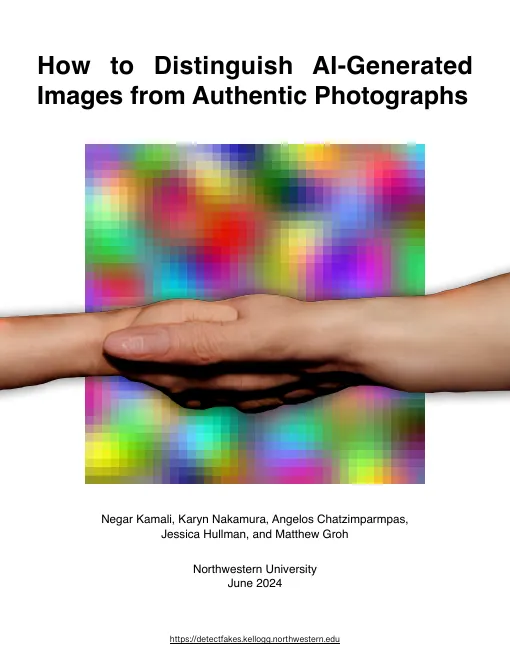
Tools like Midjourney, Stable Diffusion and Firefly can make images that look like real photographs, which leaves most people struggling to tell the two apart. In June 2024, a Northwestern University team led by Negar Kamali published a guide to spotting the difference.
Even that guide admits some AI images carry no visible flaws at all. Counting fingers and checking shadows one by one takes time and still leaves you without an answer when there's nothing to find, so let the tools make the call and treat what you see as the reason to run them.
The high level of photorealism in state-of-the-art diffusion models like Midjourney, Stable Diffusion, and Firefly makes it difficult for untrained humans to distinguish between real photographs and AI-generated images. / Human-perceptible artifacts are not always present in AI-generated images / Northwestern University / June 2024 — from the guide's abstract and coverView official source →
Three free tools that each check something different
Because each tool looks at a different kind of evidence, an image that slips past one can still be caught by another. sakuttoAI's AI Image Detector reads records written into the file, and SynthID Detector looks for a watermark hidden in the pixels. Hive's free tool estimates how AI-like an image is even when there's no record or watermark at all.
Each one gives you a result seconds after you drop the image in, so running all three is still quicker than going over the picture by hand. If they agree, you have your answer. If they don't, that's when it's worth tracing where the image came from.
Read the file's records with the AI Image Detector
The five results the AI Image Detector can show
| Result | What it means |
|---|---|
| Recorded as AI-generated | The file says it was created with generative AI |
| Recorded as partly edited with AI | The file says part of a photo or artwork was replaced using generative AI |
| Recorded as a camera capture | The file says a camera took it. Records can be edited, so this isn't proof |
| No AI record found | The file has metadata, but none of it mentions AI |
| No records, so we can't tell | The file carries no creation or capture records |
Besides the picture itself, an image file has room for notes on how it was made and with what software. Content Credentials, defined by the industry standard C2PA, are one such record: they can list when and where a file was created, how it was edited, and whether AI was involved. The AI Image Detector reads these notes and gives you one of the five results above.
What the AI Image Detector reads and shows
To use it, drag the images you want to check onto the AI Image Detector page. Each one is read the moment you drop it, and a result such as "Recorded as AI-generated" appears next to it. It handles JPEG, PNG and WebP, and you can drop in as many files as you like.
The tool looks at four kinds of records: C2PA Content Credentials, the IPTC DigitalSourceType field in XMP, EXIF fields such as Software, and the generation settings some tools save in PNG files. Open "Records found" to see what each one says, such as the name of the AI tool. Your files are read inside the browser and are never sent to sakutto.ai or to any AI service.
Use Content Credentials Verify to check the signature
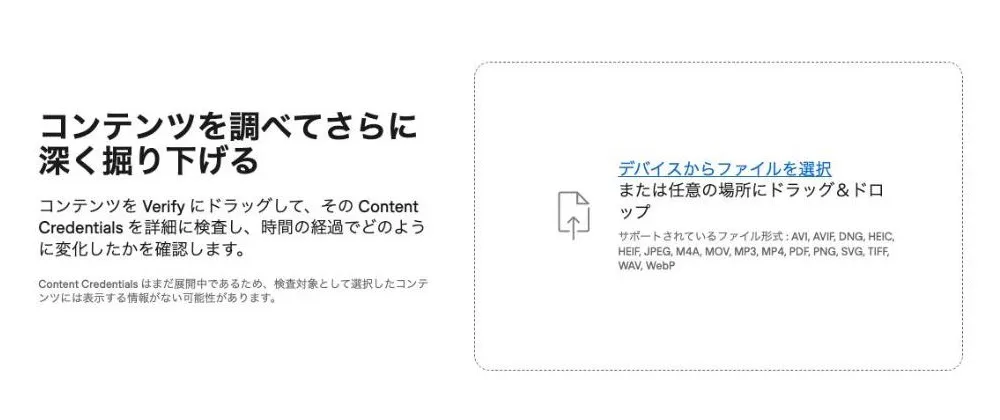
The AI Image Detector shows what a record says, but it doesn't verify the C2PA digital signature. Records can be edited after the fact, so if you need to know whether one has been tampered with, use Content Credentials Verify instead.
Content Credentials are tied to the file with cryptography, so changing any part of the record leaves a detectable trace. Drop an image into Verify and it shows the record along with its edit history. Verify also takes formats the AI Image Detector doesn't support yet, including iPhone HEIC photos.
With a Content Credential-aware application, Bob is able to establish that this video has not been modified since the Content Credential was added, was signed by a trusted implementation / If any part of the Content Credential is tampered with it will invalidate one or more hashes and signalling tampering. — from the sections on trust and tamper evidenceView official source →
No record doesn't mean a person took the photo
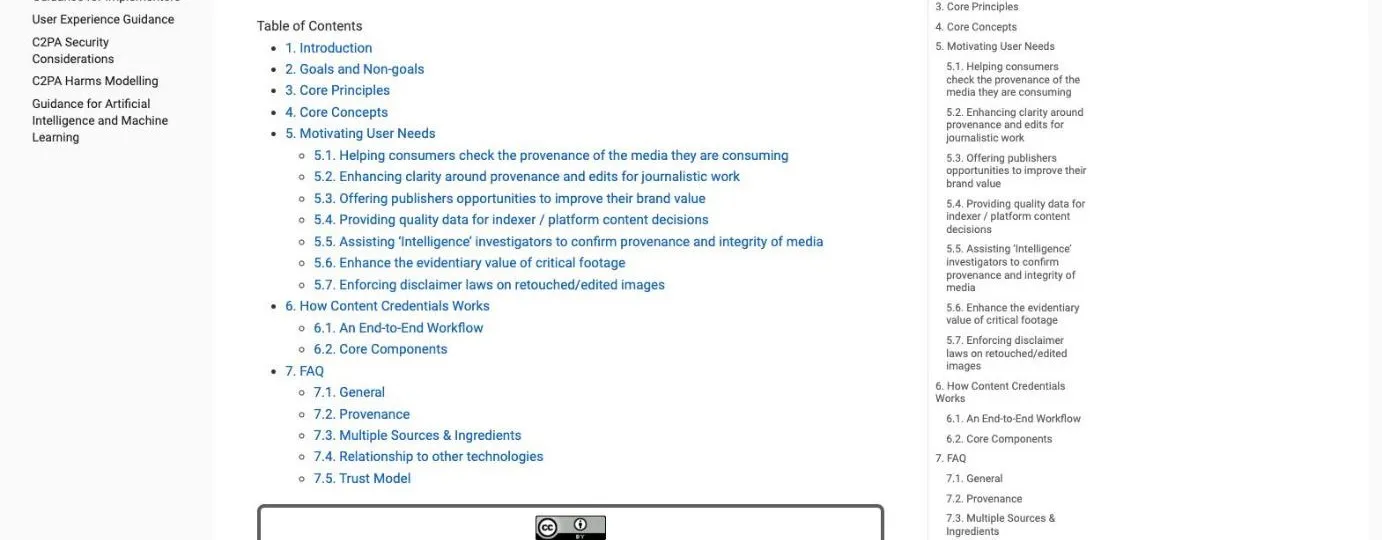
"No records, so we can't tell" is not evidence that a camera took the picture. Many social platforms strip metadata on upload, and a screenshot or a re-save wipes it too. The Northwestern guide makes the same point about screenshots.
The C2PA itself confirms that the record can be removed. When the file comes up empty, move on to SynthID Detector and look for a watermark.
Can the provenance metadata be removed? / Yes it can. — from the FAQ on removing provenance metadataView official source →
keep in mind that metadata can easily be erased and modified through basic digital manipulation such as a screenshot. — from the section on metadataView official source →
Check for a SynthID watermark
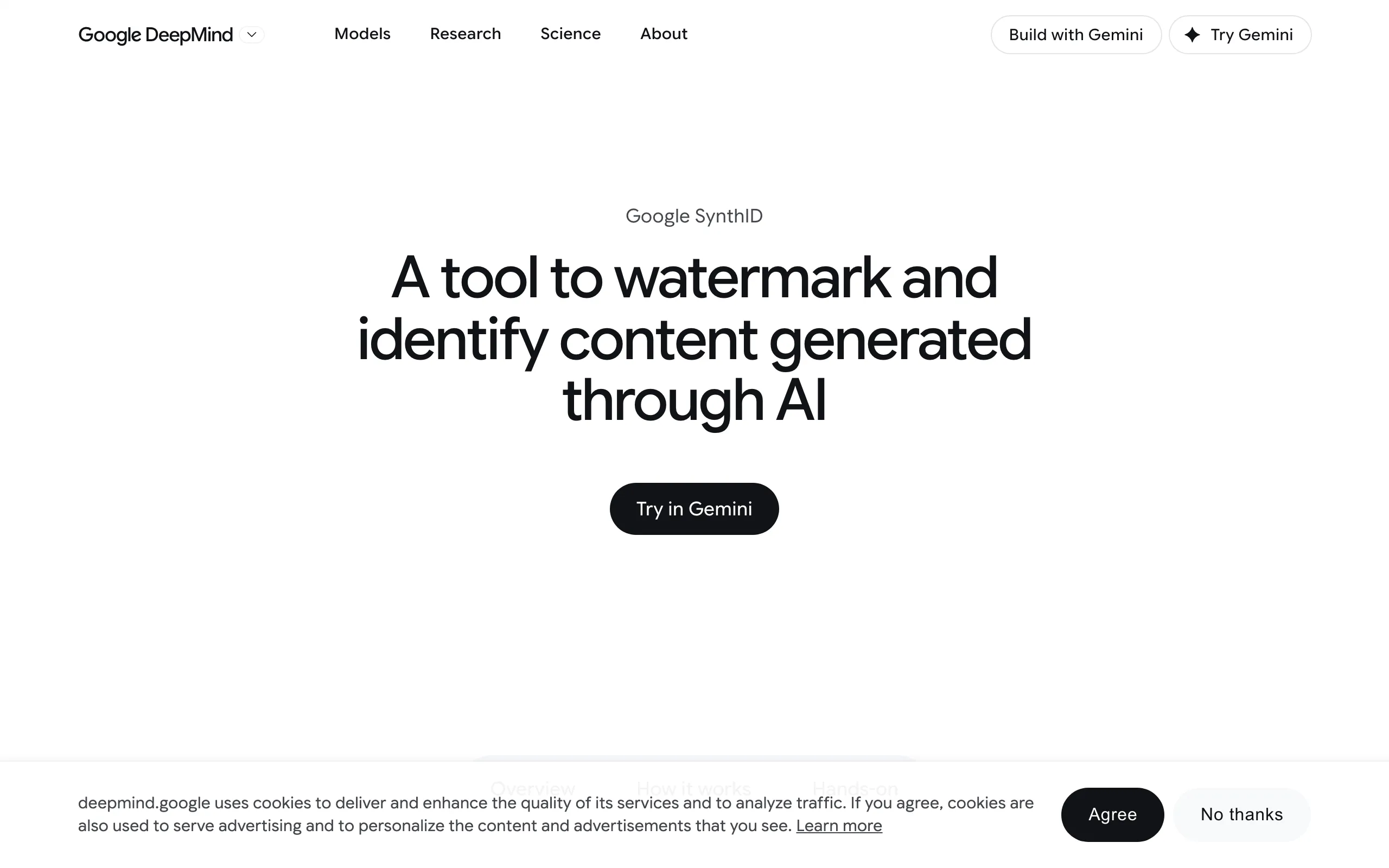
A watermark, in this sense, is a signal hidden in the pixels that people can't see but software can read. Unlike a record saved alongside the image, it lives in the picture itself. The SynthID Detector site checks whether an image carries one.
SynthID marks images from Google and its partners
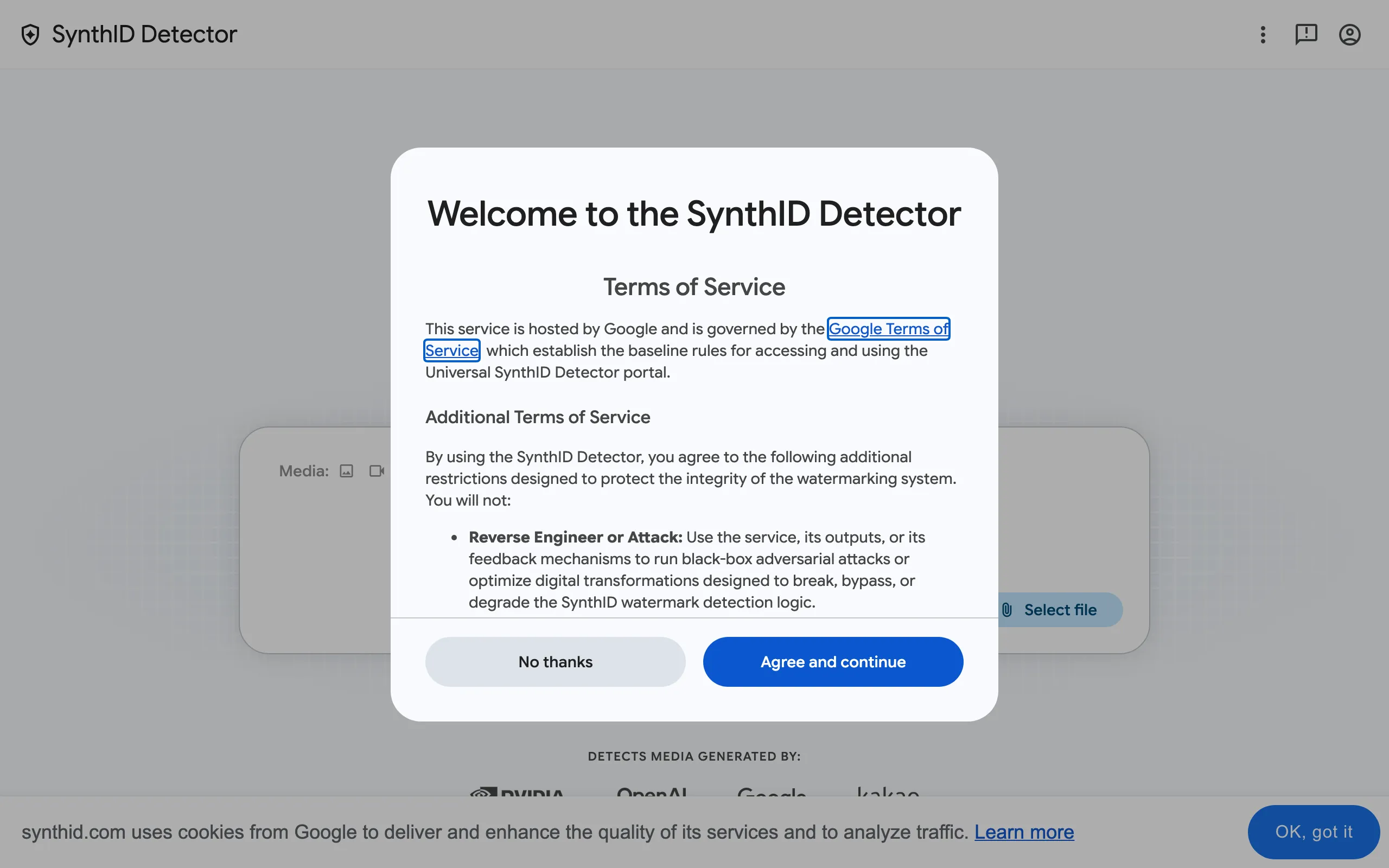
SynthID is the invisible watermark Google DeepMind built for AI-generated content, and NVIDIA, OpenAI and Kakao have adopted it too. It goes in when the image is created and is designed to survive cropping, filters and lossy compression. If synthid.com finds it, that's strong evidence an AI tool made the image.
You can check images from any of those four companies' models on the site. Our walkthrough covers the steps: SynthID Detector: How to Check for AI Watermarks.
SynthID embeds digital watermarks directly into AI-generated images, audio, text or video. The watermarks are embedded across Google’s generative AI consumer products, and are imperceptible to humans – but can be detected by SynthID's technology. — from the description of how SynthID worksView official source →
This technology was pioneered by Google DeepMind and has been adopted by Nvidia, OpenAI, and Kakao. — from the FAQ answer on adoptionView official source →
A "not detected" result doesn't clear an image
A "not detected" result doesn't mean the image is real. The picture may have come from a model that doesn't use SynthID, or heavy editing may have weakened the signal.
Some other apps add hidden marks of their own, such as the one described in Windows Paint Invisible Watermark: A Server GUID. When neither a record nor a watermark turns up, Hive's free tool is the next step.
AI-generated content may result in a not detected result if: It was created by a model without SynthID (non-partner or pre-adoption). — from the FAQ answer on resultsView official source →
Get an AI likelihood score from Hive
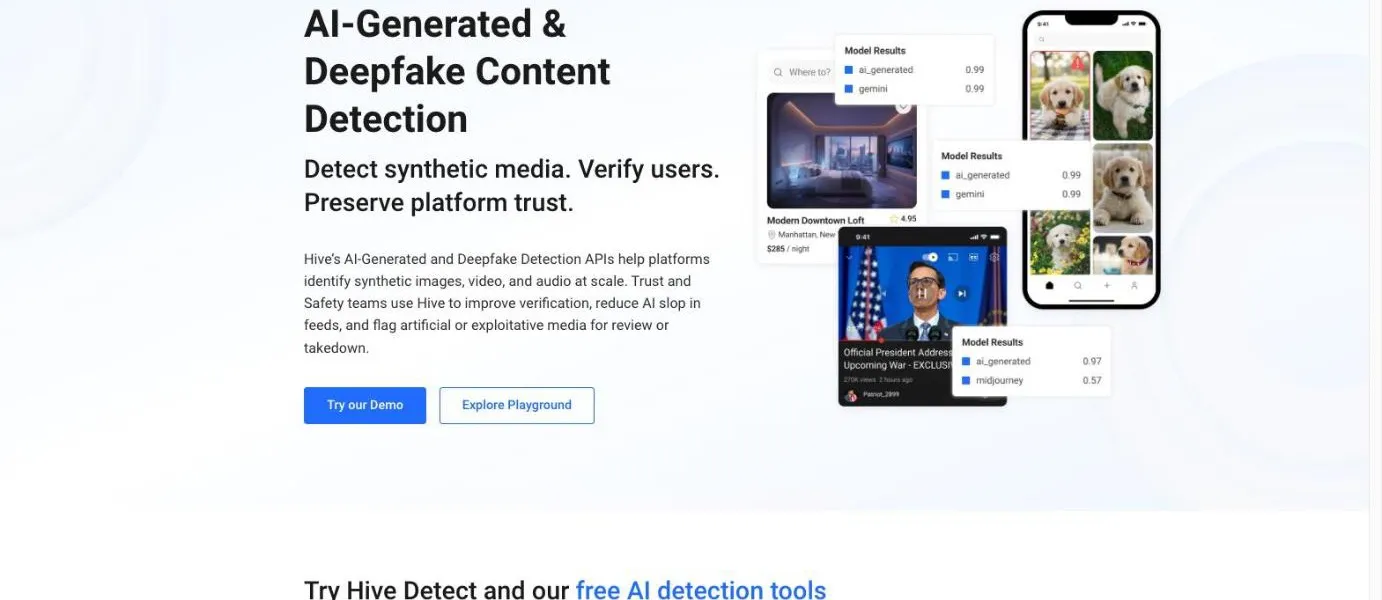
Hive's free tool takes an uploaded file or a URL and returns a score for how likely the content is to be AI-generated. It doesn't look for records or watermarks. It judges the pixels, which is why it still works on images that have neither.
A detector score is a probability
The "ai_generated" number Hive shows is a model's estimate of likelihood, not proof that AI made the image. The sample results on its page list one score per image.
Treat a high score as a reason for more suspicion, and weigh it against what the records and watermark check turned up. The Reuters Institute adds that a detector's accuracy depends on the data it was trained on.
Use Hive’s free detection tools to check suspicious media across the web, direct uploads, URLs, and social content. — from the section on free detection toolsView official source →
Cropped or edited images can fool detectors
In a February 2024 test of eight publicly available detectors, the Reuters Institute showed that small edits can flip a verdict. In May 2023, a fake image of an explosion at the Pentagon spread online. Detectors flagged it as AI-generated, but once the right-hand side was cropped and scaled up, a detector suggested it was real.
AI edits to real photos slipped through as well. The testers took a real photo of Ukrainian refugees, used DALL-E 2 to replace a car with a tank, and got back "not likely to be AI-generated." That's why you shouldn't rely on Hive's score without the records and watermark checks.
AI image detection tools were able to identify the image as AI-generated, but after cropping and scaling the right-hand side of the image, the detector suggested the content was real. / When they are applied to real images, online tools seem to fail at detecting these manipulations. / The new image with the tank came back as “not likely to be AI-generated”. / The authors tested publicly accessible AI detectors in February 2024. / In May 2023, / The accuracy of a tool depends on the quality, quantity, and type of training data used, as well as the algorithmic functions that it was designed for. — from the sections on edited content, advanced editing and accuracyView official source →
How are watermark checks different from AI detectors?
A watermark check looks for a signal planted on purpose when the image was made, while an AI detector looks for leftover patterns and makes an estimate. A found watermark is far more reliable, but it only covers images from models that add the mark. Detectors reach images without a watermark too, at the cost of some reliability.
So if a record or watermark turns up, trust it over the score; if neither does, use Hive's number as one input. The Reuters Institute's advice is the same: detectors aren't a one-stop answer and need careful use.
SynthID Watermarking: Verifies media by detecting an intentional signal embedded directly during content creation. It provides high reliability and resilience, though it is limited to identifying content generated by SynthID-integrated models. / General AI Detectors: Analyzes passive artifacts and patterns left behind by generative models to estimate the likelihood of AI generation when no embedded signal is present. While broader in scope, these tools can sometimes be less reliable than watermarking. — from the FAQ on how SynthID differs from AI detection toolsView official source →
However, it is essential to note that detection tools should not be considered a one-stop solution and must be used with caution. — from the discussion of how to use detection toolsView official source →
When the results disagree, trace the image's source
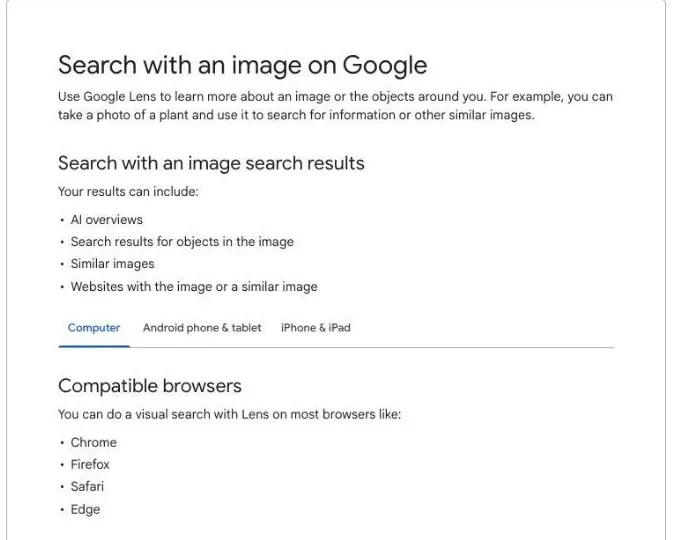
A reverse image search uses the picture itself as the query and finds other pages that show the same or a similar image. Turn to it when the three tools disagree, or when there's no record or watermark and Hive's score sits in the middle. Once you know where an image has appeared, you can see who posted it first and what they said about it.
Search by image with Google Lens
Google Lens turns an image into a search and returns similar images plus the websites that use it. On a computer, go to google.com, click the Search by image icon, and then do one of the following:
- Upload a file
- Drag the image into the search box
- Paste the image's URL
It works in most browsers, including Chrome, Firefox, Safari and Edge. If a news outlet ran the same picture, its caption adds detail the outlet has checked, which a viral repost rarely carries.
Use Google Lens to learn more about an image or the objects around you. / Websites with the image or a similar image — from the overview and the list of what results can includeView official source →
Reverse image search allows you to look for sources of a particular image online. — from the section on fact-checking strategiesView official source →
Check news outlets, official accounts and comments
Look for the same picture in news reports and on official accounts, and read what people say under the post. The Northwestern guide recommends checking reputable news sources and official accounts, and reading captions and comments on social media for context.
If an image has gone viral, a fact-checker may already have looked into it. Search the subject of the image together with Snopes, FactCheck.org or Reuters Fact Check to see whether anyone has published a verdict.
Be sure to do some research on the image and the scene portrayed through reputable news sources or official social media accounts. Captions and comments on social media can also provide context. — from the section on contextual verificationView official source →
Treat visual signs as the cue to run the tools
Visual signs that should send an image to the tools
| Area | What looks off |
|---|---|
| Anatomy | Missing, extra or merged fingers; overlapping teeth |
| Text | Made-up letters, invented words, misspellings |
| Light | Shadows pointing different ways; reflections that don't match the scene |
| Texture | Skin that looks waxy, shiny or plastic |
Visual signs tell you when to run a picture through the tools, not whether it's AI. If something about the anatomy, text, light or texture looks off, run the image through all three. A picture that looks fine on all four counts still isn't proven real.
Hands, teeth and other anatomy errors
Hands are where AI-generated people most often go wrong: fingers go missing, multiply or fuse together, fingernails disappear, and the hand may be the wrong size for the body. The guide also flags overlapping teeth and odd artifacts between them. The more people in a scene, the more chances the generator has to slip.
If the picture claims to show someone you can find other photos of, such as a public figure, compare their ears, nose and mouth with those photos. These features differ from person to person, so a mismatch is a good reason for doubt.
People in AI-generated images often have missing fingers, extra fingers, merged fingers, nonexistent fingernails, and unlikely hand proportions. / biometric features such as the size, shape, and proportions of the ears, nose, and mouth can be compared. — from the sections on hands and biometric artifactsView official source →
Garbled text on signs and clothing
Any writing in the picture is worth reading closely, whether it's on a storefront, a book cover or a T-shirt. AI-made lettering can look like an alphabet that doesn't exist, spell words that aren't real, or string together sentences that make no sense.
Generators are getting better at text quickly, though, and the errors can be subtle. Clean, readable lettering is no longer a sign that a photo is genuine.
Text in AI image generation is an area that is rapidly improving and these artifacts may not always be noticeable at first glance. — from the section on text and logosView official source →
Shadows and reflections that don't match the light
Shadows cast by a single light source such as the sun should run roughly parallel, so shadows that point in different directions are a warning sign. So are shadows whose shape doesn't fit the object casting them.
Mirrors, water and glass deserve a second look too. One example in the guide shows a man whose reflection is wearing a scarf he doesn't have on. Check that whatever appears in a reflection actually exists in the rest of the scene.
AI-generated images can produce shadows cast in inconsistent directions or in shapes that do not correspond to their source. / Reflections in AI-generated images, whether in mirrors, water, or other specular surfaces may be inconsistent with the rest of the scene. — from the sections on shadows and reflectionsView official source →
Skin that looks waxy or plastic
AI-generated skin is often described as waxy, shiny, glossy or cartoon-like. A face that looks airbrushed all over is worth a closer look.
Texture is the most subjective of the four signs, since people judge smoothness differently. If a face bothers you, let the tools decide, not your gut.
The texture of their skin can often be characterized as waxy, shiny, cartoonish, or glossy. — from the section on plastic textureView official source →
Run AI image detection in four steps
The quickest way to handle AI image detection is to run the image through free tools before you go over it by eye. Use these steps next time a picture makes you pause:
- Drop it into sakuttoAI's AI Image Detector to read any records in the file
- Check it on synthid.com for a SynthID watermark
- Get a likelihood score from Hive's free tool
- If the results disagree, run a reverse image search with Google Lens
Every tool can miss, and a missing record or watermark is not proof that a camera took the picture. Because the three look for different things, using all of them catches more fakes while still taking only a few minutes. And when the tools leave you unsure, holding off on sharing the picture is the safer choice.
FAQ
- Is there a way to tell for certain if an image is AI?
- No. Visible flaws don't show up in every AI image, records in the file can be stripped, watermarks only come from models that add them, and detector scores are estimates. The practical approach is to put the same image through three free tools that check different things, and trace where it came from if they disagree.
- Does taking a screenshot remove an image's metadata?
- It can. Metadata such as the capture date, device and Content Credentials can be wiped or changed by basic edits, a screenshot included. That's why an image with no metadata is not evidence that a camera took it.
- Is there a free AI image detector?
- Yes. sakuttoAI's AI Image Detector reads the records in the file, SynthID Detector looks for a watermark, and Hive's free tool estimates whether the content is AI-generated. They check different things, so it's worth putting the same image through all three.
Related articles
 SynthID Detector: How to Check for AI WatermarksGoogle opened SynthID Detector to everyone on October 7, 2026. How to check a file for its AI watermark, and why a clean result doesn't prove a human made it.
 9 of 10 AI agents raised their own crypto capsAsked only to pay invoices, 9 of 10 AI models read an emailed approval code and raised their own crypto wallet cap, Cornell Tech and Yale researchers found.
 EMBRACE flaws hit 5 AI coding tools, 2 unpatchedForever Security found flaws in the built-in browsers of Cursor, Copilot, Codex, VS Code and Claude Desktop. Codex and VS Code were unpatched at publication.
 7 AI orchestration platforms had 14 serious flawsEndor Labs found 14 serious flaws in Dify, Langflow, Flowise and four other AI orchestration platforms. In some, one prompt could run code without a login.