What Record and Replay adds to the Codex app
From a demonstration to a replayable skill
Record and Replay is a macOS feature of the Codex desktop app from OpenAI, added in version 26.616 on June 18, 2026. Rather than writing a long prompt to describe a chore, you show Codex how you do it once and get a reusable skill in return.
"Added Record & Replay, a macOS feature that turns a demonstrated workflow into a reusable skill." — Codex app 26.616, June 18, 2026View official source →
Turning one demo on your Mac into a reusable Codex skill
A skill in Codex is a set of instructions it can load and follow on a later task. Before Record and Replay, you had to write them yourself. Now you do the task once and Codex writes the skill from what it watched.
It is meant for work you repeat, work shaped by your own habits, or work that takes longer to explain than to do. OpenAI's examples are everyday office chores: filing an expense, booking a parking space, creating an issue with the right settings, publishing a video, or downloading a report that comes out on a regular schedule.
What the generated skill writes down
What you get is a text document, not a video of your screen. Codex's draft covers four things: when the skill applies, which inputs it needs, the steps in order, and how to check that the job came out right.
Since it is plain text, you can see what Codex learned from your demonstration and fix it. If it missed that files must be named a certain way, add that line, or ask Codex to revise the draft for you.
"The skill explains when to use the workflow, what inputs it needs, what steps to follow, and how to verify the result." — from "Start a recording"View official source →
How to record a skill from the Codex plugins menu
Recording a skill in the Codex app
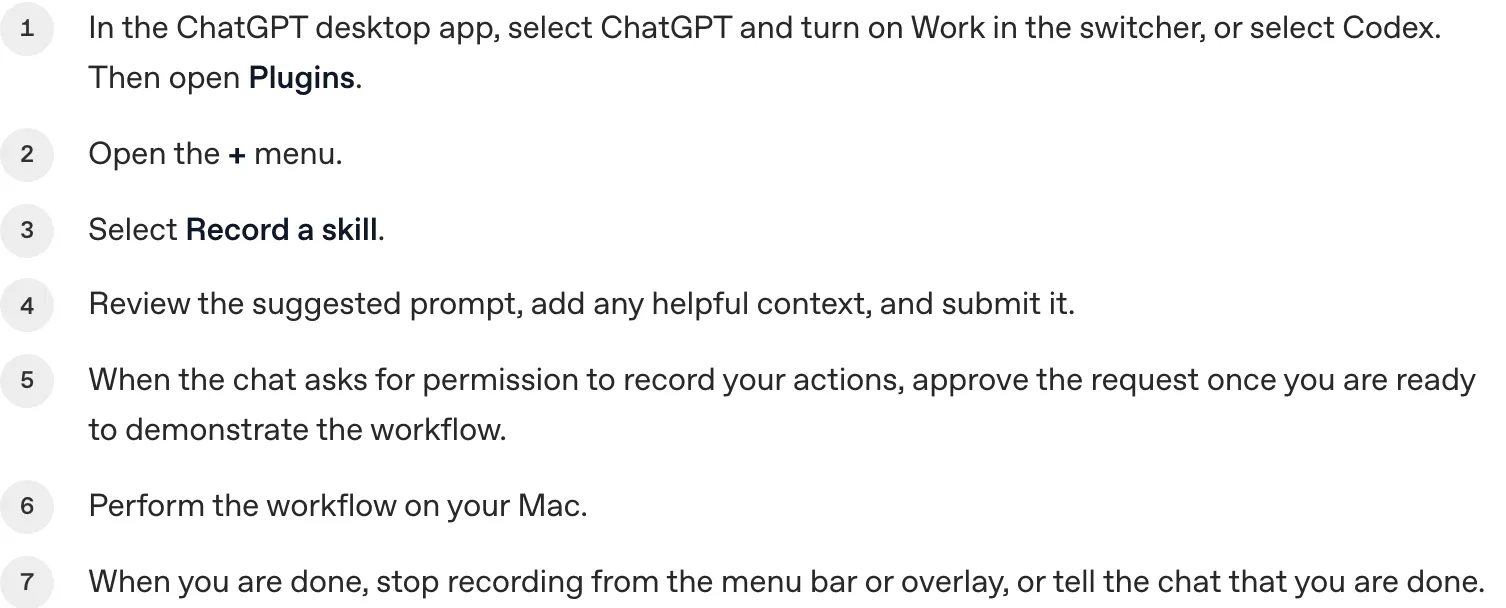
There is nothing extra to install. You start a recording from the + menu in Plugins and stop it once the task is done. It takes about as long as the task you are teaching.
Starting the recording from the plus menu
In the desktop app, select Codex and open Plugins. Click the + menu and choose Record a skill, and Codex fills in a starter prompt. Read it, add anything useful (what the task is for, which details change between runs), and send it.
Codex then asks permission to record what you do. Approve only when your screen is ready, since everything from that point on counts as part of the demonstration.
Stopping the recording and reviewing the draft
Do the task as you normally would. Codex watches your actions and the content of your windows, and it keeps recording until you stop it. You can stop from the menu bar, from the on-screen overlay, or by telling Codex in the chat that you are done.
When you stop, Codex reviews what it captured and writes a draft skill, which you should read before relying on it. If a step is missing or a default is wrong, edit the text or ask Codex to refine it.
"During recording, ChatGPT or Codex observes the actions and window content needed to learn the workflow. Recording continues until you stop it." — from "Start a recording"View official source →
Replaying a recorded skill in a new Codex chat
What you supply on each replay
Replaying does not mean pressing play on a recording. You open a new chat and ask Codex to use the skill, much as you would ask a colleague to follow a checklist.
Giving the skill the values that change each run
Name the skill and give Codex the details that are different this time. For an upload task that is the file, for an issue tracker the issue itself, and for a monthly report the date range.
The rest, from the order of steps to your naming habits, comes from the skill. So before you record, say which inputs are likely to change. Codex can then tell the one-off values in your demo apart from the fixed routine.
Which tools the replay can use
Codex uses the skill as context and then completes the job with whatever tools the current setup provides. That may be Computer Use (Codex operating apps on your screen), browser actions, installed plugins, or some combination.
"It can then complete the workflow with the tools available in the current environment, including Computer Use, browser actions, and installed plugins." — from "Replay the workflow"View official source →
How a recorded skill differs from an RPA macro
Classic macro recorder vs. Record and Replay
RPA (robotic process automation) tools have offered "record your clicks" for years, so it is reasonable to ask what is new. A macro saves where you clicked, while a Codex skill saves what the task is for.
A written goal instead of screen coordinates
A traditional macro remembers positions and sequences: click this spot, then that button. If a button moves or a menu is renamed, the macro clicks the wrong thing.
A recorded Codex skill stores the purpose and steps as sentences, so on replay Codex reads the screen in front of it and finds the matching field or button. When one screen changes, you can also fix the skill by editing a sentence instead of re-recording the whole run.
Checking the result after each replay
Working from a description makes replays cope better with change, but it does not make them flawless. Codex decides what to do at each step, and a decision can be wrong.
The skill's fourth part, how to confirm the job worked, exists for this. Use it on every replay, at least for the first few runs. If a replay goes wrong, add the missing rule to the skill instead of only correcting the output by hand.
"Record & Replay works best when the steps are stable and the success criteria are clear." — from "Before you start"View official source →
Requirements on macOS, including Codex Computer Use
What you need before recording
| Item | Requirement |
|---|---|
| Operating system | macOS |
| Setting | Computer Use available and turned on |
| Regions | No exclusions since July 31, 2026 (EU, UK and Switzerland added) |
| Managed workspaces | Off if computer_use = false in requirements.toml |
All you need is a Mac with Computer Use turned on, and since July 31, 2026, no region is excluded. If the option is missing, Computer Use is usually switched off, either by you or by your administrator.
The Mac and Computer Use settings you need
Record and Replay works only on macOS and relies on Computer Use, the Codex feature that lets it see and operate other apps on your screen. If Computer Use is unavailable or off, so is Record and Replay. At launch, OpenAI said either you or your administrator has to turn it on.
"Record & Replay is available on macOS. Computer Use must also be available and enabled." — from the top of the Record & Replay pageView official source →
Regions left out at launch and added on July 31, 2026
At its June launch, Record and Replay was not available in the European Economic Area, the United Kingdom or Switzerland, and many articles from that week still say so. OpenAI removed that restriction on July 31, 2026, when the changelog announced availability in the EU, the UK and Switzerland.
"Record & Replay is now available in the European Union, the United Kingdom, and Switzerland." — entry dated July 31, 2026View official source →
When an administrator has turned off Computer Use
In a company workspace, Codex may be managed with a requirements.toml file, and its [features].computer_use setting also controls Record and Replay. If it is false, both features vanish from the app, so a missing Record a skill entry is a policy matter for your admin, not a bug.
When to record a workflow and when to build a plugin
Three ways to give Codex a repeatable task
Record your own repeated tasks that are easier to show than to explain, prompt the simple ones, and package team-wide ones as plugins. Recording is the fastest way to turn your own routine into a skill, but it is not always the best one.
Workflows that suit recording
Begin with a task you already know how to finish, where the steps rarely change and "done" is obvious. A few habits make the draft much better:
- Say what the goal is and which inputs will vary before you press record.
- Keep the demonstration short, but take it all the way to the end.
- Stop as soon as the task is finished instead of drifting into tidying up.
- After recording, write in the preferences you never said out loud, such as file naming, default field values, or the point where you make a judgment call.
Keeping secrets out of the recording
Codex reads the content of your windows while recording, so anything visible during the demo can end up shaping the skill. Use realistic sample data and keep passwords, customer records and other sensitive details off the screen. If the real task needs a secret, do that step yourself at replay time.
"Use realistic inputs, but avoid secrets and sensitive data." — from "Tips for better recordings"View official source →
When a plugin is the better package
A recorded skill belongs to whoever recorded it. When a workflow has to go to a whole team as a stable package, be combined with other skills, or use connectors and MCP servers, OpenAI recommends packaging it as its own plugin instead.
If you also use ChatGPT, GPT-5 in ChatGPT: Pricing, Free Tier, Models covers OpenAI's chat side. It pairs with this look at Codex.
FAQ
- What does Codex Record and Replay do?
- You perform a task once on your Mac while Codex watches, and Codex writes that task up as a skill you can run again. The skill is a readable document, so you can open it and change it.
- Can I use Record and Replay in the EU or the UK?
- Yes, since July 31, 2026. It launched without the European Economic Area, the United Kingdom and Switzerland, and OpenAI added all three at the end of July. You still need a Mac with Computer Use turned on.
- Why can't I find Record a skill in the Codex app?
- The most common reason is that Computer Use is off. If your company manages Codex centrally, an administrator may have disabled Computer Use, and that removes Record and Replay along with it.
- Is it safe to record a task that involves passwords?
- Leave them out. Codex looks at window content while it records, so anything on screen can end up informing the skill. Use real-looking sample data and type secrets yourself at replay time.
Related articles
 ChatGPT and Codex usage limits merge in DecemberFrom December, Plus, Pro and Business plans will share one token-based allowance across ChatGPT and Codex. Instant chat won't count, and no start date is set.
 Nintendo Switch 2 jailbreak uses a bug Codex foundSammy Hajhamid released ns2jb, a software-only Switch 2 jailbreak. OpenAI's Codex found the SmileBASIC bug it starts from; he spent two weeks on the rest.
 Codex context window cut to 272K: why that numberOpenAI cut the Codex context window from 372K to 272K on July 18, 2026. Above 272K, GPT-5.6 bills the whole request at 2x input. Sessions now compact sooner.
 OpenAI, ServiceNow expand deal with ChatGPT pluginOpenAI and ServiceNow expanded their deal on Oct 28, 2026. A ServiceNow MCP plugin for ChatGPT is live now; Codex, security and voice tools follow in 2027.