Computer Historyとは?何ができるのか
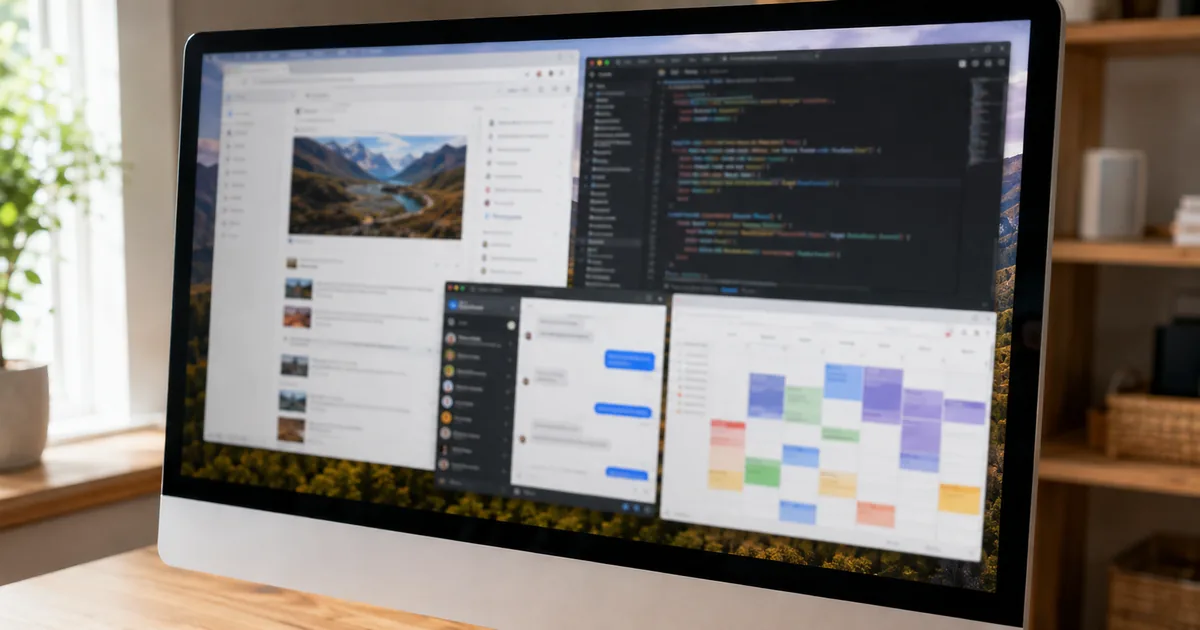
ChatGPT Computer Historyは、選んだアプリとWebサイトの操作をChatGPTとCodex(OpenAIのコーディング支援)が参照できるようにする任意機能です。 OpenAIが2026年8月13日のリリースノートで「Computer History for macOS」として公開しました。ChatGPTのMacアプリに入っています。
使いどころは、午前中に開いていた書類を午後に探すときです。「朝に見ていた企画書はどれだったか」と聞くと、ChatGPTが操作の流れから該当の書類やSlackの会話、Googleドキュメントを見つけ、元のファイルを直接開いて中身を読みます。休憩の前に何をしていたかを聞く、繰り返している作業をスキル(繰り返す手順をひとまとめにしたもの)や自動化として提案させる、という使い方もあります。
どの場合も、状況をいちから説明し直さずに作業の続きをChatGPTに任せることができます。デフォルトはオフで、ご自身でオンにするまで記録は始まりません。
"Computer History turns your activity across apps and websites into memories and a timeline that ChatGPT and Codex can reference."/"When a file, Slack conversation, Google Doc, or another source is better for the task, ChatGPT and Codex can use the history to identify that source and then read it directly."/"Your history starts only after you choose to turn it on."(冒頭/How Computer History helps/Permissions and access の各部分)— ChatGPT Learn より公式情報を見る →
"Computer History is an optional feature in the ChatGPT macOS app that lets ChatGPT and Codex reference selected activity from apps and websites, helping users continue work without re-explaining every detail."(Computer History for macOS の項)— ChatGPT リリースノートより公式情報を見る →
前身のChronicleとの違い
Computer Historyは、前身のChronicle(クロニクル)の名前を変更したものではなく、仕組みを作り直した機能です。Chronicleは試験的に公開された「リサーチプレビュー」で、Computer Historyがその後継です。
Computer Historyは、操作イベントとmacOSのアクセシビリティ機能で読み取った文字などをもとに、要約を作ります。 要約はあとから見返したり削除したりできます。
"Computer History replaces the earlier Chronicle research preview, but it is a rebuilt system rather than a rename."/"It uses interaction events, along with text and other context available through macOS accessibility features, to create summaries you can review and delete."(冒頭の部分)— ChatGPT Learn より公式情報を見る →
Computer Historyは何を記録するのか
記録されるのは画面の映像や音声ではなく、操作の記録(操作イベント)です。 記録されるものと、記録されないものがあります。
記録されるのはクリック・入力・アプリの切り替え
操作イベントには、クリック・文字の入力・キーボードショートカット・アプリの切り替えが含まれます。 加えて、macOSのアクセシビリティ機能(画面の文字や部品の情報を他のソフトへ伝える補助機能)から得られる文脈も入ります。アプリの画面に出ている文字なら、撮影しなくても要約の材料になるわけです。
メッセージ用のアプリやWebサイトを対象に選んでいれば、そこでの操作も入る場合があります。集まったイベントは、定期的にテキストの要約とMac上のメモリファイルに変換されます。
"Events can include clicks, typing, keyboard shortcuts, app switches, and context that macOS exposes through its accessibility system."/"Computer History periodically turns these events into text summaries and local memory files."/"Computer History can include interaction events from communication apps and websites."(How Computer History works/Control what is included の各部分)— ChatGPT Learn より公式情報を見る →
スクリーンショットと音声は記録されない
スクリーンショット・画面録画・マイク入力・システム音声は、履歴に含まれません。 プライベートモードで開いたWebページの閲覧も、OpenAIは対象外としています。また、ChatGPTにmacOSの画面収録を許可する必要もありません。
"Computer History does not include screenshots in your history or record microphone input or system audio. Private-mode web browsing activity is never included."/"Computer History does not require Screen Recording permission."(How Computer History works/Turn on Computer History の各部分)— ChatGPT Learn より公式情報を見る →
対象のプラン・地域と前提となる設定
対象は、MacのChatGPTデスクトップアプリを使うPro・Business・Enterpriseのユーザーで、デフォルトはオフです。 プランの違いに加えて対応する機器も限られ、Windows版はドキュメントに出てきません。
| 条件 | 内容 |
|---|---|
| 対象プラン | Pro・Business・Enterprise |
| 利用するアプリ | macOSのChatGPTデスクトップアプリ |
| デフォルト | オフ(本人がオンにするまで記録されない) |
| Business・Enterprise | 管理者が許可したうえで、本人がオプトイン |
| Pro | 各自でオプトイン |
| 前提となる設定 | Memories(メモリ)がオン |
| 利用できない環境 | APIキー、Amazon Bedrock |
Memoriesが必須、APIキーは対象外
Memories(メモリ)をオンにすることが必須で、APIキーとAmazon Bedrockでは利用できません。 Memoriesは、過去の会話や作業の内容をためておき、あとのチャットや作業で参照させる機能です。
Computer Historyは操作の文脈を複数のチャットや作業で使うため、Memoriesのオンが前提になります。チャットごとにメモリを使うかどうかは、/memoriesで切り替えます。
APIキー(外部のプログラムからOpenAIのモデルを呼び出すための鍵)で使う環境では、Computer Historyを使うことができません。Amazon Bedrock(アマゾンのクラウド経由でAIを使うサービス)を通して使う場合も、同じく対象外です。
"Computer History also requires Memories and is not available with an API key or Amazon Bedrock."/"Computer History requires Memories so it can use activity context across chats and tasks."/"Use /memories to control whether an individual chat can use local memories or contribute to future memories."(冒頭/Permissions and access/Turn on Computer History の各部分)— ChatGPT Learn より公式情報を見る →
EEA・英国・スイスもProなら対象
EEA(欧州経済領域)・英国・スイスでも、現在はProのユーザーが使うことができます。 8月13日のリリースノートには、この3地域では利用できないと記載されていました。
Computer Historyは、macOS版デスクトップアプリでは最初はオフになっており、Proユーザーはオンにするかを選べます(Memoriesのオンが前提です)。
ChatGPT Learnの説明でも、対応地域にEEA・英国・スイスが入っています。
"Note that Computer History is not currently available in the EEA, UK or Switzerland."(8月13日の項)— ChatGPT リリースノートより公式情報を見る →
"Computer History is off by default for ChatGPT Pro, Business, and Enterprise users in the ChatGPT desktop app on macOS."/"Pro users can choose to turn it on."/"It’s available in supported regions, including the European Economic Area (EEA), Switzerland, and the United Kingdom."(冒頭の部分)— ChatGPT Learn より公式情報を見る →
オンにするときの設定と権限
オンにする方法はプランで異なり、法人プランでは管理者の許可が先に必要です。 許可が出たあとで、本人がご自身の設定を操作します。
法人プランは管理者の許可と本人のオプトインが必要
BusinessとEnterpriseでは、管理者の許可に加えて、メンバー本人のオプトインが必要です。 管理者が明示的にアクセスを許可するまで、機能は利用できません。Enterpriseの管理者は、ワークスペース設定のPermissions & rolesにあるEnable Computer Historyで、対象のロールにアクセス権を付与します。
管理者として注意したいのは、許可してもメンバー全員の機能が自動でオンになるわけではないことです。たとえば管理者があるロールに許可しても、メンバーのMacで記録が勝手に始まることはありません。
Business・Enterpriseのメンバーも、Proのユーザーも、それぞれご自身の設定でオンにします。ご自身のロールに権限がなければ、メンバーはMac側の設定を変更してもオンにできません。
"Workspace access: Computer History is off by default in Business and Enterprise workspaces and is unavailable until an administrator explicitly grants access."/"Granting workspace access only lets a member choose to turn on Computer History. It does not turn on the feature for anyone. Each person must opt in individually, including ChatGPT Pro users."/"If your workspace role does not have access, changing local settings cannot enable Computer History."(Permissions and access の部分)— ChatGPT Learn より公式情報を見る →
設定からオンにして記録の権限を選ぶ
オンにするには、設定のIntegrationsからComputer historyを開き、Turn onを選びます。 手順は次のとおりです。
- macOSでChatGPTのデスクトップアプリを起動します。
- 設定を開いて、IntegrationsにあるComputer historyを選びます。
- Turn onを選んで、プライバシー・権限・ローカル保存の説明を読みます。
- Memoriesをオンにするよう求められたら、オンにします。
- 履歴に含めるアプリとWebサイトを指定し、macOSの表示に従って権限を与えます。
履歴が始まるのは、本人がオンにしてからです。それ以前の操作がさかのぼって記録されることはありません。設定にComputer historyが表示されないときは、プランが対象かどうかと、法人なら管理者が許可しているかどうかを確認します。それでも表示されなければ、アプリをいったん終了して開き直します。
オンにしたのに始まらない場合は、まずMemoriesがオンかを確認します。設定のComputer historyにFinish setup・Resume・Try againのどれかが出ているなら、出ているボタンを押します。
"Open the ChatGPT desktop app on macOS."/"Select Turn on and review the privacy, permissions, and local-storage information."/"If the setting does not appear, confirm that your plan supports Computer History and that your workspace administrator has enabled it, if applicable."/"Quit and reopen the ChatGPT desktop app if the setting remains unavailable."(Turn on Computer History/Troubleshooting の各部分)— ChatGPT Learn より公式情報を見る →
記録の一時停止とオフ、対象の設定
記録する対象は本人が指定でき、一時停止とオフもいつでも行うことができます。 どちらも効くのはこれからの記録で、すでに残っている履歴はそのままです。
記録するアプリとサイトの選び方
記録に含めるアプリとWebサイトは、除外か限定のどちらかの方式を選びます。 選ぶ場所は、設定のComputer historyにあるPermissionsです。
- 除外(Exclude these apps/Exclude these websites): 指定したアプリやURLだけを止め、他は許可します。
- 限定(Include only these apps/Include only these websites): 明示的に選んだものだけを許可します。
仕事で使うアプリだけを記録させたいなら限定、普段使いのMacで一部のアプリだけを記録から除きたいなら除外が適しています。初めて試すときは、限定の方式で少数のアプリを選んでから範囲を広げるのが手堅い進め方です。履歴タイムラインの各記録にあるアプリのアイコンから、そのアプリを以後の履歴から除外できます。除外したアプリは、あとで元に戻せます。
変更が反映されるのは以後の履歴だけです。すでに残っている履歴を1件ずつ消すなら削除の操作を、まとめて消すならクリアの操作を使います。健康・金融・個人情報を含むアプリについて、OpenAIは一時停止か除外を検討するよう勧めています。
"Exclude these apps and Exclude these websites block the apps or URLs you specify while allowing other supported sources."/"Include only these apps and Include only these websites allow only the sources you explicitly choose."/"Changing app or website permissions affects future history. To remove existing items, delete or clear them."/"Consider pausing it or excluding apps that contain sensitive health, financial, or personal information."(Control what is included の部分)— ChatGPT Learn より公式情報を見る →
メニューバーから一時停止・再開
一時停止と再開の入口は、macOSのメニューバーにあるChatGPTのアイコンです。アイコンを選んでComputer Historyのメニューを開くと、取得している内容と操作が一覧で出ます。また、Pauseを選ぶと新しい操作イベントを収集しなくなり、Resumeを選ぶと収集が再び始まります。
Computer Historyをオフにすると、以後の収集が完全に止まります。オフにしてもすでにある履歴が消えるとはされていないので、消したいときは下の「履歴の閲覧と削除はどこまでできるか」にある削除の操作を使います。ただし、一時停止する直前に行った操作を要約する処理が実行中なら、その処理は終わるまで続くことがあるとのこと。
"Select Pause to stop collecting new interaction events, or select Resume when you are ready to start again. Turn off Computer History to stop future activity collection."/"When you pause Computer History, no new interaction events will be collected, but an in-flight summary of previous events may still continue until it’s finished."/"Turn it off during communications with other people unless you have their prior express consent."(Control what is included の部分)— ChatGPT Learn より公式情報を見る →
履歴の閲覧と削除はどこまでできるか
履歴は、設定のComputer historyにあるHistoryで見て、消すことができます。 ここではComputer Historyが残す履歴だけを取り上げます。ChatGPTで過去に交わした会話の一覧は別の機能です。
履歴タイムラインで見られる内容
タイムラインは日と時間で区切られ、各記録に操作のタイトル・要約・使ったアプリが表示されます。 ChatGPTが繰り返しの作業だと判断した記録には、スキルや自動化の提案も表示されます。
各記録から、メモリファイルをFinderで開いたり、その記録を削除したりできます。「Ask about your history」を選べば、履歴を材料にChatGPTとやり取りすることもできます。
"A title and text summary of the activity."/"The apps that contributed to the summary."/"A suggested skill or automation when ChatGPT identifies repeatable work."/"Actions to reveal the memory file in Finder or delete the item."(How Computer History works の部分)— ChatGPT Learn より公式情報を見る →
直近10分・1時間・1日分、または全履歴を消す
削除の範囲は、個別の記録・直近10分・直近1時間・直近1日・すべての履歴から選びます。 たとえば機密の資料を開いている間にオンだったと気づいたなら、直近1時間を消せば、その時間の分だけが取り除かれるわけです。macOSのメニューバーからは、最近使ったアプリを選んで、直近のセッションだけを消すこともできます。
履歴を消すと、関連する操作イベントとイベントをもとに作られたメモリが一緒に消えます。この削除は元に戻せません。残したい内容がないかを先に見て、消す範囲は必要な分にとどめます。
"You can reveal a summary’s local memory file in Finder, delete an individual timeline item, or clear the last 10 minutes, last hour, last day, or all history."/"The macOS menu bar also lets you clear the last session for a recent app."/"Clearing history deletes the relevant interaction events and any memories created from them. This cannot be undone."(Review and clear history の部分)— ChatGPT Learn より公式情報を見る →
履歴ファイルの保存先とOpenAIへ送信されるデータ
データは、Mac上のファイルとOpenAIのサーバーでの処理の両方を通ります。 Macで操作イベントを取得し、OpenAIのサーバーで要約してメモリを作り、そのメモリをMacに保存する流れです。データが残る場所と保存期間は、取得・要約・保存の段階ごとに異なります。
イベントファイルはMac内に最長48時間残る
取得した操作イベントは、Mac上に最長48時間だけ残ります。また、イベントはChatGPTのApp Group(アプリ専用の保管領域)の中に隔離して保存され、他のアプリは明示的な許可なしにはアクセスできません。 このイベントファイルは、ChatGPTとCodexが48時間後に削除します。
"Computer History saves interaction events temporarily on your Mac."/"which prevents other apps from accessing them without explicit permission."/"ChatGPT and Codex delete these event files after 48 hours."(Privacy and local storage の部分)— ChatGPT Learn より公式情報を見る →
メモリファイルは暗号化されない
要約から作られるメモリファイルは暗号化されず、同じMacアカウントで動作する他のプログラムがアクセスできる可能性があります。また、メモリはMarkdown(文字だけで書く形式)のテキストファイルとしてMacに残り、削除またはクリアするまで消えません。 開いて中身を見たり書き換えたりもできます。
保存先は、通常は~/.codex/memories/extensions/skysight/です。履歴タイムラインから、Finderで該当のファイルを開くこともできます。ファイルに機密性の高い情報が含まれる場合もあるので、Macのアカウントを保護し、含めたくないアプリやサイトは除外しておきます。
"plain-text Markdown files that you can read and modify"/"~/.codex/memories/extensions/skysight/"/"Generated memory files remain on your filesystem until you delete or clear them, and you can reveal those files from the History timeline."/"Computer History files can contain sensitive information. They are not encrypted by Computer History, and other programs running as your macOS user may be able to access them. Protect your Mac account and exclude sources you do not want included."(Privacy and local storage の部分)— ChatGPT Learn より公式情報を見る →
要約はOpenAIのサーバーで作られる
要約はOpenAIのサーバーで作られますが、処理が終わったあとのイベントファイルは保持されず、学習にも使われません。操作イベントはMac上で取得され、定期的に一時的なCodexのセッションが起動して、イベントから活動の要約を作ります。
OpenAIは、処理を終えたイベントファイルを保持しない方針です。 ただし、法律で求められる場合は例外です。要約とメモリの作成にもトークン(AIが処理する文字量の単位)を使います。
ただし、将来のチャットでメモリが使われると、関連するメモリの内容や操作イベントが文脈に入る場合があります。そのチャットの内容は、ChatGPTのデータコントロール設定が許していれば、モデルの改善に使われることがあります。
"Computer History captures interaction events locally, then periodically starts an ephemeral Codex session with access to the interaction-event stream to summarize your activity into memories."/"OpenAI processes temporary event files on its servers to generate memories, which are then stored locally on your Mac. OpenAI does not retain those event files after processing unless required by law and does not use them for training."/"When ChatGPT or Codex uses a memory in a future chat, relevant memory contents and interaction events may be included as context."/"This chat content may be used to improve OpenAI models if allowed by your ChatGPT data controls"(Privacy and local storage の部分)— ChatGPT Learn より公式情報を見る →
ChatGPTが悪意あるページの指示に従うリスクが高まる
Computer Historyを使うと、プロンプトインジェクションのリスクが高まります。 プロンプトインジェクションとは、AIに読ませる文章やWebページの中に命令文を紛れ込ませ、AIに本来の指示とは異なる動きをさせる攻撃のことで、たとえば悪意ある指示を含むWebサイトにアクセスすると、ChatGPTやCodexがその指示に従う可能性があります。
"Computer History increases the risk of prompt injection from content in apps and websites. For example, if you visit a website containing malicious instructions, ChatGPT or Codex might follow those instructions."/"Computer History uses tokens while it summarizes activity and creates memories."(Prompt injection risk/Token usage の各部分)— ChatGPT Learn より公式情報を見る →
会議やメッセージのやり取り中はオフに
会議やメッセージのやり取りの最中は、Computer Historyをオフにします。メッセージや会議に使うアプリやWebサイトの操作も、履歴に入る場合があります。
相手から事前に同意を得ていないなら、記録を無効にしておきましょう。 もう1つの対策は、健康・金融・個人情報を含むアプリを、一時停止するか除外することです。
"Turn it off during communications with other people unless you have their prior express consent."/"Consider pausing it or excluding apps that contain sensitive health, financial, or personal information."(Control what is included の部分)— ChatGPT Learn より公式情報を見る →
利用前に押さえたい記録の範囲と保存先
ChatGPT Computer Historyは、Mac版ChatGPTアプリで選んだアプリとサイトの操作を、ChatGPTとCodexが参照できるようにする任意機能です。記録されるのはクリック・入力・ショートカット・アプリの切り替えなどの操作イベントで、画面・音声・プライベートブラウジングは入りません。
利用できるのはPro・Business・Enterpriseで、デフォルトはオフです。Memoriesのオンが必須で、APIキーでは使うことができません。記録する範囲の設定と一時停止・オフ・削除は、どれも本人が行うことができます。
使う前に押さえるのは、保存先とリスクの2点です。イベントはMac上に最長48時間、メモリは暗号化されないMarkdownとして残り、悪意あるページの指示に従うリスクも高まります。機密性の高い情報を含むアプリは除外し、会議やメッセージのやり取りは相手から事前に同意を得ていない間はオフにします。
FAQ
- ChatGPT Computer Historyとは何ですか?
- MacのChatGPTアプリに入った任意機能です。ご自身で指定したアプリやWebサイトでの操作をChatGPTとCodex(OpenAIのコーディング支援)が参照するので、毎回いちから説明せずに作業の続きを指示することができます。2026年8月13日のリリースノートで公開されました。
- Computer Historyは画面を録画しますか?
- 録画しません。記録されるのは操作イベントで、スクリーンショット・画面録画・マイク入力・システム音声は履歴に含まれません。プライベートブラウジングの閲覧も対象外で、macOSの画面収録の権限も必要ありません。
- Computer Historyはどうやってオフにしますか?
- 設定のComputer historyか、メニューバーのChatGPTアイコンから操作します。Pauseで新しい記録を止め、Resumeで再開できます。オフにすると以後の収集は止まりますが、すでにある履歴が消えるかどうかをOpenAIは明らかにしていないので、消したいときは削除の操作を使います。
- Computer Historyの履歴は削除できますか?
- 削除できます。履歴タイムラインの記録を1つずつ消すほか、直近10分・1時間・1日、またはすべての履歴をまとめて消すことができます。削除すると関連する操作イベントとそこから作られたメモリも消え、元には戻せません。
- Computer Historyは英国でも利用できますか?
- Proのユーザーなら使うことができます。2026年8月13日のリリースノートでは英国・EEA・スイスが対象外でしたが、現在の公式ドキュメントは対応地域に3地域を含めています。デフォルトはオフで、Memoriesのオンが必要です。
関連する記事
 OpenAIとServiceNowが提携拡大、ChatGPTからインシデント対応が可能にOpenAIとServiceNowは2026年10月28日、提携を拡大すると発表しました。ChatGPTと自社のServiceNowを連携するプラグインはすでに提供が始まり、AIとの会話で類似インシデントを検索したり、レコードを更新したりできます。Codexの組み込みやセキュリティ製品などの新機能は、2027年にかけて提供される予定です。
 ChatGPTとCodexの利用上限、12月からPlus・Pro・Businessで共有にOpenAIは、12月からPlus・Pro・BusinessでChatGPTとCodexの利用上限を共有すると発表しました。利用量はトークン単位で計算され、高度なモデルや複雑な作業ほど多くなります。Instantのチャットは対象外です。OpenAIは具体的な開始日とプラン別の上限を公表していません。上限に達した後もクレジット購入で使い続けられます。
 ChatGPTがiCloudメール・カレンダーに対応、全プランで利用可能OpenAIは2026年10月27日、ChatGPTにiCloudメールとiCloudカレンダーのプラグインを追加しました。無料を含む全プランのWeb・デスクトップアプリ・iOSで、メールの検索や予定の更新ができます。連携にはAppleのアプリ用パスワードが必要で、ChatGPTで連携を解除してもアプリ用パスワードはApple側に残ります。
 ChatGPT、18歳未満には武器情報を制限 法執行機関へ200件超を通報OpenAIは2026年10月30日、ChatGPTで18歳未満と推定したユーザーには、暴力の意図がないプロンプトでも武器やセキュリティシステムの具体的な情報を制限すると発表しました。人を傷つける発言を繰り返す会話は年齢に関係なく自動終了し、終了が続くとアカウントが一時停止されることもあります。2026年第3四半期の法執行機関への通報は200件を超えました。