What ChatGPT Computer History does and what it replaced
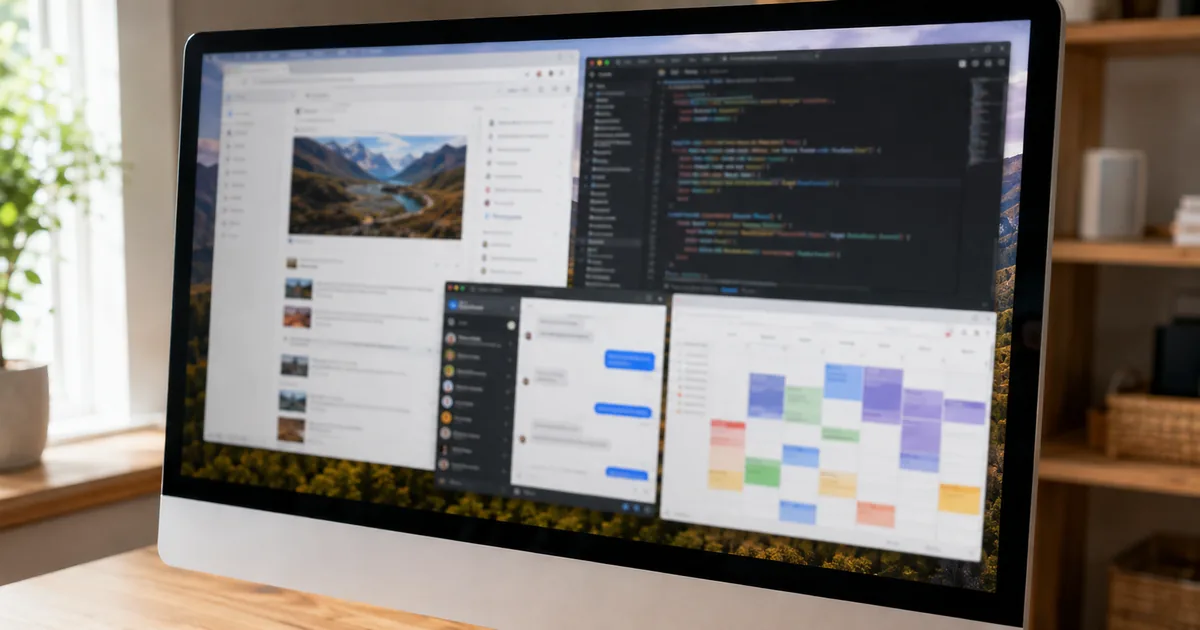
ChatGPT Computer History is a feature of the desktop app on macOS that turns what you do in apps and websites you allow into memories and a timeline for ChatGPT and Codex. Codex is OpenAI's coding assistant.
OpenAI added the feature in its August 13, 2026 release notes. For the plans and models of the chat app itself, see "GPT-5 in ChatGPT: Pricing, Free Tier, Models".
It succeeds Chronicle, a research preview. OpenAI calls it a rebuilt system, not a renamed Chronicle, and the history starts only once you switch the feature on. OpenAI points to three uses:
- Pick up where you left off. After a break, ask what you were doing instead of reopening every app and document to remember.
- Find recent work. Describe a document or conversation the way you remember it, and the timeline helps ChatGPT work out which source you mean.
- Reuse workflows. When the history spots repeated work, a timeline entry can suggest a skill or an automation. You review it, then ask Codex to build it.
The history supplies recent activity as context. If a file, a Slack thread or a Google Doc suits the task better, ChatGPT and Codex use the history to find that source and then read it directly.
"Computer History is an optional feature in the ChatGPT macOS app that lets ChatGPT and Codex reference selected activity from apps and websites, helping users continue work without re-explaining every detail."(Computer History for macOS section)— OpenAIView official source →
"Computer History replaces the earlier Chronicle research preview, but it is a rebuilt system rather than a rename."/"Your history starts only after you choose to turn it on."/"When a file, Slack conversation, Google Doc, or another source is better for the task, ChatGPT and Codex can use the history to identify that source and then read it directly."(Overview and How Computer History helps sections)— OpenAIView official source →
Interaction events it records and what it leaves out
Computer History records interaction events, which are small notes about what you did, and it keeps no picture of the screen and no sound. An event can be a click, some typing, a keyboard shortcut or a switch from one app to another.
macOS also exposes extra context to apps through its accessibility system, and an event can carry that context too. From time to time the app condenses the stream of events into text summaries and memory files on your Mac.
Three things never enter the history: screenshots, microphone input and system audio. Private-mode web browsing is left out as well. OpenAI also says the feature does not require Screen Recording permission from macOS.
"Events can include clicks, typing, keyboard shortcuts, app switches, and context that macOS exposes through its accessibility system."/"Computer History does not include screenshots in your history or record microphone input or system audio. Private-mode web browsing activity is never included."/"Computer History does not require Screen Recording permission."(How Computer History works and Turn on Computer History sections)— OpenAIView official source →
Who can use Computer History, and where
Computer History is open to Pro, Business and Enterprise users of the ChatGPT desktop app on macOS, and it stays off for everyone until they opt in. A Pro user can switch it on without an administrator. In a Business or Enterprise workspace, an administrator has to grant access first.
That grant only makes the choice available. Each member, Pro users included, still has to opt in.
Enterprise administrators give access to workspace roles through the Enable Computer History setting, under Permissions and roles in Workspace Settings. A member whose role lacks access cannot enable the feature by changing local settings.
What Computer History requires and where it is unavailable, as OpenAI states it
The Learn page names no operating system besides macOS. On regions, a later release-note entry overrides an earlier one.
The August 13, 2026 entry said the feature was not yet available in the EEA, the UK or Switzerland. The August 20, 2026 entry replaced that: Computer History is now available there to Pro users of the macOS desktop app, off by default and with Memories required. The August 20 entry names Pro users only and does not mention Business or Enterprise workspaces in those regions, so an administrator there should ask OpenAI before planning a rollout.
"Computer History is off by default for ChatGPT Pro, Business, and Enterprise users in the ChatGPT desktop app on macOS."/"For Business and Enterprise workspaces, an administrator must explicitly grant access before each member can choose to turn it on."/"Computer History also requires Memories and is not available with an API key or Amazon Bedrock."(Overview section)— OpenAIView official source →
"Note that Computer History is not currently available in the EEA, UK or Switzerland."/"Computer History is now available in the EEA, Switzerland, and the United Kingdom for Pro users in the ChatGPT desktop app on macOS. It is off by default and requires Memories."(August 13 entry/August 20 entry)— OpenAIView official source →
Turning on Computer History and choosing sources
Open the ChatGPT desktop app on macOS, go to Settings, choose Computer history under Integrations and select Turn on. The app first shows its notes on privacy, permissions and local storage. If it asks you to turn on Memories, do that, because the feature depends on it.
Then pick the apps and websites that may feed the history and answer any macOS permission prompts. In a Business or Enterprise workspace, the administrator's grant has to come before all of this. Sources are managed under Permissions in the Computer history settings, with two kinds of list:
- Exclude lists (Exclude these apps, Exclude these websites) block what you name and allow the rest.
- Include-only lists (Include only these apps, Include only these websites) allow only what you name.
Someone who wants the history to cover just a code editor and a notes app would use an include-only list. Someone who wants everything except a password manager would use an exclude list.
You can also exclude an app by selecting its icon on a timeline item, and include it again later. A permission change applies to future history only. Items already recorded stay until you delete or clear them.
If the setting is missing, confirm that your plan supports the feature and that your administrator has enabled it. If it exists but will not start, check that Memories is on.
Next, in the Computer history settings, select Finish setup, Resume or Try again, whichever the status shows. If it still will not start, quit the app and open it again.
"Choose which apps and websites can contribute to your history, then follow any macOS permission prompts."/"Exclude these apps and Exclude these websites block the apps or URLs you specify while allowing other supported sources."/"Include only these apps and Include only these websites allow only the sources you explicitly choose."/"Changing app or website permissions affects future history."/"If the setting does not appear, confirm that your plan supports Computer History and that your workspace administrator has enabled it, if applicable."(Turn on Computer History and Control what is included sections)— OpenAIView official source →
Pause, review and clear your history
Pause collection from the ChatGPT icon in the macOS menu bar or from the Computer history settings, and turn the feature off to stop future collection. A paused feature gathers no new interaction events, though a summary of earlier events that was already under way may still finish. The menu under that icon also shows what the feature captures.
The timeline in the Computer history settings groups summaries by day and time. Each item can show a title, a text summary, the apps that contributed and a suggested skill or automation. From an item you can reveal its memory file in Finder or delete it.
For a larger cleanup, clear the last 10 minutes, the last hour, the last day or all history. The menu bar can also clear the last session of a recent app. Clearing removes the interaction events together with the memories built from them, and it cannot be undone.
Memory files stay on the Mac until you delete or clear them. OpenAI's advice for conversations with other people is to turn the feature off unless they have given prior express consent.
"Select Pause to stop collecting new interaction events, or select Resume when you are ready to start again."/"Turn off Computer History to stop future activity collection."/"Clearing history deletes the relevant interaction events and any memories created from them. This cannot be undone."/"Turn it off during communications with other people unless you have their prior express consent."(Pause, resume, or stop collection and Review and clear history sections)— OpenAIView official source →
Where the data is stored and what OpenAI receives
Event files sit on your Mac and are deleted after 48 hours, while the memories made from them stay until you delete or clear them. The event stream is kept in the ChatGPT App Group, an area that other apps cannot read without explicit permission.
The memories are plain-text Markdown files that you can read and edit. They live in the Codex home folder under memories/extensions/skysight, which usually resolves to ~/.codex/memories/extensions/skysight/.
Computer History does not encrypt them, and other programs running as the same macOS user may be able to read them. OpenAI advises protecting your Mac account and excluding sources you would rather keep out.
The summaries are not written on the Mac alone. The app starts a short-lived Codex session with access to the event stream, and OpenAI processes the temporary event files on its servers to produce the memories, which are then stored locally on your Mac.
OpenAI says it does not keep those event files once processing ends, unless the law requires it, and does not use them for training. A later chat that draws on a memory may include relevant memory contents and interaction events as context. That chat content can be used to improve OpenAI models if your ChatGPT data controls allow it.
"Temporary event files are retained for up to 48 hours."/"They are not encrypted by Computer History, and other programs running as your macOS user may be able to access them."/"OpenAI processes temporary event files on its servers to generate memories, which are then stored locally on your Mac."/"OpenAI does not retain those event files after processing unless required by law and does not use them for training."(Privacy and local storage section)— OpenAIView official source →
Risks OpenAI lists before you turn it on
OpenAI's page raises cautions that run from prompt injection to token use. Prompt injection means instructions hidden in content that an AI may follow.
- Prompt injection. Computer History increases the risk of prompt injection from content in apps and websites. OpenAI's example is a website with malicious instructions that ChatGPT or Codex might follow.
- Unencrypted files. The memory files are not encrypted, and other programs running as the same macOS user may be able to read them.
- Communication apps. The history can include interaction events from communication apps and websites, so OpenAI advises turning it off during communications with other people unless they have given prior express consent.
- Sensitive apps. OpenAI suggests pausing the feature or excluding apps that hold sensitive health, financial or personal information.
- Token use. The feature uses tokens while it summarizes activity and creates memories.
"Computer History increases the risk of prompt injection from content in apps and websites."/"Computer History can include interaction events from communication apps and websites."/"Consider pausing it or excluding apps that contain sensitive health, financial, or personal information."/"Computer History uses tokens while it summarizes activity and creates memories."(Prompt injection risk, Token usage and Pause, resume, or stop collection sections)— OpenAIView official source →
FAQ
- What is ChatGPT Computer History?
- It is an opt-in feature of the ChatGPT desktop app on macOS. It turns activity in the apps and websites you allow into memories and a timeline that ChatGPT and Codex, OpenAI's coding assistant, can use, so you do not have to explain your work again each time.
- Does ChatGPT Computer History record my screen?
- No. It records interaction events such as clicks and typing. It keeps no screenshots, records no microphone input or system audio, and does not need the macOS Screen Recording permission. Private-mode web browsing is never included.
- Who can use ChatGPT Computer History, and in which countries?
- Pro, Business and Enterprise users on the ChatGPT desktop app for macOS, and it is off until each person turns it on. The August 13, 2026 entry said it was not available in the EEA, the UK or Switzerland. The August 20, 2026 entry made it available there to Pro users.
- How do I delete what ChatGPT Computer History recorded?
- You can delete one timeline item or clear the last 10 minutes, the last hour, the last day, or all history. Clearing also removes the memories made from those events, and it cannot be undone.
Related articles
 OpenAI, ServiceNow expand deal with ChatGPT pluginOpenAI and ServiceNow expanded their deal on Oct 28, 2026. A ServiceNow MCP plugin for ChatGPT is live now; Codex, security and voice tools follow in 2027.
 ChatGPT and Codex usage limits merge in DecemberFrom December, Plus, Pro and Business plans will share one token-based allowance across ChatGPT and Codex. Instant chat won't count, and no start date is set.
 ChatGPT now works with iCloud Mail and CalendarOpenAI added iCloud Mail and Calendar plugins to ChatGPT on Oct 27 for all plans. You connect with an Apple app-specific password that outlives a disconnect.
 ChatGPT limits weapons information for teensOpenAI said on Oct 30, 2026 that ChatGPT will limit weapons information for teens, end chats fixated on violence, and report on safety every six months.