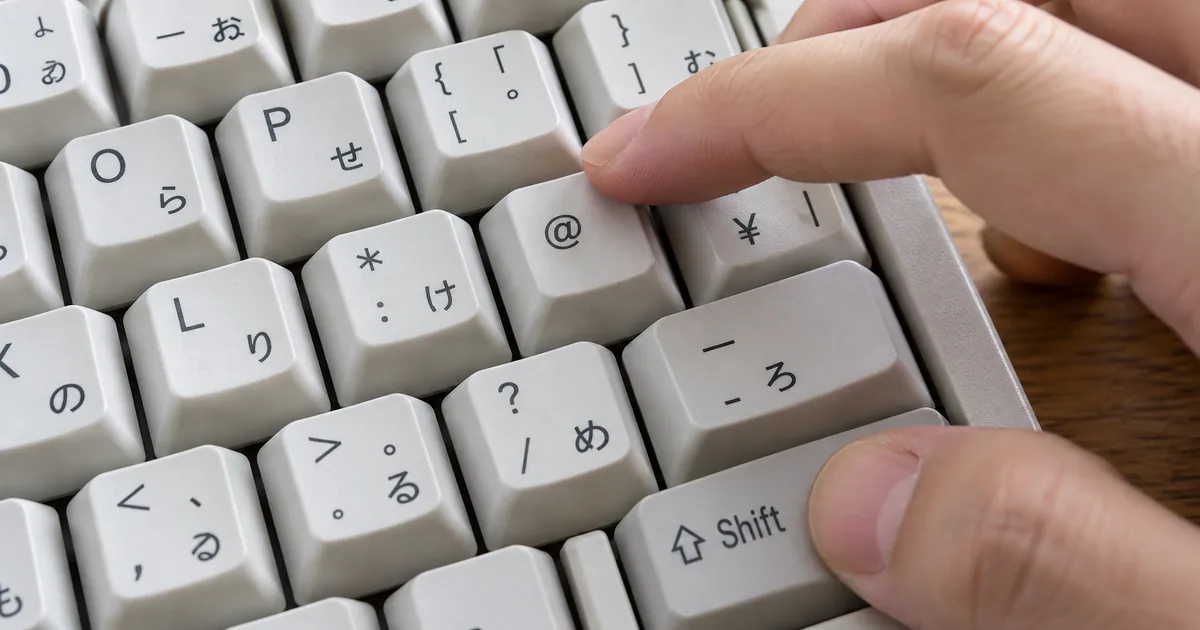
The @ sign is easy to find on the number row, but | and ^ are easy to miss: one shares the backslash key and the other sits on 6. Knowing the name helps as well, since a colleague who says "type a pipe" or a tutorial that mentions a caret assumes you already know which mark that is. This page pairs each name with the exact keys, then covers the characters your keyboard doesn't show.
Printed keyboard symbols: Shift types the top half
How a two-symbol key works (US keyboard)
Every key that shows two symbols works the same way. Press it alone and you get the lower one. Hold Shift while you press it and you get the upper one.
Hold Shift for the symbol on the top half of a key
The number row is where this matters most. Shift + 2 gives @, Shift + 3 a hash (#), and Shift + 8 an asterisk (*). The symbols are printed above the digits, so the keycap itself tells you what Shift will produce.
The same rule runs down the right side of the keyboard. The semicolon key types ; alone and : with Shift, the quote key ' and ", and the slash key / and ?. If you are unsure, look at the key: whatever sits on top needs Shift.
Where the pipe, tilde and caret symbols are
Three symbols are the hardest to spot. The pipe (|) is Shift + backslash, on the key just above Enter, and the tilde (~) is Shift + backtick, on the key to the left of 1. The caret (^) is Shift + 6.
The pipe shows up in command lines and tables, the tilde in home folder paths, and the caret in exponents such as 2^3. On a keyboard laid out for another country these keys can sit elsewhere, so trust the printing on your own keycaps over any diagram.
Keyboard symbols: names and shortcuts in one list
What the list covers (33 symbols in 4 groups)
This list holds the 32 symbols printed on a US keyboard plus the yen sign, 33 in all. Search it by the symbol itself or by its name, such as "pipe" or "caret", and filter it by group. Press the button in the Symbol column to copy that character.
The Windows and Mac columns both assume a US keyboard layout. On a US keyboard the printed symbols sit in the same places on both systems, so the two columns match for every row except the yen sign, which isn't printed on US keys.
Slash vs backslash and hyphen vs underscore
The slash (/) leans forward and shares a key with the question mark, next to the right Shift key. The backslash () leans back and sits above Enter, sharing its key with the pipe. Web addresses use the slash; Windows folder paths such as C:\Users use the backslash.
The hyphen (-) is the key to the right of 0, and the underscore (_) is the same key with Shift. The hyphen sits at mid-height and the underscore rests on the baseline. Mixing them up breaks email addresses and file names, so compare the height of the line when you copy one by hand.
Special characters on Windows: Alt codes and Win + period
Common Alt codes (from Microsoft Support)
Windows gives you two ways to enter a character that has no key. Alt codes are quick once you know the number, and the emoji panel lets you browse when you don't.
Alt codes only work on the numeric keypad
An Alt code is a four-digit number you type while holding Alt. Keep Alt held down, type the digits on the numeric keypad, then let go: Alt + 0169 gives ©, and Alt + 0153 gives ™. Type the leading 0 as well, because the codes Microsoft lists all start with it.
The numeric keypad is the block of number keys on the right side of a full-size keyboard. The digits along the top row don't work for Alt codes, so they fail on laptops that have no keypad.
Entering these Alt codes only works with the numeric keypad. It doesn't work with the row of numbers at the top of the keyboard. — from the note under the Alt code stepsView official source →
Windows key + period opens the symbol panel
On Windows 10 and 11, press the Windows key and the period key together to open the emoji panel. Choose Symbols inside it to scroll through punctuation, accented letters, currency signs and more, then click one to insert it. This works on any keyboard, keypad or not.
Mac special characters: Option keys and Character Viewer
Option shortcuts on a US Mac keyboard (measured on the ABC layout)
A Mac has no Alt codes. Instead, the Option key turns many letter and number keys into a second set of characters, and the Character Viewer lists everything else.
Option key shortcuts for common symbols
With the standard ABC layout, Option + G types ©, Option + R types ®, and Option + 2 types ™. Option + 8 gives a bullet (•), and Option + Shift + 8 gives the degree sign (°). For dashes, Option + hyphen types an en dash (–), and adding Shift gives an em dash (—).
For accented letters, press and hold the letter key. A menu of accented versions appears, and you pick the one you want.
When you press and hold a letter key, the accent menu opens and shows the accent marks you can enter with that letter. — from the section on the accent menuView official source →
Open the Character Viewer with Fn + E
On current versions of macOS, press Fn + E (the Globe key on newer keyboards) or choose Edit > Emoji & Symbols to open the Character Viewer. It groups emoji, symbols and characters from other languages. Type a word such as "arrow" in its search field to find a symbol by name, then click it to insert it.
Use the Character Viewer to search for and insert emoji, symbols, characters from other languages, and more. — from the section on adding characters from the Character ViewerView official source →
Symbols on iPhone and Android keyboards
Three ways to reach a symbol on a phone
Phone keyboards keep symbols on separate screens. On an iPhone, tap the Numbers key for digits and common punctuation, then the Symbols key for brackets, currency signs and the rest. Gboard on Android works the same way, and tapping ABC brings the letters back.
Both keyboards also hide variants behind a long press. Touch and hold a key and a row of related characters appears, which is often faster than switching screens.
Apple's own example is the accented é: touch and hold the e key, slide to é and lift your finger. The same long press works on punctuation keys, so it is worth trying before you go hunting through the Symbols screen.
Find accents and more options: Touch and hold a key. — from the basic Gboard controls on AndroidView official source →
For example, to enter é, touch and hold the e key, then slide your finger and release it on the option you want. — from the section on accents and special charactersView official source →
Keyboard symbols in short: Shift, Alt codes and Option
Key takeaways
Every symbol printed on a keyboard is either the key on its own or the key with Shift. The pipe, tilde and caret only feel hard because they sit on the backslash, backtick and 6 keys.
For characters that aren't printed, Windows has Alt codes and the Windows key + period panel, and a Mac has Option shortcuts and the Character Viewer. If you are moving between the two systems, "Mac keyboard shortcuts vs Windows: 58 compared" lines up the other keys you use every day.
FAQ
- Why don't Alt codes work on my laptop?
- Alt codes have to be typed on a numeric keypad. The number keys along the top of the keyboard don't work for them, so a laptop without a keypad can't use Alt codes directly. Press the Windows key and the period key instead, then pick the character from Symbols.
- How do I type an accented letter like é on a Mac?
- Press and hold the letter key. A small menu of accented versions opens, and you click or press the number under the one you want. Keys with no accented forms don't show the menu.
- Where are the symbols on an iPhone keyboard?
- Tap the Numbers key to switch to numbers and common punctuation, then the Symbols key for the rest. To get a variant of a character, touch and hold its key and slide to the one you want.
Related articles
 Mac keyboard shortcuts vs Windows: 58 comparedMac keyboard shortcuts mapped to the Windows keys they replace, 58 in one searchable table with Chromebook alongside, plus the two places that mapping breaks.
 How to scan documents to PDF: phone, PC, or storeHow to scan documents to PDF on iPhone, Android, Windows, or Mac, or at a FedEx Office copier, and where each method saves the file.
 Date format cheat sheet: Python, PHP, Go and ExcelDate format codes for Python strftime, PHP date, Go layouts, JavaScript Intl options and Excel in one searchable table, with yyyymmdd and ISO 8601 examples.
 Windows Update failed: error codes and fixesWindows Update failed with 0x800f0922, 0x80070005 or 0xC1900101? Filter the table by code to see what it means and how to fix it, with DISM and SFC steps.