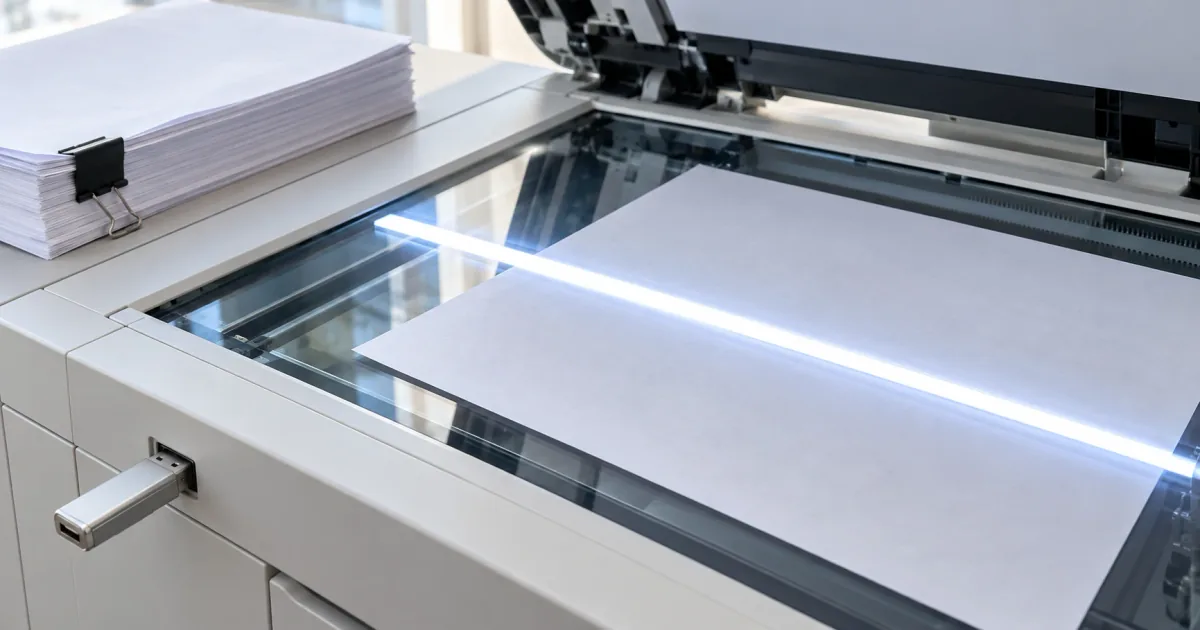
Phone, scanner, or store: pick how to scan a document
Phones, scanners, and stores differ in effort: a phone needs no cable, driver, or trip, a scanner suits a long document, and a store covers anyone with neither. On a long document, a scanner attached to a computer saves the repeated camera shots a phone would need.
Most of these methods produce a picture of each page, not text. Google Drive is the exception: its help page says it saves searchable PDFs.
| Method | What you need | Where the PDF goes |
|---|---|---|
| iPhone | The Notes or Files app | Inside a note, or a folder in Files |
| Android | The Google Drive app | Your Google Drive |
| Windows PC | A scanner or an all-in-one printer, plus one extra step for PDF | The Pictures/Scans folder, as images |
| Mac | A scanner or an all-in-one printer | A folder on the Mac, as one PDF |
| Store or library | Just the paper | At FedEx Office: email, a USB drive, or cloud storage |
Phones, Windows, and Mac cost nothing once the hardware is yours. FedEx Office takes payment based on the number of pages you scan, so ask the counter for the price.
For a signed form or a few receipts, use the phone in your pocket. For a long document, use a scanner connected to a computer. If you have neither, go to a store or library.
"Scan documents like receipts, letters, and billing statements to save them as searchable PDFs on your Google Drive." — from Google's help page for the Drive app on AndroidView official source →
How to scan documents on iPhone with Notes or Files
Notes keeps the finished PDF inside a note, while Files asks for a folder before saving. The camera steps are identical in both, so choose the app by where the PDF should end up.
- Open Notes and pick a note, or start a new one.
- Tap the Attachment button, then tap Scan Documents.
- Hold the phone over the page so the whole sheet is in view.
- In Auto mode, the phone takes the shot as soon as it finds the page. In Manual mode, tap the Shutter button or press either volume button.
- Drag the corner handles onto the edges of the page, then tap Keep Scan.
- Scan the next page, or tap Save when the last page is done.
The scan sits inside the note as a PDF. Open it to copy or rename it, or tap Share to attach it to an email or save a copy in Files. Filters and cropping work on scanned PDFs, though not on other PDFs attached to a note.
To scan to PDF on an iPhone straight into a folder you choose, scan from Files. Open Files, tap the More button, then tap Scan Documents. At the end, Files asks for a location before you tap Save, so the PDF lands in that folder and nothing needs moving.
"If your device is in Auto mode, your document will automatically scan." / "Then drag the corners to adjust the scan to fit the page, then tap Keep Scan." / "Choose a location, then tap Save." — from Apple's support article on scanning with an iPhone or iPadView official source →
"Copy, share, rename, or delete the PDF:" / "(Filters and Crop Page are supported only in scanned documents.)" — from the iPhone User GuideView official source →
How to scan a document on Android with Google Drive
The Google Drive app has its own scanner, so an Android phone with Drive installed needs nothing else. Drive saves scans as searchable PDFs, so you can search the text later. The one setting to watch is the format, because Drive offers both .pdf and .jpg.
- Open the Google Drive app and tap Camera at the bottom right.
- Point the camera at the page. A blue line traces the document and marks where the picture will be cropped.
- Take the photo, then crop, rotate, or clean up the scan if it needs work.
- Set the format to .pdf rather than .jpg.
- Choose a Drive folder if you want one, then save.
A scan saved as .jpg is only a photo and needs converting later, so check step 4 before saving. For weekly scanning, Drive also offers a scan widget for the Home screen, which you add from the phone's widget list.
"A blue line outlines the document. This indicates where the picture will be cropped." / "To save the scanned document in a specific format, select either .pdf or .jpg." / "Find the \"Drive scan\" widget." — from Google's help page for the Drive app on AndroidView official source →
Windows Scan app won't save PDFs: what to do instead
Microsoft's Windows Scan app lists JPEG, PNG, TIFF, and Bitmap as file types, so it cannot save a PDF. The free app from the Microsoft Store reads pages from a flatbed or a feeder. Unless the Save file to setting points elsewhere, scans land in the Pictures/Scans folder.
There are two ways around it. Check whether the app that came with the scanner or printer can save a PDF directly. Otherwise keep Windows Scan, save every page as JPEG, and build the PDF from the images.
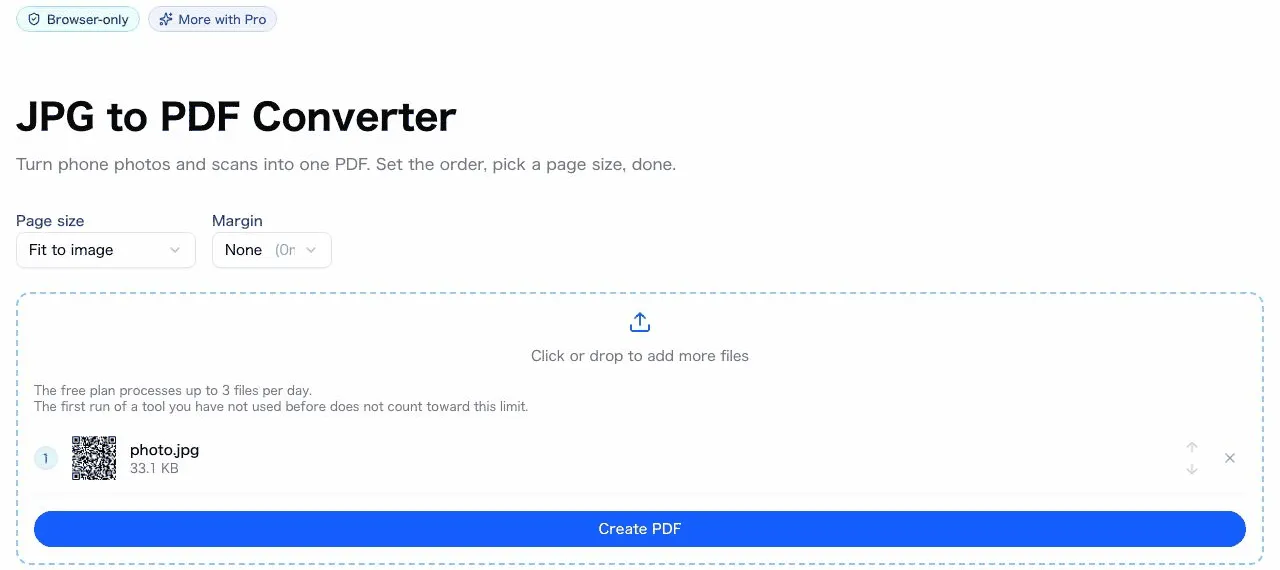
The sakuttoAI JPG to PDF Converter does that second step in the browser without uploading the pages. Drag the images into order, set the page size, and download one PDF. It accepts JPG and PNG but not TIFF, so choose JPEG or PNG in Windows Scan.
Windows can also build the PDF through its print dialog. Combine images into PDF without uploading them walks through that route, which needs no account.
"The available options are JPEG, PNG, TIFF, and Bitmap." / "Pictures/Scans folder in the user folder." — from Microsoft's scanner guide for WindowsView official source →
How to scan on a Mac with Preview
Preview on a Mac imports pages from a scanner and opens all of them in one window, ready to save as a single PDF. Unlike Windows Scan, Preview needs no extra step to end up with a PDF.
- Load the pages into the scanner's feeder, or place one on the glass.
- In Preview, choose File > Import from Scanner, then pick the scanner.
- Click Show Details if the options are hidden. Set Kind to Text for a printed document, and turn on Duplex to scan both sides if the scanner supports it.
- Click Scan. The pages open together in one Preview window, and File > Save writes them as one PDF.
If the scanner is missing from the list, add it in Printers & Scanners settings first. A Mac with no scanner can borrow an iPhone: File > Import from iPhone or iPad > Scan Documents sends the phone's scan straight into Preview.
"Choose Text for black-and-white images with high contrast, such as a text document;" / "All the scanned items open in one window." — from the Preview User GuideView official source →
Where to scan documents if you don't have a scanner
FedEx Office self-service copiers scan to PDF, and The UPS Store and libraries are the other places to ask. What each branch offers varies, so check the location before making the trip.
FedEx Office lets you scan at a self-service copier. Start a session on the copier's screen, choose where the files go (email, a USB drive, or supported cloud storage), and save them as PDFs or JPGs.
Payment is pre-authorized based on the number of pages you plan to scan, and the counter can quote the price. The store locator shows whether a branch offers the service.
Many UPS Store locations rent computer workstations; whether one has a scanner attached varies, so call before you go. Libraries are worth a call too. NC State University Libraries, for example, keep scanners that turn paper documents into PDFs, and a local library's website or front desk will say whether it has one.
"Scan items at a self-service copier and save your files as PDFs or JPGs to email, a USB drive, or supported cloud storage." / "You'll be asked to pre-authorize payment based on the number of pages you plan to scan." — from FedEx Office's scanning services pageView official source →
"Many of The UPS Store locations offer computer rental workstations." — from The UPS Store's computer access pageView official source →
"Both libraries have scanners available to scan paper documents into the PDF format." — from the NC State University Libraries help pageView official source →
How to scan multiple pages into one PDF and shrink it
Scan every page in one session so the pages come out as one file, then merge any leftover PDFs and shrink the result before sending. FedEx Office states that it scans single or multiple pages in a single session, and on iPhone every page goes into one note before Save.
Pages scanned in two places leave two files, for example some from a phone and the rest from a store. Joining them first means the recipient opens a single document in the right order. The PDF merge tool runs in the browser and combines separate PDFs into one.
Merge PDF Files Free: Combine PDFs Online walks through reordering pages. Scanned pages are mostly pictures, so the file grows fast, and an email app may reject the attachment or bounce the message.
In that case compress the PDF rather than splitting it across emails. Email Attachment Size Limits: Fit Your PDF covers the limits and the settings, and the PDF compress tool does the shrinking.
"You can scan single or multiple pages in a single session." — from FedEx Office's scanning services pageView official source →
Scan with what you have, then merge and shrink the PDF
Pick the route for your device, then merge any separate files and compress the PDF before you send it. The route for each device:
- iPhone: scan in Notes, or in Files to land the PDF in a folder.
- Android: scan in Google Drive and set the format to .pdf.
- Windows PC: scan with Windows Scan as JPEG, then build one PDF from the images.
- Mac: scan in Preview and save all pages as one PDF.
- No scanner: use a FedEx Office copier or a library; a UPS Store may have one at its workstations, so call first.
Apart from Google Drive's searchable PDFs, each scanned page is a picture. Merge separate files into one PDF, and compress it if it is too big to attach.
FAQ
- How do I scan multiple pages into one PDF?
- Scan them in one session. On an iPhone, scan every page before you tap Save in Notes. On a Mac, load the pages into the scanner's feeder and Preview opens them all in one window. At FedEx Office you can scan several pages in one session. If the pages already sit in separate PDFs, merge them afterward.
- Can I scan a document with my phone for free?
- Yes. An iPhone scans in the Notes app and an Android phone scans in the Google Drive app, and both can save the result as a PDF. You don't need to buy or install a separate scanner app.
- Why can't Windows Scan save a PDF?
- Its file type menu only lists image formats. Save the scan as JPEG and combine the pages into a PDF afterward, or use the app that came with your scanner if it offers PDF.
- Where can I scan documents if I don't have a scanner?
- Try a FedEx Office location or a library. FedEx Office copiers save scans as PDFs to email, a USB drive, or cloud storage, and some university libraries also keep scanners for paper documents. A UPS Store may have a scanner at its rental workstations, so call that branch first.
Related articles
 Keyboard symbols: names and how to type all 33Keyboard symbols: names and the keys that type them in a searchable list, plus Alt codes and Mac Option shortcuts for special characters not on the keyboard.
 How to zip a file on Windows, Mac, Linux, or phoneLearn how to zip a file or folder on Windows, Mac, Linux, iPhone and Android, add a password the built-in tools skip, and fix a zip that barely shrank.
 Mac keyboard shortcuts vs Windows: 58 comparedMac keyboard shortcuts mapped to the Windows keys they replace, 58 in one searchable table with Chromebook alongside, plus the two places that mapping breaks.
 Excel shortcut keys cheat sheet, Windows and MacExcel shortcut keys cheat sheet for Windows and Mac, grouped by task: copy and paste, insert row, undo and redo, save as, merge cells, and Mac differences.