Siri AI added five languages in iOS 27.2
Since the 27.2 updates arrived on October 26, 2026, Siri AI understands Japanese, French, Korean, Portuguese and Spanish as well as English, and it is still labeled a beta. Siri AI is the rebuilt Siri that runs on Apple Intelligence, the set of AI features built into recent Apple devices.
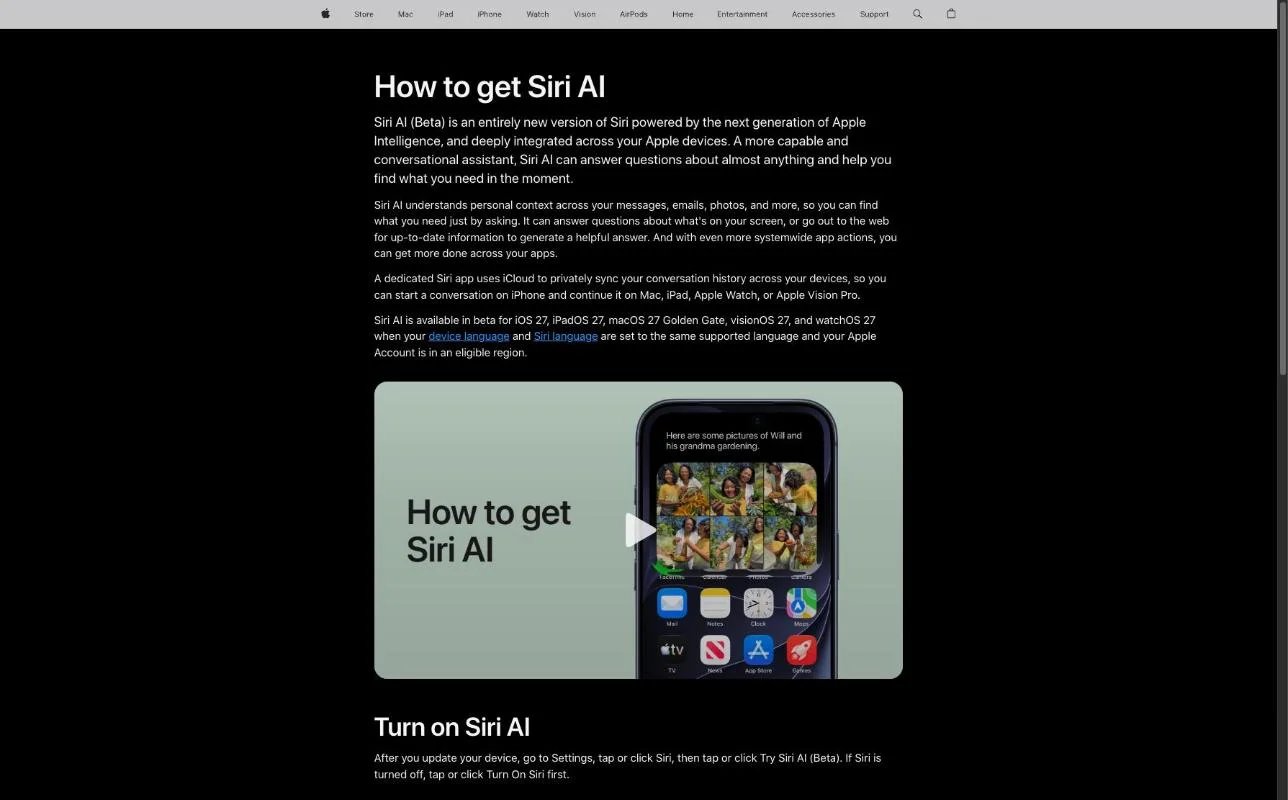
Apple announced the expansion in its Japan newsroom. The update covers iOS 27.2, iPadOS 27.2, macOS 27.2, watchOS 27.2 and visionOS 27.2, so every platform that runs Siri AI got the new languages at once.
Six languages now work with Siri AI
Siri AI accepts requests in six languages, and your device language and Siri language must both be set to the same one of them. The list is English, Japanese, French, Korean, Portuguese and Spanish.
Apple Intelligence as a whole supports 16 languages, which is a wider list than Siri AI's. A language that works with other Apple Intelligence features may therefore still be missing from Siri AI.
The English support page still says English only
As of October 30, 2026, Apple's US support article on getting Siri AI still states that the feature is available in English only. The five added languages appear in Apple's Japan newsroom post from October 26, not on that page.
If you set your iPhone to one of the new languages and the support article seems to say it won't work, the newsroom post is the more recent source. The rest of the support page, including the setup steps and device list, matches the 27.2 release.
"Siri AI is currently available in English." — from Supported languages and regionsView official source →
How to get Siri AI in Settings
You request Siri AI from Settings > Siri by tapping Try Siri AI (Beta), finishing a short voice setup, and then waiting for your turn on the waitlist. Installing the update alone does not switch it on. Follow these steps in order:
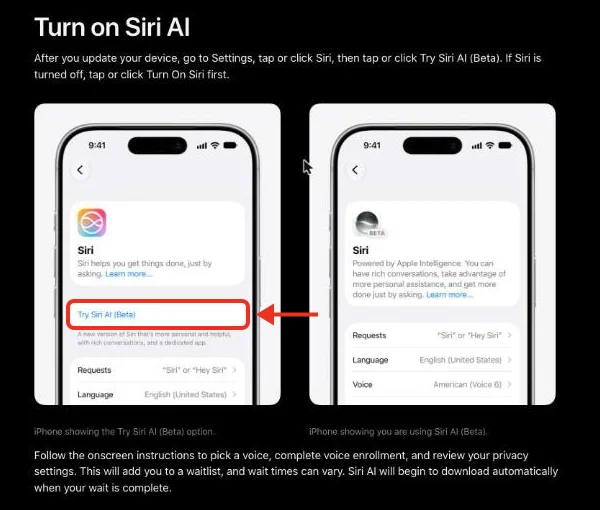
- Update to iOS 27.2 (iPadOS 27.2 on iPad, macOS 27.2 on Mac).
- Set your device language and Siri language to the same supported language.
- Open Settings and tap Siri. If Siri is off, tap Turn On Siri first.
- Tap Try Siri AI (Beta).
- Pick a voice, complete voice enrollment, and review your privacy settings.
The last step puts you on the waitlist. When your turn comes, Siri AI downloads automatically and appears without any further taps.
Match your device language and Siri language
The Try Siri AI (Beta) option is meant for devices whose device language and Siri language are set to the same supported language, so line them up before you open Settings > Siri. A device set to English with Siri set to another language does not meet that condition.
Changing the Siri language later has a cost. Apple notes that Apple Intelligence may become unavailable until the new Siri language finishes downloading and matches the device language.
How long is the Siri AI waitlist?
Apple does not publish an expected wait for the Siri AI waitlist and says only that wait times can vary. You join the waitlist as soon as you finish the voice setup in Settings. When the wait ends, Siri AI starts downloading by itself, so there is no need to reopen Settings.
"After you update your device, go to Settings, tap or click Siri, then tap or click Try Siri AI (Beta)." / "This will add you to a waitlist, and wait times can vary." — from Turn on Siri AIView official source →
Which devices support Siri AI?
Siri AI needs an Apple Intelligence device, which on iPhone means iPhone 15 Pro, iPhone 15 Pro Max, or any iPhone 16 or later, so the standard iPhone 15 and iPhone 15 Plus are left out. iPhone Air and iPhone Duo are included. Here is the full list with the free storage each device needs.
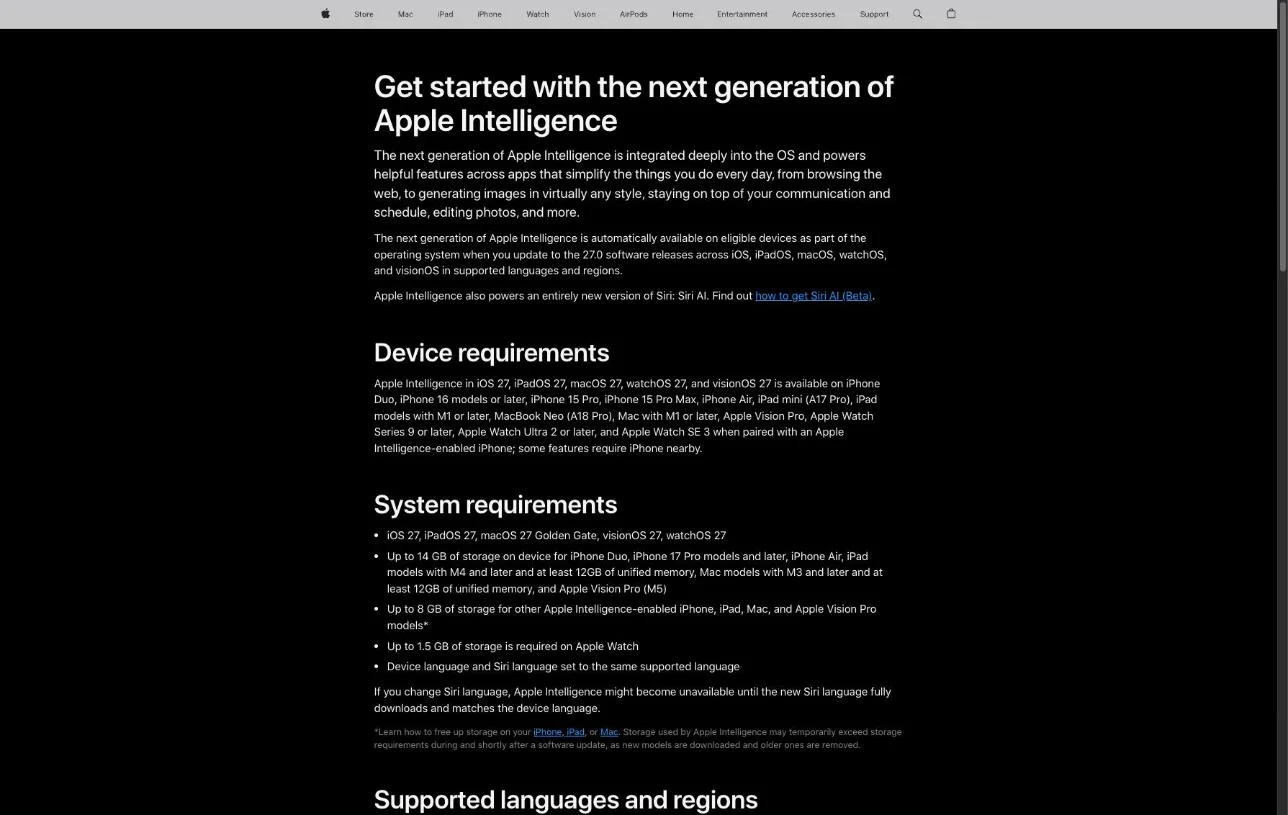
Siri AI supported devices and storage (Apple Support)
| Device | Supported models | Free storage |
|---|---|---|
| iPhone | iPhone 15 Pro and 15 Pro Max, iPhone 16 and later, iPhone Air, iPhone Duo | Up to 8 GB (up to 14 GB on iPhone 17 Pro and later, iPhone Air, iPhone Duo) |
| iPad | iPad mini (A17 Pro), iPad with M1 or later | Up to 8 GB (up to 14 GB on M4 or later with at least 12 GB of unified memory) |
| Mac | MacBook Neo (A18 Pro), Mac with M1 or later | Up to 8 GB (up to 14 GB on M3 or later with at least 12 GB of unified memory) |
| Apple Watch | Series 9 and later, Ultra 2 and later, SE 3 | Up to 1.5 GB |
| Apple Vision Pro | All models | Up to 8 GB (up to 14 GB on the M5 model) |
iPhone, iPad and Mac models
Beyond devices with an M1 chip or later, two models without an M-series chip qualify: iPad mini with A17 Pro and MacBook Neo with A18 Pro. On Mac, Siri AI runs in macOS 27 Golden Gate.
For iPhone, the cutoff sits inside the iPhone 15 lineup. Only the two Pro models made it, while every iPhone 16 model and later is covered.
Apple Watch needs a paired iPhone with Siri AI on
Series 9 or later, Ultra 2 or later and SE 3 qualify, and each one gets the feature only after the waitlist steps are finished on the phone it is linked to. Turn it on from your iPhone first, then your watch can use it.
Every Apple Vision Pro model is supported. As on iPhone, the device language and Siri language need to match.
Free up to 8 GB, or 14 GB on newer models
iPhone 17 Pro and later, iPhone Air and iPhone Duo can need up to 14 GB of free storage for Siri AI, while iPhone 15 Pro and most other supported models need up to 8 GB. The 14 GB tier also covers iPads with M4 or later and Macs with M3 or later that have at least 12 GB of unified memory, plus Apple Vision Pro with M5. Unified memory is the device's working memory, which is separate from the storage where your files live.
Apple Watch needs up to 1.5 GB. Apple also warns that during and shortly after a software update, Apple Intelligence can briefly use more than these amounts while new models download and old ones are removed.
"Up to 8 GB of storage for other Apple Intelligence-enabled iPhone, iPad, Mac, and Apple Vision Pro models" / "Up to 1.5 GB of storage is required on Apple Watch" — from System requirementsView official source →
What Siri AI can do once you're off the waitlist
Once Siri AI finishes downloading, it can pull answers out of your own messages, emails and photos, take action inside apps, and keep a conversation going that you can continue on another device. Apple calls it a more capable and conversational version of Siri.
Find details in your messages, emails and photos
A question like which weekend plan a friend suggested is enough for Siri AI to search your own chats, inbox and photo library for the answer. Apple calls this understanding personal context.
Conversations are saved in a dedicated Siri app that syncs your history through iCloud. You can start a request on iPhone and continue it on Mac, iPad, Apple Watch or Apple Vision Pro.
Ask about what is on your screen
Siri AI can answer questions about what is currently on your screen and can go to the web when it needs up-to-date information. On iPad and Mac, it is built into Spotlight, so you can type a question where you would normally search.
On iPhone, you can still call it with "Hey Siri", the side button, or a swipe down from the Dynamic Island. Each request can draw on the extended set of app actions Apple added across the system.
"Siri AI understands personal context across your messages, emails, photos, and more, so you can find what you need just by asking." — from the introductionView official source →
Usage limits and where Siri AI is unavailable
Siri AI has a daily cap that Apple does not publish, and it is not available to anyone under 13, to iPhone, iPad and Apple Watch users in the EU, or to China mainland accounts. The “Siri AI limits and restrictions (Apple Support and Apple Newsroom)” figure sums up who is affected.
Siri AI limits and restrictions (Apple Support and Apple Newsroom)
| Limit | What applies |
|---|---|
| Daily usage | Capped, exact number not published |
| Age | Not available under 13 |
| EU | Not available on iOS, iPadOS or watchOS |
| China mainland | Does not work with a China mainland Apple Account |
Daily limits apply to server-side features
Apple caps daily use of Siri AI without publishing the number, and the cap shifts with the feature, the complexity of your request and overall system demand. The cap applies to features that rely on server-side models, meaning AI models that run on Apple's servers rather than on your device.
If you hit the cap, the feature becomes available again after a time out period. Apple's Japan newsroom post adds that expanded access to these features is planned as a paid option in the future.
EU iPhones, users under 13 and China mainland accounts
In the EU, Siri AI is blocked on iOS, iPadOS and watchOS, but it works on Macs with macOS 27 Golden Gate and on Apple Vision Pro when both languages are set to English. That means an EU user with a Mac can still try it.
Siri AI is not available to anyone under 13. It also does not work when your Apple Account country or region is China mainland.
"Siri AI is not available for iOS, iPadOS, or watchOS in the EU." — from Supported languages and regionsView official source →
Check storage and language before you join the waitlist
Before you tap Try Siri AI (Beta), confirm three things in order: a supported device, enough free storage, and matching device and Siri languages. The waitlist has no published length, and switching the Siri language afterward can pause Apple Intelligence while a new language downloads.
Fixing a setting after you join only adds to the time before you can use it. A quick checklist:
- Find your model in the device table above.
- Free up 8 GB, or 14 GB on iPhone 17 Pro, iPhone Air or iPhone Duo.
- Set the device language and Siri language to the same supported language, then open Settings > Siri.
Once you are in, start with requests that search your own messages and emails. That is where Siri AI differs most from the old Siri, and the daily cap makes it worth spending your requests there first.
FAQ
- How do I get Siri AI on my iPhone?
- Update to iOS 27.2, set your device language and Siri language to the same supported language, then open Settings, tap Siri and tap Try Siri AI (Beta). After you pick a voice, finish voice enrollment and review your privacy settings, you join the waitlist.
- How long is the Siri AI waitlist?
- Apple does not publish a typical wait. Its support page says only that wait times vary from person to person. When your turn comes, Siri AI downloads automatically, so you do not need to sign up again or reopen Settings.
- Does the iPhone 15 support Siri AI?
- Only the Pro models. Siri AI runs on iPhone 15 Pro and iPhone 15 Pro Max, plus every iPhone 16 model and later, iPhone Air and iPhone Duo. The standard iPhone 15 and iPhone 15 Plus are not on Apple's list.
- How much storage does Siri AI need?
- Most supported iPhone, iPad, Mac and Apple Vision Pro models need up to 8 GB of free storage. iPhone 17 Pro and later, iPhone Air, iPhone Duo and a few high-memory iPad and Mac models need up to 14 GB, and Apple Watch needs up to 1.5 GB.
- Is Siri AI available in the EU?
- Not on iPhone, iPad or Apple Watch. In the EU, Siri AI works on Macs running macOS 27 Golden Gate and on Apple Vision Pro with visionOS 27, provided the device language and Siri language are both set to English.
Related articles
 Apple Intelligence launches in China with QwenApple Intelligence comes to iPhones in China with iOS 27.3 in December. Alibaba's Qwen handles some Siri and Writing Tools requests, but Siri AI is left out.
 Apple HomeView brings Siri AI to a $299 home hubApple HomeView is a $299 home hub with a 7-inch screen that recognizes up to six faces and runs Siri AI. It ships November 13, but not in the EU.
 Flash prices up 5x on AI, eroding Apple's leverageAI demand made flash 5x pricier in a year, the WSJ reports. Cloud giants now buy twice as much as Apple, and doubling iPhone 17 Pro storage costs Apple $66.
 Apple MCP in Keynote, Pages and Numbers explainedApple MCP support comes to Keynote, Pages and Numbers in November, letting outside AI agents read and edit documents on macOS 27, plus a beta assistant.