Many websites now serve their images as WebP, so a saved picture often arrives as a .webp file. That works fine in a browser, but an older photo app or an upload form may refuse it. Site owners face the opposite task: they want their JPG and PNG images in WebP so pages load faster.
What is a WebP file and why won't it open?
A WebP file is an image saved in WebP, a format Google developed for the web, and some older apps and upload forms do not accept it. Google measures lossy WebP at 25–34% smaller than a comparable JPEG of equivalent SSIM quality, and lossless WebP at 26% smaller than PNG. Converting the file to JPG or PNG solves the problem.
In everyday terms, "lossy" means the format throws away a little detail to save space, the way JPG does. "Lossless" keeps every pixel, the way PNG does.
WebP can do either, and it also supports transparency and animation. So one format can stand in for JPG, PNG, and animated GIF.
The trouble starts once the file leaves the browser. A typical case is a product photo saved from a shop's site that a desktop editor will not open, or that an application form rejects as an unknown file type. Converting it to JPG or PNG fixes both cases.
Google's own WebP page states these size figures at the top. For more on the format itself, including browser support and its limits, see What Is the WebP Format? Size, Support, Limits.
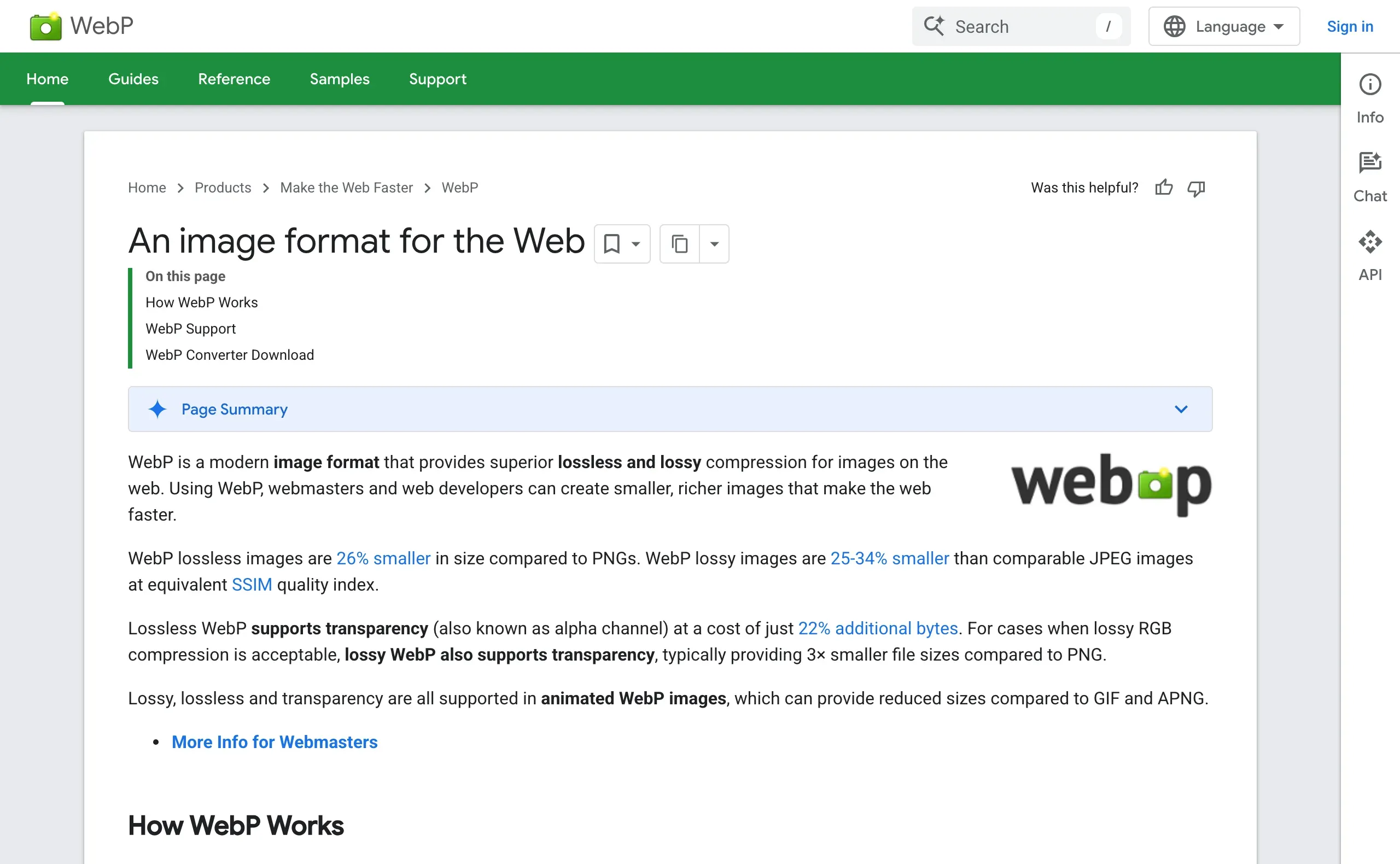
WebP lossless images are 26% smaller in size compared to PNGs. / WebP lossy images are 25-34% smaller than comparable JPEG images at equivalent SSIM quality index.View official source →— from "WebP: An image format for the Web"
How to convert WebP to JPG or PNG online
The sakuttoAI WebP converter changes WebP files into JPG or PNG inside your browser in four steps. Nothing needs to be installed, and the images are not uploaded to a server, so a screenshot of a contract or a family photo stays on your computer. You sign in with a free account first.
- Open the WebP converter and choose "WebP → Other formats" as the conversion mode.
- Drag your .webp files onto the page, or use the file picker. You can add several files at once.
- Pick JPG or PNG as the output format.
- Click "Start conversion", then save each file. When you convert several files, you can download them together as one ZIP.
A batch is useful when a whole set of images came down as WebP, such as every photo from one product listing. You convert them in one pass instead of one by one, and the ZIP keeps them together.
WebP to JPG or WebP to PNG: which output to pick
Pick JPG for photos, and PNG for logos, screenshots, and anything with a transparent background. JPG makes small files, and PNG keeps every pixel and the transparency. The table compares the two outputs.
| JPG | PNG | |
|---|---|---|
| File size | Smaller | Larger |
| Quality | Loses a little detail (lossy) | Keeps every pixel (lossless) |
| Transparent background | Not supported | Kept |
| Good for | Photos, email attachments, upload forms | Logos, icons, screenshots, text in images |
For a photo, choose JPG. The file stays small enough for email and upload forms, and the small loss of detail is hard to see in a photograph.
For a logo or an icon with a transparent background, choose PNG. JPG has no transparency, so the see-through area would be filled with a solid color.
Screenshots also belong in PNG, because JPG compression blurs sharp text. If you are unsure what other formats exist and when they fit, Image file formats: 9 types and when to use each compares them side by side.
Other ways to open or convert a WebP file
You do not always need a separate tool. Windows and macOS can both open WebP files with apps that come with the system, and Google offers free command-line tools for people who work in a terminal. The built-in options are these:
- Windows: Paint and the Photos app open WebP files, and Paint can save a copy as JPG or PNG.
- Mac: Preview opens WebP files and can export a copy as JPG or PNG.
- Command line: Google's libwebp package includes cwebp, which converts images into WebP, and dwebp, which converts WebP back into PNG and other formats.
These routes work well for a single file. For a folder of images, the built-in apps mean opening and saving each one by hand, and the command-line tools ask you to install them and type commands. That is where a browser tool with batch conversion saves time.
WebP includes the lightweight encoding and decoding library libwebp and the command line tools cwebp and dwebp for converting images to and from the WebP formatView official source →— from "WebP: An image format for the Web"
How to convert JPG or PNG to WebP for your site
Site owners convert JPG or PNG to WebP with the same tool, by switching the conversion mode. Smaller images make a page lighter, and a lighter page loads faster, especially on phones. Take a blog post with ten photos: replacing each JPG with a WebP copy cuts the total download size.
The converter accepts JPG (JPEG), PNG, GIF, and BMP as input. The steps mirror the ones above.
- Open the WebP converter and choose "→ Convert to WebP" as the conversion mode.
- Add your JPG or PNG files. You can drop a whole set at once.
- Set the quality.
- Click "Start conversion" and download the WebP files, or the ZIP for several files.
After converting, upload the WebP files to your site in place of the originals. Keep the originals in a separate folder in case you need them again.
Which WebP quality setting to use
Start with the Standard preset, which converts at quality 75, the same default as Google's cwebp tool, and only go lower after you compare the result with the original. The quality setting decides how much detail the converter keeps when it creates a lossy WebP.
A higher number keeps more detail and makes a larger file. A lower number makes a smaller file but can blur edges and add blotchy patches. The tool offers three presets (Standard at 75, Low compression at 90, High compression at 50), and you can match them to the job:
- Standard (Recommended): the balance of size and quality for ordinary web pictures, such as blog photos and product shots.
- Low compression (High quality): for images you may edit again later, or photos where fine detail matters, such as a portfolio.
- High compression (Small size): for thumbnails and images you send in chat, where a small file matters more than detail.
Before you go very low, compare the result with the original at full size. Problems appear first in smooth areas such as sky and skin, and on sharp edges such as text. If you see blotches there, raise the setting.
A setting that looks fine on one photo may not suit a screenshot, so check each kind of image once. For more ways to shrink files without visible loss, see Reduce image file size without losing quality.
Mistakes to avoid when converting WebP
Keep the originals, convert only once, and check that the destination accepts WebP. Each habit answers one of the three mistakes below.
- Deleting the originals. Lossy WebP throws away detail you cannot get back. If you later need a larger or sharper version, you must start again from the original JPG or PNG. Keep the originals in a separate folder.
- Converting the same image back and forth. Each pass through a lossy format such as JPG → WebP → JPG loses a little more quality. Convert once, from the original, into the format you need.
- Not checking where the file is going. Before you upload a WebP, check that the site, form, or app accepts it. If it does not, send a JPG or PNG instead.
If file size is the real goal and the format does not matter, compressing the JPG or PNG may be enough. Compress Images Online, Free: JPEG, PNG, WebP covers that route.
To convert a downloaded WebP for an app that refuses it, or to turn your site's JPG and PNG images into WebP, use the free WebP converter. It runs in the browser, and a whole batch comes back as one ZIP.
FAQ
- Is WebP smaller than JPG and PNG?
- Usually, yes. Google's figures put lossy WebP at 25–34% smaller than a comparable JPEG of equivalent SSIM quality, and lossless WebP at 26% smaller than PNG. The actual saving depends on the picture, so a logo and a photo will not shrink by the same amount.
- Can a WebP image have a transparent background?
- Yes. WebP keeps transparency in both lossless and lossy mode. If you convert a transparent WebP to JPG, the transparent area is filled in, because JPG has no transparency. Convert it to PNG instead.
- Does Google offer its own WebP converter?
- Google publishes two free command-line tools in its libwebp package. cwebp turns images into WebP, and dwebp turns WebP back into PNG and other formats. They suit people who already work in a terminal; a browser tool is simpler for a few files.
- Are my images uploaded when I use the sakuttoAI WebP converter?
- No. The sakuttoAI WebP converter processes images inside your browser, so the files are not sent to a server. This makes it a reasonable choice for screenshots of documents or private photos.
Related articles
 What Is the WebP Format? Size, Support, LimitsThe WebP format is 26% smaller than PNG and 25-34% smaller than JPEG at equal SSIM. What a WebP file costs, which browsers decode it, and where limits sit.
 HEIC to JPG in Bulk: Where Free Batches StopConvert HEIC to JPG in bulk and check the cap first: heictojpg stops its free web batch at 200 photos, while a browser-side converter has no per-batch limit.
 Bulk image reducer: compress many photos at onceA bulk image reducer cuts file size, not dimensions. See how to compress many photos at once in the browser, hit an exact KB target, and what a ZIP loses.
 Compress Images Online, Free: JPEG, PNG, WebPCompress images online free: shrink JPEG, PNG and WebP files in your browser, with no upload, a 10–100% quality slider and ZIP download for batches.