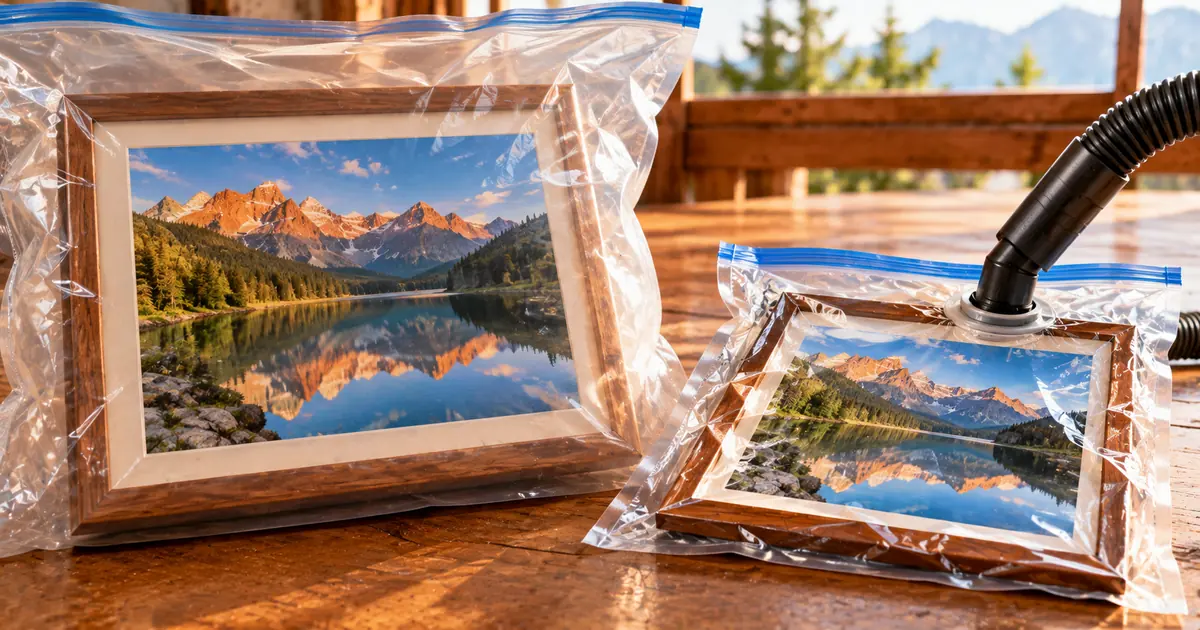
To compress images online, all you need is a browser. If an upload form or an email rejected a photo for being too large, start here. You do not need any background in image formats.
Reduce image file size with a free image compressor in your browser
You can reduce image file size for free in your browser, and the images never leave your device while you do it. Three things make a picture heavy: the number of pixels, the format and quality it is saved with, and the extra data stored with it, such as camera details. A free image compressor works on the format and quality side, while resizing handles the pixel side.
File sizes are counted in kilobytes, megabytes and gigabytes. If those units are unclear, File size units explained: how many GB in a TB? shows how they relate. The sakuttoAI image compressor takes JPEG, PNG, WebP and HEIC files, and a compression run has three steps:
- Drag the images into the page, or click the file picker.
- Pick the output format (JPEG, WebP or PNG, or the original format) and set the quality.
- Start the compression, then download the result.
The compression runs inside the browser, so the images are not uploaded to a server. Phones work too, in Safari on iPhone and Chrome on Android.
A free account is enough to use it: sign in with an email link or with Google, no password needed. Free accounts get 3 tasks per day across all file tools, and Pro removes that limit.
Image compressor settings: compress images without losing quality
Start the quality slider at 80%, zoom in on the result, and move it up or down only if the picture looks rough or the file is still too big. The slider runs from 10% to 100%, and the compressor opens with it set to 80%. Lower values give smaller files, and higher values keep more detail.
No single number suits every image, because the right setting depends on the picture. A photo with soft gradients, such as a sky, shows blocky patches sooner than a busy street scene. Here is a simple routine:
- Compress at 80% and open the result at full size.
- Look at edges, text and smooth areas, where roughness shows first.
- If it looks clean, try a lower setting; if not, go higher.
Always compress from the original, not from a copy you already compressed. Running an already compressed JPEG through the compressor again discards more detail.
Lossy vs lossless compression: how JPEG, PNG and WebP differ
Lossy compression throws away detail that cannot be restored, while lossless compression keeps every pixel and can be reversed exactly. Lossy files get smaller at the cost of some detail, while lossless files stay exact but shrink less. The three formats handle this in different ways:
| Format | Compression | Transparency | Best for |
|---|---|---|---|
| JPEG | Lossy | No | Photos |
| PNG | Lossless | Yes | Screenshots, logos and images that need transparency |
| WebP | Lossy or lossless | Yes | Photos and graphics on web pages |
JPEG has one habit worth knowing: its quality drops each time you edit the file and save it again. PNG does not have that problem, because nothing is discarded. WebP, a Google format, supports both modes, so one format can serve photos and graphics alike.
WebP vs JPEG: which format gives the smaller file
Google reports that lossy WebP is 25-34% smaller than a comparable JPEG at equivalent quality, so WebP is the format to try first when file size matters. The same page says lossless WebP is 26% smaller than PNG. Both figures come from Google's own WebP documentation and describe a like-for-like comparison.
Your own photos may land inside or outside that range. To check, export the same picture as JPEG and as WebP in the compressor and compare the two results.
On browser support, Google lists Chrome, Safari, Firefox, Edge and Opera as browsers with native WebP support. Choose WebP as the output format, and the compressor converts while it compresses. For a file you will send to someone else, JPEG remains the cautious choice, since you cannot know which software will open it.
"WebP lossless images are 26% smaller than PNGs and lossy images are 25-34% smaller than comparable JPEGs at equivalent quality." / "WebP is natively supported in major web browsers like Chrome, Safari, Firefox, Edge, and Opera, as well as many other tools and software libraries."View official source →
Compress JPEG online or compress PNG online: match format to image
Before you compress JPEG online or compress PNG online, look at the picture: JPEG suits photos, and PNG suits screenshots and images that need transparency. Pick the format first, then tune the slider.
A photograph saved as PNG comes out larger than the same photograph saved as JPEG, because PNG keeps every pixel. If a PNG photo is too heavy, switch the output to JPEG or WebP. Here is a quick guide by image type:
- Photos: JPEG, or WebP when the destination supports it.
- Screenshots and diagrams: PNG.
- Logos and icons with a see-through background: PNG or WebP, since both support transparency.
- Pictures already saved as WebP: add them to the same tool and keep the format or switch it.
HEIC files from an iPhone can be added too. Choose JPEG or WebP as the output to convert them while compressing.
Bulk image compressor: compress images in bulk and download a ZIP
A bulk image compressor applies one format and quality setting to every file you add, then hands the results back as a single ZIP archive. The tool accepts several files in a single run, so a folder of event photos needs one pass instead of one pass per picture.
There are two ways to download. You can save each compressed image on its own, which suits two or three files you want to send right away. For a larger set, the ZIP archive gives you a single file to save.
Because one setting covers the whole batch, check a few results before you trust the rest. Open the smoothest image and the busiest image in the set. If either one shows blocky edges or blurred text, lower the compression level and run the batch again.
Compress image for email: reduce image size online by resizing first
To compress an image for email, reduce its dimensions first and compress second, because fewer pixels means less data to store. A photo straight from a phone can hold more pixels than an email or a web page will display. Resizing it to the size it will actually appear at removes that surplus before the compressor starts.
The order matters. Resize with the sakuttoAI image resizer, then run the smaller picture through the compressor. With fewer pixels to start from, the quality slider does not have to drop as far, and the picture avoids the rough look that very low settings leave behind.
For email, JPEG is the cautious output. For a web page, try WebP and compare it with the JPEG version.
Summary: compress images online without installing anything
You can compress JPEG, PNG and WebP images online without installing anything, and the files never leave your device. Three habits are worth keeping: begin at 80% and zoom in to check, pick the format by the kind of picture, and always compress from the original.
Photos go to JPEG or WebP, screenshots go to PNG, and images that need transparency go to PNG or WebP. For a pile of files, add them together and download one ZIP. A free account covers up to 3 tasks a day.
FAQ
- Is WebP smaller than JPEG?
- Yes. Google reports that lossy WebP images are 25-34% smaller than comparable JPEG images at equivalent quality. Your own photos may land inside or outside that range, so export one picture in both formats and compare the files.
- Is WebP lossy or lossless?
- Both. WebP is a Google format that supports lossy and lossless compression, so one format can serve photos and graphics. JPEG is lossy only, and PNG is lossless only.
- Does WebP support transparency like PNG?
- Yes. WebP supports transparency in both its lossless and lossy modes, so a logo with a see-through background does not have to stay a PNG.
- Which browsers support WebP?
- Google lists Chrome, Safari, Firefox, Edge and Opera as browsers with native WebP support, along with many other tools and software libraries.
- Is a lossless WebP smaller than a PNG?
- Yes. Google reports that lossless WebP images are 26% smaller than PNGs. That makes WebP a candidate for screenshots and graphics as well as photos.
Related articles
 Image Compressor Limits: 5 Free Tools MeasuredA free image compressor is capped three ways: file size, batch count, and where the file goes. TinyPNG stops at 20 images and 5 MB. What each tool allows.
 Convert WebP to JPG or PNG, and JPG or PNG to WebPConvert WebP to JPG or PNG free in your browser, or turn JPG and PNG into WebP. Learn which format to pick and what quality setting to use.
 Bulk image reducer: compress many photos at onceA bulk image reducer cuts file size, not dimensions. See how to compress many photos at once in the browser, hit an exact KB target, and what a ZIP loses.
 Reduce image file size without losing qualityTo reduce image file size without losing quality, keep the dimensions and set JPEG quality to about 80. A test photo at 80 was under half its size at 95.