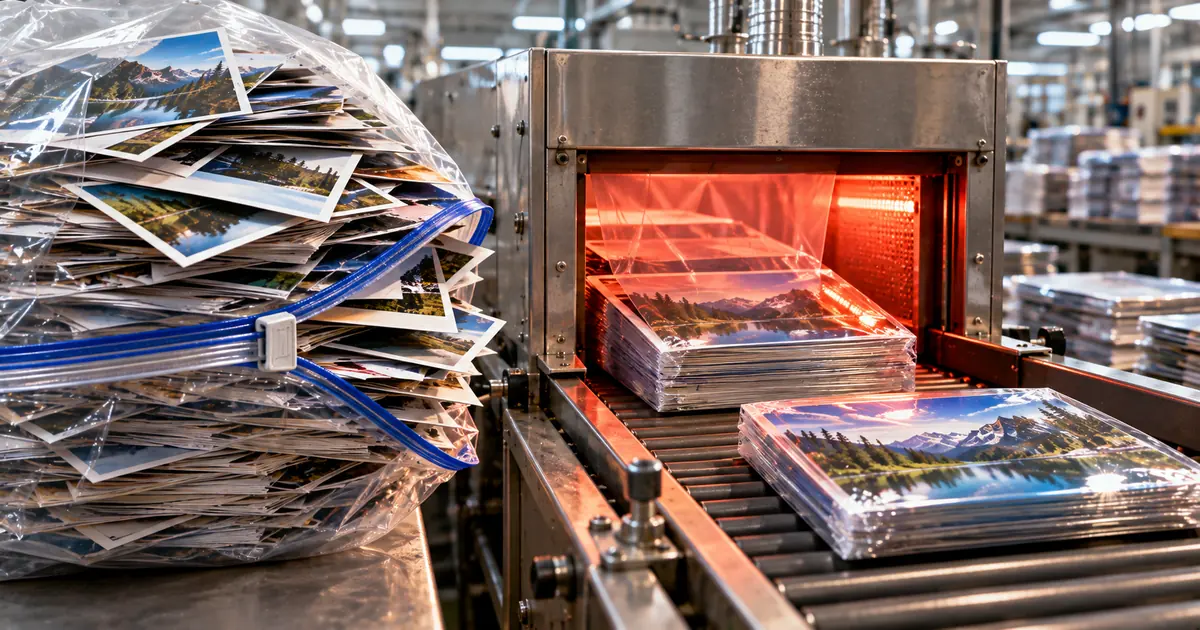
A folder of photos can be too heavy for an email, an upload form or a web page, and exporting each photo by hand repeats the same work for every file. A bulk image reducer takes the whole folder in a single pass and hands back lighter copies.
A bulk image reducer changes file size, not pixels
Compression keeps a photo's width and height and discards a little detail nobody looks for, so the picture looks the same on screen while the file gets lighter. Resizing works the other way round: it cuts the pixel dimensions, and the file becomes smaller only as a side effect.
The symptom tells you which one to use. A bounced email, a full cloud drive and a slow page are weight problems, so compress. A photo that overflows its layout, prints coarse or has to match a spec in pixels is a dimension problem, and How to resize an image on Windows, Mac and phones covers that case.
Compress many photos at once in the browser
A browser tool needs no installation and behaves the same on Windows, macOS and a phone, which makes it the quickest route for a folder of a few dozen photos. The sakuttoAI image compressor takes a mixed selection as it is, so a folder holding screenshots and camera shots needs no sorting first. The whole job is five actions:
- Open the image compressor in your browser.
- Drag the whole selection onto the page, or add the files with the file picker.
- Pick a quality preset, or set the file size you want each image to fit under.
- Run the compression.
- Download everything together as one ZIP.
Photos from an iPhone often arrive as HEIC, and plenty of software still refuses to open that format. The tool converts HEIC and HEIF input to JPEG first and compresses the JPEG.
HEIF already stores a photo in less space than JPEG at the same visual quality, so a converted file can end up larger than the original, and many people accept that because a file the recipient cannot open is worth less than a bigger one. For conversion on its own, Convert WebP to JPG or PNG, and JPG or PNG to WebP walks through the other formats.
"HEIF and HEVC offer better compression than JPEG and H.264, so they use less storage space on your devices and iCloud Photos , while preserving the same visual quality."View official source →
Set a KB target instead of guessing a quality number
A size target removes the trial and error, because the tool works out the quality for you instead of making you slide a control and check the result. The two modes differ in where they start. A quality preset starts from a setting: the harder it pushes, the smaller the files get, and edges and lettering pick up a faint blur.
Target mode starts from the answer. Say an upload form wants every image under 300 KB: the tool searches for the quality that fits that limit for each image on its own, and a sunset shot and a screenshot each end up with the setting they need. Use the target whenever a form, a print shop or a mail limit names a number, and use a preset when you only want lighter files and have no limit to meet.
Lossless or lossy: which fits your photos?
Lossy compression suits copies that go to an inbox or a web page, and lossless suits masters you may edit again. Lossless keeps every pixel and changes only how the pixels are stored, so running it repeatedly never degrades a picture. Lossy gives up a little detail in return for much smaller files.
Photographs are full of gradual tonal shifts, which store poorly without discarding something, so lossless leaves them close to their starting size. Screenshots, line art and flat-color graphics shrink far more, because large identical areas are what lossless encoding handles best. For a mixed folder the working rule is simple: keep the originals lossless and send lossy copies out.
Your photos never leave the browser
Processing runs inside the page, so client photos, faces and screenshots of internal tools stay on your own machine while the tool works on them. A compression library loaded into the page does the work, and the results come back to your disk as the ZIP.
The privacy worry with an online tool is usually about what the server keeps. A tool that processes files in the page removes that question for the files themselves.
The trade-off is speed. Your own machine does all the work, so a very large batch of high-resolution files takes as long as your computer takes, and a phone is slower than a desktop. No server queue is involved, and no server shares the load either.
Test a few files first and keep the originals
No single percentage is honest for a folder, because a dusk photo against a plain wall and a crowded street scene shrink by very different amounts. A tool that promises one figure is describing its own sample. The street scene holds far more detail that cannot be dropped quietly.
Run three or four files first and open the results at full size. If they hold up, the rest of the folder will behave the same way, since the files usually come off one camera under similar light.
Keep the originals in a separate folder and never let compressed copies overwrite them. Compression is not reversible, and overwriting a shot with a version squeezed too hard is the fastest way to lose it.
Past a few hundred files, a desktop tool wins
A program on the computer pays off when the folder runs to a few hundred files or the same job comes round every week, because it remembers the settings and does not depend on an open tab. The one-time install costs less than redoing the setup each time.
On Windows, Microsoft ships Image Resizer as part of PowerToys. It adds a right-click entry in File Explorer and handles a whole selection at once, but it resizes rather than compresses, so the files get smaller because the pixel dimensions fell. For file size alone, Caesium Image Compressor is a free option under GPL-3.0 that supports JPG, PNG, WebP and TIFF.
On a Mac, Preview already covers the job. Select several images in the same Preview window and use Adjust Size with Resample image ticked to lower the resolution. The new file size shows in the panel before saving, so you can see the result before committing to it.
"Image Resizer is a Windows shell extension for bulk image-resizing that helps you quickly resize multiple images at once." / "After installing PowerToys, you can right-click on one or more selected image files in File Explorer and select Resize with Image Resizer from the menu to streamline your image processing workflow."View official source →
Is zipping a folder the same as compressing photos?
Zipping a folder bundles the files without making each photo smaller, because JPEG and PNG pictures are compressed already and leave a zip little to squeeze. Microsoft says the total size of zipped JPEGs stays about the same as the original pictures.
Zip is still the right choice for sending twenty files as one attachment. Text files and spreadsheets, which start uncompressed, do shrink noticeably inside a zip. The confusion comes from the word itself: Windows calls the result a compressed folder, and the container is compressed, but the pictures inside are not.
"Some types of files, like JPEG images, are already highly compressed. If you zip several JPEG pictures into a folder, the total size of the folder will be about the same as the original collection of pictures."View official source →
A batch download arrives flat, with duplicate names colliding
Folder structure does not survive the download, so problems can start even when the compression itself went well. The browser tool returns one ZIP that is flat: every file sits at the top level under its own name.
Photos sorted into folders by client or by date lose that sorting when the archive is unpacked. Process one folder at a time, or use a desktop tool that can write into subfolders.
Two folders that each hold a file with the same name will clash once everything sits in one list. Renaming the files to a running sequence before the run removes the problem.
Compressing an already-compressed image again removes little and degrades it anyway. Run the originals through, and keep the compressed copies apart from them.
Summary: match the tool to the problem and the volume
Name the problem first, because the right tool follows from whether the files are too heavy or the pictures are too big. Zipping is a third thing and leaves photos about the same size. Testing three or four files first and keeping the originals gives the same result across the rest of the folder, and the choice then depends on the job:
- Files too heavy for email, a form or a page: compress them, and set a KB target when a form names a limit.
- Pictures too large on screen or on paper: resize them.
- A few dozen files: use the browser tool.
- A few hundred files, or a weekly job: use a desktop program that remembers the settings.
- Photos you may edit again: keep a lossless copy untouched.
FAQ
- Is there a free bulk image compressor?
- Yes. The sakuttoAI image compressor is free and handles a whole selection at once in the browser. If you would rather install something, Microsoft distributes Image Resizer with PowerToys on Windows, and Caesium Image Compressor is published under GPL-3.0 for file size specifically. On a Mac, Preview covers it with no extra software.
- How do I batch compress images on Windows?
- Install PowerToys, select the images in File Explorer, right-click and choose Resize with Image Resizer. Remember that this changes pixel dimensions rather than compressing, so reach for Caesium or a browser tool when file size is the actual target.
- Will zipping my photos make them smaller?
- No, not in any useful way. Microsoft states that zipping several JPEGs leaves the total size about the same as the original pictures, because those files are already compressed. Zip bundles files together; it does not shrink photos.
Related articles
 Keyboard symbols: names and how to type all 33Keyboard symbols: names and the keys that type them in a searchable list, plus Alt codes and Mac Option shortcuts for special characters not on the keyboard.
 How to scan documents to PDF: phone, PC, or storeHow to scan documents to PDF on iPhone, Android, Windows, or Mac, or at a FedEx Office copier, and where each method saves the file.
 How to zip a file on Windows, Mac, Linux, or phoneLearn how to zip a file or folder on Windows, Mac, Linux, iPhone and Android, add a password the built-in tools skip, and fix a zip that barely shrank.
 Mac keyboard shortcuts vs Windows: 58 comparedMac keyboard shortcuts mapped to the Windows keys they replace, 58 in one searchable table with Chromebook alongside, plus the two places that mapping breaks.