
ChatGPT Slack integration: what the Slack connector and app can do
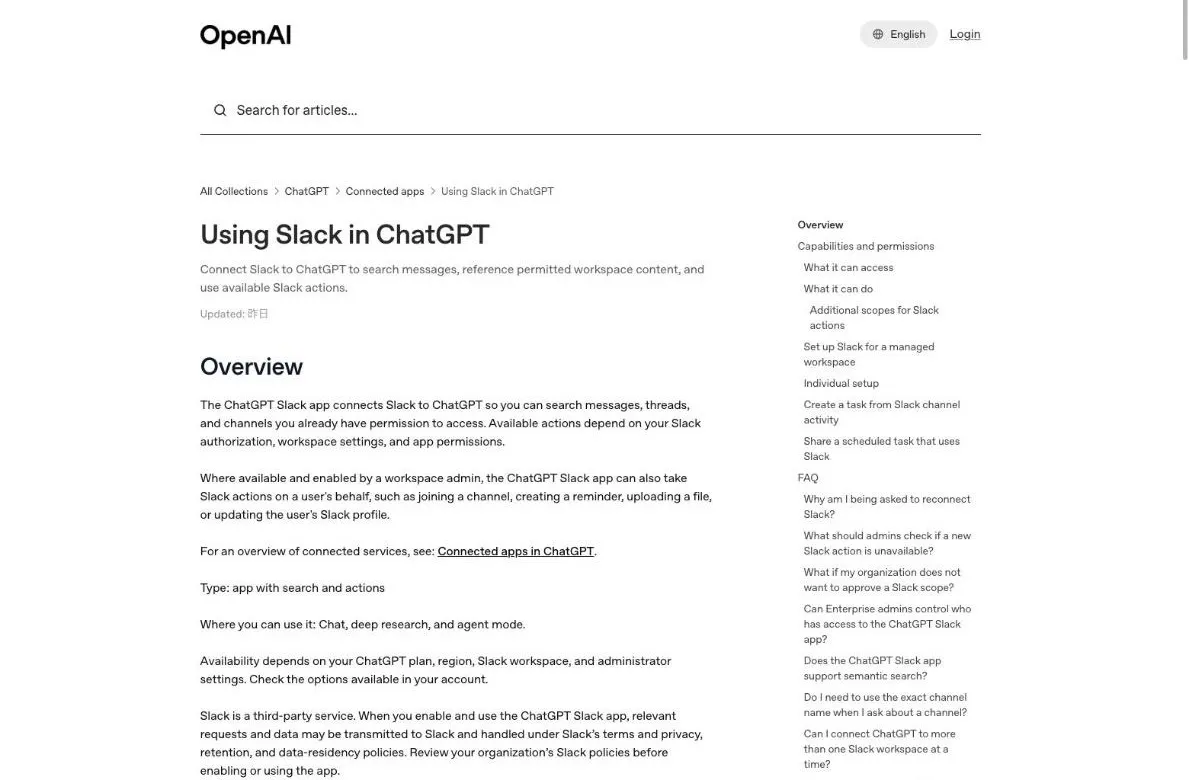
The ChatGPT Slack app connects Slack to ChatGPT so ChatGPT can search the messages, threads, and channels you already have permission to read, then summarize them or build a brief. Where a workspace admin has enabled it, the same app can also act for you in Slack. It works in Chat, deep research, and agent mode.
The naming is a little loose. OpenAI's help article is titled "Using Slack in ChatGPT" and calls the thing "the ChatGPT Slack app", while the release notes say "Slack connector". They all mean the same integration, and the names below follow each source's wording.
Using @ChatGPT inside Slack is separate from connecting Slack to ChatGPT. That assistant has its own help articles, one on using it and one on administrator setup.
How a request moves through the ChatGPT Slack integration
OpenAI's own example prompts show the intended shape of the requests. They ask for a weekly summary of one channel, a catch-up on unread threads, an incident update with the root cause, and a one-page meeting brief with action items. If you would rather summarize text you paste in than text that lives in Slack, see ChatGPT Summarizer: Prompts, Splits, File Limits.
Summarize the discussions in the #engineering-team Slack channel from this week. Provide a concise overview of the main topics and decisions. / Catch me up on everything unread in my Slack threads.View official source →
Slack AI search and keyword search in the ChatGPT Slack app
The app searches by keyword on every plan, and by meaning only on a supported Business+ or Enterprise+ workspace where Slack AI Search is enabled. Semantic search finds matches by what a message means rather than by the exact words in it. Slack admins can restrict access to AI features, and a qualifying plan alone is not enough: Slack AI Search must be enabled for the workspace.
You do not need a paid Slack plan to use the app, but you do need a paid ChatGPT plan. Matching by meaning is the part that depends on your Slack plan: without Slack AI Search enabled on a supported Business+ or Enterprise+ workspace, search uses keywords.
Slack connector actions: join a channel, set a reminder, upload a file
Where an admin has enabled them, the connector's actions let ChatGPT join a channel, create a reminder, upload a file, or update your Slack profile on your behalf. The June 19, 2026 release note introduced them under the title "Slack connector actions and OAuth scope approvals" and named Enterprise and Edu workspaces for that launch. The current help article also tells Business admins to review Actions, and says availability depends on your ChatGPT plan, region, Slack workspace, and administrator settings.
The same release note says existing Slack capabilities that do not need the new scopes keep working if the additional scopes are not approved. Search permissions such as search:read.public sit in the help article's Permissions requested list, not among the additional action scopes. The section on OAuth scopes below has the details.
Enterprise and Edu workspaces can now enable Slack connector actions in ChatGPT. In addition to searching Slack, ChatGPT can take supported actions such as joining a channel, creating a reminder, uploading a file, or updating a user's Slack profile when the connector and relevant actions are enabled.View official source →
Slack ChatGPT integration in Work: tasks that react to messages
A task in ChatGPT Work can respond to new messages in a connected Slack channel, but only in channels where you have added @ChatGPT. This is an event-triggered, webhook-based task, and the Slack account must be connected with access to the channel. The setup has four steps:
- In Settings, open Apps or Plugins and connect Slack.
- Add @ChatGPT to each public or private channel the task should monitor.
- Open Work and describe the Slack activity and the action ChatGPT should take.
- Review Trigger, Condition, and Prompt in the task details.
Triggers can be narrowed by channel, sender, or thread. Direct messages, reactions, message edits, and deletions do not trigger a task. In Enterprise, Edu, and ChatGPT for Healthcare workspaces, an admin must first enable Allow event-triggered scheduled tasks for Work, which the August 25, 2026 release note says is off by default.
Sharing such a task does not hand over your access. A shared link carries the task instructions but not your Slack connection, credentials, channel access, or message history, so strip sensitive Slack content from the instructions before you share. A recipient connects their own Slack account and adds @ChatGPT to each channel the copy monitors.
Connect ChatGPT to Slack: user setup, plans and workspaces
Eligible Plus, Pro, Business, Enterprise, and Edu users connect Slack themselves by finding it, selecting Connect, and authorizing the Slack workspace they intend to use. In Enterprise and Edu workspaces the Slack app must be enabled for the workspace first, as the admin setup section below describes; Business workspaces start with it enabled. Whether you see the option at all depends on your plan, region, Slack workspace, and administrator settings.
The help article has no plan-by-region table, so the reliable check is the options shown in your own account. If Slack is missing, the cause may be your plan, region, workspace, or an admin setting, so ask your ChatGPT admin to check them.
Connect the ChatGPT Slack app to one Slack workspace at a time
One connection covers a single Slack workspace, so switching means disconnecting the current workspace and then connecting the new one. The steps are short:
- Find Slack in Apps or Plugins, depending on the options shown for your account.
- Select Connect.
- Complete the authorization flow for the intended Slack workspace.
The two labels line up with OpenAI's July 9, 2026 release note, which says the App Directory is being replaced by the Plugin Directory and that existing app connections are unaffected. Once you authorize, the connection is your individual Slack account, signed in through OAuth.
You can connect the ChatGPT Slack app to only one Slack workspace at a time. / To switch workspaces, disconnect the current one, then connect the new workspace.View official source →
ChatGPT Slack plugin in chat, deep research and agent mode
Once Slack is enabled and connected, ChatGPT can use it in a conversation on its own when it is relevant, so you do not have to invoke it in every chat. It is available in Chat, deep research, and agent mode. Deep research and agent mode can use up your Slack API quota, which the limits section explains.
You also do not have to type a channel name exactly. Matching is fuzzy and works much like Slack search, so "marketing-team" finds "marketing-teams", and you can leave out the # symbol. A very broad or unrelated name may not match, in which case try a closer name.
ChatGPT Slack connector admin setup: plugins, actions and role access
Business, Enterprise, and Edu admins manage Slack in Admin > Plugins, where they select the plugin that includes Slack to review availability, actions, access settings, and any Slack approval requirements. A workspace that still uses Apps settings reviews Slack there instead. The June 19, 2026 release note words the path as "Slack under Apps in ChatGPT" and names "Action control" for managing which actions are available, so you may see either set of names.
One Slack term helps here: an OAuth scope is a single permission that an app asks Slack for. If your organization uses Enterprise Grid or requires admin approval for app scopes, talk to a Slack admin before you enable new Slack actions in ChatGPT.
Admin plugins page: actions, role access and manage domains
The Slack entry lets admins set role access, review the available actions, turn individual actions off, and limit which Slack accounts members can connect. During setup or later, the options are:
- Role access: configure role-based access controls, where available.
- Actions: review which Slack actions the workspace offers.
- Disable an action: switch off any action that needs an OAuth scope your organization does not want to approve.
- Manage domains: limit which Slack accounts workspace members can connect.
Once a ChatGPT admin enables the app and, where required, a Slack admin approves it, each user connects their own account through an OAuth sign-in. Neither admin connects a user's account for them.
Select Manage domains if you want to limit which Slack accounts workspace members can connect.View official source →
ChatGPT Slack app defaults for Business, Enterprise and Edu
Business workspaces start with the Slack app enabled, so Business admins should review Actions; Enterprise and Edu admins should confirm Slack is enabled and that the intended members have access. For the actions, OpenAI's guidance is to disable any action whose required scope the organization does not want to approve.
On Enterprise and Edu, the Slack app must be enabled for the workspace and available to each account. Administrators can use supported role-based access controls to decide which members or groups may use it. If members will build Slack-triggered tasks in Work, an admin also has to allow event-triggered scheduled tasks under Permissions & roles > Work.
Add @ChatGPT to each monitored Slack channel. Enterprise, Edu, and ChatGPT for Healthcare admins must first enable Allow event-triggered scheduled tasks in Permissions & roles > Work. This permission is off by default.View official source →
Slack app OAuth scopes and approvals for connector actions
The app requests the Slack scopes in the help article's Permissions requested list, plus extra OAuth scopes for each action you enable. The exact list depends on the actions you enable and the scopes the workspace has already approved. If your organization will not approve a scope, it can switch off every action that needs that scope.
Extra scopes each Slack connector action requests
Joining a channel asks for write scopes such as channels:write, creating a reminder asks for reminders:write, uploading a file asks for files:write, and updating a profile asks for users.profile:write. OpenAI lists the additional scopes that new or updated actions may request:
| Slack action | Additional scopes |
|---|---|
| Inviting users to conversations | channels:write.invites, groups:write.invites, and related conversation write scopes |
| Joining or leaving conversations | channels:write, groups:write, im:write, mpim:write |
| Creating reminders | reminders:write |
| Uploading files to Slack | files:write |
| Listing starred items | stars:read |
| Listing user groups | usergroups:read |
| Listing conversations visible to the user | channels:read, groups:read, im:read, mpim:read |
| Updating a Slack profile | users.profile:write |
The help article also lists the scopes under Permissions requested, apart from the action scopes. They include search:read.public, search:read.private, search:read.mpim, search:read.im, search:read.files, and search:read.users, plus chat:write.
The rest of that list is channels:history, groups:history, mpim:history, and im:history, then canvases:read, canvases:write, users:read, and users:read.email. The Slack methods involved are assistant.search.context, chat.getPermalink, and conversations.replies.
Some Slack actions require additional Slack OAuth scopes. The exact scopes requested can depend on which Slack actions are enabled and which scopes your workspace has already approved.View official source →
Reconnect prompts and Slack admin approval for the ChatGPT Slack app
ChatGPT may ask you to reconnect Slack when it needs a scope your account has not granted yet, and an action whose scope a Slack admin has not approved may stay unavailable until approval is complete. Slack features that do not need the new scope keep working while approval is pending.
One trigger is a workspace admin enabling a new action that needs an additional scope. If a new action does not appear, an admin should check both sides:
- In ChatGPT: confirm the Slack app is enabled for the workspace and the action is enabled in Actions.
- In Slack: confirm the app was approved or reinstalled with the required OAuth scopes, if your Slack workspace requires admin approval.
Then ask the user to reconnect Slack or retry the action. If the organization does not want to approve a scope at all, it should disable every Slack action that needs that scope, and users in the workspace will not be able to use those actions.
Existing Slack capabilities that do not require the new scopes continue to work if additional scopes are not approved.View official source →
ChatGPT Slack integration limits: quota, retention and data handling
The limits to know are a per-user Slack API quota, the retention settings on the Slack side, and the fact that relevant requests and data may be sent to Slack, a separate provider. The first two can explain a partial or empty answer; the third matters for your organization's data policies.
Per-user Slack API quota in deep research and agent mode
Deep research, Pro models, and agent mode can exhaust your own Slack API quota even before the workspace-wide limits are reached. The help article gives no figure for the quota, so if searches start failing partway through a long run, narrow the request or ask a plain chat question before assuming the connection is broken.
Slack retention, data residency and the Compliance API
ChatGPT only reads Slack content that Slack's APIs make available to you at the moment of the request, so anything deleted or expired under your Slack retention settings will not appear. If a result seems to be missing, check your Slack retention policy and your channel access first. The same applies to messages in channels you cannot open.
Slack is a separate provider. Relevant requests and data may be sent to Slack and handled under its terms and its privacy, retention, and data-residency policies, so review your organization's Slack policies before you enable the app.
ChatGPT's own data-residency controls cover supported, in-scope customer content. The help article's Compliance API answer says eligible Enterprise and Edu administrators may review supported conversation and app-activity records through the Compliance Platform when it is available and configured.
Before adopting the app, decide whether search and summaries are enough or you need actions, which actions you will allow, and which scopes your Slack admin will actually approve. Turn on only what those answers support, and disable the rest. For limits on what you can attach to ChatGPT alongside Slack content, see ChatGPT file upload limit: which one stops you.
Slack is a separate provider, and information sent to Slack is subject to Slack’s own storage, retention, privacy, and data-residency terms.View official source →
FAQ
- What are the ChatGPT Slack connector actions?
- On top of searching Slack, ChatGPT can take supported actions such as joining a channel, creating a reminder, uploading a file, or updating your Slack profile. OpenAI announced them in the June 19, 2026 release note for Enterprise and Edu workspaces.
- Who turns the actions on?
- Workspace admins do. They review the Actions for Slack and disable any action whose required Slack scope the organization does not want to approve. Individual users connect their own Slack account but do not switch actions on.
- Do the actions need extra setup in Slack?
- Some do. Actions can request additional Slack OAuth scopes, and organizations that require Slack admin approval may need that admin to approve or reinstall the app first.
- Which ChatGPT plans can connect Slack?
- Eligible Plus, Pro, Business, Enterprise, and Edu users can connect Slack. Whether you can actually use it depends on your plan, region, Slack workspace, and administrator settings, so check the options shown in your own account.
- Can ChatGPT search Slack by meaning?
- Yes, where Slack AI Search is enabled on a supported Slack Business+ or Enterprise+ workspace. Everywhere else the search uses keywords.
- Can I connect more than one Slack workspace?
- Not at the same time. To switch, disconnect the current workspace and then connect the new one.
Related articles
 OpenAI, ServiceNow expand deal with ChatGPT pluginOpenAI and ServiceNow expanded their deal on Oct 28, 2026. A ServiceNow MCP plugin for ChatGPT is live now; Codex, security and voice tools follow in 2027.
 ChatGPT and Codex usage limits merge in DecemberFrom December, Plus, Pro and Business plans will share one token-based allowance across ChatGPT and Codex. Instant chat won't count, and no start date is set.
 ChatGPT now works with iCloud Mail and CalendarOpenAI added iCloud Mail and Calendar plugins to ChatGPT on Oct 27 for all plans. You connect with an Apple app-specific password that outlives a disconnect.
 ChatGPT limits weapons information for teensOpenAI said on Oct 30, 2026 that ChatGPT will limit weapons information for teens, end chats fixated on violence, and report on safety every six months.