
What the iCloud Mail and Calendar plugins can do
OpenAI added two plugins to ChatGPT: iCloud Mail and iCloud Calendar. A plugin here is an add-on that lets ChatGPT work inside another service on your behalf.
Since October 27, 2026, ChatGPT can dig through your Apple inbox and change events on your schedule, jobs it could already do for Gmail and Google Calendar users. You describe the task in plain language, and ChatGPT runs the search or makes the edit through the plugin.
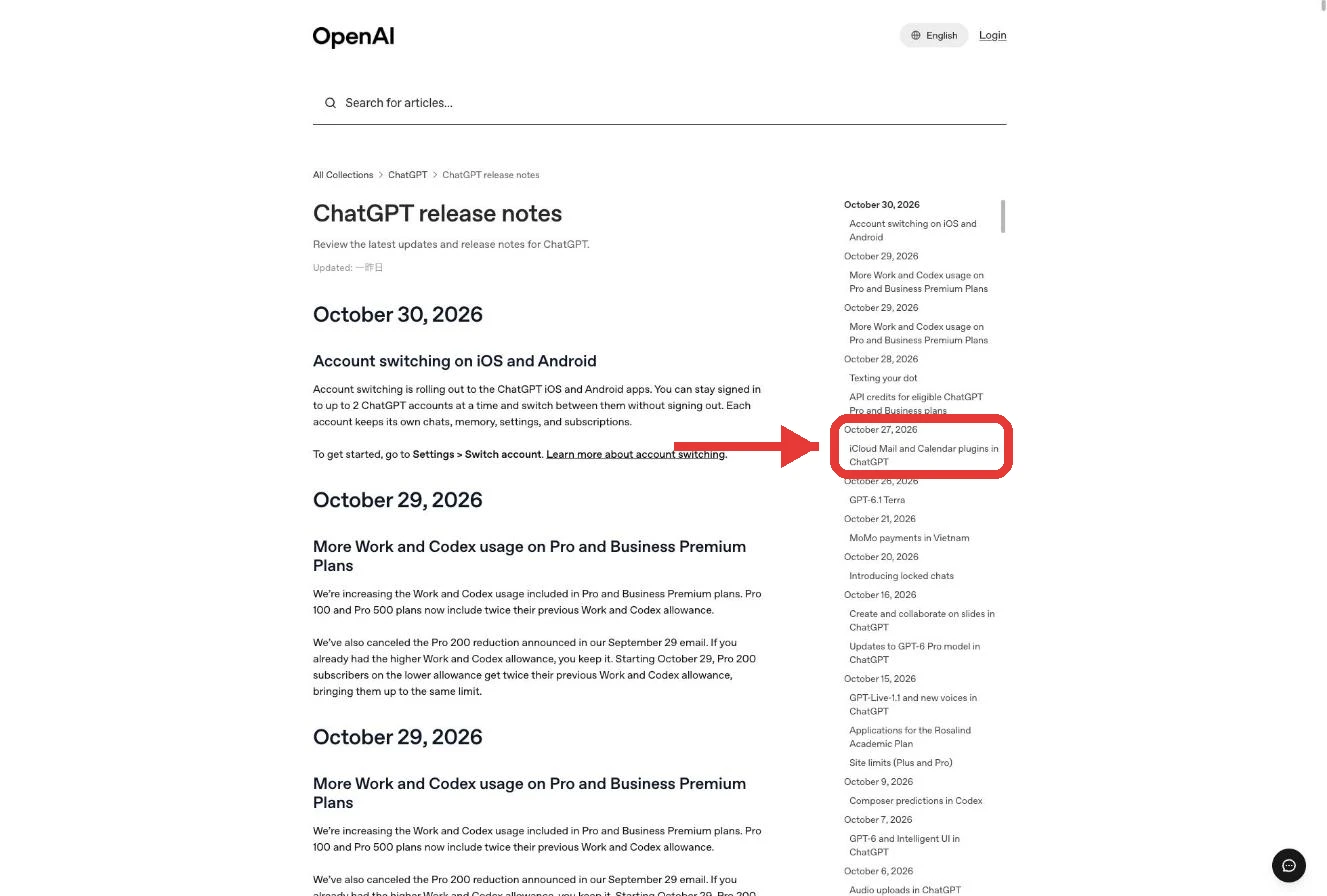
"Thanks to new plugins for iCloud Mail and iCloud Calendar, the AI chatbot can now work with iCloud in the same way that it can with Gmail and Google Calendar."— from EngadgetView official source →
Mail finds messages while Calendar checks and edits events
The Mail plugin finds emails and catches you up on the inbox, the Calendar plugin checks your schedule and updates events, and ChatGPT may ask for your approval before it reads or changes anything. In practice, that covers requests like pulling up a receipt from last month, summing up what came in overnight, or moving a meeting to Thursday. OpenAI states the approval step in its help article on connected app accounts, so you may see a prompt before ChatGPT opens your messages or edits an event.
Contacts are read-only, and Reminders is not included
Both plugins can look up contacts but cannot change them, there is no separate Contacts or Reminders plugin, and Gmail or Outlook accounts shown in Apple's Mail app stay out of reach. Contact lookup comes bundled with each plugin, so ChatGPT can find an address when you ask it to locate a message from someone.
The reach stops at iCloud itself. ChatGPT sees only the messages and events tied to iCloud, even though Apple's Mail and Calendar apps can also display Gmail or Outlook accounts.
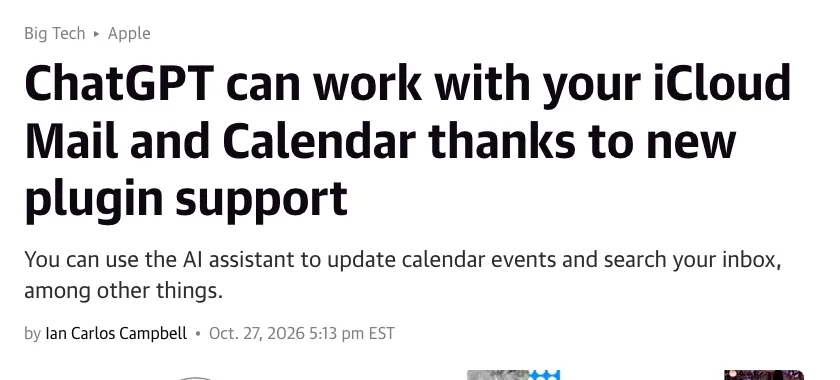
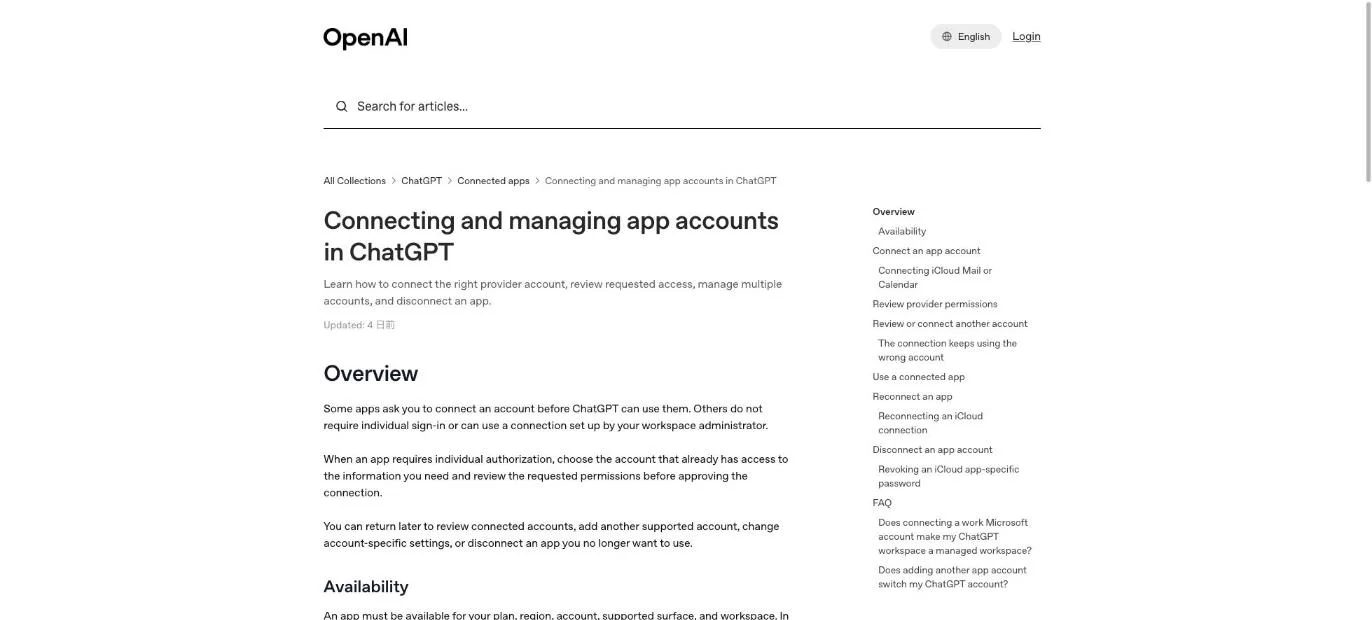
"iCloud users can now connect Mail and Calendar to ChatGPT to find emails, catch up on your inbox, check your schedule, and update calendar events."— from OpenAI's ChatGPT release notesView official source →
"Both plugins include read-only contact lookup; standalone Contacts and Reminders plugins are outside this launch."/"ChatGPT may request approval before reading information or completing an action."— from OpenAI's help article on connected app accountsView official source →
"The iCloud Mail and iCloud Calendar plugins will only give ChatGPT access to the messages and calendar events associated with Apple's services, so they're useless if you don't use iCloud."— from EngadgetView official source →
Every ChatGPT plan gets the plugins, but not on Android
Free and paid users alike can use both plugins on the web, the desktop app and iOS, while Android is missing from OpenAI's list. OpenAI's release notes say the plugins are "available to all ChatGPT plans", and a free account is enough. The same notes name three surfaces and stop there, so Android is not covered as of the October 27 entry.
Pro subscribers get one extra. Dot, OpenAI's agent, can use both plugins on the Pro plan, so tasks it runs for you can draw on your iCloud inbox and calendar.
That reach is wider than ChatGPT's earlier Apple plugin. As covered in ChatGPT Apple Messages: iMessage, SMS, RCS on Mac, that plugin works only in the Apple silicon build of the Mac desktop app and only in Codex and ChatGPT Work chats. Apart from the three surfaces, the iCloud plugins carry no such limits.
"Available to all ChatGPT plans on the web, desktop app, and iOS."— from OpenAI's ChatGPT release notesView official source →
"ChatGPT will work with either service across desktop, the web and iOS, regardless of whether you have a free account or pay for a ChatGPT subscription. If you pay for OpenAI's Pro plan, your Dot, the company's AI agent, can also use either plugin."— from EngadgetView official source →
You need an Apple app-specific password to connect
An app-specific password is a separate password Apple issues for one non-Apple app, so that app never learns your main Apple Account password. ChatGPT's iCloud connection form asks for an Apple app-specific password instead of sending you to a sign-in page, and your regular Apple Account password should never go there or into a chat. OpenAI's help article spells out both rules: use the app-specific password in the form, and do not paste any password into the conversation.
Two-factor authentication has to be on first
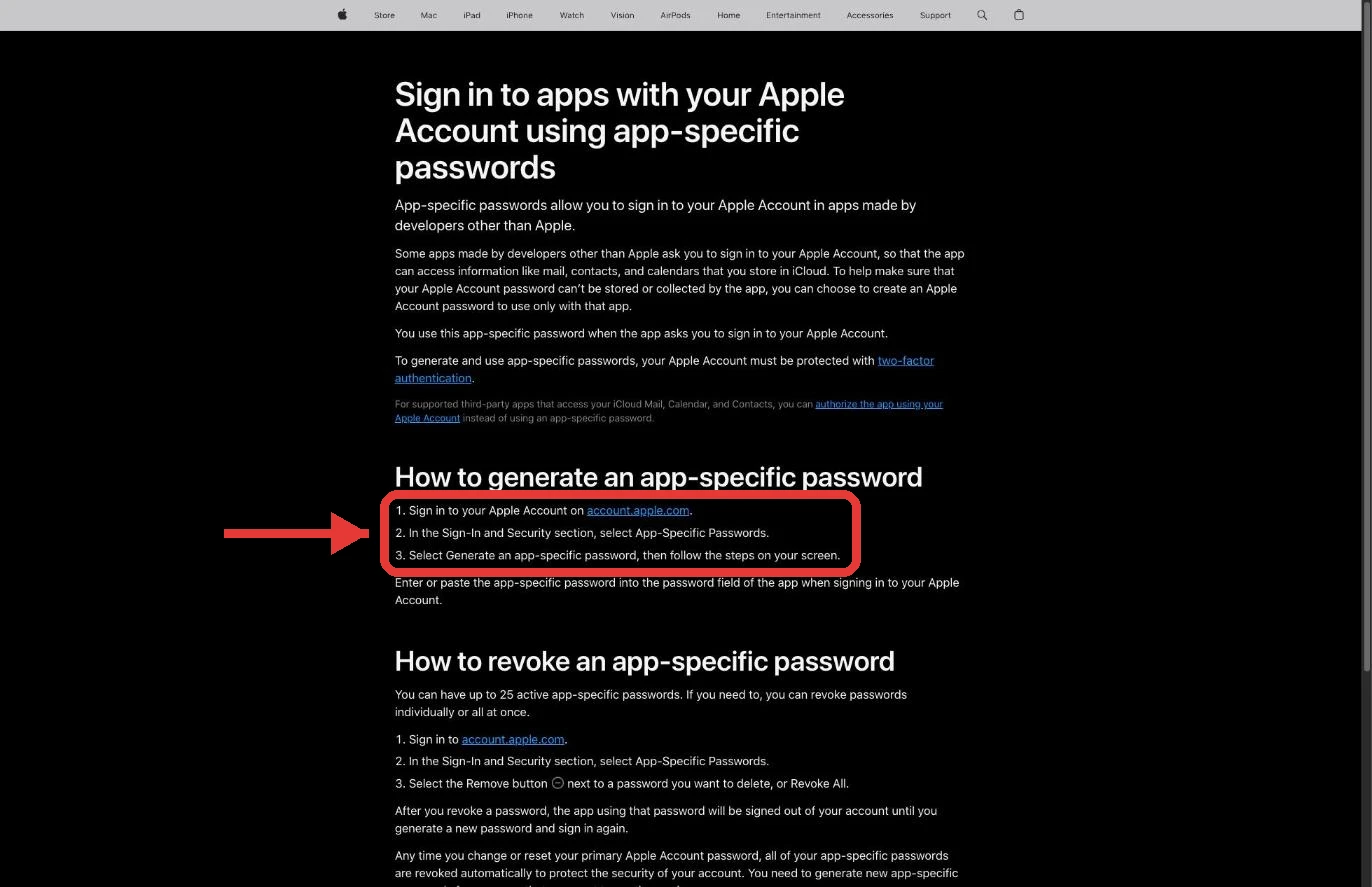
Apple only issues app-specific passwords to accounts protected by two-factor authentication, and you create them at account.apple.com under Sign-In and Security. Two-factor authentication means every new sign-in also needs a code sent to one of your trusted devices. With it turned on, the steps are:
- Sign in at account.apple.com.
- In Sign-In and Security, select App-Specific Passwords.
- Generate a new password and copy it into ChatGPT's connection form.
Apple lets one account keep up to 25 active app-specific passwords. A single password can serve both ChatGPT connections, which matters later when you decide how to remove access.
Mail and Calendar may ask for different addresses
The Mail form wants an Apple-issued iCloud address (@icloud.com, @me.com or @mac.com), the Calendar form wants the email you sign in to your Apple Account with, and those can be two different addresses. Someone who created their Apple Account with a Gmail or work address, for example, signs in to Calendar with that address but connects Mail with their @icloud.com one. Only the address differs between the two forms; both take an app-specific password.
"iCloud uses an Apple app-specific password in its connection form. For Mail, enter your iCloud Mail address ending in @icloud.com, @me.com, or @mac.com. For Calendar, enter your primary Apple Account email address, which may differ from your iCloud Mail address. Enter the Apple app-specific password in the connection form; do not use your regular Apple password or paste a password into the conversation."— from OpenAI's help article on connected app accountsView official source →
"To generate and use app-specific passwords, your Apple Account must be protected with two-factor authentication."/"In the Sign-In and Security section, select App-Specific Passwords."/"You can have up to 25 active app-specific passwords."— from Apple SupportView official source →
Connect Mail and Calendar one at a time in Settings
Each service is its own connection under Settings > Plugins, so connecting Mail does not give ChatGPT access to Calendar. OpenAI's help article states it directly: installing one plugin does not authorize the other service. Anyone who wants both goes through the form twice, and the setup runs the same way for each plugin:
- In ChatGPT, open Settings > Plugins.
- Select iCloud Mail or iCloud Calendar.
- Enter the address that plugin expects and the app-specific password.
- Repeat for the other plugin if you want it too.
Once a plugin is connected, you call it from the chat itself. Type @ followed by the plugin name, or open the + menu and pick it from the list.
"Open Settings > Plugins. Select the app or the plugin that includes it."/"Connect iCloud Mail and iCloud Calendar separately if you want both services."/"A plugin installation does not authorize the other service."/"You can mention an available plugin or app with @, or open + and select it from the available menu."— from OpenAI's help article on connected app accountsView official source →
Disconnecting in ChatGPT leaves the password active at Apple
Removing the plugin in ChatGPT does not revoke its app-specific password, so the password keeps working until you revoke it at Apple. ChatGPT and Apple each hold one half of the connection. Turning off the ChatGPT half stops ChatGPT from using it, while the password itself stays valid on Apple's side.
Changing your Apple password breaks both connections
Changing or resetting your main Apple Account password revokes every app-specific password, so you need a new one and must reconnect Mail and Calendar separately. Apple does this on purpose, to protect the account. Both ChatGPT plugins stop working at the same moment, and so does any other app that signs in with an app-specific password.
To get ChatGPT back, create a replacement password first, then reconnect each plugin with it. OpenAI notes that reconnecting one does not update the other, so you have to fill in both forms again.
Revoke the password at Apple when you stop using it
Revoking the password at Apple is the step that actually cuts access, and it also stops any other connection that shares the same password. The control sits on the same App-Specific Passwords page at account.apple.com, where each password has its own Remove button and Revoke All clears them all at once.
If one password serves both Mail and Calendar, revoking it ends both. Disconnecting does not erase what ChatGPT already holds either: past chats, saved files and memories stay until you delete them yourself.
"Disconnecting an iCloud connection in ChatGPT does not revoke its password at Apple. Use Apple's app-specific password controls to revoke it separately. Other connections using that password may also stop working."/"Reconnect the affected Mail or Calendar connection using a valid Apple app-specific password. Reconnecting one does not update the other. If Apple revoked the password, or you changed or reset your main Apple password, create a replacement app-specific password first."— from OpenAI's help article on connected app accountsView official source →
"Any time you change or reset your primary Apple Account password, all of your app-specific passwords are revoked automatically to protect the security of your account."— from Apple SupportView official source →
Setup and removal both happen in two places, not one
Both connecting and disconnecting involve ChatGPT and Apple, and skipping the Apple side leaves either a missing password at setup or a live one after removal. Setup starts at Apple, where two-factor authentication and the password come from, and ends in ChatGPT's form. Removal runs the other way: ChatGPT can drop the plugin, but only Apple can revoke the password.
To see what still has access, check Apple's App-Specific Passwords page: it lists every app-specific password that can still reach your iCloud data. An empty plugin list in ChatGPT's settings shows only that ChatGPT no longer uses the password, not that the password is gone.
FAQ
- Can ChatGPT read Gmail or Outlook accounts added to Apple's Mail app?
- No. The plugins reach only iCloud messages and events. Apple's Mail and Calendar apps can also show Gmail or Outlook accounts, but those are not covered.
- If I connect iCloud Mail, does iCloud Calendar come with it?
- No. Mail and Calendar are separate plugins, and connecting one does not give ChatGPT access to the other. Connect each one if you want both.
- Do the iCloud plugins work in the ChatGPT Android app?
- OpenAI does not list Android. Its release notes name the web, the desktop app and iOS as the places where the plugins are available.
- Can I connect with my regular Apple Account password?
- No. The connection form takes an Apple app-specific password. OpenAI says not to use your regular Apple password and not to paste any password into the conversation.
Related articles
 OpenAI, ServiceNow expand deal with ChatGPT pluginOpenAI and ServiceNow expanded their deal on Oct 28, 2026. A ServiceNow MCP plugin for ChatGPT is live now; Codex, security and voice tools follow in 2027.
 ChatGPT and Codex usage limits merge in DecemberFrom December, Plus, Pro and Business plans will share one token-based allowance across ChatGPT and Codex. Instant chat won't count, and no start date is set.
 ChatGPT limits weapons information for teensOpenAI said on Oct 30, 2026 that ChatGPT will limit weapons information for teens, end chats fixated on violence, and report on safety every six months.
 ChatGPT ads add 26 countries, reaching 89 in totalOpenAI added 26 countries to ChatGPT Ads on October 21, for 89 in total, as advertisers topped 100,000. Ads show only on the Free and Go plans.