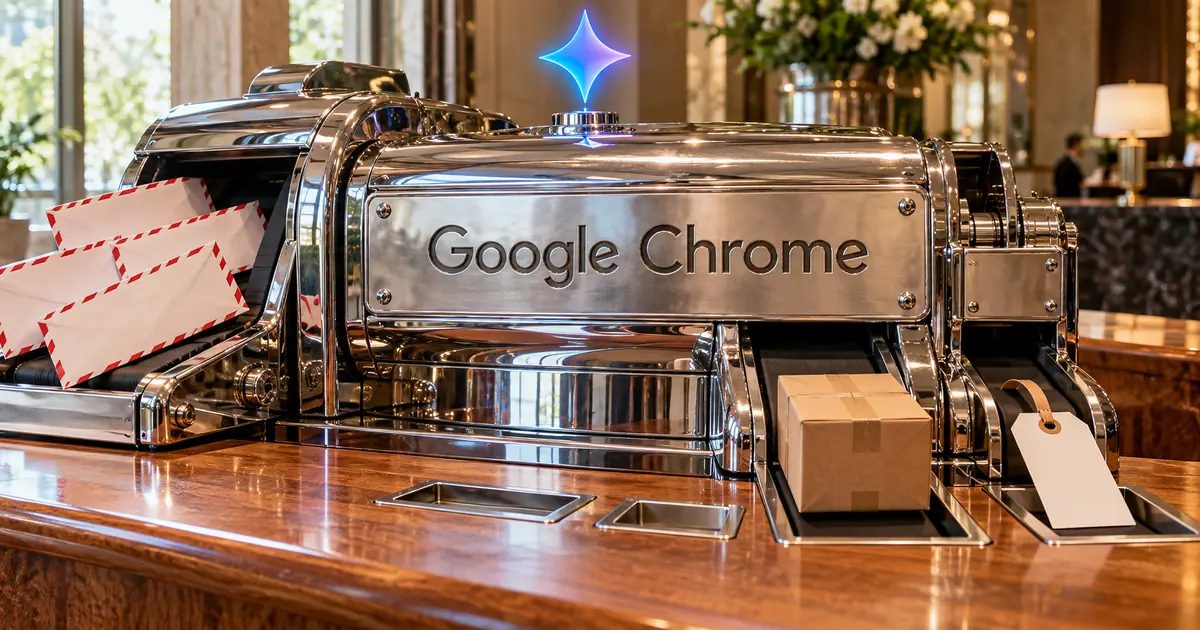
What Chrome autofill now pulls from Gmail
Classic autofill vs. Gmail-powered enhanced autofill
| Classic autofill | Enhanced autofill with Gmail | |
|---|---|---|
| What it fills | Name, address, card number | Order numbers, tracking info, flight bookings |
| Where the data lives | Saved in Chrome | Emails in your Gmail inbox |
| What powers it | Chrome autofill | Gemini with Personal Intelligence |
| How it looks | Dropdown under the field | Same dropdown, marked with the Gemini spark icon |
On October 28, 2026, Google announced that Chrome's enhanced autofill can suggest details it finds in your Gmail while you fill out a web form. Until now, autofill stuck to the basics you saved yourself, like your name, address, and card number.
The new suggestions come from Gemini with Personal Intelligence, which reads your inbox for the detail the form is asking for. Google pitches it as a way to skip the tab-switching and inbox searches that usually come before typing an order number into a return form.
Order numbers, tracking info, and flight bookings
Google's announcement names three kinds of data: order numbers, package tracking details, and flight bookings. Chrome Help describes the same feature as using Gmail data such as flights, vehicles, and orders, so vehicle details are in scope too.
Think of a return form that wants the order number from last week's confirmation email. With enhanced autofill on, that number can appear in the dropdown without opening Gmail. TechCrunch's report listed a wider set of examples, including membership IDs and phone numbers.
How to spot a Gemini suggestion
Gmail-based suggestions carry the Gemini spark icon. They sit in the regular autofill dropdown, so the icon is the quickest way to tell them apart from the addresses and cards you saved in Chrome yourself.
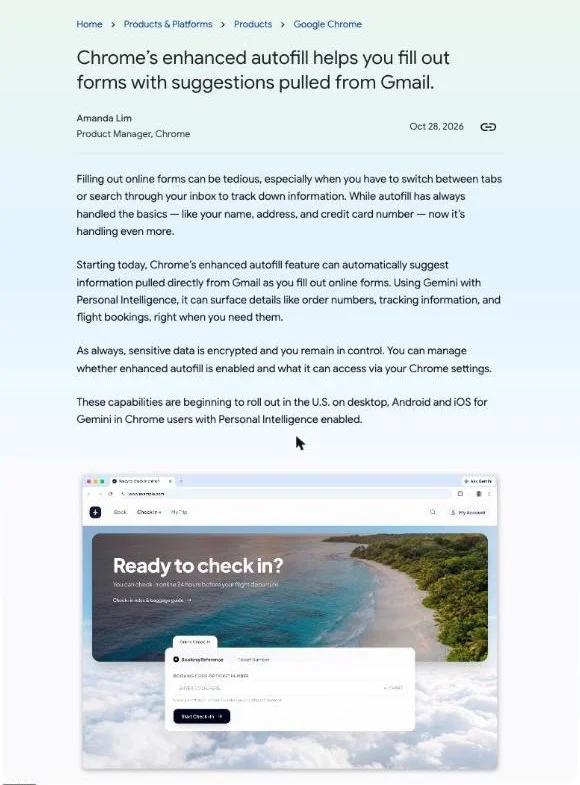
"While autofill has always handled the basics — like your name, address, and credit card number — now it’s handling even more."/"Starting today, Chrome’s enhanced autofill feature can automatically suggest information pulled directly from Gmail as you fill out online forms. Using Gemini with Personal Intelligence, it can surface details like order numbers, tracking information, and flight bookings, right when you need them."(Chrome enhanced autofill announcement)— GoogleView official source →
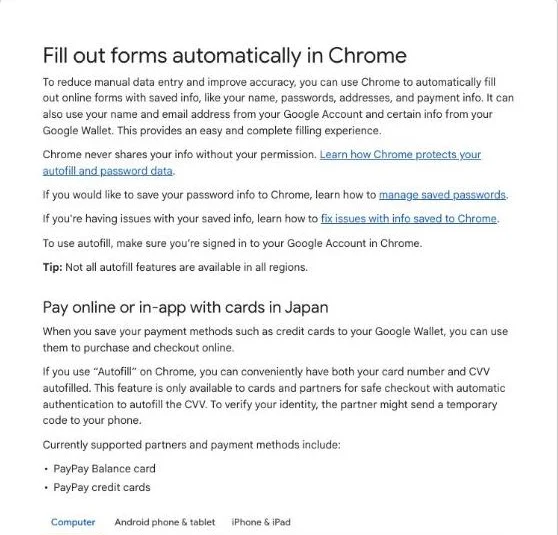
"Enhanced autofill uses data from your Gmail account, such as flights, vehicles, and orders, to fill out forms for you. Suggestions are displayed with the Gemini spark icon"(Fill out forms automatically in Chrome)— GoogleView official source →
Who gets Gmail suggestions in Chrome autofill
Requirements for Gmail-powered enhanced autofill
You get Gmail suggestions only if you're in the US, are 18 or older, use Gemini in Chrome, and have opted into Gemini Personal Intelligence. Gemini in Chrome is the Gemini assistant built into the browser. Google started the gradual rollout on October 28, 2026, across desktop, Android, and iOS.
Miss any one of those conditions and nothing changes. Autofill keeps offering the name, address, and card details you saved in Chrome, with no Gemini entries in the dropdown.
Personal Intelligence has to be on
Personal Intelligence is the Gemini setting that lets it use data from your connected Google apps. In Gemini in Chrome, the apps you can connect include Gmail, Google Calendar, Google Docs, Google Drive, Google Keep, Google Tasks, Google Photos, and YouTube.
Enhanced autofill reads Gmail only through that connection. If you never opted in, a Chrome update alone won't start pulling details from your inbox.
Availability outside the US
Google hasn't said when Gmail-powered autofill will reach other countries. The announcement covers the US only.
Personalization in Gemini in Chrome is itself limited to four countries: Canada, India, New Zealand, and the US. Readers in the UK, the EU, Japan, and elsewhere can't use this feature yet.
"Enhanced autofill is currently available on Desktop, Android, and iOS for Gemini in Chrome users in the US who are 18 or older and have opted into Gemini Personal Intelligence."(Fill out forms automatically in Chrome)— GoogleView official source →
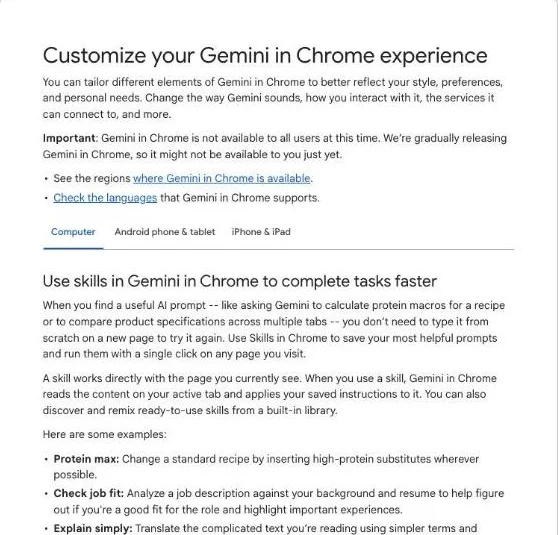
"With their permission, eligible users with Personal Intelligence can connect their data in some Google apps to Gemini in Chrome to get new, more personalized experiences previously unavailable through Connected Apps."/"You must be 18 or over and in Canada, India, New Zealand, or the US."(Customize your Gemini in Chrome experience)— GoogleView official source →
How to turn off enhanced autofill in Chrome settings
Which switch to use
| What you want to stop | Where | Switch |
|---|---|---|
| Gmail details in autofill only | Chrome settings | Enhanced autofill → "Find and fill with Gemini" |
| Gemini using Gmail anywhere | Gemini in Chrome settings | Personal Intelligence → Connected Apps → Gmail |
Turn off "Find and fill with Gemini" under Enhanced autofill in your Chrome autofill settings, and Gmail details stop showing up in form suggestions. Google's announcement says the same thing in broader terms: whether enhanced autofill is on, and what it can reach, is controlled from Chrome settings.
There's also a bigger switch. Disconnecting Gmail from Gemini cuts off the source entirely, but it affects more than autofill, so it's worth knowing which one you need before you flip it.
Switch off Find and fill with Gemini
Reaching the toggle in Chrome's autofill settings takes four steps. On a computer:
- Open Chrome, click More (the three-dot menu) at the top right, and choose Settings
- Open Autofill and passwords
- Under Autofill settings, select Enhanced autofill
- Turn off Find and fill with Gemini
Chrome Help describes this as an on-or-off toggle. Flip the same switch back on whenever you want the suggestions again.
Disconnect Gmail from Gemini entirely
If you'd rather Gemini not touch Gmail at all, remove the connection in Gemini in Chrome. The steps start from the Gemini panel, not from Chrome settings.
- Click Ask Gemini at the top of the browser to open Gemini in Chrome
- Click More, then Settings & help, then Personal Intelligence, then Connected Apps
- Turn off Gmail
This disconnects Gmail from every Gemini app, not just Gemini in Chrome. If you also ask Gemini about your email elsewhere, that stops working too, so use the autofill toggle above if autofill is the only thing bothering you.
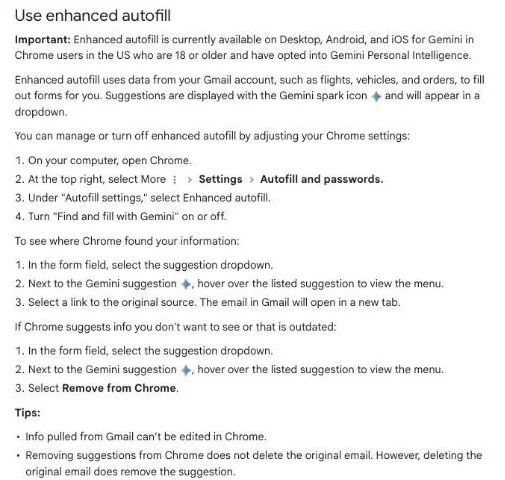
"You can manage or turn off enhanced autofill by adjusting your Chrome settings:"/"Under "Autofill settings," select Enhanced autofill."/"Turn "Find and fill with Gemini" on or off."(Fill out forms automatically in Chrome)— GoogleView official source →
"To stop using info from other apps, like Photos and Gmail, manage your Connected Apps in Gemini."/"This disconnects or connects an app for all Gemini Apps, including Gemini in Chrome."(Customize your Gemini in Chrome experience)— GoogleView official source →
How to delete a Gmail autofill suggestion
What the suggestion menu lets you do
You can delete Gmail-based suggestions one at a time from the menu next to each suggestion, and you can check which email it came from first. That matters when an old order number or a past flight keeps popping up.
Both actions live in the same small menu, which appears when you hover over a Gemini suggestion in the dropdown. You don't need to open Chrome settings for either one.
Open the source email first
Each Gemini suggestion links back to the email it came from. Here's how to open it.
- Click into the form field and open the suggestion dropdown
- Hover over the Gemini suggestion to bring up its menu
- Select the link to the original source
The message opens in Gmail in a new tab. That's the quickest way to confirm the number or date still matches your current booking or order before you decide to remove it.
Removing a suggestion keeps the email
Select Remove from Chrome in the same menu to drop the suggestion; the email itself stays in your inbox. It works the other way too: delete the original email in Gmail and the suggestion goes away.
You can't edit a Gmail-based suggestion inside Chrome. If the detail is wrong, remove it and type the value yourself.
"Select a link to the original source. The email in Gmail will open in a new tab."/"Info pulled from Gmail can’t be edited in Chrome."/"Removing suggestions from Chrome does not delete the original email. However, deleting the original email does remove the suggestion."(Fill out forms automatically in Chrome)— GoogleView official source →
Encryption, re-authentication, and a setting people confuse
Two autofill settings with similar names
| Enhanced autofill | Smarter form understanding | |
|---|---|---|
| What it does | Suggests details from Gmail through Gemini | Helps Chrome read forms so it fills them faster |
| Uses Gmail | Yes | No |
| Who has it | US, 18+, Personal Intelligence on | Anyone signed in to Chrome with a Google Account |
Google says sensitive data used by enhanced autofill is encrypted, and you decide in Chrome settings whether the feature runs and what it can reach. Chrome also asks you to verify it's you before filling the most sensitive fields.
The same Autofill settings page holds a second AI-flavored toggle with a similar name. It's easy to switch off the wrong one.
Re-authentication is on by default
Before Chrome fills sensitive personal details, it asks you to unlock with your screen lock, fingerprint, face unlock, or device PIN. This re-authentication setting is on by default, and sensitive personal details are partially hidden.
You can turn re-authentication off in the same settings area. With it off, Chrome fills that information without the extra check.
Smarter form understanding is a separate toggle
Smarter form understanding doesn't read Gmail; it helps Chrome make sense of form fields so autofill works faster. It stays on unless you turn it off, needs you to be signed in to Chrome, and doesn't work on every site.
If your goal is to keep Gmail details out of autofill, leave this one alone and use the Enhanced autofill toggle instead. Chrome Help lists the two as separate toggles under Autofill settings.
"As always, sensitive data is encrypted and you remain in control. You can manage whether enhanced autofill is enabled and what it can access via your Chrome settings."(Chrome enhanced autofill announcement)— GoogleView official source →
"With smarter form understanding, Chrome is able to autofill forms faster for you."/"Important: This setting is on unless you choose to turn it off."/"Re-authentication is on by default to provide extra protection for your sensitive info. Sensitive personally identifiable info is partially hidden. You must use a screen lock, fingerprint, face unlock, or device PIN before Chrome has access to populate this info in forms."(Fill out forms automatically in Chrome)— GoogleView official source →
Summary: an opt-in you can switch off in one place
A Gmail-based suggestion stays tied to the email it came from. Chrome won't let you edit it, and deleting the email makes it vanish. When a number looks wrong, open the source email and check there.
The two off switches differ in scope. Find and fill with Gemini stops autofill from using Gmail; disconnecting Gmail in Connected Apps stops every Gemini app from using it. If the Gemini entries in the dropdown are all you want gone, the first switch is enough.
FAQ
- Can I use Gmail autofill in Chrome outside the US?
- Not yet. Enhanced autofill with Gmail data is limited to Gemini in Chrome users in the US who are 18 or older and have opted into Gemini Personal Intelligence. Google hasn't announced dates for other countries.
- Does Chrome read my Gmail for autofill without asking?
- No. Gmail suggestions only appear if you opted into Gemini Personal Intelligence, which connects Gmail to Gemini. Even then, you can turn the feature off in Chrome settings under Enhanced autofill.
- Does removing an autofill suggestion delete the Gmail message?
- No. Choosing Remove from Chrome only drops the suggestion; the email stays in Gmail. Deleting the email in Gmail, on the other hand, removes the matching suggestion.
Related articles
 AI fact check: only 40% of cited stats hold upAI fact check: Trakkr traced 1,285 stats cited by ChatGPT, Perplexity, Gemini, Claude and AI Overviews. Only 40% led to a matching study. How to check one.
 Gemini create files: edit PDFs and docs in chatGemini create files: docs, PDFs, slides and sheets now open in the chat as previews you can edit. Phones edit only PDFs; the web handles the rest.
 Gemini 4 Carbon vs Argon: Pricing and AccessGemini 4 Carbon vs Argon: Carbon opened to paid API developers, businesses and Google AI Ultra on Nov 10, at the same $2/$10 per 1M token price as Argon.
 What is the Gemini agent? Features and pricingThe Gemini agent is Google Cloud's AI agent for work. It runs inside Gmail, Docs and Slack, builds coworker agents and picks Gemini or Claude models per task.