What changed in the Gemini app on October 29
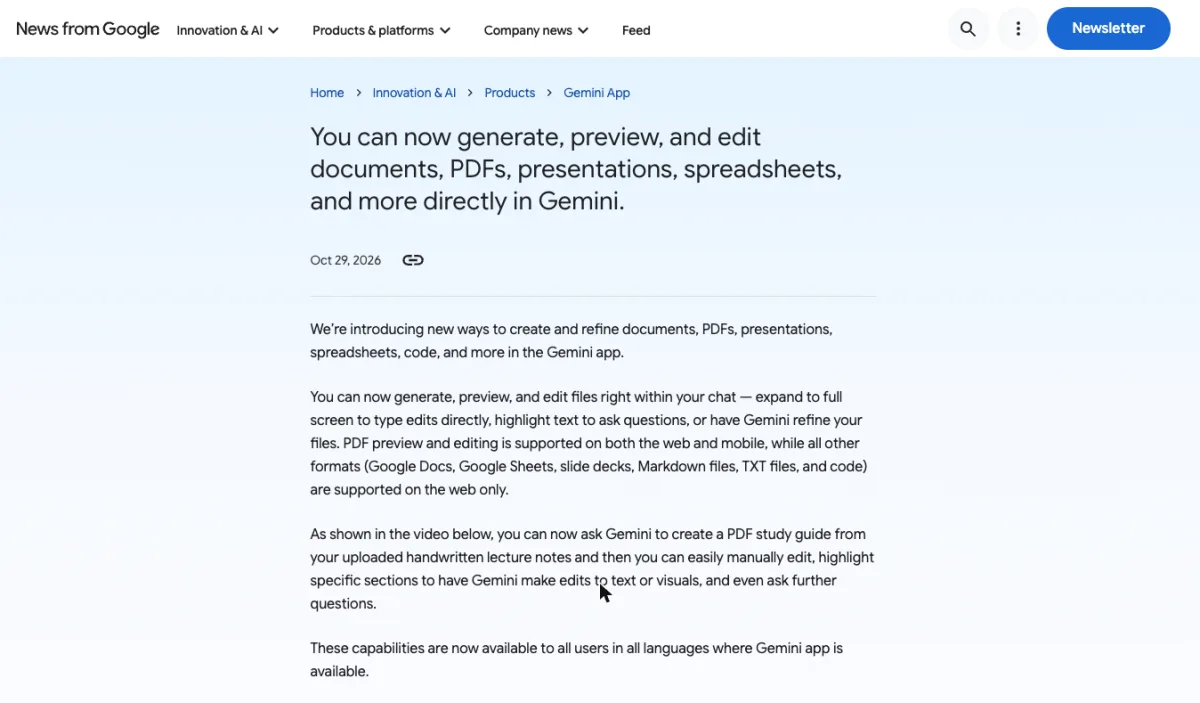
Files that Gemini creates now open as a preview inside the chat, and you can change them there instead of downloading them first. Gemini is Google's AI assistant, and since April it has been able to produce documents, PDFs, slide decks and spreadsheets on request. The October 29, 2026, update adds a built-in editor that sits right under Gemini's reply.
"You can now generate, preview, and edit files right within your chat" — announcement bodyView official source →
Who can use in-chat file editing
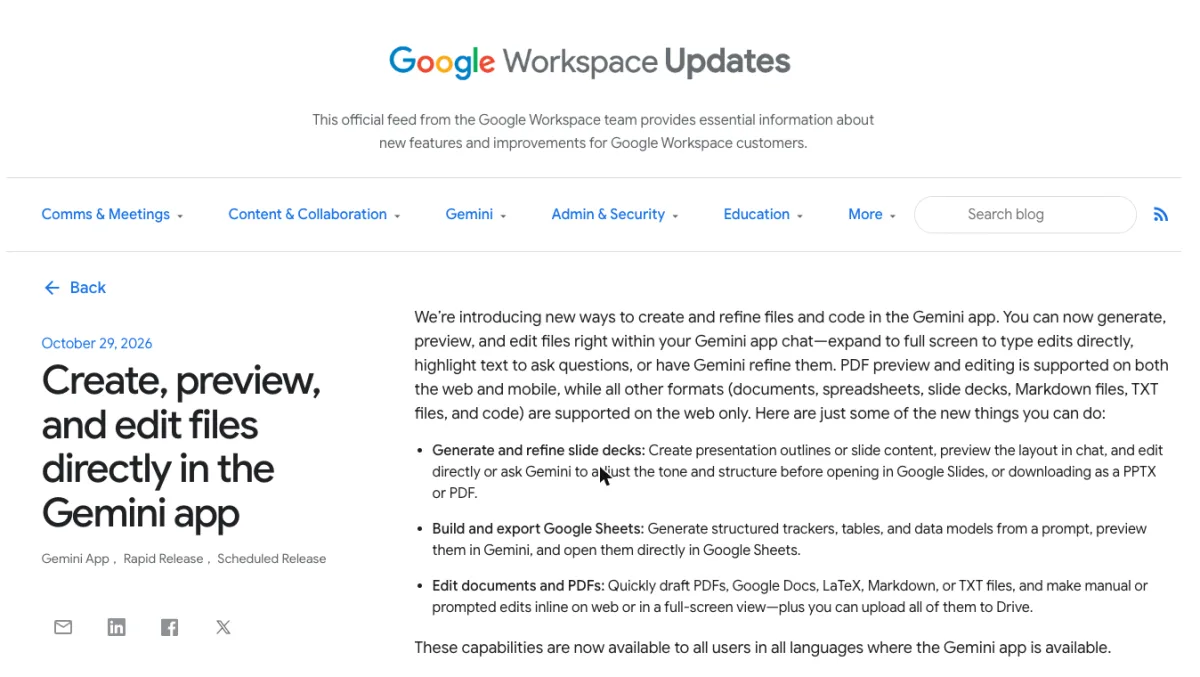
Free personal accounts get it too, and Workspace admins have no switch to turn this feature off. Google is shipping it to everyone, in every language the Gemini app supports, so there is no paid tier to unlock first.
The rollout covers all Google Workspace customers, Workspace Individual subscribers and people signed in with a personal Google account. Both Rapid Release and Scheduled Release domains already have it.
"Available to all Google Workspace customers, Workspace Individual subscribers, and users with personal Google accounts" / "There is no admin control for this feature." — availability and admin sectionsView official source →
How it builds on April's file generation
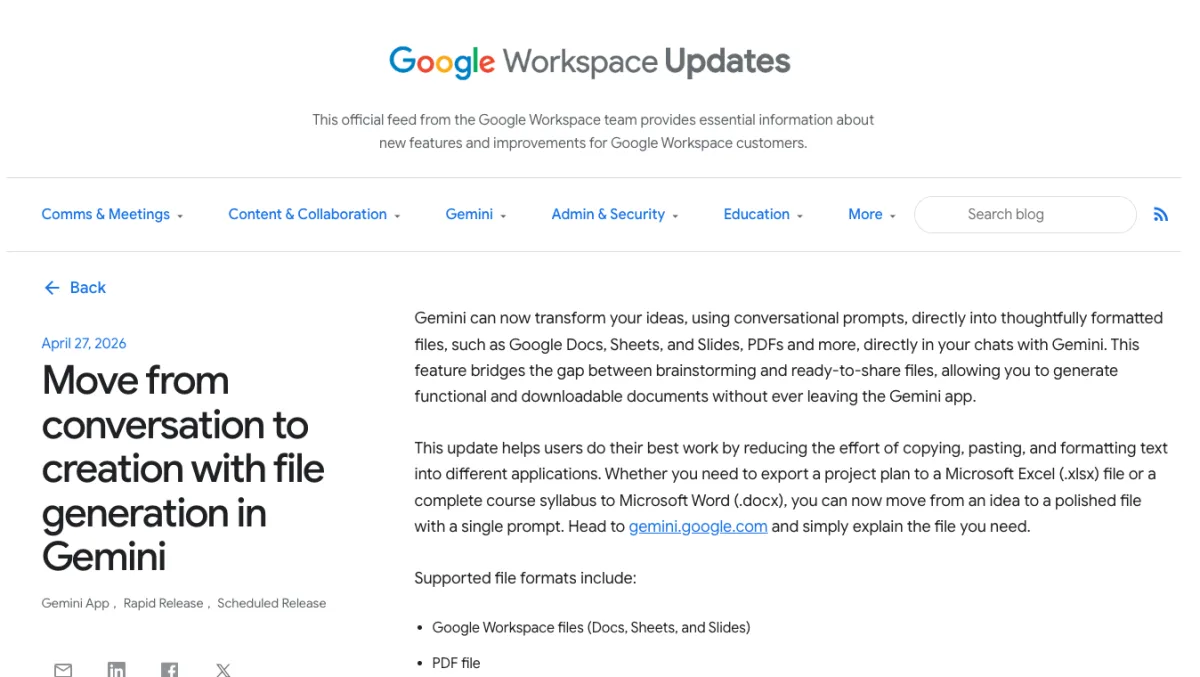
Since April 27 Gemini could make the file, but any fix meant downloading it and opening another app; that step is now gone. The April release let a single prompt produce a ready-made file in any of these formats:
- Google Docs, Sheets and Slides
- Word (.docx), Excel (.xlsx) and CSV
- LaTeX, TXT, RTF and Markdown
What it could not do was let you touch the result. A typo in a generated report meant a round trip through Word or Google Docs, and the October update removes that round trip.
"Whether you need to export a project plan to a Microsoft Excel (.xlsx) file or a complete course syllabus to Microsoft Word (.docx), you can now move from an idea to a polished file with a single prompt." — April 27 announcementView official source →
Which file types you can edit on web and mobile
On a phone you can edit only PDFs, so spreadsheets, slide decks and docs need Gemini in a desktop browser. The split by format and device looks like this:
Where each file type can be previewed and edited in a Gemini chat
| File type | Web (browser) | Mobile app |
|---|---|---|
| Yes | Yes | |
| Google Docs | Yes | No |
| Google Sheets | Yes | No |
| Slide decks | Yes | No |
| Markdown and TXT | Yes | No |
| Code | Yes | No |
Source: Google blog announcement, October 29, 2026.
Markdown is a plain-text format that marks headings and lists with symbols, and TXT is plain text with no formatting at all. If you already keep notes in .md files, Google Docs can now open and edit them directly too (see Google Docs Markdown: edit .md files natively).
"PDF preview and editing is supported on both the web and mobile, while all other formats (Google Docs, Google Sheets, slide decks, Markdown files, TXT files, and code) are supported on the web only." — announcement bodyView official source →
PDFs are the only format editable on phones
In the Gemini mobile app, a PDF can be previewed and edited the same way as on the web. That makes PDF the format to ask for when you expect to fix things on the go, such as correcting a date in a handout while you are away from your desk.
Ask for a spreadsheet or a deck on your phone and you can still generate it, but changing it means opening the same chat later on a computer. Plan for that if the file needs changes before you are back at a desk.
Docs, Sheets, slides and code need the web app
Google Docs, Sheets, slide decks, Markdown, TXT and code files can be edited only at gemini.google.com on a computer. In the browser, documents and PDFs can be edited right inside the chat thread or in a larger full-screen view. Slide decks and spreadsheets get the same treatment on the web, with a live preview you can adjust before sending the file anywhere else.
"make manual or prompted edits inline on web or in a full-screen view" — Edit documents and PDFsView official source →
How to create a file in a Gemini chat
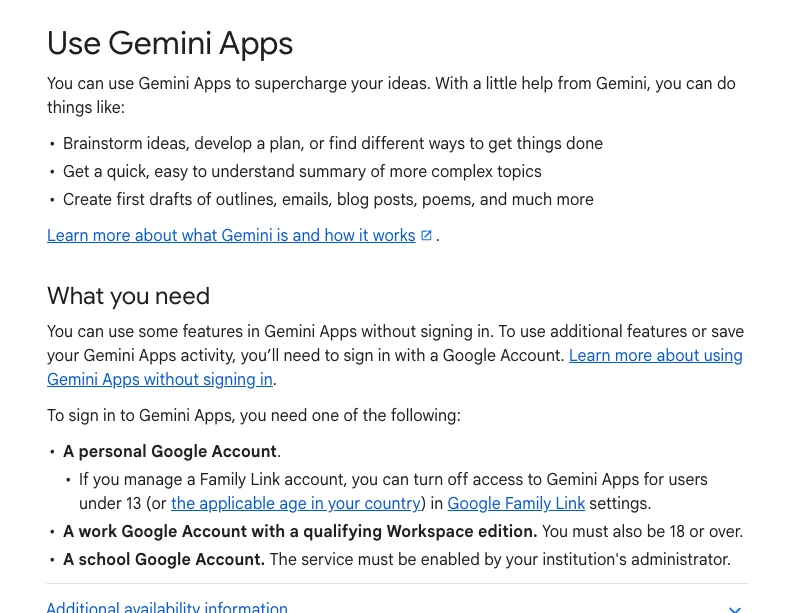
No mode switch is needed: one prompt that names the content and the format returns a single file below Gemini's reply. Open Gemini, type what the file should contain and which format you want into the text box at the bottom, and send it.
"To get started, ask Gemini to generate your desired file type." — End users sectionView official source →
Name the file type in your prompt
Saying the format you want, such as a Google Sheet or a PDF, is enough for Gemini to return that file. A prompt like "Make a slide deck summarizing this quarter's sales for Monday's meeting" covers both the content and the format in one go. If you leave the format out, Gemini may offer to turn its answer into a file anyway.
When Google introduced file generation in April, each prompt produced one file. If you need both a deck and a handout PDF, ask for them in two separate prompts.
"You can specifically ask for a response to be generated as a supported file type. Gemini Apps may also ask you if you would like the results formatted as a supported file type." — Generate files from your chatsView official source →
Turn handwritten notes into a PDF
Photos of paper notes can become an editable study guide, but uploading them requires being signed in. Google's own demo starts from uploaded handwritten lecture notes and ends with a PDF study guide that is then edited by hand and by asking Gemini follow-up questions.
The upload step is the catch. Signed-out visitors can chat with Gemini, but attaching files is one of the features that needs a Google account.
"you can now ask Gemini to create a PDF study guide from your uploaded handwritten lecture notes" — announcement bodyView official source →
"Features like image generation, Gems, and file upload won’t be available." — features not available when signed outView official source →
Three ways to edit a file without leaving the chat
Small fixes are fastest by typing, rewrites of one section by highlighting, and changes to the whole file by asking Gemini. All three happen in the same preview panel, so you can mix them on one file: correct a figure by hand, have Gemini redo a paragraph, then ask for a more formal tone throughout.
"expand to full screen to type edits directly, highlight text to ask questions, or have Gemini refine your files." — announcement bodyView official source →
Type edits directly in full screen
Expanding the preview to full screen lets you click into the file and type corrections yourself. For a wrong number or a misspelled name, this is quicker than describing the fix in a prompt and waiting for Gemini to regenerate the text. On the web, documents and PDFs accept manual edits both in the small inline preview and in the full-screen view.
"make manual or prompted edits inline on web or in a full-screen view" — Edit documents and PDFsView official source →
Highlight a section and ask Gemini to change it
Highlighting one passage or visual limits Gemini's rewrite to that part and leaves the rest untouched. Select the text, then type a short instruction such as "make this paragraph shorter" or "turn this into a bulleted list."
You can also ask a question about the selection instead of changing it. Google's study guide demo applies this highlight-and-prompt step to both text and visuals inside a PDF.
"highlight specific sections to have Gemini make edits to text or visuals" — announcement bodyView official source →
Ask Gemini to refine the whole file
For slide decks, one prompt can change the tone or structure of the whole presentation. Prompts like "make the language more formal" or "put the conclusion on the first slide" apply to the entire file rather than one selection. With slides you check the layout in the chat preview, then either edit a slide yourself or hand the adjustment to Gemini.
"edit directly or ask Gemini to adjust the tone and structure" — Generate and refine slide decksView official source →
Where edited files go: Slides, Sheets, Drive or a download
Each format has its own exit, so the file lands in the app where you will keep working on it. For most formats you can either download the file to your device or export it to Google Drive. The format decides the rest:
- Slide decks: open in Google Slides, or download as PPTX or PDF
- Spreadsheets: open in Google Sheets
- Documents and PDFs: upload to Google Drive
"For most file formats, you can download the file directly to your device or export it to your Google Drive." — Generate files from your chatsView official source →
Download slide decks as PPTX or PDF
A deck saved as PPTX opens straight in PowerPoint, while PDF suits handing it out as is. PPTX is PowerPoint's native file format, so a team that builds its decks in PowerPoint can keep editing there. Opening the deck in Google Slides instead keeps it shareable for collaborative edits.
"before opening in Google Slides, or downloading as a PPTX or PDF." — Generate and refine slide decksView official source →
Open spreadsheets in Google Sheets
Check the numbers in Gemini's preview first, then carry the data on; if you work in Excel, ask for .xlsx or CSV instead. Trackers, tables and data models built from a prompt can be previewed inside Gemini and opened directly in Google Sheets. Excel and CSV output has been available since the April launch, so naming the format in your prompt saves a conversion step later.
"Generate structured trackers, tables, and data models from a prompt, preview them in Gemini, and open them directly in Google Sheets." — Build and export Google SheetsView official source →
Upload documents and PDFs to Drive
PDFs, Google Docs, LaTeX, Markdown and TXT files can all be uploaded to Google Drive once you finish editing. LaTeX is a markup format used for documents with math, common in academic work. Once a file is in Drive, you can reach it from any device signed in to the same account.
If your starting point is a paper document, scanning it to PDF first gives Gemini something to work from (see How to scan documents to PDF: phone, PC, or store). The scanned PDF can then be uploaded to a Gemini chat as source material.
"Quickly draft PDFs, Google Docs, LaTeX, Markdown, or TXT files" / "plus you can upload all of them to Drive." — Edit documents and PDFsView official source →
How in-chat editing differs from Gemini Canvas
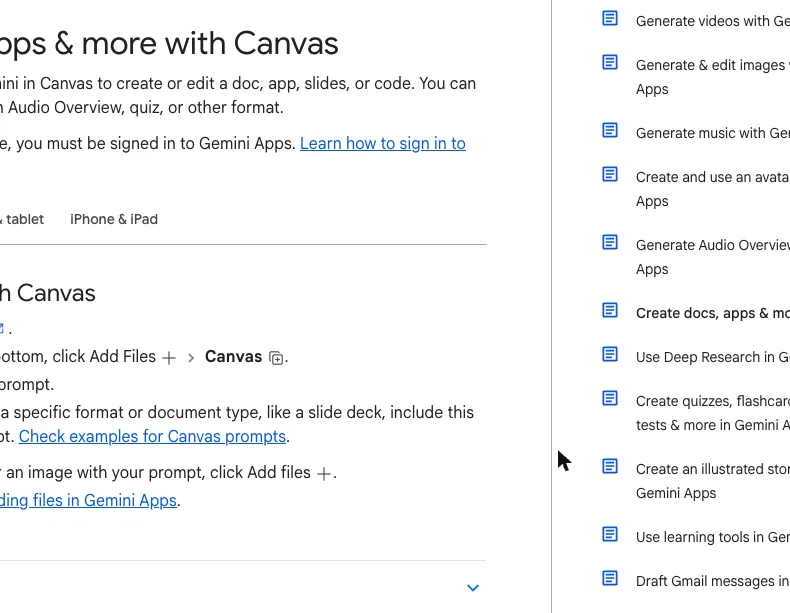
Canvas starts from a dedicated workspace you pick first, while in-chat editing starts from an ordinary prompt. Canvas is Gemini's side-by-side workspace for building docs, apps, slides and code together with the model. Both let you write and revise documents, but they differ in how you open them and what the editor offers.
Gemini Canvas compared with in-chat file editing
| Canvas | In-chat file editing | |
|---|---|---|
| How it starts | Pick Canvas from Add files below the text box | Ask for a file type in a normal chat |
| Editing tools | Direct typing, select and prompt, length and tone controls | Full-screen typing, highlight and prompt, whole-file refinement |
| Saving | Changes save automatically | Download or send to Slides, Sheets or Drive |
Sources: Gemini Apps Help "Create docs, apps & more with Canvas" (computer) and Google's October 29, 2026, posts on the Google blog and Workspace Updates.
"You can collaborate with Gemini in Canvas to create or edit a doc, app, slides, or code." — page introductionView official source →
Canvas opens from the Add files menu
Canvas is a separate workspace you pick before prompting, with length and tone controls and automatic saving. On a computer, click Add files below the text box, choose Canvas, and then type your prompt.
Inside Canvas you can edit the text yourself, select a passage for Gemini to rework, or use the buttons that change length and tone. Finished docs export to Google Docs and slides to Google Slides.
"In the Canvas space, you can directly edit the text or ask Gemini to help you in the prompt box. Changes are auto-saved." — What you can do with docs in CanvasView official source →
In-chat editing starts from a normal prompt
Asking for "a PDF" in any chat is enough to get a file you can edit in that same conversation. There is no workspace to choose up front, so a chat that began as a quick question can turn into a finished file without starting over.
If you want a research space built around your own sources rather than a single file, Gemini Notebook covers that job (see Gemini Notebook (formerly NotebookLM) explained). Canvas and in-chat editing, by contrast, are built around producing one document at a time.
Choose the device and format before your first prompt
Deciding where you will edit and which app gets the final file lets you name the right format up front and finish inside Gemini. If you expect to make changes from your phone, ask for a PDF, because that is the one format the mobile app can edit.
For a deck that will end up in PowerPoint, request slides and download them as PPTX. For numbers headed to Excel, ask for .xlsx in the first prompt, which skips a conversion after download.
For work that spans Gmail and other Workspace apps, Google Cloud has also announced an agent that carries tasks across them (see What is the Gemini agent? Features and pricing). Within the Gemini app itself, the format you name in the first prompt decides whether you can finish the file there.
FAQ
- Can I edit a Google Sheet in the Gemini mobile app?
- No. The mobile app can preview and edit only PDFs. Google Sheets, Docs, slide decks, Markdown, TXT and code files can be edited only in Gemini on the web.
- Is Gemini file editing free?
- Yes. Google made it available to all Gemini app users in every supported language, including people with personal Google accounts, Workspace customers and Workspace Individual subscribers.
- Can I open a Gemini slide deck in PowerPoint?
- Yes. Download the deck as a PPTX file and it opens in PowerPoint. You can also download it as a PDF or open it in Google Slides.
Related articles
 Gemini 4 Carbon vs Argon: Pricing and AccessGemini 4 Carbon vs Argon: Carbon opened to paid API developers, businesses and Google AI Ultra on Nov 10, at the same $2/$10 per 1M token price as Argon.
 Gemini free tier goes Flash-Lite only on October 9The Gemini free tier is Flash-Lite only from October 9, 2026. Flash needs AI Plus ($4.99/month), Pro needs AI Pro ($19.99), and Deep Think stays Ultra-only.
 Gemini Notebook (formerly NotebookLM) explainedGemini Notebook is what NotebookLM became on July 16, 2026. Free users get 50 chats and 3 Audio Overviews a day and it now reads ebooks bought on Google Play.
 Gemini 3.5 Transcribe: pricing and API limitsGemini 3.5 Transcribe is Google's speech to text API at about $0.005 per minute recorded and $0.009 live. What the two models charge and where they stop.