
NotebookLM became Gemini Notebook on July 16, 2026
Gemini Notebook is Google's AI research tool, and it answers questions using only the files you provide. It began as Project Tailwind at Google I/O in 2023, became NotebookLM, and on July 16, 2026, was renamed to fit under the Gemini brand (official announcement).
Only the name changed: the product was neither replaced nor merged into the Gemini app. Google kept it as a standalone app, used by more than 30 million people and over 600,000 organizations at the time of the rename.
What the NotebookLM to Gemini Notebook rename changed
| Area | Status |
|---|---|
| Standalone app, existing notebooks and sources | Unchanged |
| Notebooks inside the Gemini app, synced both ways | Added |
| Code execution in a cloud computer per notebook | Added, rolling out by plan |
| Notebooks in AI Mode in Google Search | Announced |
Your notebooks and sources carry over
A notebook is the workspace for a single project, and a source is any file or link you add to it. Nothing you built in NotebookLM needs exporting or migrating: it all opens in Gemini Notebook as it did before.
New since the rename: Gemini app sync and code execution
You can now create and open a notebook from inside the Gemini app, and edits made there show up in the standalone Gemini Notebook. The other addition is a secure cloud computer attached to each notebook, which lets the AI write and run code to analyze data in your sources.
Code execution arrived first for Google AI Ultra subscribers and some Workspace business customers. Google said Pro subscribers would receive it over the following weeks.
This allows Gemini Notebook to write and execute code natively, helping you conduct complex data analysis grounded in your sources.(section on code execution) — from Google The KeywordView official source →
Your sources become Audio Overviews, slides and quizzes
Gemini Notebook does two things with your material: it answers questions about it and reshapes it into formats that are easier to study or share. All the reshaping happens in the Studio panel, which lists every output type in one place.
Outputs Gemini Notebook can create from your sources
| Output | Good for |
|---|---|
| Chat answers with citations | Checking exactly what a document says |
| Audio Overview | Listening to a spoken walkthrough of your material |
| Video Overview | Watching a narrated explainer |
| Slide deck | Drafting a presentation |
| Infographic | Seeing the key points on one image |
| Mind map | Following how topics branch out |
| Quizzes and flashcards | Testing what you remember |
| Reports and study guides | Reading a written summary |
Grounded answers with in-line citations
Sources can be PDFs, Word and PowerPoint files, CSVs, images, Google Docs, Slides and Sheets, audio files, web pages and public YouTube videos with captions. From YouTube, only the transcript is imported, not the video.
Each answer links back to the passages it drew on, so you can check a claim against the original before reusing it. Questions about a single file get more focused answers, and naming the source in the question helps the tool narrow its search.
Audio Overviews, Video Overviews and slide decks
You can listen to your sources as a spoken summary, which suits a commute or a walk. A Video Overview presents the same material as a video for times when you can watch a screen.
Slide decks arrange the material as a presentation you can edit. For the free plan, Google lists slide decks and infographics as "Limited" without stating a daily number.
Mind maps, quizzes and flashcards for students
A mind map puts the main topic in the center with related ideas branching out, which helps when a long reading list has no obvious starting point. Gemini Notebook writes the practice questions itself, so a lecture PDF becomes a study set without you drafting a single question.
The free plan allows 10 quizzes and 10 flashcard sets per day. Reports and mind maps are capped at 10 a day as well.
Chat with your notebook to get grounded information based on your sources with clear in-line citations for accuracy, transparency, and trust.(feature overview) — from Gemini Notebook HelpView official source →
How to use Gemini Notebook: from sign-in to Studio
A Google Account is all it takes to start. The browser version is available to users who meet the minimum age in supported countries, and mobile apps are also available.
Getting started with Gemini Notebook
- Sign in with your Google Account and verify your age if asked
- Create a new notebook for one project or topic
- Add sources: upload files, paste links, pick from Google Drive, or search the web with a research question
- Read the auto-generated summary, then ask questions in the chat
- Open the Studio panel to create an Audio Overview, slide deck or quiz
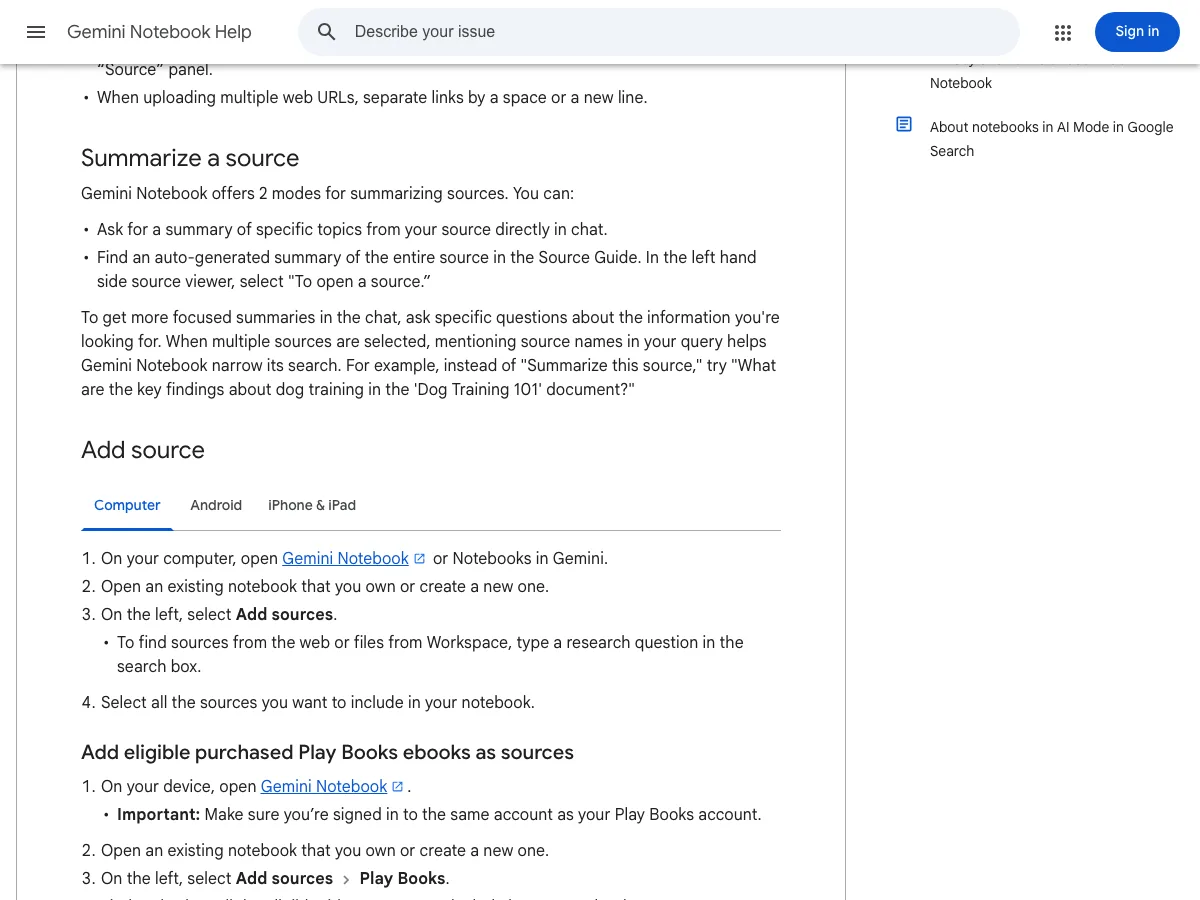
A single source can contain up to 500,000 words, and an uploaded file can be up to 200MB. Split anything larger into parts before uploading. Files from Google Drive stay linked and refresh every few minutes, so changes to the original appear in your notebook.
Use one notebook per project. Answers come only from sources in the current notebook, so files you want compared need to be in the same one.
Each source can contain up to 500,000 words or up to 200MB for uploaded files. You can include up to 50 sources (for Free users).(source limits section) — from Gemini Notebook HelpView official source →
Pricing and limits: what changed on September 2, 2026
Gemini Notebook is free on the Standard plan, with higher limits through Google AI Plus, Pro or Ultra, Google Cloud, or a qualifying Workspace plan. Google revised the limits on September 2, 2026, and the table shows the new figures.
Gemini Notebook limits by plan (from September 2, 2026)
| Plan | Sources per notebook | Chats per day | Audio Overviews per day |
|---|---|---|---|
| Standard (free) | 50 | 50 | 3 |
| Plus | 100 | 200 | 6 |
| Pro | 300 | 500 | 20 |
| Ultra (20 TB) | 500 | 2.5K | 100 |
| Ultra (30 TB) | 600 | 5K | 200 |
Free Standard plan: 50 chats a day, 10 Deep Research a month
Standard includes 100 notebooks and 50 chats a day, plus 3 Audio Overviews and 3 Video Overviews a day. Reports, quizzes, flashcards and mind maps are limited to 10 a day each.
Deep Research is the tightest free limit, at 10 runs a month. If you mainly use Gemini Notebook to collect material from the web, that cap is the first one you will reach.
Pro and Ultra: more sources, chats and Deep Research runs
Pro raises the limits to 300 sources per notebook, 500 chats a day and 20 Deep Research runs a day. Advanced sharing options come only with paid plans.
Sharing a notebook does not extend your limits to anyone else, since each collaborator works within their own plan. For the wider Gemini lineup and pricing, see Gemini 3.5 Pro is still not in the Gemini API.
Chats/50/day/200/day/500/day/2.5K/day/5K/day(Usage Limits table, Chats row: Standard, Plus, Pro, Ultra 20 TB, Ultra 30 TB) — from Gemini Notebook HelpView official source →
Gemini Notebook vs the Gemini app
Because the two apps share notebooks, they are easy to confuse, but answers come from different places. Gemini Notebook uses only your sources, while the Gemini app can also draw on web search and other tools.
Gemini Notebook vs the Gemini app
| Gemini app | Gemini Notebook | |
|---|---|---|
| Answers based on | Your sources plus web search and tools | Your sources only |
| Audio Overviews, slides, infographics | Not available | Available in Studio |
| Google Play ebooks as sources | Not available | Available |
| Notebooks shared with others | Hidden | Visible |
Renaming a notebook, adding sources or editing its custom instructions in one app is reflected in the other. Chats with a notebook in the Gemini app also show up in Gemini Notebook's sources panel as read-only context, visible to collaborators if you share the notebook.
One practical division is to explore a topic in the Gemini app, then move to Gemini Notebook when you need citable answers or study material. Both apps open the same notebook, so nothing needs copying across.
Gemini Notebook - Responses are grounded exclusively in your notebook sources./Gemini - Responses are grounded in your notebook sources, but may also include web search and other tools.(Key differences between apps) — from Gemini Notebook HelpView official source →
Expert Intelligence brings Google Play Books into a notebook
Expert Intelligence, launched on August 27, 2026, lets you add eligible ebooks bought on Google Play Books as sources. Gemini Notebook then answers from the book's text and can turn it into an infographic, Audio Overview or quiz.
At launch it covered more than 100,000 books from six publishers, among them Penguin Random House, O'Reilly Media and Macmillan Publishers. Google also worked with more than 15 bestselling authors on featured notebooks, and people in the U.S. can claim one free book while supplies last.
Ownership is required, including for collaborators. According to 9to5Google, collaborators on a shared notebook are prompted to buy their own copy and cannot open the book until they do. Only the text is imported, and a new purchase can take up to a minute to show up in your source list.
Expert Intelligence launches today with more than 100,000 books from major publishers, including Bloomsbury, De Gruyter Brill, Johns Hopkins University Press, Macmillan Publishers, O’Reilly Media, and Penguin Random House.(launch announcement) — from Google The KeywordView official source →
Uploads aren't used to train AI unless you send feedback
Google keeps your uploads out of Gemini Notebook's training data, but anything you choose to send as feedback can lead it to review the entire exchange, questions and uploads included. Feedback is optional, so skipping it keeps your material out of training.
Work and school accounts are handled more strictly. For Google Workspace and Workspace for Education users, uploads, questions and responses are never reviewed by people or used to train AI models. Access has to be enabled by your organization's admin, so if Gemini Notebook will not open on a work account, check that setting first.
Clearing your Gemini history does not clear Gemini Notebook. Turning off Keep Activity or deleting your Gemini Apps activity leaves everything stored there in place, so delete notebooks you no longer need inside Gemini Notebook itself.
As a Google Workspace or Google Workspace for Education user, your uploads, queries and the model's responses in Gemini Notebook will not be reviewed by human reviewers, and will not be used to train AI models.(privacy section) — from Gemini Notebook HelpView official source →
Summary: the same NotebookLM, a new name and more paid headroom
Apart from Gemini app sync and code execution, this is the tool NotebookLM users already know, under a different label. Your notebooks carried over, the free plan still covers daily study and research, and paid plans mainly buy more runs.
- It answers only from your sources and cites each passage
- Studio turns sources into Audio Overviews, slide decks, mind maps and quizzes
- The free plan allows 50 chats and 3 Audio Overviews a day, plus 10 Deep Research runs a month
- Use the Gemini app when you need the web too, and Gemini Notebook when you need citable answers
- Expert Intelligence adds eligible Google Play ebooks you own as sources
The quickest way to see how it works is to upload one PDF on the free plan and ask it a question. Each citation in the answer points to the passage it came from.
FAQ
- Is NotebookLM being shut down?
- No. On July 16, 2026, Google renamed NotebookLM to Gemini Notebook and kept it as a standalone product. Your existing notebooks and sources are still there, and you don't need to move anything.
- Is Gemini Notebook free?
- Yes. The Standard plan is free with a Gmail account and includes 100 notebooks, 50 sources per notebook, 50 chats a day and 3 Audio Overviews a day. Paid Google AI plans raise those limits.
- Can I use Expert Intelligence with a book I already own on Google Play?
- Only if the title is eligible. Open the book's detail page in Google Play Books and click the Tools badge. If Gemini Notebook is listed there, you can add the book as a source.
Related articles
 Gemini create files: edit PDFs and docs in chatGemini create files: docs, PDFs, slides and sheets now open in the chat as previews you can edit. Phones edit only PDFs; the web handles the rest.
 Gemini 4 Carbon vs Argon: Pricing and AccessGemini 4 Carbon vs Argon: Carbon opened to paid API developers, businesses and Google AI Ultra on Nov 10, at the same $2/$10 per 1M token price as Argon.
 Gemini free tier goes Flash-Lite only on October 9The Gemini free tier is Flash-Lite only from October 9, 2026. Flash needs AI Plus ($4.99/month), Pro needs AI Pro ($19.99), and Deep Think stays Ultra-only.
 Gemini 3.5 Transcribe: pricing and API limitsGemini 3.5 Transcribe is Google's speech to text API at about $0.005 per minute recorded and $0.009 live. What the two models charge and where they stop.