To add a Google Business Profile booking button, open the Booking section of your profile and paste in the URL of the page where customers book. Google Maps offers two kinds: a link to your own page and Reserve with Google. A one-person shop can get by with the first one alone.
If you can't answer the phone while you're with a client, people who find you on Maps simply move on. Below are the two button types, the steps for a booking link, what to do without a booking page and why a button might not show up.
There are two kinds of booking buttons on Google Maps
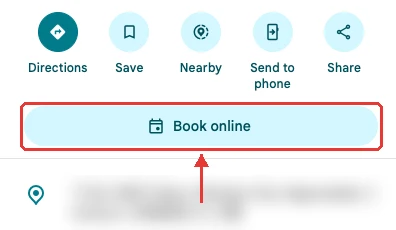
The booking button on a Maps listing comes in two forms, and the difference is where the booking actually happens. A booking link sends customers to your own booking page, while Reserve with Google lets them finish the booking without leaving Google.
| Booking link | Reserve with Google | |
|---|---|---|
| What you need | The URL of a booking page | An account with a booking provider that works with Google |
| Where customers book | Your booking page | Inside Google Maps or Search |
| When it shows up | After Google approves the link | After you sign up with a provider |
A booking link sends customers to your own booking page
A booking link is a button that opens a booking page you already have. That page can sit on your own website or be hosted by a booking system. All Google needs is the URL, so if the page exists you can submit the link today.
Reserve with Google keeps the booking inside Google
Reserve with Google takes bookings through a booking provider connected to Google, and customers also get appointment reminders. The catch is that you need an account with one of those providers, and not every business type or country is eligible. Setup steps are further down.
How to add a booking link to your Business Profile
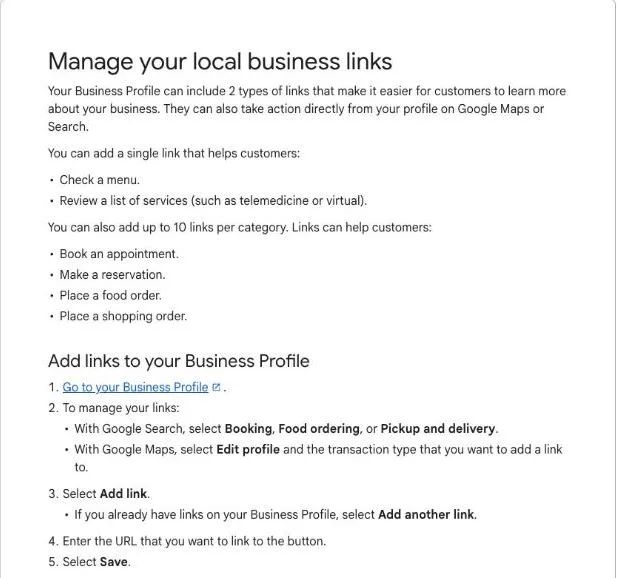
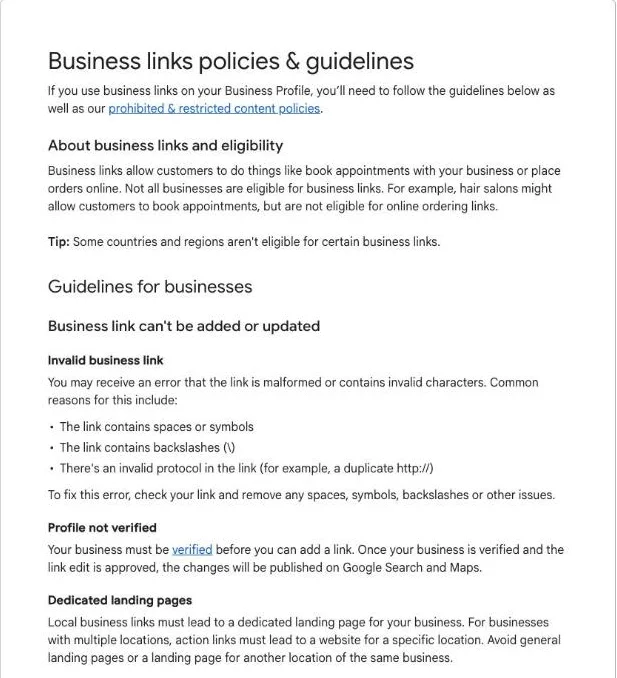
Adding a booking link is a short job. You paste a URL into the Booking screen of your profile and save it. Your business has to be verified before Google lets you add the link, so if you haven't verified your listing yet, do that first.
"Enter the URL that you want to link to the button." — Manage your local business linksView official source →
Step 1: Open your Business Profile
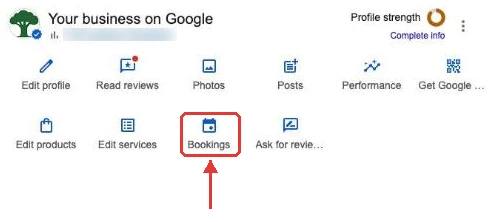
Sign in with the Google account that manages your profile and open the Bookings option. On a computer, search for your business name on Google. Profile managers see a panel called "Your business on Google", with Bookings on its second row.
In the Google Maps app, open your business and select Edit profile. Then pick the booking transaction type and add the link the same way.
Step 2: Paste your booking page URL and save
On the Booking screen, select Add link, paste your booking page URL into the Booking URL field and select Save. If a link is already there, the button reads Add another link instead.
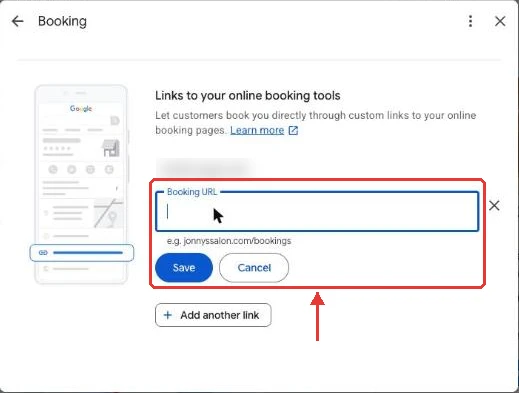
Spaces, stray symbols or backslashes in the URL trigger an error. To avoid that, open your booking page, copy the URL from the address bar and paste it as is.
Step 3: Check the button on your listing
After Google approves the link, a button such as Book online appears on your listing in Search and Maps. Once it shows up, tap it yourself to check that it opens the right page.
No booking page yet? Create one with a booking system
A booking link has to point to a page where customers can complete a booking on the spot. If you have been taking bookings by phone or direct message, you probably don't have one yet. A booking system gives you that page once you enter your opening hours and services, and its URL works as your booking link.
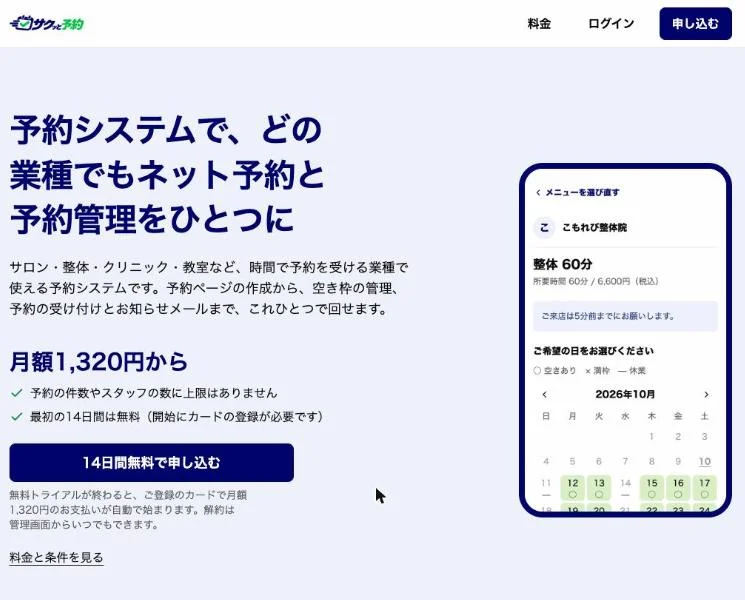
For shops in Japan, sakuttoAI offers Sakutto Yoyaku, a Japanese-language booking system. Your booking page goes live the moment you sign up, already filled in with sample services and opening hours for your type of business. You and the customer both get a confirmation email, and the customer gets a reminder the day before.
The standard plan is 1,320 yen a month including tax, and the first 14 days are free. You need a credit card to start the trial. Customers can book without creating an account.
Reserve with Google needs a partner booking provider
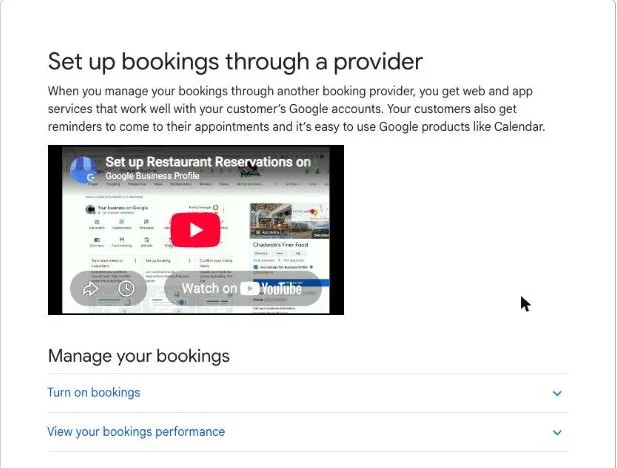
To use Reserve with Google, you first sign up with a booking provider that works with Google. Then open Bookings in your profile, select Get started, choose your provider and select Done. Google says the provider appears on your profile within a week, after which customers can book inside Maps.
Your provider might charge you for bookings made through Google, and the amount varies by provider. You can stop using a provider later, and you can add your own booking link alongside it.
"Your booking providers will show up on your Business Profile within a week." / "When you book through Google, your provider might charge you." / "You can also add your own link to your Business Profile." — Set up bookings through a providerView official source →
Four reasons the booking button doesn't appear
If you saved a URL and the button still isn't there, work through these four causes in order. Some sit on Google's side and some in your own settings.
- Google hasn't approved the link yet
- Your business isn't verified
- The destination page doesn't meet Google's rules
- Your business category or region isn't eligible
The first just takes time. You can fix the second and third yourself, and the fourth sometimes clears up once your business category is right. After fixing anything, save the link again and give it time.
New links appear only after Google approves them
Even for a verified business, a new link goes live on Search and Maps only after Google approves the edit. So if the button isn't there right after you save, that's normal.
Verification is how you prove to Google that you own the business. Until it's done, Google won't let you add a link at all.
"Your business must be verified before you can add a link." — Business links policies & guidelinesView official source →
Check the destination page and your business category
The link must open a page for your business where the customer can finish the booking. Google doesn't accept these as booking links:
- Social media sites
- Messaging links
- App store links
- Link shorteners
You can add only one link per domain. Google checks links at most once a day and may remove pages it can't crawl, such as ones behind a login. Which links you can add also depends on your business category, so make sure the category matches what you actually do.
"Local business links cannot be:" / "Checks will be performed daily at most and may be done with a combination of automated tools and manual processes." — Business links policies & guidelinesView official source →
Start with a booking link on your Business Profile
You don't need a partner contract to get a booking button on Google Maps; you can submit a booking link for approval today. Here's the order to do it in.
- Get the URL of your booking page (if you don't have one yet, set one up with a booking system first)
- Submit that URL as a booking link today
- Once Google approves it, tap the button on your Maps listing and confirm it opens the right page
How much the button helps depends on whether customers can confirm the booking right away. For a shop that can't answer the phone during appointments, a page where customers pick an open slot and finish the booking themselves is what makes the button pay off.
FAQ
- Does adding a booking button to Google Maps cost anything?
- Adding a booking link to your Business Profile costs nothing. Any cost comes from the booking system that hosts your booking page. If you use Reserve with Google, Google says your booking provider might charge you.
- Can I use my Instagram or Facebook page as the booking link?
- No. Google doesn't accept social media sites, messaging links, app store links or link shorteners as local business links. The link has to open a page for your business where the customer can finish the booking.
- How do I change or remove a booking link?
- Open the same Booking screen where you added it, then edit or delete the link. If a booking provider added the link for you, choose Remove Provider. Google gives providers 5 days to take the link down after your request.
- Can I add a booking link from my phone?
- Yes. In the Google Maps app, open your business, select Edit profile, then choose the booking transaction type and add the link there.
Related articles
 AI fact check: only 40% of cited stats hold upAI fact check: Trakkr traced 1,285 stats cited by ChatGPT, Perplexity, Gemini, Claude and AI Overviews. Only 40% led to a matching study. How to check one.
 Reddit to require logins as search referrals fallReddit will test a logged-in-only site outside the US in Q4. Search referrals fell over 1M a week in October; its CEO says Google's AI Mode drives no traffic.
 AI crawler training opt-out in one robots.txt ruleAI crawler training opt-out now takes one robots.txt rule. OpenAI, Google and Microsoft will honor it, Microsoft from Feb. 1, 2027. Until then, name each bot.
 Gemini create files: edit PDFs and docs in chatGemini create files: docs, PDFs, slides and sheets now open in the chat as previews you can edit. Phones edit only PDFs; the web handles the rest.