
A HEIC file is a photo that an iPhone saves in Apple's HEIF format instead of as a JPG. Apple devices open it without any setup, while Windows needs two add-ons from the Microsoft Store before it can show one.
The .heic ending often surfaces this way: a photo that looked fine on the phone shows nothing on a PC, or an upload form turns it away. Whether the photo needs converting depends on where it has to go, and for many photos the answer is that it does not.
What is a HEIC file? The format and what the name means
It is an iPhone photo stored in Apple's HEIF, a newer way of saving pictures that takes less storage space than the older JPEG. .heic is the extension of photos stored in HEIF, which Apple names High Efficiency Image File Format. Support arrived in iOS 11 and macOS High Sierra 10.13, and an iPhone 7 or iPhone 7 Plus or later captures photos in HEIF.
Whether new photos come out as HEIF depends on the iPhone camera's Formats setting. High Efficiency saves new shots as HEIF, and Most Compatible switches the camera back to JPEG.
Apple's support page never spells out the letters in HEIC, so the safe name to search for is HEIF. Windows, for one, lists its add-on as HEIF Image Extension rather than under any HEIC name.
HEIF (High Efficiency Image File Format) for photos / iPhone 7 or iPhone 7 Plus or laterView official source →
HEIC vs JPG: the differences Apple and Microsoft document
The vendors' own pages support a short comparison, and it comes down to space against reach. "HEIC and JPG compared" lists only what Apple and Microsoft state.
HEIC and JPG compared
| Point of comparison | HEIC | JPG |
|---|---|---|
| Compression (Apple's comparison) | Better than JPEG | The format Apple compares HEIF against |
| Visual quality (Apple's comparison) | The same as JPEG | The same as HEIC |
| Space on the device and in iCloud Photos | Less | More |
| iPhone camera setting that produces it | High Efficiency | Most Compatible |
| Where it opens without add-ons | iOS 11 and later, iPadOS, visionOS, macOS High Sierra 10.13 and later | Described by Apple as more broadly compatible with other devices and systems |
| Windows | Needs HEIF Image Extension plus HEVC Video Extensions | Not covered by Microsoft's HEIF requirement |
HEIC buys storage, and JPG buys reach. Because Apple states the visual quality as the same for both, quality is not what separates them; space and reach are. Apple treats JPG as the fallback in its own camera setting and in its sharing behavior, so when a HEIC photo cannot go somewhere as it is, JPEG is the format Apple names for the swap.
The Windows row is the one most likely to cause trouble. A HEIC photo needs two separate Store packages before it displays, and the second of them is a video package rather than an image one. For a wider comparison of formats, see Image file formats: 9 types and when to use each.
you can set iPhone or iPad to capture media using the older formats, which are more broadly compatible with other devices and operating systemsView official source →
Why a HEIC file takes up less space than a JPG
Compression is Apple's stated reason, and the saving shows up in storage rather than in how the picture looks. Apple says HEIF and HEVC offer better compression than JPEG and H.264, so they use less storage space on devices and iCloud Photos while keeping the same visual quality.
Apple publishes no size ratio. The reliable test is to export one of your own HEIC photos as JPG and compare the two sizes, because a figure measured on another person's photo says little about your own library.
The saving lasts only while the photo stays HEIC. An automatic fallback when sharing, a USB import that converts, or a JPG you export yourself gives the space back for that copy. For ways to shrink a JPG further, see Reduce image file size without losing quality.
HEIF and HEVC offer better compression than JPEG and H.264, so they use less storage space on your devices and iCloud Photos, while preserving the same visual quality.View official source →
Where a HEIC file opens and where it doesn't
Apple platforms read the format natively, so the trouble starts on Windows and in upload or print forms. Apple builds HEIF support into iOS 11 and later, iPadOS, visionOS and macOS High Sierra 10.13 and later. Elsewhere, whether the photo opens depends on what the other system has installed or accepts.
Opening a HEIC file on Windows with HEIF Image Extension
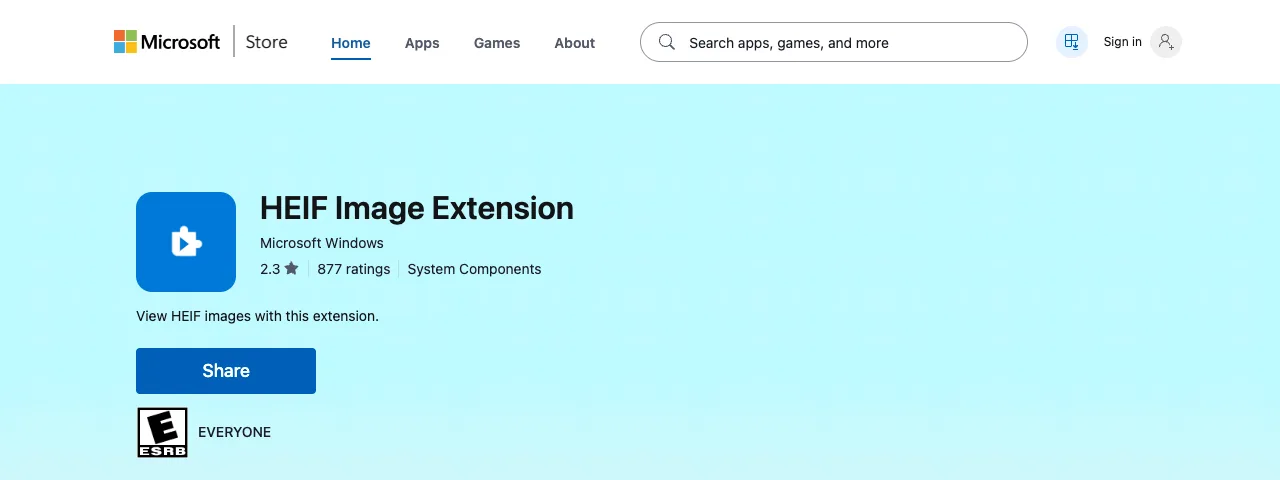
A free add-on alone is not enough, because Microsoft requires a second package before a PC shows the photo. HEIF Image Extension lets Windows read and write HEIF files, and the Microsoft Store lists it as free. The same listing says HEVC Video Extensions must also be installed to view images in files ending .heic, .hif or .heif, while .avif files need the AV1 Video Extension.
So viewing a single photo depends on a video package. If a .heic file shows nothing after the first install, the missing HEVC package is the first thing to check. The listing states no price for HEVC Video Extensions, so read it before assuming that the package is free too.
A video extension package must also be installed in order to view images that are stored in the HEIF file. / The HEVC Video Extensions package must be installed in order to view images stored in HEIF files that use the .heic, .hif or .heif file extensions.View official source →
Uploading and printing HEIC photos
Each upload form and print service sets its own list of accepted types, so the label beside the button is the only reliable answer. Read the accepted-formats line next to the upload button or in the order form. If it names JPG, JPEG or PNG but not HEIC or HEIF, treat the photo as unsupported and convert it first.
Do not count on the iPhone to convert for you here. The iPhone's automatic JPEG fallback applies to sharing by AirDrop, Messages or email. Apple has announced no such conversion for upload forms or print orders.
If sharing this media using other methods, such as AirDrop, Messages, or email, and the receiving device doesn’t support the newer media formats, the media might automatically be shared in a more compatible format, such as JPEG or H.264.View official source →
Picking a HEIC viewer: opening the file without converting
Apple devices need nothing extra and a Windows PC needs two Microsoft packages, which keeps the photo at its smaller size. On an iPhone, iPad or Mac, Photos opens the photo, and on a Mac so does Preview. Apple builds HEIF support into these systems, so they handle it the way they handle a JPG.
On Windows, a HEIC viewer means installing HEIF Image Extension and HEVC Video Extensions from the Microsoft Store. Once both are in place Windows reads the photo directly, and because nothing was converted, the photo keeps its smaller size.
When searching the Store, check the publisher name before installing. The HEIF Image Extension listing shows Microsoft Windows as the publisher and System Components as the category, which sets it apart from third-party apps with similar names.
Support for HEIF and HEVC is built into iOS 11 and later, iPadOS, visionOS, and macOS High Sierra 10.13 and later, which let you view, edit, and duplicate this media in apps that support these features.View official source →
The HEIF Image Extension enables Windows to read and write files that use the High Efficiency Image File (HEIF) format.View official source →
When you need to convert a HEIC file to JPG
A photo has to change form only when its destination refuses it and that destination cannot be changed. Four cases come up in practice, and each one is a destination that refuses the file:
- A Windows PC where the two packages cannot be installed
- An upload form or print order whose accepted formats leave out HEIC and HEIF
- Editing software whose list of supported formats does not include HEIC or HEIF
- A photo handed over outside Messages, AirDrop and email, such as a shared cloud folder, to someone without an Apple device
On a PC you own, installing the two packages is a one-time job per device, and every photo opens afterward. Converting costs an export for each photo, so the effort grows with the number of photos. A large library on your own PC is a case for installing, while a single photo or someone else's machine is a case for converting.
Sending from an iPhone through Messages, AirDrop or email usually needs no conversion, because Apple says the photo might go out as JPEG when the receiving device cannot read HEIF. Apple's word is "might", so if the other person still cannot open the photo, convert it and send it again. iCloud Photos keeps the original format, which suits other Apple users but not a Windows PC without the extensions.
To stop producing HEIC in the first place, set the camera's Formats setting to Most Compatible. All new photos then use JPEG or H.264, and the price is the storage saving for as long as the setting stays on.
If sharing this media via iCloud Photos, the media is preserved in its original format, resolution, and frame rate. / All new photos and videos will now use JPEG or H.264 format.View official source →
Converting a HEIC file to JPG on a Mac or in the browser
Apple's export menu writes a new copy without touching the original, and a web converter handles PCs without an install. In Photos or Preview on a Mac, open the HEIF image and use the Export command to pick a format such as JPEG or PNG before saving.
The iPhone and iPad have no announced JPEG export of their own. A USB import into Photos, Image Capture or a PC might convert the media to JPEG, and the Keep Originals setting for Photos prevents that conversion.
For a HEIC photo already on a PC, the Sokufu HEIC to JPG/PNG/WebP Converter converts each file on your own device, so the photo is never uploaded. It takes several files at once and returns them as one ZIP, and it writes JPG, PNG or WebP.
JPG and WebP come with quality presets, while PNG has none because it is lossless and the file comes out larger. There is no sign-up and no daily limit.
If you open an HEIF image in Photos or Preview on your Mac / When you import HEIF or HEVC media from an attached iPhone or iPad into Photos, Image Capture, or a PC, the media might be converted to JPEG or H.264.View official source →
Summary: keep HEIC, convert only where it is refused
One rule settles the whole question: leave the photo alone where it already opens, and make a copy only for the places that turn it away. Apple's documented fallback to JPEG covers AirDrop, Messages and email, so those routes rarely need a manual conversion. For everything else, the right move depends on where the photo is going:
- Apple devices only: leave them as HEIC, because Photos and Preview open them and the smaller size is kept.
- Your own Windows PC with many photos: install HEIF Image Extension and HEVC Video Extensions once, from the publisher Microsoft Windows.
- A PC that cannot take the packages, or a form that does not list HEIC: convert the photo to JPG.
- No wish to produce HEIC at all: switch the camera to Most Compatible and accept the loss of the storage saving.
FAQ
- What does HEIC stand for?
- Apple, whose iPhones and iPads save photos as .heic, never spells it out. Its support page names the format HEIF, short for High Efficiency Image File Format, and .heic is simply the extension those photos carry. That is a good reason to search for software by the name HEIF instead.
- Is HEIF Image Extension enough to open HEIC files on Windows?
- No. HEIF Image Extension is listed as free in the Microsoft Store, but Microsoft says a second package, HEVC Video Extensions, is also required before Windows can show images in .heic, .hif or .heif files. The listing gives no price for that second package, so check it before you install.
- Will my iPhone send HEIC photos to an Android phone?
- Apple says that when you share through Messages, AirDrop or email, the iPhone may switch to a format such as JPEG on its own if the receiving device can't handle HEIF. Apple's word is "might", not "will". A file handed over another way, such as a shared cloud folder, arrives as it is, so convert it first if the other person can't open it.
- How do I stop my iPhone taking photos in HEIC?
- Open Settings, tap Camera, then Formats, and choose Most Compatible. Photos you take from then on are saved as JPEG. Apple's wording refers to new photos and says nothing about converting the ones already in your library. You give up the storage saving for as long as Most Compatible is on, and choosing High Efficiency switches back.
- Why do photos copied from my iPhone to a PC sometimes arrive as JPG?
- Because importing over a USB cable can convert them. Apple says media imported into Photos, Image Capture or a PC might be converted to JPEG, and that turning on Keep Originals under Settings > Apps > Photos stops it. If you want the HEIC files themselves on the PC, switch that setting on before you copy.
Related articles
 HEIC to JPG in Bulk: Where Free Batches StopConvert HEIC to JPG in bulk and check the cap first: heictojpg stops its free web batch at 200 photos, while a browser-side converter has no per-batch limit.
 ChatGPT now works with iCloud Mail and CalendarOpenAI added iCloud Mail and Calendar plugins to ChatGPT on Oct 27 for all plans. You connect with an Apple app-specific password that outlives a disconnect.
 Keyboard symbols: names and how to type all 33Keyboard symbols: names and the keys that type them in a searchable list, plus Alt codes and Mac Option shortcuts for special characters not on the keyboard.
 How to scan documents to PDF: phone, PC, or storeHow to scan documents to PDF on iPhone, Android, Windows, or Mac, or at a FedEx Office copier, and where each method saves the file.