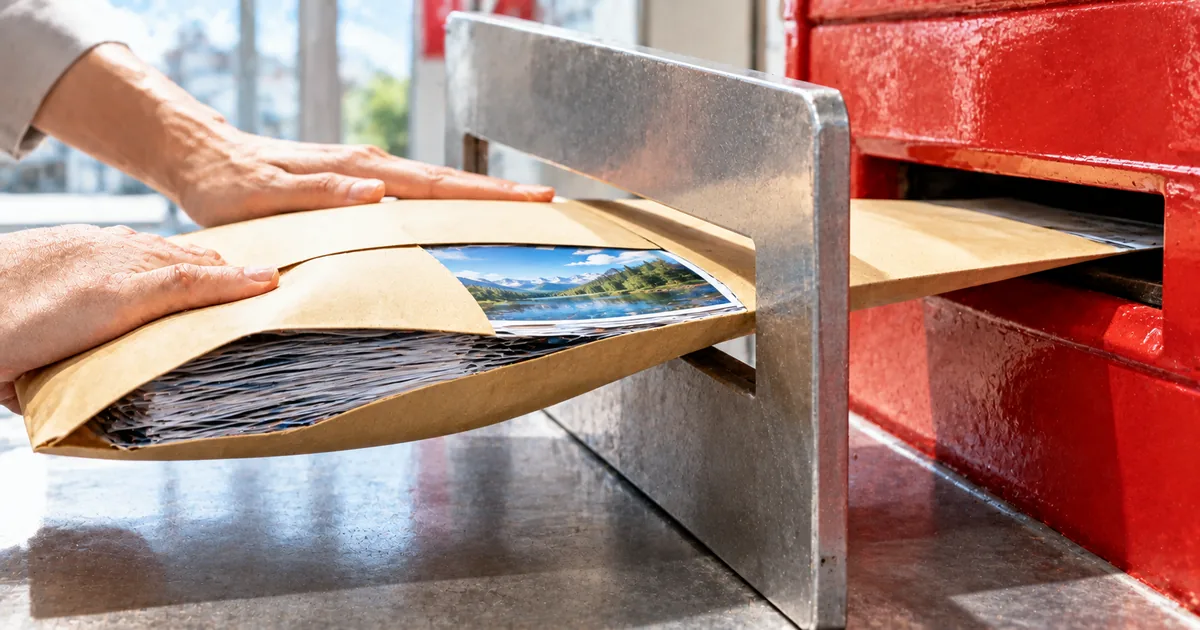
An email or upload form that refuses iPhone photos is enforcing its own size limit, and no app is needed to get under it. Compressing, resizing, and switching the camera format each cut the file size, and the right one depends on where the photos are going.
Why iPhone photos get too big to send
Three ways to make an iPhone photo smaller
A photo that won't send has usually hit a cap set by the destination, not by the iPhone. Email services limit the total size of attachments on one message, and web forms often set their own maximum per file. The photo has to come in under the destination's limit, so start from that number and work backwards.
Three methods get a photo under that limit. Compressing keeps the width and height but saves the image at lower quality, resizing cuts the width and height themselves, and changing the camera format affects only the photos you take from now on. The first two work on photos already in your library, and the third keeps new ones smaller from the start.
Compress photos on iPhone in the browser
Compressing a photo in Safari with the sakuttoAI Image Compressor
- Open the Image Compressor in Safari
- Choose the photos from your iPhone
- Pick a preset or set a target file size, and choose the output format
- Compress, check the new size, and save the copies
The sakuttoAI Image Compressor runs in Safari and can compress images with nothing to install. The work happens inside the browser on your iPhone, and the photos aren't uploaded to a server along the way. That makes it a reasonable choice for personal photos you'd rather not hand to an unknown service.
It accepts seven input types: JPEG, PNG, WebP, GIF, BMP, HEIC, and HEIF. A HEIC photo is converted to JPEG first and then compressed. For the output, you can keep the original format or convert to JPEG or WebP; there's no PNG option, but a PNG you add stays PNG if you keep the original format.
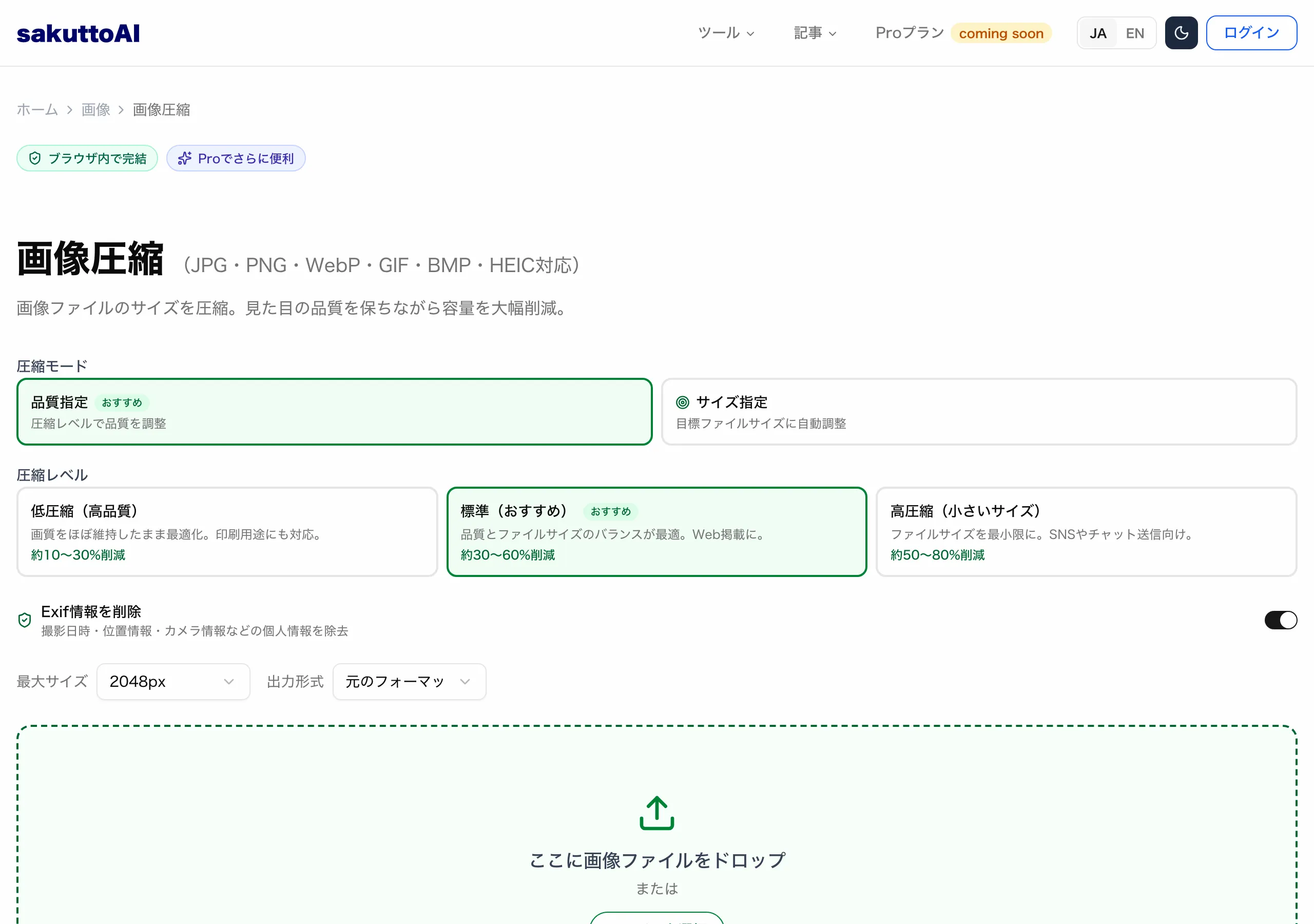
Pick a strength or set a target file size
The compressor has two modes. In the first, you pick one of three presets; in the second, you enter the file size you need and let the tool work toward it. Presets suit "just make it smaller," and the target size mode suits "it has to fit under this number."
| Preset | Quality | Longest side | Metadata |
|---|---|---|---|
| Low | 0.85 | Kept as is | Kept |
| Standard | 0.7 | Up to 2048 pixels | Removed |
| High | 0.45 | Up to 1280 pixels | Removed |
The low preset only lowers the quality a little and leaves the dimensions and metadata alone. Standard and high also cap the longest side and strip the metadata, so they save more at the cost of detail. In target size mode, the tool makes up to six attempts to get under your number, so check the final size before you send it, especially when the target is very small.
Resize photos on iPhone with Shortcuts to make them smaller
Shortcuts is Apple's automation app for the iPhone, and it can resize photos without a third-party app. You build a shortcut that takes a photo, scales it down to a smaller width, and saves the result as a new image. Fewer pixels means a smaller file, so resizing brings the size down even though the quality setting stays the same.
After you build the shortcut, you can run it on photos from the share menu in Photos or from the Shortcuts app itself. The exact actions and their names can change between iOS versions, so follow what the Shortcuts app shows you when you add them. Resizing is the right tool when the photo is much larger than the place it will be shown, while a quality-based compressor gives you more control over the final file size.
Reduce photo size on iPhone by switching the camera format
Where to change the iPhone camera format
- Open the Settings app and go to Camera
- Tap Formats
- Choose High Efficiency to save new photos as HEIF
HEIF, the High Efficiency Image File Format, is the space-saving format the iPhone uses for photos. Apple says HEIF compresses better than JPEG and uses less storage while keeping the same visual quality. Choosing High Efficiency under Camera > Formats makes the photos you take from now on smaller, with no extra step at send time.
The setting only affects new photos. If you switch to Most Compatible instead, Apple says all new photos use JPEG, and the photos already in your library keep the format they were taken in. High Efficiency needs iOS 11 or later, so any recent iPhone has it.
"HEIF and HEVC offer better compression than JPEG and H.264, so they use less storage space on your devices and iCloud Photos, while preserving the same visual quality" / "To return to using the space-saving HEIF and HEVC formats, choose High Efficiency." / "All new photos and videos will now use JPEG or H.264 format." — from Apple's explanation of HEIF and the camera Formats settingView official source →
High Efficiency photos may arrive as JPEG when shared
A HEIF photo isn't always sent as HEIF. When you share by AirDrop, Messages, or email and the receiving device doesn't support the newer format, the iPhone may send a more compatible copy such as a JPEG. The small HEIF file on your phone isn't necessarily the file the recipient gets, so check the size of what actually goes out when a limit is involved.
If you need to be sure of both the format and the size, compress the photo yourself before sending. Choose JPEG as the output in the sakuttoAI Image Compressor, and you'll know exactly which file you're attaching.
"If sharing this media using other methods, such as AirDrop, Messages, or email, and the receiving device doesn’t support the newer media formats, the media might automatically be shared in a more compatible format, such as JPEG or H.264." — from Apple's note on sharing HEIF mediaView official source →
Fit photos under the Gmail attachment size limit
Gmail attachment limits (from Gmail Help)
For a personal Gmail account, the attachment limit is 25 MB, and it applies to the total size of everything attached to one email. Work and school accounts don't have a single published number, because the Google Workspace administrator sets it. Several photos that each fit on their own can still go over the limit together, so add up the sizes before you send.
An email over the limit isn't bounced. Gmail takes the attachments out and puts a Google Drive link in the message instead, which may not be what the recipient expects. If you want the photos to arrive as normal attachments, compress them until the total is under 25 MB; if they're far over, Google suggests sending large files through Drive.
"For personal Gmail accounts, the limit is 25 MB." / "If your total attachment size is greater than the limit, Gmail automatically removes the attachment and adds it as a Google Drive link in the email." / "To send large files over the size limit, like videos, use Google Drive." — from Gmail's attachment size limitsView official source →
Which method to use for your photos
| Your situation | Method to use |
|---|---|
| Photos already taken, and they must fit under a set size | Browser compressor in target file size mode |
| Photos already taken, and they just need to be smaller | Browser compressor with the standard or high preset |
| Photos much larger than where they'll be shown | A resize shortcut in the Shortcuts app |
| Photos you haven't taken yet | Camera > Formats set to High Efficiency |
| You need a JPEG the recipient can definitely open | Browser compressor with JPEG output |
| Gmail attachments over 25 MB in total | Compress until the total fits, or send through Google Drive |
Two questions decide the method: is the photo already in your library, and is there a hard size limit at the other end? Photos you've already taken need compressing or resizing, and a hard limit means target size mode; High Efficiency only helps with the photos you take next. Next time an email won't send, open the Image Compressor in Safari, set a target that leaves room under 25 MB, and attach the result.
FAQ
- What is the Gmail attachment size limit for iPhone photos?
- For a personal Gmail account, the attachments on one email can add up to 25 MB in total. Work and school accounts follow whatever limit the Google Workspace administrator sets. Add up the sizes of the photos you plan to attach and compress them until the total fits.
- What happens if my iPhone photos are over Gmail's limit?
- Gmail doesn't reject the email. It takes the attachments out and puts a Google Drive link in the message instead, so the recipient opens the photos from Drive rather than from the email. Compress the photos first if you want them to arrive as ordinary attachments.
- How do I make my iPhone save smaller photos?
- Set the camera format to High Efficiency. In the Settings app, open Camera, tap Formats, and choose High Efficiency; photos you take from then on are saved as HEIF. Photos already in your library stay as they are, so compress those separately.
- Does High Efficiency make iPhone photos look worse?
- Apple says it doesn't. HEIF compresses better than JPEG, so the files take up less space, and Apple describes the result as keeping the same visual quality. Apple doesn't publish a fixed size ratio, so the saving varies from photo to photo.
- Why did my iPhone photo arrive as a JPEG?
- When you share a HEIF photo by AirDrop, Messages, or email and the receiving device doesn't support the format, the iPhone may send it as a JPEG instead. The recipient gets a more compatible file, but not necessarily the HEIF file you see on your phone. Check what actually goes out if the size matters.
Related articles
 ChatGPT now works with iCloud Mail and CalendarOpenAI added iCloud Mail and Calendar plugins to ChatGPT on Oct 27 for all plans. You connect with an Apple app-specific password that outlives a disconnect.
 Keyboard symbols: names and how to type all 33Keyboard symbols: names and the keys that type them in a searchable list, plus Alt codes and Mac Option shortcuts for special characters not on the keyboard.
 How to scan documents to PDF: phone, PC, or storeHow to scan documents to PDF on iPhone, Android, Windows, or Mac, or at a FedEx Office copier, and where each method saves the file.
 Email Attachment Size Limits: Fit Your PDFEmail attachment size limits differ by service, app, and administrator: Gmail 25 MB, Outlook.com 25 MB, the Outlook app 20 MB, Exchange 10 MB by default.