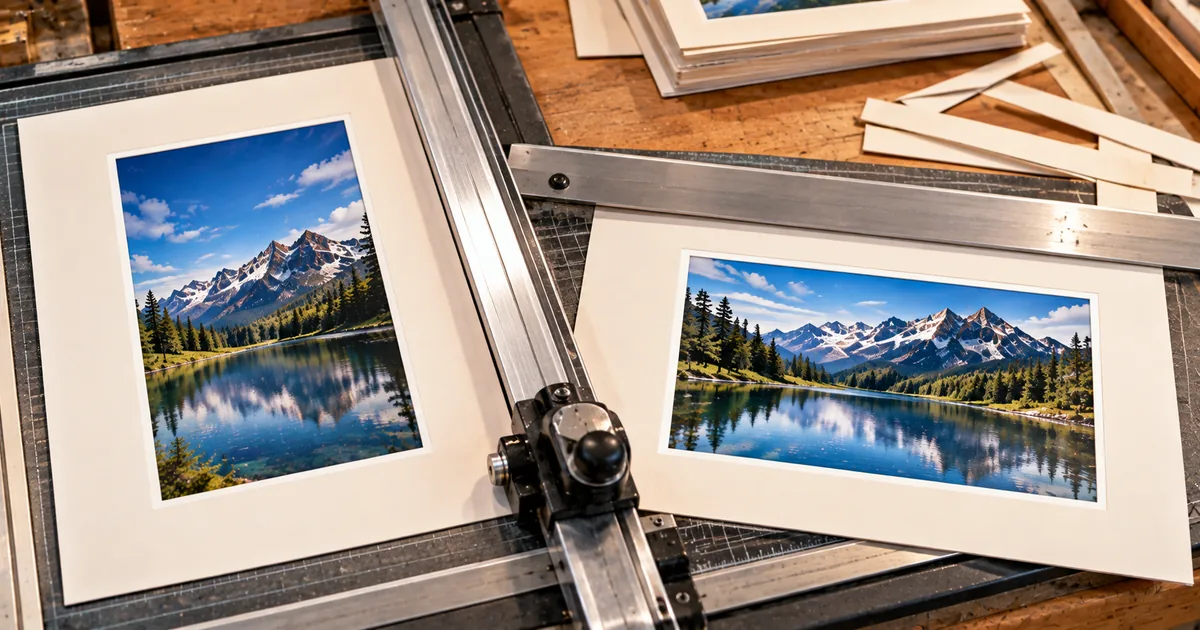
A form wants a PDF and all you have is a photo of the page. The fix takes three steps in the browser, and you don't have to change any setting to get a usable file.
What the settings do is worth a minute, though. Page size, orientation and margins decide whether the PDF prints cleanly, and none of them lowers the quality of the photo.
How to convert JPG to PDF in your browser
Open the JPG to PDF tool, add your photos, select convert and save the file. The defaults are Fit to image, Auto orientation and no margin, which give you a PDF whose pages are exactly the size of your photos.
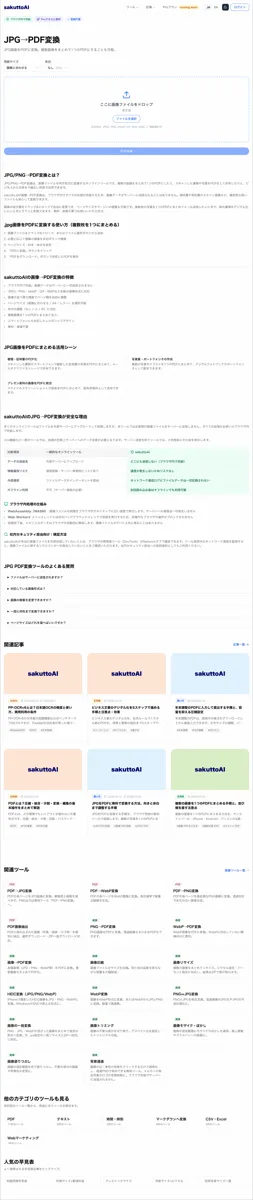
Add your images and put them in order
- Drag your JPG files onto the tool, or pick them with the file button
- Use the arrow buttons next to each file until the list is in page order
Each image becomes one page, in the same sequence as the list. To fix a wrong order, move an entry up or down rather than starting over.
Convert and download the PDF
- Choose a page size, orientation and margin, or leave the defaults
- Select convert, then save the file your browser builds
Nothing is sent anywhere while this runs. The PDF is put together inside the browser tab and lands in your downloads folder.
Image quality stays the same in the PDF
Converting a JPG to PDF with this tool does not blur it. The JPEG you add is copied into the PDF byte for byte, so the photo inside the file is the one you started with.
A JPG goes in without being compressed again
The tool puts the original JPEG data into the PDF without saving it again. A JPEG is already compressed, so every round of opening and re-saving it as a JPEG loses a little more detail. That loss is where the soft, blocky look of a badly converted file comes from.
PNG files go in the same way, and neither format is decoded and re-saved on its way into the PDF. The only change is the container around the image data.
PNG, WebP, GIF and BMP files become PNG pages
WebP, GIF and BMP files are redrawn as PNG before they go on the page. The PDF library the tool uses can only hold JPEG and PNG images, so the other three take one extra step.
PNG keeps every pixel, so the redraw loses no detail. The PDF can end up larger than the file you started with, though, because PNG is not built to squeeze photos.
Pick a page size by where the PDF will end up
Fit to image suits a PDF that will only be read on a screen, and A4 or Letter suits one that might be printed. Those three are the only sizes the tool offers.
Fit to image is for reading on a screen
With Fit to image, every page is cut to the size of its own photo. A tall phone shot makes a tall narrow page, and a wide screenshot makes a wide one.
That looks fine in a PDF viewer. On paper, each odd-shaped page has to be scaled onto a real sheet, and a file of mixed photos prints at mixed sizes.
A4 or Letter is for anything that may be printed
Pick whichever sheet the person receiving the file will print on. A4 is 210 × 297 mm and Letter is 8.5 × 11 inches.
On either size a large photo is shrunk to fit the page and centered. A small photo is never enlarged, so a low-resolution image stays small in the middle of the sheet rather than turning grainy.
Orientation and margins decide where the photo sits
Orientation turns the page, and the margin sets the white border around the photo. Orientation only appears once you have chosen A4 or Letter, while the margin applies to every page size, including Fit to image.
Auto turns the page for wide photos
Auto gives a wide photo a landscape page and everything else a portrait one. It decides image by image, so a mixed set keeps each picture as large as the sheet allows.
Portrait and Landscape force the same direction on every page. Choose one when the recipient expects a uniform stack, such as a form photographed page by page.
Margins keep the photo off the paper's edge
Small adds 10 mm of white space around the photo, and Medium adds 20 mm. None lets the photo run to the edge of the page.
A photo with no margin leaves nothing between the picture and the edge of the sheet. If the file is headed for a printer, Small gives it a clear border at no cost to the image.
What free means for this JPG to PDF converter
The tool costs nothing and keeps your photos on your device, but it limits how often you can use it. The allowance is smaller when you are signed out.
Your images stay on your device
In a measured conversion, the only request that left the browser with data attached was a 23-byte usage check. No request carried any image data.
That matters for payslips, ID scans and signed forms. Many online converters send the file to their own server and delete it later, but here there is nothing to delete.
One conversion a day when signed out
Signed out, the tool allowed one conversion a day in testing. The tool page says a free account gets 3 tasks a day, shared across all the file tools. The page also checks that allowance before it starts, which means it won't work offline.
If you have a stack of photos, add them all to one conversion rather than running them one by one. To combine images with no daily limit, Combine images into PDF without uploading them covers the routes built into Windows and macOS.
FAQ
- Is there a difference between JPG and JPEG?
- No. They are two file extensions for the same image format, and the tool accepts both spellings. It also takes PNG, WebP, GIF and BMP.
- Will converting a JPG to PDF make it blurry?
- Not with this tool. The JPEG data is placed into the PDF as it is, with no second round of compression. WebP, GIF and BMP are redrawn as PNG first, which keeps every pixel.
- Can I put several JPGs into one PDF?
- Yes. Add them all at once and each image becomes one page, in the order of the list. For the routes built into Windows and macOS, see the guide on combining images into one PDF.
- Are my photos uploaded anywhere?
- No. In a measured conversion the only request that carried any data was a 23-byte usage check. The PDF is built by your browser and saved straight to your downloads.
- How many conversions can I do for free?
- In our test, one a day while signed out. The tool page says a free account gets 3 tasks a day, shared across all the file tools, and Pro has no daily cap.
Related articles
 Combine images into PDF without uploading themCombine images into PDF with a browser tool that never uploads your files, Windows Print to PDF or Preview on a Mac. Compare the daily limit and page order.
 Reduce PDF file size without wrecking your scansReduce PDF file size and only the images shrink. Measured on our own tool: a photo lost 82.5%, twelve pages of text 0.8%. Learn what to keep untouched.
 Claude Fable 5.2: 20% price cut, up to 30% fasterAnthropic released Claude Fable 5.2 on November 9, 2026. API prices fall 20% to $8/$40 per million tokens, and output is up to 30% faster than Fable 5.1.
 PayPay security and passkeys in 10 Japan pay appsPayPay security compared with 9 other Japanese payment apps: passkeys, extra checks to send or pay, and fraud compensation deadlines.