An attachment bounces or an upload form refuses a file, and the usual reaction is to reach for the compression button. What that button can do depends on what the PDF holds, and a file full of photos behaves very differently from one full of paragraphs.
Measured on three files in the same mode, a photo came out 82.5% smaller while twelve pages of plain text lost 0.8%. The contents of the file, and not the setting, set the result.
Reduce PDF file size: only the images inside will shrink
Text is stored as short drawing instructions and a picture is stored as a grid of pixels, so compression can discard nothing but pixels. A file made of scans, photos or slides has a great deal to give up. A file made of paragraphs has almost nothing, which is why searches such as reduce PDF size, shrink PDF and make PDF smaller get different answers for different files.
A PDF of twelve text pages shows how little there is to gain. Run through standard mode, it kept all twelve fonts and gained no images, and the size dropped by 44 bytes, 0.8% of the file. The words stayed text and were never turned into a picture.
Checking whether the file holds images is therefore the first step. A scan or a photo deck is worth compressing, and a text-only document is not.
What a compressor does to images: downsampling, then JPEG
The tool rebuilds each picture in two steps, a smaller pixel grid and a different file encoding, and neither step can be reversed. The first step is downsampling, which means keeping fewer pixels. The second step rewrites the picture as JPEG, a format that gets smaller by discarding fine detail.
The test image inside the photo run shows both steps in the "Test image before and after standard mode" table. Each side was cut to about half, which left about a quarter of the pixels, and an image that went in with lossless encoding came back as JPEG.
Test image before and after standard mode
| Stage | Width x height (pixels) | Encoding | Pixels left (%) |
|---|---|---|---|
| Before | 253x1200 | FlateDecode (lossless) | 100 |
| After | 127x602 | DCTDecode (JPEG) | 25.2 |
Resizing a PDF in this sense leaves the page size alone, and what shrinks is the number of pixels inside it. Discarded pixels are gone for good, so a copy that was compressed once cannot be restored to the original detail.
Measured on our tool: 82.5% off a photo, 0.8% off text
Three runs in the same mode gave three very different results, so the contents of the file drive the outcome. The runs were taken on 2026-09-05 in standard mode, and the setting was never varied. One file held a JPEG photo, one a PNG screenshot, and one twelve pages of text.
PDF size before and after standard mode (bytes; cut in percent)
| File held | Before | After | Cut |
|---|---|---|---|
| One JPEG photo | 66,735 | 11,675 | 82.5 |
| One PNG screenshot | 98,145 | 11,730 | 88.0 |
| Twelve pages of text | 5,384 | 5,340 | 0.8 |
The tool page describes standard mode as cutting roughly 60-90% from an image-heavy PDF. The photo and the screenshot landed inside that band, and the text file sat far below it. The page also says the reduction depends on what is inside the PDF rather than on the mode, which the 0.8% row bears out.
Low and high modes were not measured, so no figure here applies to them. For anyone who wants to compress a PDF without losing quality, the honest limit is that the image is rebuilt with fewer pixels, and the next section shows how far that goes.
How far does the resolution drop?
Each side of the test image was cut to about half, and the loss shows up when the file is printed, enlarged or reused. Read on a screen at normal size, a scan with fewer pixels still looks right. Printed, zoomed in on, or fed back into another job, the same file shows what was thrown away.
Ghostscript, an open-source PDF processor, makes the same trade. Its pdfwrite device, the component that writes PDF output, lowers images to fixed resolution targets when it makes a smaller file, and its documentation says a modified PDF cannot keep the original contents unchanged. Compressing a scanned PDF to fit a size cap works the same way: the file gets smaller because the images lose resolution.
Image resolution targets in Ghostscript pdfwrite presets (dpi)
| Preset target | Resolution |
|---|---|
| Low | 72 |
| Middle | 150 |
| High | 300 |
if the intention is to produce a modified PDF file (for example, reducing the resolution of images, or changing the colour space), then clearly you cannot keep the original contents unchanged — from the pdfwrite section, which also lists 72, 150 and 300 dpi as the image resolutions its presets targetView official source →
Compress a PDF in your browser, and the two limits
The work happens on the page, and the one request that carried data during a run was a 25-byte usage check with no PDF content in it. Nothing needs to be installed, and the first run needs no account. Compressing a PDF online this way takes four steps.
- Open the PDF compression tool in any browser.
- Drag the file onto the page, or pick it from the file dialog.
- Choose a mode: low, standard or high. Standard is the default.
- Run the compression and save the file that comes back.
The tool page says low mode makes the file only slightly smaller, standard cuts roughly 60-90% from an image-heavy PDF, and high cuts roughly 70-90%. Only standard was measured, so the numbers in the "Test image before and after standard mode" table belong to standard alone.
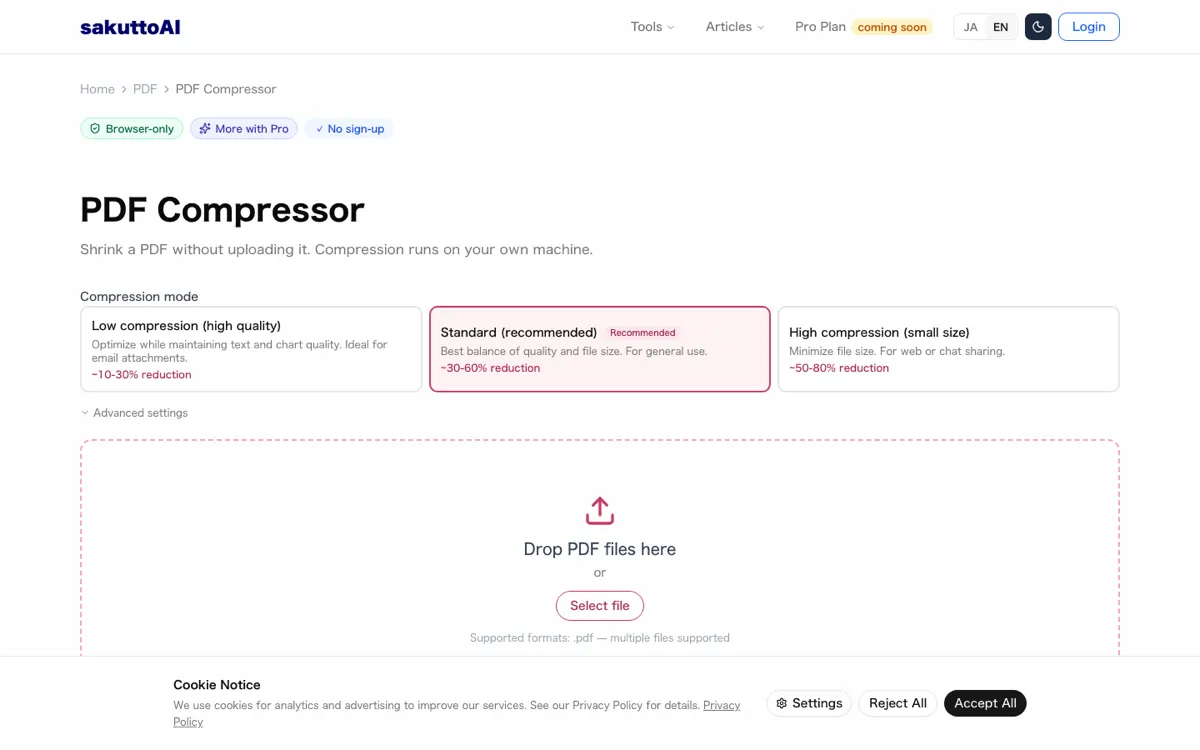
A scan or a slide deck full of pictures that will not attach is the case this tool handles best, since the images are where the weight sits. To shrink a file like that, drop it into the PDF compression tool.
One run a day signed out, and nothing at all offline
Without an account the tool allows a single compression before the next day, and starting one needs a network connection. A second run in the same session did not finish, so a batch of files needs an account or another day. With the network switched off after the file was already on the page, the compression never started.
Which PDFs are safe to compress before you send them?
Two checks settle it: whether the copy in hand is the record or a working copy, and whether it holds images at all. A record such as a contract or a receipt stays untouched in its own folder.
Everything else counts as a working copy, and a working copy can be compressed as hard as the situation needs. Where the file is going sets how hard to push.
- Submissions: open the compressed file and read the smallest text on the page. Send it only when that text is legible.
- Quick shares: size wins. Meeting notes going into a chat thread can go through standard mode and straight out again.
- Text-only files that are still too big: no setting will shrink them further. Split the document into sections or share a link instead.
A PDF that arrived in pieces is the opposite problem. How to combine PDF files on Windows without Adobe covers joining the pieces back into one file.
Summary: shrink working copies, keep the original
Pixels carry the weight and pixels are lost for good, so the contents of a file decide both the saving and the damage. The choice follows from what the PDF holds and where it is going.
- A scan, a photo deck or a screenshot-heavy file: compress a copy in standard mode, then read the smallest text before sending.
- A text-only file: leave the setting alone, because the saving is 0.8% in the measured run, and split the file or share a link if it is still too large.
- A contract, a receipt or anything that may have to be printed or reused: do not overwrite it at all.
One untouched original, stored separately, is the only way back from a compressed copy. The compressed file is disposable and the original is not.
FAQ
- Does compressing a PDF always cost quality?
- If the file holds images, yes. In our run the embedded image went from 253x1200 pixels to 127x602, roughly half of each side. A PDF that is nothing but text has no pixels to throw away, so it comes out looking the same.
- Will the text go blurry?
- No. Our twelve pages of text went in with twelve fonts and came out with twelve fonts, and the result held no images at all. The words stay text instead of turning into a picture.
- How much smaller will my file get?
- It depends on what is inside. A photo dropped 82.5%, a screenshot 88.0%, and twelve pages of plain text only 0.8%. The tool page describes standard mode as cutting roughly 60-90% from an image-heavy PDF, and the photo and screenshot runs landed inside that band.
- Does my file get uploaded to a server?
- In our run, no. During one compression the only request that carried a body was a 25-byte usage check, and nothing containing PDF data left the browser. Signed out, you get one run a day, and with no connection nothing starts at all.
- Can I undo the compression?
- No. Pixels that were thrown away cannot be recovered, and the image has also been re-encoded as JPEG. Keeping one untouched copy before you compress is the only way back.
Related articles
 PDF to JPG Converter: Choose 72, 150 or 300 DPIPDF to JPG converter that renders every page in your browser at 72, 150 or 300 DPI, with a quality slider and a single ZIP download for all pages.
 An AI Video Upscaler for 4K: FLUX Video UpscaleFLUX Video Upscale, an AI video upscaler, rebuilds clips at up to 4K. As of Aug. 23, 2026, it costs $0.07 to $0.10 per megapixel-second and rejects 4K input.
 Convert JPG to PDF without losing image qualityConvert JPG to PDF in your browser. The JPEG goes into the PDF untouched, you pick Fit to image, A4 or Letter, and nothing is uploaded to a server.
 Combine images into PDF without uploading themCombine images into PDF with a browser tool that never uploads your files, Windows Print to PDF or Preview on a Mac. Compare the daily limit and page order.