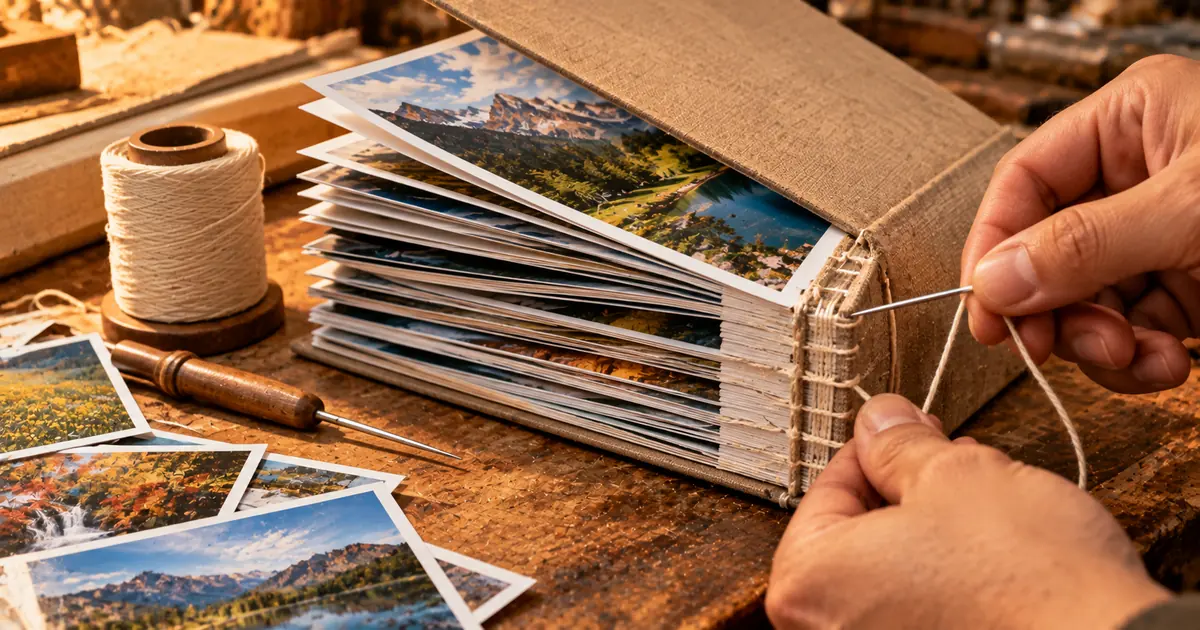
Three scanned receipts, a photo of one page and a screenshot from a chat are one document to the person who asked for them. On disk they are five image files, and the job is to combine them into one PDF in the right order.
Windows and a browser tool can each merge images into one PDF, and Preview on a Mac joins PDFs, all without handing the files to a server. Which one fits depends on a daily limit, on offline use and on how the page order is set.
Combine images into PDF in the browser, no upload
Four steps are enough when the files already sit on the computer in front of you, and the thumbnails on screen set the page order. The sakuttoAI JPG to PDF tool runs in a browser such as Edge or Chrome, and the drop area, the file picker button and the convert button share one screen. In the measurement on September 5, 2026, no request carried image data, because the PDF is built in the browser and saved to the downloads folder.
- Open the JPG to PDF tool.
- Drag the images onto the page.
- Drag the thumbnails into the order you want.
- Select convert, then download the finished file.
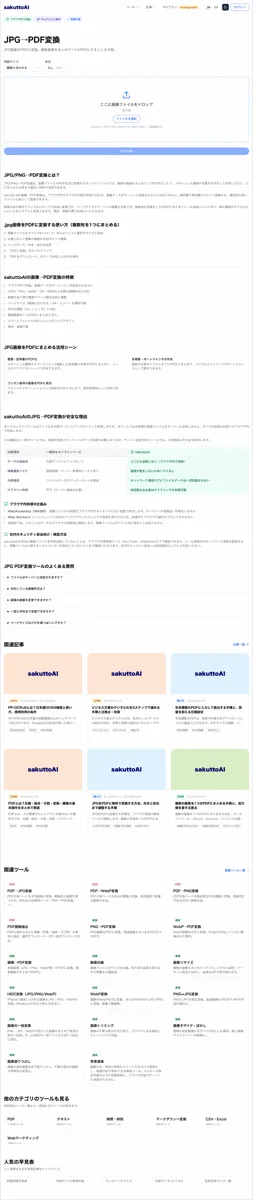
Two images give a two-page PDF. The pages follow the thumbnails on screen rather than the order the files were added in, so one dragged thumbnail fixes a wrong sequence without starting over.
One conversion a day signed out, and no offline mode
Both limits come from the usage check that runs before the PDF is built. Signed out, the tool allows one conversion a day (as of September 2026), and the next one waits until the following day or until sign-in. The page checks the usage allowance before it converts, so with no connection nothing happens.
The same measurement shows what the check sends. During one conversion, the only request with a body was a 23-byte usage check. Windows Print to PDF has no usage limit and needs no connection, and Preview on a Mac has no daily limit either.
Merge JPG to PDF on Windows with Print to PDF
Nothing has to be installed, since the operating system ships a printer that writes files instead of paper. Select the pictures in File Explorer and send them to Microsoft Print to PDF, and what comes back is one file with the pictures as pages.
- Hold Ctrl and click every image you want.
- Right-click one of them and choose Print.
- Pick Microsoft Print to PDF from the printer list.
- Set the paper size and how many pictures go on each sheet.
- Choose where to save, and name the file.
Full page keeps one image on each page, while the other layouts put several photos on one sheet. Windows is expected to take the pages in file name order, so numbering the files 01, 02, 03 before you print is the safe way to set the sequence. Fixing the order afterwards means printing again.
Windows print merges pictures, not PDF files
The Microsoft answer is limited to photos and other images, so a stack of finished documents is a different job. A community answer on Microsoft Q&A says Windows can combine multiple pictures into one multipage PDF file. The same answer gives no route for joining documents that are already saved as PDFs.
Joining those takes a separate tool. How to combine PDF files on Windows without Adobe covers the routes that do merge existing PDFs.
can combine multiple pictures into one multipage PDF fileView official source →
Preview on a Mac merges PDFs by dragging thumbnails
Apple's support page describes this route for documents that already exist, and the sidebar is where the page order gets fixed. Apple says you can also merge the entire contents of two or more PDFs in Preview. The steps start from PDFs, so a stack of JPG files goes through the browser tool or Windows print instead.
- Open the first PDF in Preview.
- Show the Thumbnails sidebar.
- Drag the other PDFs into the sidebar.
- Drag the thumbnails into the order you want.
- Use Export to save the combined file.
You can also merge the entire contents of two or more PDFsView official source →
Windows, Mac or browser: which route fits your job
How often you need a PDF decides it, because only one route has a daily limit and only one sets the order by file name. None of the three uploads the files. The table sets the starting point, the limit and the page order side by side.
Starting point, daily limit and page order of the three routes, none of which uploads the files (as of September 2026)
| Starts from | Daily limit | Page order | |
|---|---|---|---|
| Windows print | Images | None | File name |
| Preview on a Mac | PDFs | None | Drag thumbnails |
| Browser tool | Images | One, signed out | Drag thumbnails |
A one-off stack of screenshots goes through the browser tool, which takes four steps. A weekly stack of scanned receipts goes through Windows print with the files numbered beforehand, which takes five steps. With no connection or with a file that must stay off the network, Windows print is the route that still runs.
Summary: pick the route by how often you need it
Privacy does not separate the three routes, since none of them sends the files anywhere. The deciding points are how often the job comes back and how the page order is set. Match the job to one of these:
- A stack of images needed once: the browser tool, with the page order set by dragging thumbnails.
- A stack of images needed every week: Windows print, with the files numbered first.
- Files that are already PDFs on a Mac: Preview, with the thumbnails dragged into order.
The finished file can still be too large for an email attachment limit. A PDF in that state can go through the PDF compression tool before it is sent.
FAQ
- Is it free to combine several images into one PDF?
- The browser tool is free, but signed out it allows one conversion a day. After that you wait until the next day or sign in. Windows Print to PDF and Preview on a Mac have no such limit.
- Are my images uploaded to a server?
- Not by the browser tool. During one conversion measured on September 5, 2026, the only request that carried a body was a 23-byte usage check, and no request carried image data. Other online converters may upload files, so read the wording before you drag a file on.
- Can I combine JPGs into one PDF without a connection?
- Yes, with Windows Print to PDF. The browser tool checks your usage allowance before it converts, so with no connection nothing happens.
- How is the page order decided?
- In the browser tool the pages follow the thumbnails on screen, and you drag a thumbnail to fix a wrong sequence. The Windows print route is expected to follow file name order, so number the files 01, 02, 03 before you start.
- The PDF came out too large to email. What now?
- Run it through sakuttoAI's PDF compression tool before you attach it. A large PDF may not fit an email attachment limit.
Related articles
 Keyboard symbols: names and how to type all 33Keyboard symbols: names and the keys that type them in a searchable list, plus Alt codes and Mac Option shortcuts for special characters not on the keyboard.
 How to scan documents to PDF: phone, PC, or storeHow to scan documents to PDF on iPhone, Android, Windows, or Mac, or at a FedEx Office copier, and where each method saves the file.
 How to zip a file on Windows, Mac, Linux, or phoneLearn how to zip a file or folder on Windows, Mac, Linux, iPhone and Android, add a password the built-in tools skip, and fix a zip that barely shrank.
 Mac keyboard shortcuts vs Windows: 58 comparedMac keyboard shortcuts mapped to the Windows keys they replace, 58 in one searchable table with Chromebook alongside, plus the two places that mapping breaks.