
To compress PDF attachments for e-Tax, aim at one number: all the PDF files in a single transmission may add up to 14.0 MB at most. Scanned supporting documents and phone photos of them can push a return over that limit. You can shrink those files without breaking the resolution, grayscale, and password rules that e-Tax also checks.
PDF file size too large: the e-Tax limit is 14.0 MB per transmission
e-Tax rejects a transmission whose PDF files add up to more than 14.0 MB and shows error HUBH172E, and the fix is to bring that total down to 14.0 MB or less and send again. The limit applies to image data, the term e-Tax uses for supporting documents sent as PDF instead of on paper. Image data can be sent from e-Tax Soft (web version), which the National Tax Agency provides, or from commercial tax software that supports it.
The goal is therefore a small total per transmission, not one small file. For a Japan tax return, add up every attachment you plan to send together, and compress or regroup the files until the sum is 14.0 MB or less.
Error HUBH172E: the attachment total went over the limit
Error HUBH172E means the PDF data in one transmission went over the 14.0 MB limit. The agency's Q&A page is in Japanese, and translated, the message reads "HUBH172E: The capacity of the attached document (PDF) data exceeds the prescribed value."
The page explains that the message appears because the attachments in a single transmission exceed 14.0 MB. Its instruction is short: reduce the file size to 14.0 MB or less per transmission, then send again. The Q&A was last updated on May 22, 2023.
"送信された添付書類(PDF)データの1送信当たりの容量が規定値(14.0MB)を超えているために表示されます。"/"1送信当たり最大14.0MB以内にファイルサイズを修正した上で、再度送信してください。" — the answer on the Q&A page (Japanese original)View official source →
Japan tax return attachments: 136 files and 14.0 MB per send
Each transmission can carry up to 136 PDF files that together weigh 14.0 MB or less, and a filer can send up to 11 transmissions. Below, “Limits for e-Tax PDF attachments” lists the limits from the agency's format and size Q&A (updated January 4, 2024) and its image-data page.
Limits for e-Tax PDF attachments
| Item | Limit |
|---|---|
| File format | PDF only (convert Word and Excel files to PDF first) |
| Files per transmission | 136 |
| Size per transmission | 14.0 MB for all PDF files combined |
| Number of transmissions | Up to 11 |
| Across all transmissions | 1,496 files and 154.0 MB |
The combined row is the per-send limits multiplied by 11: 136 files become 1,496, and 14.0 MB becomes 154.0 MB. So no single transmission can go past 14.0 MB, however much room is left in the overall total.
Before compressing anything, check on the agency's image-data page that the attachment is one e-Tax accepts as image data. An attachment that is not eligible is invalid even if it goes through. The electronic data then has to be sent again, and the day of that re-submission becomes the document receipt date.
"PDFファイル合計で最大14.0MB"/"同時送信方式と追加送信方式を併用した場合、最大11回の送信で1,496ファイル、154.0MBまで送信することができます。" — the limits table and the note below it (Japanese original)View official source →
"したがって、イメージデータで提出したとしても、その提出は無効となります。"/"再提出の日が文書収受日となりますのでご注意ください。" — the caution under "attachments covered" (Japanese original)View official source →
Compress PDF files without breaking the 200 dpi and grayscale rules
Size is only one of the conditions e-Tax sets, and a compressed PDF still has to meet all the others. The agency's conditions for image data include a resolution of 200 dpi equivalent or higher, at least 256 levels from white to black, content that can be confirmed by eye, and no password.
Lowering a scan's resolution shrinks the file, but resolution is also an e-Tax condition. A file that gets small by losing resolution fails it.
Grayscale scans have met the e-Tax requirement since April 1, 2025
Since April 1, 2025, a grayscale scan at 200 dpi equivalent or higher meets the e-Tax requirement, and color scans are still accepted. Before that date the rule was 200 dpi and full color, meaning 256 levels for each of red, green, and blue.
A resolution of 200 dpi (dots per inch) sets how finely the page is scanned. The 256 levels are the number of shades a scan records between white and black.
The change came from an amendment, made on April 1, 2025, to a ministerial ordinance on using information technology in national tax administration. It covers 3 procedures: attachments sent as image data, attachments submitted on optical disc, and procedures that can themselves be sent as image data.
"令和7年4月1日からは白黒階調(いわゆる、グレースケール)によるスキャナ読取り等も認められます。"/"(※)改正後においても、カラー階調でスキャナ読取り等を行ったイメージデータ(PDF形式)の提出は可能です。" — the notice on the revised scan requirements (Japanese original)View official source →
Legible by eye and no password: the other two e-Tax conditions
A PDF for e-Tax must be readable by eye and must not carry a password. The agency asks for particular care with pages captured by a smartphone or a digital camera, and it adds that e-Tax cannot receive image data infected with a virus.
If your PDF is already password-protected, the compressor cannot open it. Remove the password first and do not add it back, because e-Tax will not take a file with one.
"目視により内容の確認が可能(スマートフォンやデジタルカメラ等で読み取ったデータの場合は特にご注意ください。)"/"パスワードを設定しない"/"ウイルスに感染しているイメージデータは、e-Taxで受信できません。" — the conditions for creating the PDF file (Japanese original)View official source →
How to compress a PDF free and online: three steps, nothing uploaded
sakutto's PDF compressor shrinks a file in three steps, all inside the browser. Nothing is uploaded, so you can compress PDF files without uploading your tax documents to a server.
- Add your PDF: drag it onto the page or pick it with the file picker.
- Choose a compression level: Low for scanned attachments, since it keeps their resolution.
- Download the compressed PDF: save the result and open it before attaching it in e-Tax.
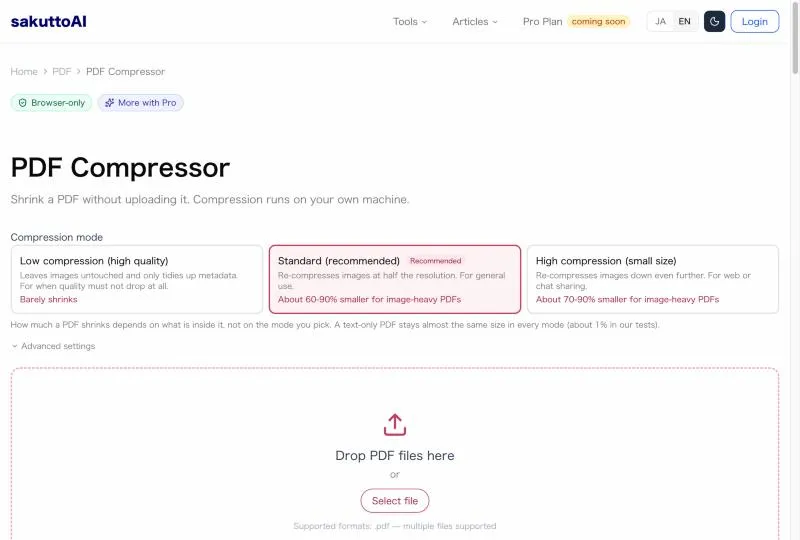
The compressor also works in a smartphone browser, so phone photos saved as PDF can be handled on the same phone. It is free to use once you sign in with a free account (an email link or Google, no password). The free plan allows 3 tasks per day across all file tools, and Pro has no daily cap.
Pick a level: Low for e-Tax scans, Standard for copies outside e-Tax
For e-Tax scans, Low is the level to pick, because it is the only one of the three that leaves page images at their original resolution. Below, “What each compression level does to page images” shows what each level does to the images inside a PDF.
What each compression level does to page images
| Level | What happens to page images | Use for e-Tax |
|---|---|---|
| Low | Lossless pass; images are not re-encoded, so resolution is unchanged (virtually no loss) | Scanned receipts, fine print, seals: anything that must stay at 200 dpi equivalent |
| Standard | Resized to the pixel count of 150 dpi and re-encoded (slight reduction) | Receipts kept or shared outside e-Tax |
| High | Resized to 120 dpi (noticeable reduction) | Not for e-Tax scans; check legibility afterward |
Standard is the tool's recommended level. For e-Tax, though, it assumes page images are 300 dpi scans and resizes them to the pixel count of 150 dpi, which can take a scan below the 200 dpi equivalent that image data needs. Start with Low, and if the batch is still over 14.0 MB, split it rather than switching to Standard or High.
The custom resolution menu offers 72, 120, 150, and 300 DPI and has no 200 DPI setting. Of those, only 300 DPI stays above the e-Tax minimum. How each level changes the size of scans, photos, and text-only PDFs is covered in Compress PDF Online Free: Pick the Right Level.
To reduce PDF file size, scan at the lowest resolution e-Tax allows
One way to reduce PDF file size before compressing is to scan at 200 dpi equivalent, the minimum resolution e-Tax allows, in grayscale. A higher dpi or full color only adds size, while grayscale has been accepted since April 1, 2025.
The agency names three ways to make the PDF: a smartphone camera photo converted to PDF, a scanner, or software that converts a document made on a computer. It publishes separate phone instructions for iPhone and Android, and questions about a particular scanner or converter go to its vendor.
For e-Tax, 200 dpi is enough as a scan resolution for documents, and in grayscale it meets both the resolution and gradation conditions. A file made that way may already fit under the cap, so check its size before compressing.
"解像度は200dpi相当以上"/"添付書類(書面)をスキャナで読み取り、PDF形式に変換する方法" — the PDF conditions and the list of ways to make a PDF (Japanese original)View official source →
Split PDF files that stay too large and send them in batches
When compression alone is not enough, split the PDFs across more transmissions instead of compressing harder. Harder compression means Standard or High, which can push a scan below the 200 dpi equivalent, while splitting leaves every page as it was.
One transmission shares the 14.0 MB cap across all its PDF files
The 14.0 MB cap covers every PDF in a transmission together, so several small files can still exceed it. Receipts that are each well under the cap can go over it once they share a transmission.
Spread the files over more transmissions until each group fits. Only a single PDF that is over 14.0 MB on its own needs to be cut into parts first.
Send up to 10 more transmissions from the message box
After the return data is sent, the message box accepts up to 10 more transmissions of image data, for 11 in total. Sending PDFs together with the return allows 1 transmission, and the message box route adds the other 10, up to 154.0 MB and 1,496 files overall.
If the tax software in use does not support image data, send the return first and then submit the PDFs from e-Tax Soft (web version). To break one oversized file into parts, the sakutto PDF splitter runs in the browser in the same way as the compressor, and each part can then go in its own transmission.
"申告、申請・届出等データを送信した後に、メッセージボックスからイメージデータを提出する方法‥‥ 10回まで送信可"/"ご利用の税務・会計ソフトがイメージデータによる提出に対応していない場合であっても、申告、申請・届出等データをe-Taxに送信後、国税庁が提供するe-Taxソフト(WEB版)等でイメージデータによる提出が可能です。" — the submission methods and the note on unsupported software (Japanese original)View official source →
Check the compressed PDF before you send it
A smaller file is not yet an accepted file, so check it once before sending and once after. Compression cannot be undone, and one of the e-Tax conditions is that the content can be confirmed by eye.
Open the file and confirm text, amounts, and seals are legible
Open the compressed PDF at full size and confirm three things before attaching it. Each check applies the agency's by-eye condition:
- Text is sharp, not blurred or blocky
- Amounts and dates can be read digit by digit
- Seals and stamps are distinct from the text around them
Keep the uncompressed PDF until e-Tax accepts the submission, because a compressed copy cannot be turned back into the original. Separately, the agency says the paper originals of attachments sent as image data do not need to be kept.
"イメージデータで提出した添付書類の原本の保存は不要です。" — the note on keeping attachments (Japanese original)View official source →
After sending: the receipt notice lands in the message box
e-Tax stores a separate receipt notice for the image data in the message box, even when the PDFs went with the return. Open that notice after sending and confirm that no error is shown.
The image-data notice is separate from the notice for the return itself. For error HUBH172E, the agency's instruction is to bring the total to 14.0 MB or less and send again.
"申告、申請・届出等データと同時にイメージデータによる提出を行った場合であっても、申告、申請・届出等のデータとは別に、イメージデータに係る受信通知がメッセージボックスに格納されます。"/"送信後は、イメージデータに係る受信通知についても、エラーが表示されていないか内容を確認してください。" — the note on receipt notices in the message box (Japanese original)View official source →
Compress PDF files for e-Tax in short: size, resolution, no password
To compress PDF files for e-Tax, meet these conditions together. There are four:
- The PDFs in one transmission total 14.0 MB or less
- The resolution is 200 dpi equivalent or higher
- The content is legible by eye and has no password
- The scan is grayscale (256 levels from white to black) or color
Compress with Low first, split the batch across transmissions if it is still too large, and check both the file before sending and the receipt notice after. That order keeps the resolution intact and uses the 11 transmissions only when they are needed.
Two older habits are best dropped. Since April 1, 2025, a scan no longer has to be in color, and a compressed file should not get its password back, because e-Tax takes only files without one. Before any of this, confirm on the agency's image-data page that the attachment may be sent as image data at all.
FAQ
- What does the HUBH172E error mean in e-Tax?
- It means the PDF attachments in one transmission add up to more than 14.0 MB. Bring the total to 14.0 MB or less, by compressing the files or moving some of them to another transmission, and send again.
- Does e-Tax accept a grayscale scan?
- Yes, since April 1, 2025. A scan at 200 dpi equivalent or higher with 256 levels from white to black meets the requirement. Color scans are still accepted.
- What if my PDF is still over 14.0 MB after compression?
- Split it and send the parts in separate transmissions. One transmission can go with the return and up to 10 more from the message box, for 11 transmissions carrying up to 154.0 MB and 1,496 files in total.
- Is it safe to compress tax documents in an online tool?
- sakutto's PDF compressor runs in the browser, and the file is not uploaded to a server. It cannot open a password-protected PDF, and e-Tax requires image data without a password anyway, so remove the password first and send the file without one.
- Can I compress a PDF of receipts photographed on my phone?
- Yes. The compressor works in a smartphone browser, and the National Tax Agency lists the phone camera as one way to make the PDF. Pick Low and open the result afterward, because the agency asks for extra care with phone and camera captures.
Related articles
 Compress PDF Online Free: Pick the Right LevelCompress PDF online free and reduce PDF file size in your browser. Scans and photos shrink 60–90% on Standard; text-only PDFs barely shrink at any level.
 Full Width to Half Width Character Converter, FreeConvert full width to half width characters free online: alphanumerics, katakana, symbols, and spaces, plus katakana to hiragana, all in your browser.
 Email Attachment Size Limits: Fit Your PDFEmail attachment size limits differ by service, app, and administrator: Gmail 25 MB, Outlook.com 25 MB, the Outlook app 20 MB, Exchange 10 MB by default.
 How to compress PDF on iPhone without an appCompress PDF on iPhone in your browser, no app install. Steps for Safari and Chrome on Android, plus what the Files app can and can't do for PDF size.