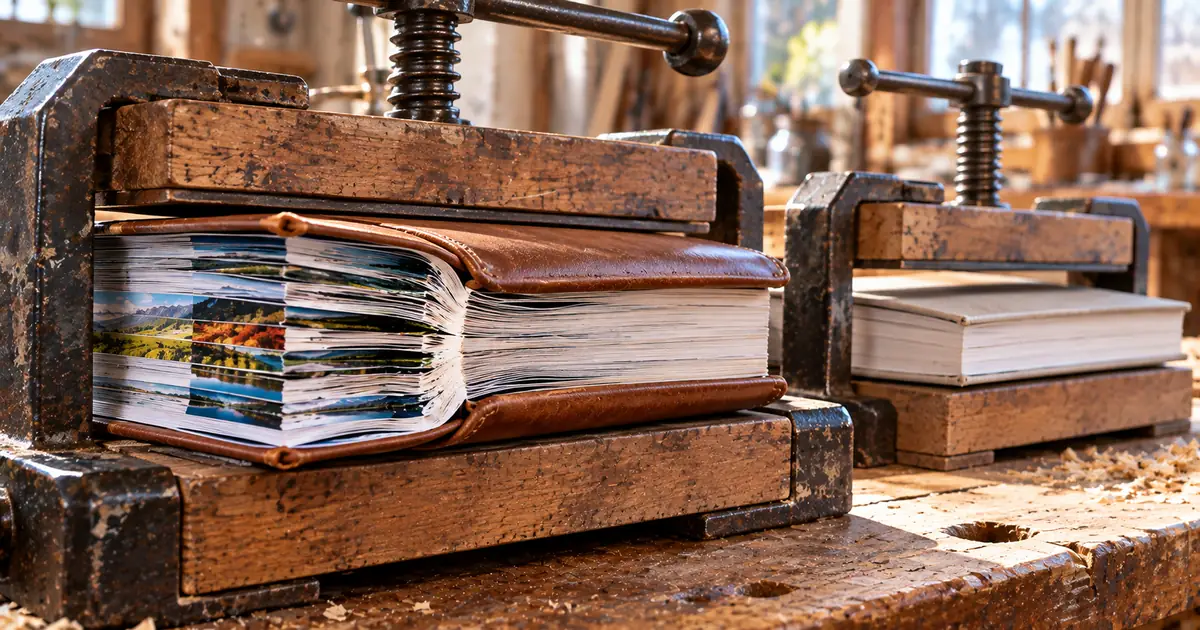
Why is my PDF so large? Usually it's the images
A PDF is usually large because of the images inside it. A scanned page is stored as a picture of the whole page, and a photo keeps the pixels the camera captured, so a handful of them can outweigh a long document of plain text. Text is stored as characters plus the fonts needed to draw them, which takes far less room.
This is why two people compressing two PDFs of the same page count can get very different results. A file of scans or photos has plenty to remove. A report exported from a word processor has very little.
Scanned pages and photos take up most of the file
Scanners and phone cameras capture images at high resolution so that small print stays legible. Once those images go into a PDF, every page carries the full image data. Contracts scanned page by page, photo-heavy slide decks and brochures with large pictures all fall into this group, and they're the kind of file that runs into upload and email limits.
Fonts and metadata (the title, author and other details saved with the file) also add to the size. In an image-heavy PDF, though, they're a small share next to the pictures.
Text-only PDFs are already small
A PDF exported from a word processor or spreadsheet holds its text as characters, not as pictures. With no images for a compressor to resize, there's almost nothing left to take out. In our tests with the sakuttoAI PDF Compressor, a text-only PDF got about 1% smaller at every level.
If a PDF you think of as "just text" is still large, look for images you may have missed. A logo or background placed as a large picture, or pages that were scanned instead of exported, can make up most of the file.
How PDF compression reduces file size
PDF compression works in two ways. Lossless compression tidies the file without touching the images, so nothing on the page changes and the saving is small. Image recompression shrinks the pictures themselves and saves them in a smaller format, and that's where almost all of the saving comes from.
The levels in the sakuttoAI PDF Compressor set which of these methods runs and how hard it pushes the images. Here's what each method does to a file.
Lossless compression removes metadata, not image detail
The Low level of the sakuttoAI PDF Compressor is lossless. It removes metadata, merges data that appears twice in the file (a font embedded twice is the usual case) and saves the rest in a more compact structure. Every image stays exactly as it was.
That makes Low the level to use when image quality can't drop at all, but it also means the file barely shrinks. It's the honest answer to "compress PDF without losing quality": you keep every pixel, and you give up most of the saving.
Image recompression resizes images and resaves them as JPEG
Image recompression changes each picture in two ways. It reduces the number of pixels, and it saves the result as a JPEG, a photo format that gives up a little detail for a much smaller file. Resolution is often given in DPI (dots per inch), and lowering it means each image is stored with fewer pixels across and down.
On Standard, the sakuttoAI compressor redraws each image at half its width and height, which leaves a quarter of the pixels, and saves it as JPEG. High goes down to 40% of the width and height and uses stronger JPEG compression. Neither level turns text into pictures, so you can still select, search and copy it afterward.
How to compress a PDF online for free in three steps
The sakuttoAI PDF Compressor runs in your browser, so there's nothing to install, and it works the same way on a phone as on a computer. Your PDF is compressed on your own device and isn't uploaded. To check that for yourself, see Safe PDF Compressor: Keep Your File on Your Device.
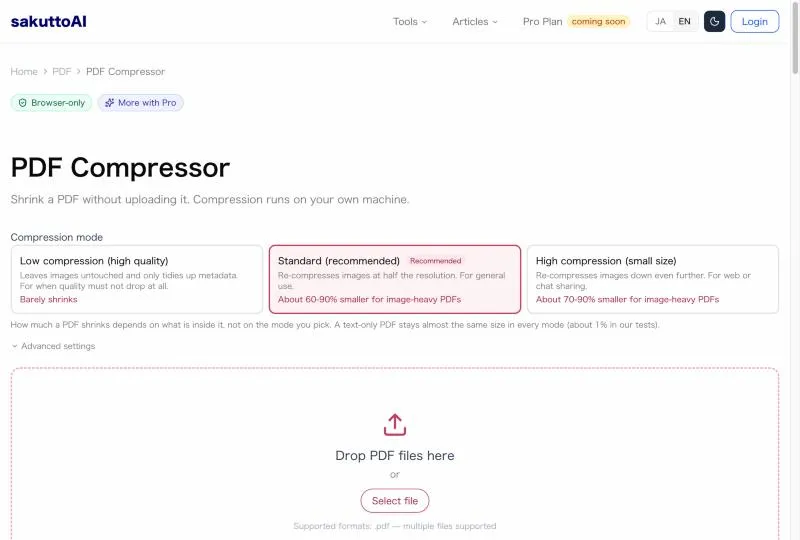
Step 1: Sign in and add your PDF files
Open the PDF Compressor and sign in with a free account, using an email link or Google (there's no password to create). Then drag your PDFs onto the page, or click to choose them. You can add several files and compress them in one go.
The free plan covers 3 tasks a day in total across all sakuttoAI file tools, and Pro is unlimited. The first run of a tool you haven't used before doesn't count toward those 3.
Step 2: Choose Low, Standard or High compression
Pick one of the three levels. Standard is selected when the page opens and suits most scans and photo PDFs. Low leaves images untouched, and High shrinks them further for when a size limit matters more than how they look.
For finer control, open Advanced settings. There you can set the image quality and DPI yourself. You can also choose whether to remove metadata and whether to convert the images to grayscale.
Step 3: Compress and download the smaller PDF
Click Start compression. When each file is done, the tool shows its original size, its new size and how much smaller it got, so you can tell right away whether the level was enough. Save the files one by one, or download them all at once as a ZIP.
Choosing a PDF compression level by what the file holds
Choose the level by what the PDF contains, not by how small you'd like it to be. The table shows what each level of the sakuttoAI PDF Compressor does to images and how much smaller files got in our tests in September 2026.
What each compression level does to a PDF
| Level | What happens to images | Reduction, scans and photos | Reduction, text only |
|---|---|---|---|
| Low | Left untouched | Barely shrinks | About 1% |
| Standard (default) | Half the width and height, resaved as JPEG | Around 60–90% | About 1% |
| High | 40% of the width and height, lower JPEG quality | Around 70–90% | About 1% |
The percentages show how much of the original size was removed, so a higher number means a smaller file. The ranges are wide because photos, screenshots and drawings shrink by different amounts.
Start with Standard for scans and photo PDFs
For scans, photos and slide decks, Standard delivers most of what High would, with clearer images. Moving from Standard to High shifts the typical reduction from around 60–90% to around 70–90%, while High resaves the images at a lower resolution and JPEG quality. Use High when Standard still leaves the file above a limit you have to meet.
To see how much detail each level gives up, read Reduce PDF file size without wrecking your scans. If a mail service set the limit you hit, Email Attachment Size Limits: Fit Your PDF lists the caps for Gmail, Outlook and others.
If the file barely shrinks, check what's inside
When Standard or High saves only a few percent, the PDF has few images to shrink. A stronger level won't change that, because the levels differ only in what they do to images. The text-only PDF in our tests got about 1% smaller at all three.
At that point the file is about as small as compression can make it. To get under a limit, send fewer pages, or split the document and send it in parts.
What's inside matters far more than the mode you pick. Scanned or photo-heavy PDFs come down about 60–90% on Standard and about 70–90% on High compression. A text-only PDF has no images to strip, so it gives up only about 1% no matter which mode you chooseView official source →— from the sakuttoAI PDF Compressor FAQ
Other ways to reduce PDF size: Acrobat and Mac Preview
If you already use Adobe Acrobat or a Mac, you can shrink a PDF there as well. Both work the same basic way, and most of the saving comes from the images.
Adobe Acrobat's online tool has three compression levels
Adobe's free online compressor lets you choose High, Medium or Low compression, and it accepts files up to 2GB. The free version comes with usage limits; unlimited compression, batch processing and advanced settings need a paid Acrobat plan. Unlike the sakuttoAI tool, Acrobat's online compressor processes your file on Adobe's servers and then deletes it.
Adobe also notes that PDFs made mostly of text compress less, because text is already compact. That matches the 1% result from our own tests.
You can choose between High, Medium, and Low compression level in Acrobat's online tool, balancing your needs for quality and size. / Adobe's PDF compressor can handle files up to 2GB, so you can reduce the size of those large PDFs. / Adobe Acrobat's online PDF compression tool is available for free with limited use. / Unlimited compression, batch processing, and advanced setting controls require a paid Acrobat plan. / If you use the Acrobat online compression tool, files are processed on secure servers and then deleted automatically. / Files that are comprised of mostly text compress less dramatically since text data is already compact.View official source →— from Adobe, "Compress PDFs for free"
Mac Preview shrinks a PDF with the Reduce File Size filter
On a Mac, Preview can shrink a PDF with no extra software. Open the PDF in Preview, choose File > Export, pick Reduce File Size from the Quartz Filter pop-up menu, and click Save. These menu names come from Apple's current Preview User Guide.
Apple warns that the compressed PDF may be lower in quality than the original. When you save, give the file a new name so the original stays as it was.
Choose File > Export. / In the Quartz Filter pop-up menu, choose Reduce File Size. / Note: When compressed, the PDF may be of lower quality than the original.View official source →— from Apple, Preview User Guide
Before you shrink a PDF: originals and passwords
Compression rewrites the file, and the image detail it removes can't be restored from the smaller copy. Two habits protect you from that.
Keep the original until you've checked the copy
Open the compressed PDF and check the parts that matter most, such as small print, stamps, signatures and photos. If something is hard to read, compress the original again at a lower level. Delete the original only once you're happy with the copy.
The text itself stays selectable and searchable at every level, because compression changes the images, not the text. What you're checking is how the scanned and photographed parts look.
Remove the password before compressing a protected PDF
The sakuttoAI PDF Compressor can't open a protected PDF yet. Unlock it first with the sakuttoAI PDF password tool, which also works in the browser, and then compress the unlocked copy.
If the file was locked for a reason, add a password to the compressed copy with the same tool before you send it. Don't send the unlocked version in its place.
Summary
To compress a PDF online for free, add it to a browser tool, choose a level and download the result. How much it shrinks depends on what's inside: scans and photos drop by around 60–90% on Standard, while a text-only PDF barely changes at any level. Start with Standard, check the copy before you delete the original, and if the size hardly moves, the file has few images left to shrink.
To compare the sakuttoAI tool with other free compressors, see Compress PDF Online: 5 Free Tools Compared. It compares them on security, compression quality and usage limits.
FAQ
- How much smaller will my PDF get?
- It depends on what the PDF holds. On the sakuttoAI PDF Compressor, scans and photo-heavy PDFs come down around 60–90% on Standard and around 70–90% on High. A text-only PDF has no images to shrink, so it gets only about 1% smaller at any level.
- What is the difference between Low, Standard and High compression?
- Low removes metadata and tidies the file's internal structure without touching the images, so pages look the same but the file barely shrinks. Standard resizes the images and resaves them as JPEG, which is where most of the saving comes from. High lowers image quality further for when meeting a size limit matters more than how the scans look.
- Can I still select and search the text after compressing?
- Yes, at every level. Compression resaves the images and removes overhead, but it doesn't turn your pages into pictures, so you can still search, copy and extract the text.
- Is the PDF compressor free?
- Yes, with a free account. You sign in with an email link or Google (no password), and free accounts get 3 tasks a day in total across all sakuttoAI file tools. Pro is unlimited.
- Can I compress a password-protected PDF?
- Not yet. Remove the password first, then compress the unlocked copy. The sakuttoAI PDF password tool also works in the browser, so the file stays on your device for both steps.
Related articles
 Compress PDF to 14MB for a Japan Tax ReturnCompress PDF attachments for Japan's e-Tax: the 14.0 MB cap per transmission, the 200 dpi and grayscale rules, and how to split a PDF that is still too big.
 Full Width to Half Width Character Converter, FreeConvert full width to half width characters free online: alphanumerics, katakana, symbols, and spaces, plus katakana to hiragana, all in your browser.
 Email Attachment Size Limits: Fit Your PDFEmail attachment size limits differ by service, app, and administrator: Gmail 25 MB, Outlook.com 25 MB, the Outlook app 20 MB, Exchange 10 MB by default.
 How to compress PDF on iPhone without an appCompress PDF on iPhone in your browser, no app install. Steps for Safari and Chrome on Android, plus what the Files app can and can't do for PDF size.