The sakuttoAI PDF compressor runs entirely in your mobile browser, so the whole job happens in Safari or Chrome with no app, no install and no account beyond a free sign-in. The steps are the same on iPhone and Android.
How to compress a PDF on iPhone without an app
You can compress a PDF on iPhone entirely inside Safari, with no app to download. The only sign-in is a free account, and it covers 3 tasks per day across sakuttoAI's file tools.
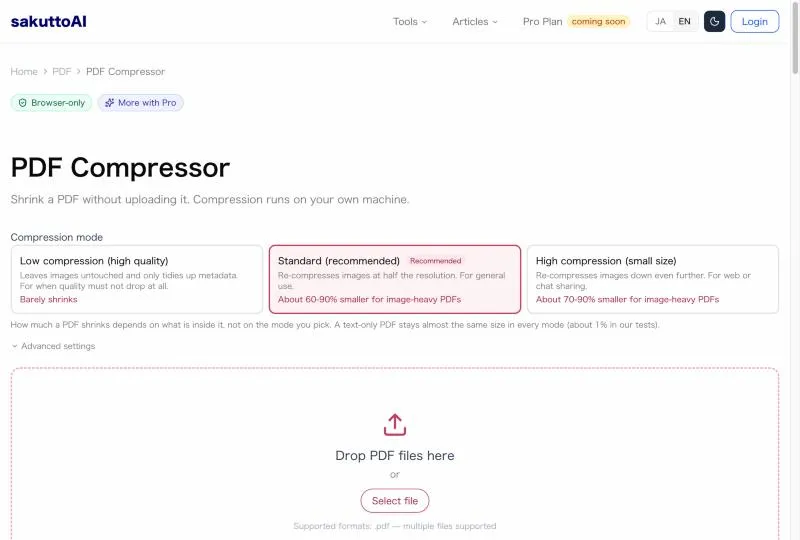
A compression level is the trade-off sakuttoAI's tool offers between file size and image quality: Low keeps quality closest to the original, High shrinks the file the most, and Standard sits in between as the default. You pick one before the tool compresses your file.
Because the tool runs client-side, your PDF is never uploaded to a server — the compression itself happens on your phone, inside the browser tab you already have open. The only thing that needs a network connection is loading the page and checking your daily task count; the file processing doesn't depend on upload speed the way a server-side tool would. That matters most on a weak mobile connection, where uploading a large PDF to a remote server can take longer than the compression itself would on desktop.
How to make a PDF smaller on iPhone using Safari
Once the tool page is open, the whole job is six taps, and the same six steps apply on Android below. There's nothing to set up first: step 1 opens the page and step 6 saves the file.
- Open sakuttoAI's PDF compressor in Safari
- Tap "Choose File"
- Pick a PDF from the Files app or Photos
- Choose a compression level — Standard is the safe default
- Tap "Start Compression"
- Tap "Download" once it's done
The compressed file lands in the Files app's Downloads folder, kept separate from the original you started with. The Files app has no compression feature of its own; it can only show you how large a PDF already is, which is useful for confirming the compression worked but not for doing the compression. If you picked Photos instead of Files in step 3, the PDF still compresses the same way; the picker just changes where sakuttoAI reads the file from, not how it processes it.
Compressing a PDF on Android with Chrome
The same tool and the same six steps work on Android; only the browser and the save location change. Open the compressor in Chrome, choose your file from your device's file manager, pick a compression level, and download. Chrome saves the result to its own Downloads folder instead of a Files app, and that is the only real difference from the iPhone flow.
sakuttoAI uses the same compression engine and the same Low, Standard, and High choices on mobile and desktop. An Android phone won't produce a lower-quality file than a laptop would. The output depends on the compression level you pick, not on which device or operating system you're using.
Why a browser tool beats a dedicated PDF app
Dedicated apps differ from a browser tool on three points: ads, external uploads, and storage use. Apps from the App Store or Google Play can run ads, some send your file to an external server to compress it, and every one of them takes up permanent storage on your phone whether you use it daily or once a year. A browser tool skips all three: there is no install, no update to run later, and no icon left behind on your home screen between uses.
Tips to reduce PDF file size on your phone
Three habits keep the process quick and keep you from losing track of which file is which. These habits matter more on a phone than on a desktop, where a cluttered Downloads folder is easier to scroll through and storage is rarely as tight.
- Use Wi-Fi to load the page. The compression itself runs locally, but the tool's page still needs a connection to load and to check your daily task count — it won't work fully offline.
- Check your free storage first. The original and compressed PDF both exist on your phone at the same time until you delete one, so make sure you have room for both before you start.
- Name the compressed file clearly. A name like
invoice-compressed.pdfkeeps it from getting mixed up with the original in your Downloads folder, especially if you compress several files in the same session.
Common iPhone PDF problems and how to fix them
Most of these come down to looking in the Downloads folder or picking a lower compression level, not a broken tool. The table below matches four common problems to a fix that needs no reinstall and no switch to a different app.
| Problem | Fix |
|---|---|
| Can't open a PDF | Open it from the Files app, or directly in Safari |
| Can't find a downloaded PDF | Check Files → Downloads |
| PDF too large to email | Compress it first with a browser tool |
| Compressed PDF looks blurry | Recompress at Low instead of High |
Two rows come down to where iOS puts a downloaded file. The other two are fixed by compressing, or by recompressing at a lower level.
Summary: a browser tab is all it takes to compress a PDF on iPhone
Compressing a PDF on iPhone or Android needs nothing more than a browser tab. Sign in to sakuttoAI with a free account (email link or Google, no password) and you get 3 tasks per day total across all its file tools. Pick Standard for most files, Low when quality matters more than size, and you're done without ever opening the App Store.
FAQ
- Do I need to install an app to compress a PDF on iPhone?
- No. sakuttoAI's PDF compressor runs in Safari, so there's nothing to download and no account setup beyond a free sign-in.
- Is mobile compression quality different from desktop?
- No. sakuttoAI uses the same compression engine and the same Low/Standard/High options on mobile and desktop.
- Where does the compressed PDF get saved?
- On iPhone it lands in the Files app's Downloads folder. On Android with Chrome, it goes to Chrome's Downloads folder.
- Can I compress a large PDF on my phone?
- Yes, within your phone's memory. The tool sets no file count of its own, so for very large scans compress a few at a time rather than all at once.
- Does this work on iPad?
- Yes. The same steps work in Safari on iPad, and the larger screen makes it easier to tap through.
Related articles
 Keyboard symbols: names and how to type all 33Keyboard symbols: names and the keys that type them in a searchable list, plus Alt codes and Mac Option shortcuts for special characters not on the keyboard.
 How to scan documents to PDF: phone, PC, or storeHow to scan documents to PDF on iPhone, Android, Windows, or Mac, or at a FedEx Office copier, and where each method saves the file.
 ChatGPT now works with iCloud Mail and CalendarOpenAI added iCloud Mail and Calendar plugins to ChatGPT on Oct 27 for all plans. You connect with an Apple app-specific password that outlives a disconnect.
 Google Messages not sending? Restart after new SIMGoogle Messages not sending after you added a SIM to your Pixel? A restart fixed it on my Pixel 10a. If it doesn't, try these four fixes in order.