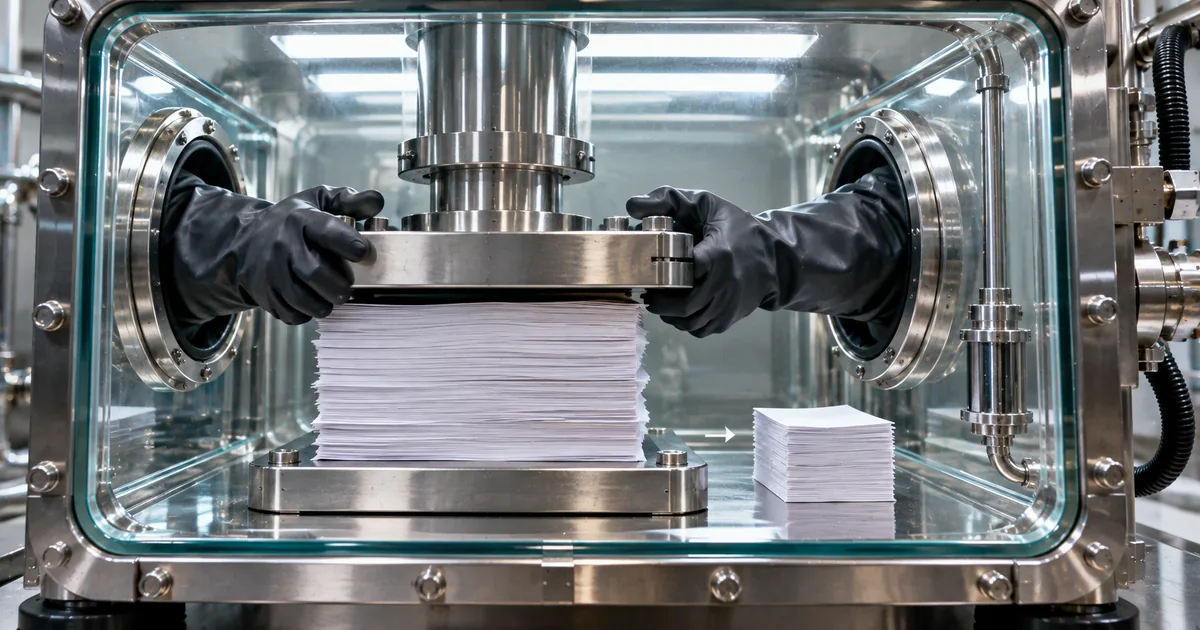
What makes a PDF compressor safe?
Where the work happens decides whether a PDF compressor is safe. A tool that processes the file on your own device keeps it under your control, while a tool that processes it elsewhere hands it to a third party. Both kinds look the same on screen, since you drop a file into a web page either way, so the difference is invisible until you ask where the compression runs.
The same question applies when you merge or split documents. For merging and splitting, see Are Online PDF Tools Safe? Merging and Uploads.
Server-based compressors upload your file
A server-based compressor does the work on the service's machines. Your PDF travels from your device to theirs and back in three steps:
- You upload the PDF to the service.
- The service's server compresses it.
- You download the smaller file.
In this design the PDF crosses the internet twice and sits on the service's machines for a while. Its protection then rests on encryption in transit and on the service's deletion policy. For a sensitive document, read that policy to find out how long the copy is kept.
In-browser compressors keep the file on your device
A browser-based compressor removes the upload from that chain. Every step happens in the tab you already have open.
- You choose a PDF, and the browser loads it into memory.
- JavaScript on the page compresses it on your device.
- You save the result straight from the browser.
This is what "compress PDF locally" and "compress PDF without uploading" mean in practice. The page itself still loads over the network, and it can make other calls too.
So the real test is whether any request carries your file. A tool that says it runs in the browser is only describing itself, which is why the Network tab check matters.
How sakuttoAI compresses a PDF on your device
The sakuttoAI PDF Compressor reads the PDF into the memory of your browser tab, compresses it there and writes it back to your downloads folder. No step uploads the file, and nothing needs installing. The work rests on three pieces: pdf-lib, a Web Worker and OffscreenCanvas.
pdf-lib rebuilds the PDF in JavaScript
pdf-lib is an open-source JavaScript library for reading and writing PDF files. The compressor opens your document with it and writes the finished copy as a new PDF. Because it is plain JavaScript on the page, it runs on your device like any other web app code.
A Web Worker runs the job off the main thread
A Web Worker is a background thread that a browser gives a page for heavy work. The compression runs there, apart from the thread that draws the page, so a large file is less likely to freeze the tab. The worker belongs to the page and runs on your device along with everything else.
OffscreenCanvas re-encodes the images
Images are what usually make a PDF large, and OffscreenCanvas is the tool's way of shrinking them. It is a drawing surface that works without being shown on screen.
On the Standard and High levels, the tool decodes each image, draws it onto that surface, re-encodes it and writes a new file. The Low level leaves images untouched, so it keeps full quality but barely reduces the size.
For help picking a level, see Compress PDF Online Free: Pick the Right Level. To learn what each level costs in image quality, read Reduce PDF file size without wrecking your scans.
The only request that leaves your device
Each run makes one network call, and it carries a usage check rather than your PDF. The call asks one thing: does your account have tasks left?
The usage check sends a tool ID and, at most, a count
Before each run, the tool sends one POST request to /api/usage/check. Its body holds toolId, which identifies the tool, and it adds count only when more than one task runs at once. Nothing from the file goes along: not its contents, its name or its pages.
The server replies with whether your account has tasks left. The whole exchange is a few dozen bytes.
No connection, no compression
The compressor starts only when the usage check returns successfully and allows the run. Any other result counts as a refusal, and that includes a request that fails because the device is offline.
For that reason the sakuttoAI PDF Compressor does not run offline. Your file stays on the device whether or not the check succeeds, but without a connection the check cannot happen and compression never begins.
A free sign-in and 3 tasks per day
The tool asks for a free sign-in by email link or Google, with no password. Free accounts get 3 tasks per day in total across all file tools, and Pro is unlimited.
Signing in is what lets the usage check count your tasks. The file takes no part in that exchange.
Check for uploads in the DevTools Network tab
The Network tab lists every request a page sends, so it shows whether a compressor uploads your PDF. This method works on any tool, not only sakuttoAI.
Switching off Wi-Fi does not answer the question for sakuttoAI. The usage check fails without a connection and the compressor never starts, so you learn nothing about where the file would have gone.
Open the Network tab before you compress
Set up the tab first, then run the compression while it records. These steps work in Chrome, Edge and Firefox.
- Open the PDF compressor and sign in.
- Open the developer tools by pressing F12, or Cmd+Option+I on a Mac, then choose the Network tab.
- Clear the list so that only new requests appear.
- Add your PDF and start compressing.
- Watch the list until the compressed file is ready.
Requests you should and shouldn't see in the list
Filter the list to Fetch/XHR to hide the page's own scripts and images, and you should see one request to /api/usage/check. Click it and open Payload in Chrome or Edge, or Request in Firefox, to read the body: a tool ID, plus a count if you ran several tasks.
An upload looks very different. A request carrying your PDF is about as large as the file, so a 10 MB document would appear as a request of roughly 10 MB. When no request comes close to the size of your file, the file did not leave the device.
Safe PDF compressors compared: server vs browser
The server-versus-browser table sets the two designs side by side. The browser column describes the sakuttoAI PDF Compressor, and the server column shows the general pattern, with each service's own terms deciding the details.
Server-based and in-browser PDF compressors
| Point | Server-based compressor | In-browser (sakuttoAI) |
|---|---|---|
| Where the PDF is processed | On the service's servers | In your browser, on your device |
| Does the file cross the network? | Yes, uploaded and downloaded | No |
| What protects the file | Encryption in transit and the service's security practices | The file never leaves your device |
| Copies kept afterward | Depends on the service's deletion policy | None outside your device |
| Needs a connection | Yes | Yes, for the usage check |
Smallpdf and other server-based services
Smallpdf processes files on its own servers. It names ISO/IEC 27001 certification and TLS encryption as its safeguards. With a confidential file, the first question is whether your organization allows it to leave your device at all.
Drawboard, SaferPDF and other in-browser tools
Drawboard states that its PDF compressor does not upload files to a server. SaferPDF publishes guides on compressing PDFs without an upload.
Drawboard's page carries the heading "Works Entirely Offline After Load"; the sakuttoAI PDF Compressor works differently, because its usage check must succeed first. For any of them, the Network tab check shows what the tool actually sends.
Before you compress a sensitive PDF
Keeping the file on your device settles where it goes. Whether the compressed copy is usable depends on signatures, legibility and your device's memory.
Compress before signing, because compression breaks signatures
A digital signature covers the file exactly as it was when signed. Compression rewrites the file, so compressing a signed PDF invalidates the signature. When a document needs a signature, compress it first and sign the smaller copy.
Keep the original until you've checked the copy
Open the compressed PDF and look over small print, stamps and scanned signatures before you delete the original. If something is hard to read, run the compression again at a lower level.
Large files depend on your device's memory
All the work happens in browser memory, so a very large PDF must fit in what your device gives the page. On an older phone or laptop it can be slow or fail to finish. A desktop browser with plenty of free memory handles big files best.
Compress private PDFs in the browser, not on a server
A safe PDF compressor keeps the file on your device. The sakuttoAI PDF Compressor reads, rebuilds and saves your PDF in the browser with pdf-lib, a Web Worker and OffscreenCanvas, and its one network request is a usage check carrying a tool ID and, at most, a count. That check has to succeed, so the tool doesn't run offline, and the DevTools Network tab shows what it, or any other compressor, sends.
FAQ
- Is it safe to compress a PDF online?
- It depends on where the compression runs. A server-based service uploads your PDF, so you rely on its encryption and its deletion policy. A browser-based compressor processes the file on your own device, so no copy ends up on anyone else's server. The sakuttoAI PDF Compressor is the second kind: it reads the file into the browser tab and never uploads it.
- Will the text still be selectable after compressing in the browser?
- Yes. Compressing on your device re-encodes the images and strips overhead, but it doesn't turn your pages into pictures, so search, copy and text extraction keep working.
- How many PDFs can I compress at once on my device?
- There's no fixed number. Your device's memory is the limit, because the files are processed locally: a few dozen ordinary files are fine, and very large scans are best done in groups of 10 to 20.
- Do I need an account to use it?
- Yes, a free one. You sign in with an email link or Google (no password), and free accounts get 3 tasks per day in total across all file tools; Pro is unlimited.
- Can I compress a password-protected PDF?
- Not yet. Remove the password first, then compress the unlocked copy. The sakuttoAI PDF Password Tool also runs in the browser, so the document stays on your device for both steps.
Related articles
 Are Online PDF Tools Safe? Merging and UploadsAre online PDF tools safe for a confidential file? See how server-upload and in-browser merging differ, and four checks that show which one a tool uses.
 What is reverse engineering? Meaning and legalityReverse engineering is taking apart a product or program to see how it was built. Learn how it works, why it is used, and when US and EU law allow it.
 Pharmacy AI for Refills: Kinney Drugs Pulls BackKinney Drugs added pharmacy AI to its refill line in May 2026. Delays, wrong doses and privacy worries followed; by August 10 the touch-tone line was back.
 Compress PDF to 14MB for a Japan Tax ReturnCompress PDF attachments for Japan's e-Tax: the 14.0 MB cap per transmission, the 200 dpi and grayscale rules, and how to split a PDF that is still too big.