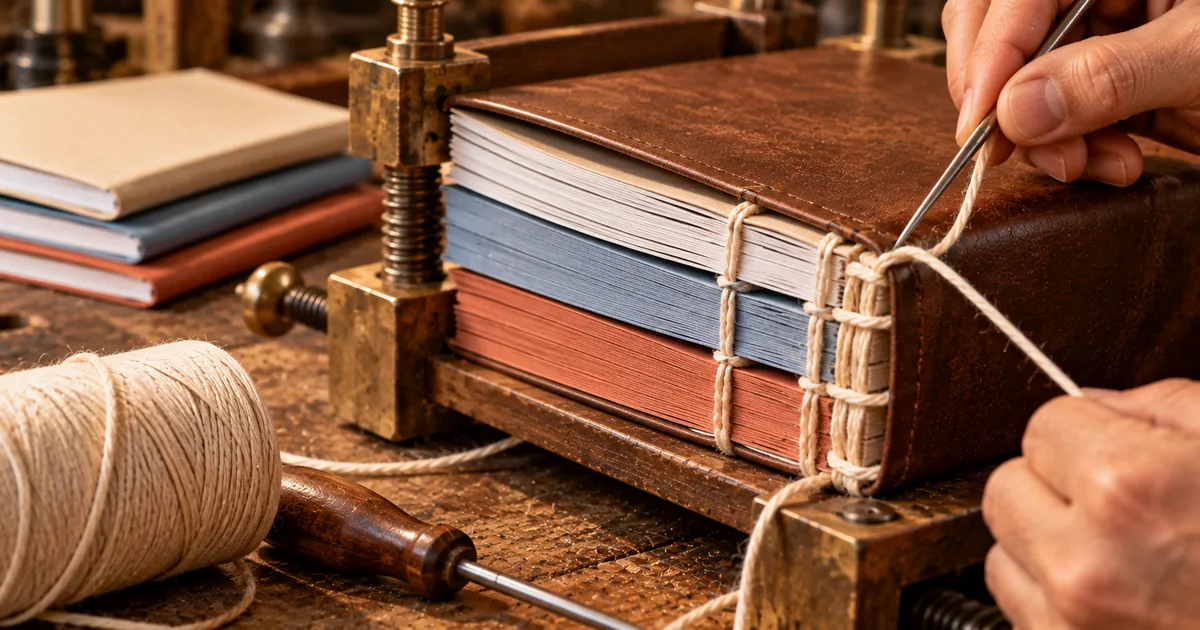
Merge PDF files at work and a recurring chore shrinks to one step: the recipient gets a single file, and no attachment gets left off the email. Attaching files one by one, or printing and stapling them by hand, costs time and invites mistakes.
Where merging PDF files saves time at work
Four teams merge the same kinds of documents again and again. Each of them ends up with a set of files that belongs together but arrives as separate pages or attachments.
- Sales: a proposal, a quote, a company profile and case studies go to the client as one PDF.
- Accounting: monthly invoices, delivery slips and receipts are consolidated for archiving.
- Admin and HR: internal policies, contracts and related documents are combined into one file.
- Planning: meeting agendas, minutes and reference materials are bundled for distribution before the meeting.
The five jobs below cover invoices, a sales pack and a meeting pack first, then two awkward cases: scanned paper and PDFs of different page sizes. Across all five, the same three habits apply: a fixed order, a consistent file name and a check before the file is sent.
Merge invoices into one PDF for monthly bookkeeping
Keep one merged file per client per month, with the invoice first and its delivery slip right behind it. Accounting teams file invoices and delivery slips by client and by month, and a single file per client keeps each month's papers in one place.
The filing rules are short. Use the same file-name pattern every time, for example "2026-03_CompanyName_Invoices.pdf". Save each file in a year and month folder on a cloud drive, so the month is clear from the path as well as from the name.
Using the same pattern every time matters more than which pattern you pick, because a search for a client name then returns every month in the same format. Merge the files only after the month is closed, so a late receipt does not force a second merge.
Combine PDF files for a proposal, quote and contract
Put the pages in the order cover, proposal, quote, references, and send them as one file. The recipient opens a single PDF instead of four attachments, and no part of the pack is left off the email.
Name the file so the client and the date are visible, for example "ClientName_Proposal_20260314.pdf". Number the source files before merging, since a numbered list makes a wrong order easy to spot.
A contract pack works the same way. Order the parts as the contract is read, with the cover first, and use numbers in the source names, for example "Contract_01_Cover.pdf". One file keeps the cover, the terms and the attachments together when it is forwarded inside the client's company.
Bundle meeting materials and reports into a single PDF
Collect every presenter's PDF, merge them in agenda order, and share one file with all attendees. This removes the delay of opening files one at a time at the start of the meeting. The preparation takes four steps:
- Collect the PDF materials from each presenter.
- Arrange them in agenda order.
- Merge them with a PDF merge tool.
- Share the combined file with all attendees.
When you share your screen, you can scroll one PDF from start to end instead of switching between files in front of everyone. That matters most in remote meetings. Monthly reports follow the same steps: merge the sections in the order they are presented.
Merge scanned documents into one PDF file
A scanner usually saves each sheet as its own PDF, so merge the sheets into one file to treat the document as a whole. Contracts and applications on paper often end up as a folder of single-page PDFs, which is hard to file and easy to shuffle out of order. Follow these points for a clean result:
- Name the scans with sequential numbers, for example "Contract_01_Cover.pdf".
- Scan every sheet at one resolution, around 300 dpi, so every page in the merged file looks equally sharp.
- Merge the numbered files in order and open the result to confirm the page count.
- If the combined file is too large, run it through the PDF compress tool.
Scanning, merging and saving to the cloud in that order turns a stack of paper into a single record kept in one place. Numbered names also keep the order stable when the files are sorted in a folder.
Merge PDF files with different page sizes
A merged PDF keeps each page at its own size, so an A4 report and an A3 drawing can sit in the same file. Landscape slide decks can be mixed in the same way. Nothing is resized, so a table drawn for A3 stays at A3 beside an A4 summary.
If you need every page at the same size, export each source file at the same paper size before merging. The other route is to resize the pages afterward in a PDF editor. Check the result on screen first, since a mixed-size file is fine to read but may print with different margins per page.
Check the combined file before you send it
Open the merged file once and run through five checks before you send it. The two mistakes to look for are a missing file and a wrong order, and both show up in the page count and the page order.
- Page order: the pages follow the order you planned, such as the invoice, then its delivery slip.
- Page count: the total equals the sum of the source files.
- Readability: the smallest text on the page is still legible.
- File size: the file is small enough to attach. If not, use the PDF compress tool, or the PDF split tool to send it in parts.
- File name: the name follows the pattern and shows the client and the date.
A wrong name is easy to miss, because the file itself looks fine. Rename it before attaching, since the name is what the recipient sees in their inbox.
How to choose a free online tool to merge PDF files
Judge a tool on three points: where the files are processed, what it costs and whether the whole team can use it. Which point matters most depends on the documents. For internal files and customer data, the first one comes before price.
Keep sensitive files on your own device
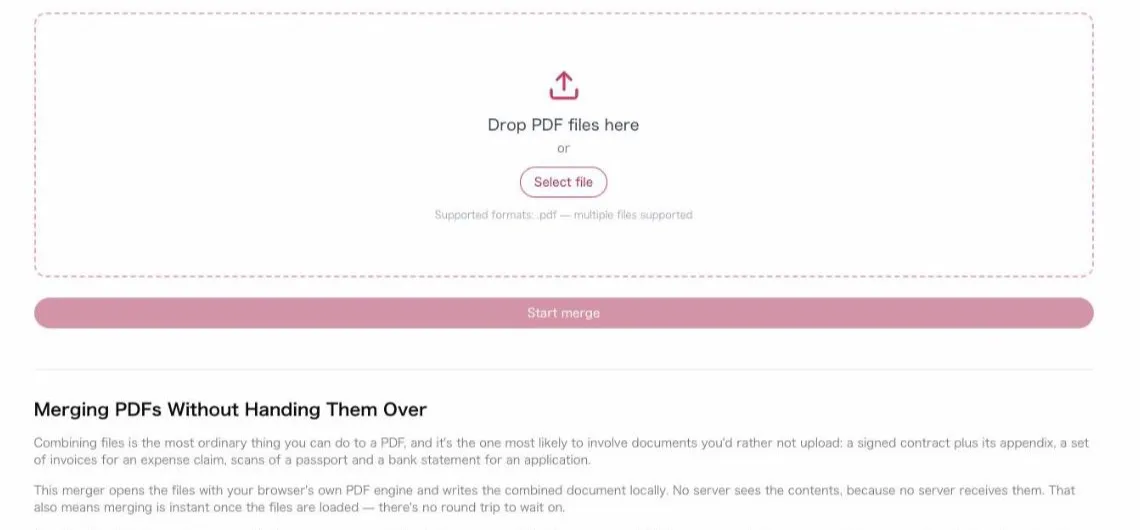
Choose a tool that processes files on your own device when the PDFs hold internal or customer data. The sakuttoAI PDF Merger processes files inside your browser, so they are never sent to our servers. If you want to merge PDF files offline to keep them off a server, this covers the same need: nothing is sent for the merge itself.
Merge PDFs without paying for Acrobat
You do not need a paid desktop product to merge PDFs. Adobe Acrobat is paid software, but the sakuttoAI PDF Merger needs neither Acrobat nor a subscription, and it is free once you sign in with a free account. Free accounts get 3 tasks per day in total across all file tools, and Pro has no daily limit.
Pick a tool your whole team can use
A browser tool is simple to roll out, because there is nothing to install. It runs on Windows, Mac, iPhone and Android. Each person signs in with a free account, so sharing the URL is enough to get the whole department started.
Summary: set the order and name, then check before sending
Merging PDF files at work pays off in five recurring jobs: monthly invoices, sales packs, meeting packs, scanned paper and PDFs of mixed page sizes. Three habits keep each result reliable: put the pages in a fixed order, give the file a consistent name and check the merged file before it is sent. On sakuttoAI, the merge runs inside your browser once you sign in with a free account.
FAQ
- Can I merge PDF files for free?
- Yes. sakuttoAI's PDF merge tool is free once you sign in with a free account (email link or Google, no password). Free accounts get 3 tasks per day in total across all file tools. Pro is unlimited.
- How can I merge PDF files without Adobe Acrobat?
- sakuttoAI merges PDF files right in the browser, so you don't need to install Adobe Acrobat or pay for a subscription. Preview, the app built into macOS, can also merge PDF files, but it only runs on a Mac.
- What if the merged PDF is too large?
- Merging joins the original files, so the output size is roughly the sum of the inputs. To shrink the result, run the merged file through a PDF compressor.
- Can I merge PDF files on my iPhone?
- Yes. sakuttoAI works in a browser on iPhone and Android, with no app to install. Open the tool, pick the files and download the merged PDF.
- Will merging PDFs of different sizes change the layout?
- Each page keeps its own size and layout. A4 and A3 pages can sit in the same output file.
Related articles
 Merge PDF Files Free: Combine PDFs OnlineMerge PDF files free in your browser with a free account and nothing to install. Covers page order, daily plan limits and how it compares with desktop tools.
 Are Online PDF Tools Safe? Merging and UploadsAre online PDF tools safe for a confidential file? See how server-upload and in-browser merging differ, and four checks that show which one a tool uses.
 Merge PDF Free: What Happens to Your UploadMerge PDF free tools differ in what they keep: Smallpdf deletes uploads after one hour, Sejda after two. See the limits and a no-upload way to combine PDFs.
 Mac keyboard shortcuts vs Windows: 58 comparedMac keyboard shortcuts mapped to the Windows keys they replace, 58 in one searchable table with Chromebook alongside, plus the two places that mapping breaks.