macOS 27 has no setting that deletes the AI models
You can turn off Apple Intelligence features on macOS 27, but nothing in Apple's Mac User Guide deletes the models behind them. Those models are the files Apple Intelligence uses on your Mac to write, summarize and make images.
Apple says the next generation of Apple Intelligence is available automatically once an eligible Mac updates to 27.0. So the models take up space even if you never use the features, and switching the features off doesn't remove them.
Apple's guide only turns off features one at a time
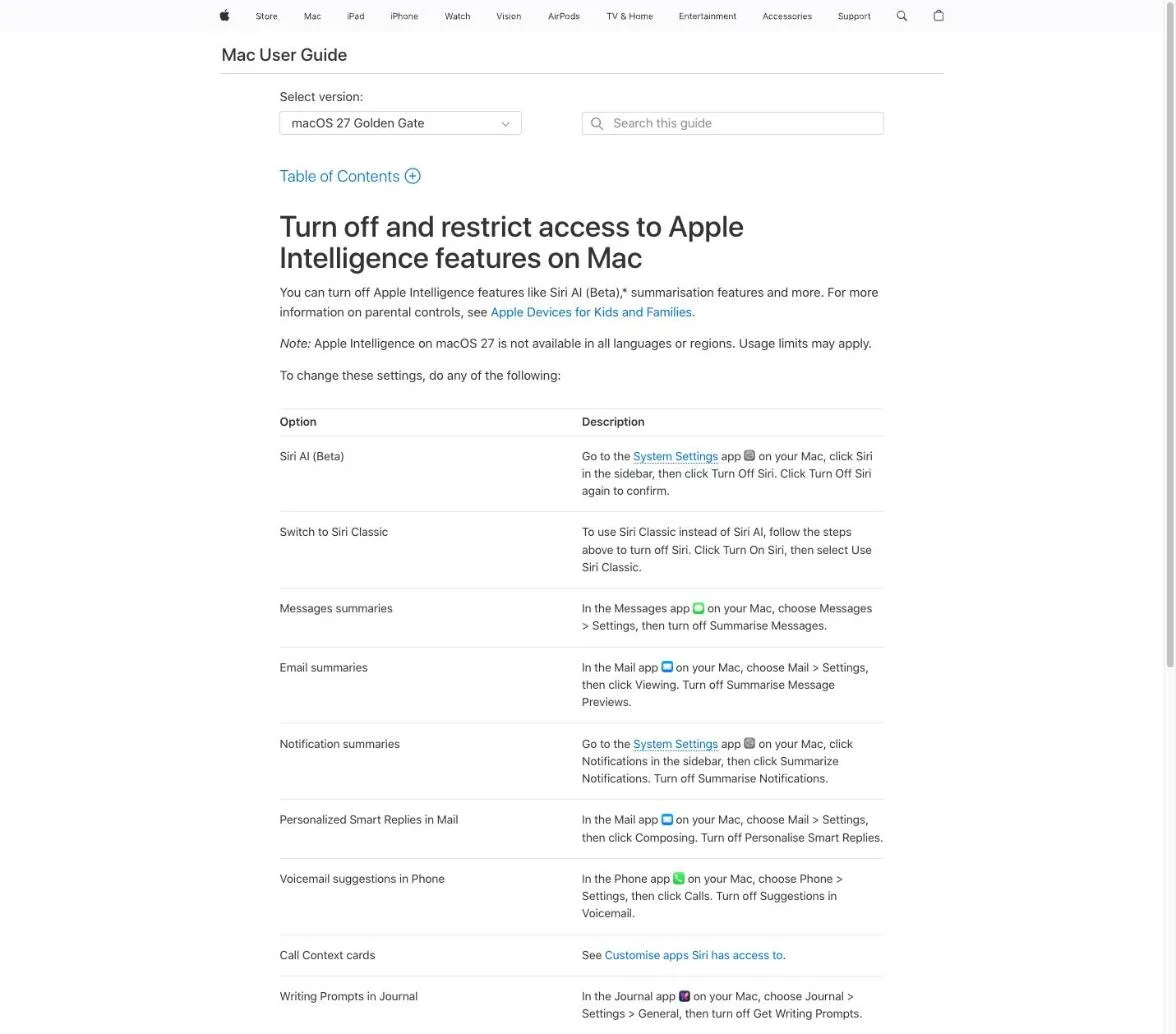
Apple's macOS 27 guide lists nine separate switches, each in a different app or settings pane. There's no single switch for Apple Intelligence as a whole.
Apple Intelligence switches Apple lists for macOS 27
| Feature | Where to turn it off |
|---|---|
| Siri AI (Beta) | System Settings, Siri |
| Siri Classic | Turn Siri back on and choose Use Siri Classic |
| Messages summaries | Messages settings |
| Email summaries | Mail settings, Viewing |
| Notification summaries | System Settings, Notifications |
| Personalized Smart Replies | Mail settings, Composing |
| Voicemail suggestions | Phone settings, Calls |
| Call Context cards | Siri's app access settings |
| Journal writing prompts | Journal settings, General |
You can also restrict Apple Intelligence through Siri Restrictions in Screen Time. Every one of these options hides or blocks a feature. None of them deletes a model, and the page doesn't describe any way to do that.
Apple Intelligence can take up to 14 GB
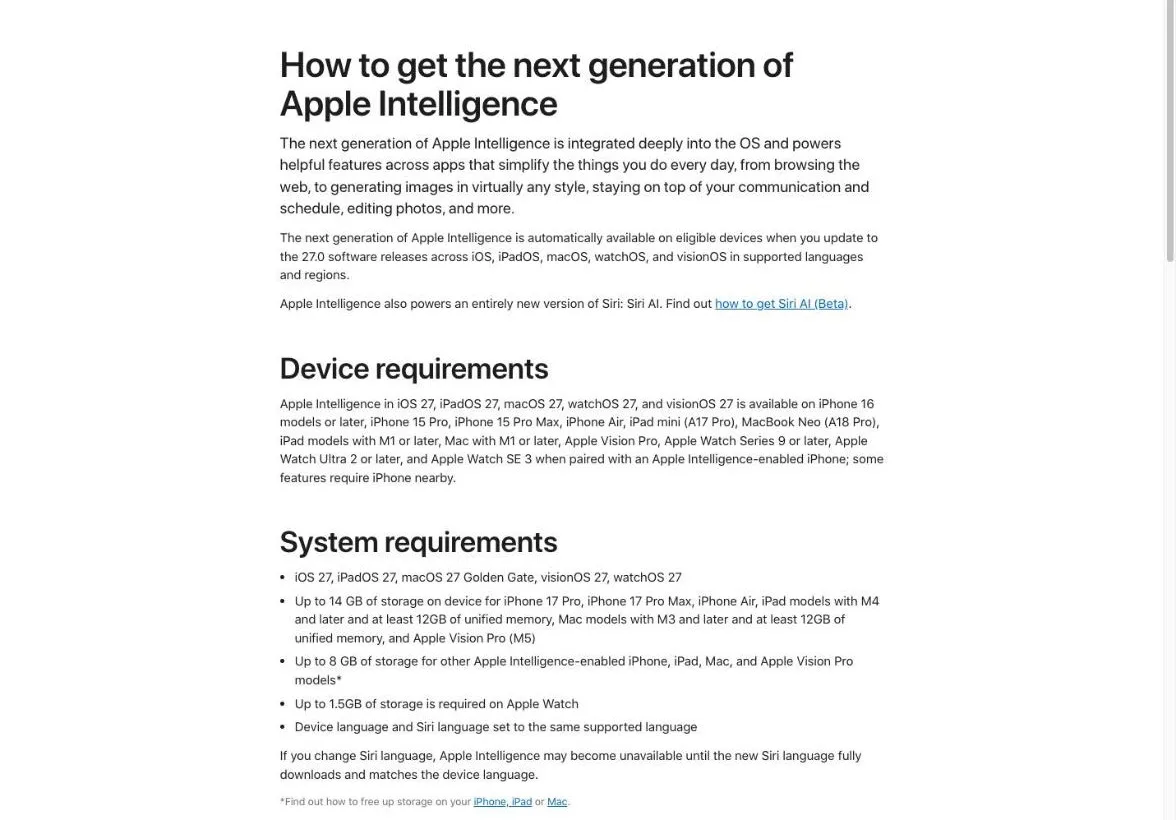
Apple says Apple Intelligence needs up to 14 GB of storage on Macs with M3 or later and at least 12 GB of unified memory, and up to 8 GB on other supported Macs. Supported Macs are those with M1 or later, plus MacBook Neo.
On a Mac with 256 GB of storage, 14 GB works out to more than 5% of the drive. That's space you can't use for photos or documents, whether or not you ever open Writing Tools.
To change these settings, do any of the following:(introduction to the options table)— from Apple SupportView official source →
Mac models with M3 and later and at least 12GB of unified memory / Up to 8 GB of storage for other Apple Intelligence-enabled iPhone, iPad, Mac, and Apple Vision Pro models(System requirements)— from Apple SupportView official source →
What RemoveMacAI is and what it removes
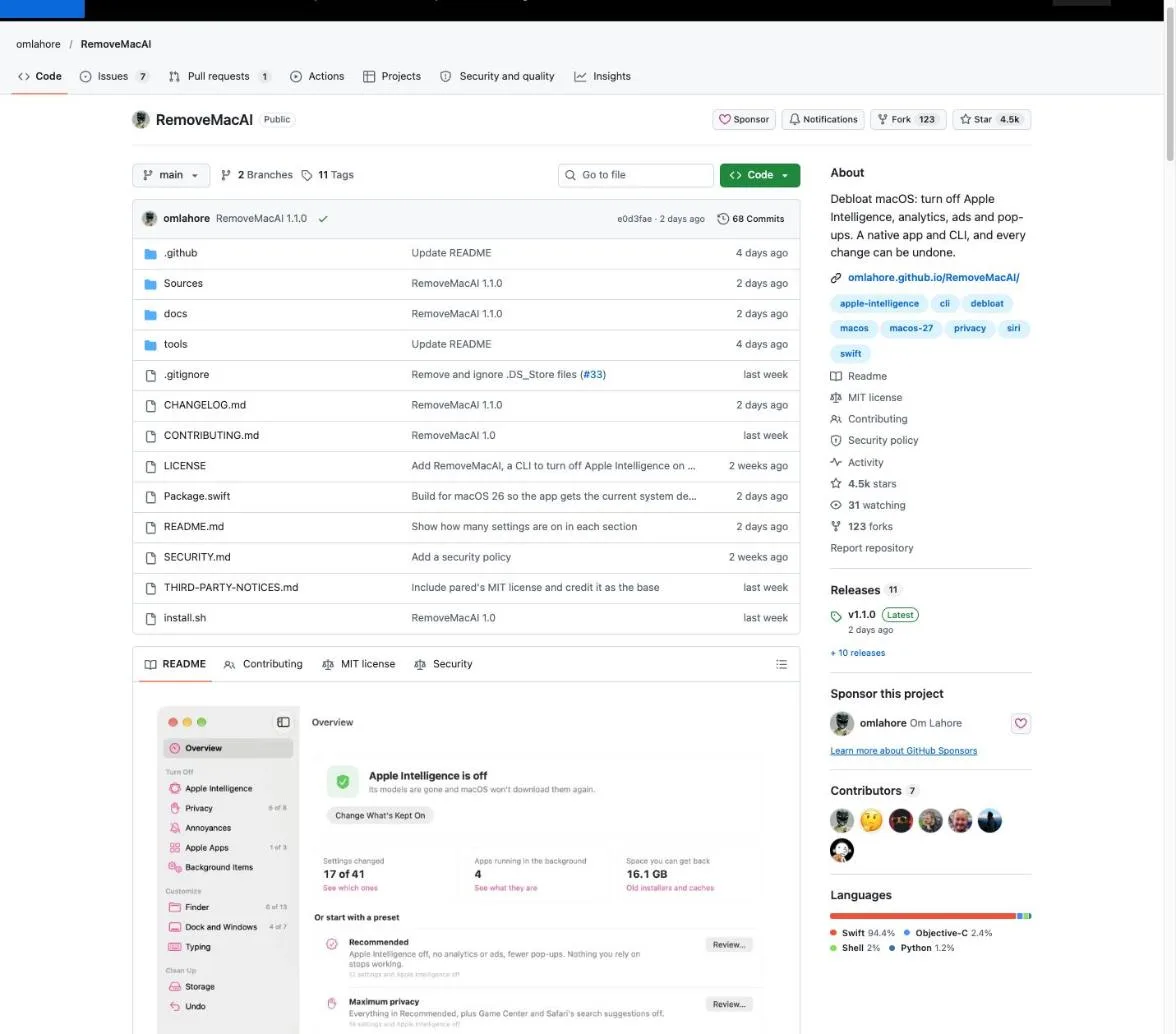
RemoveMacAI is a free Mac tool that turns off Apple Intelligence, deletes its models and keeps macOS from downloading them again. It does the one thing Apple's settings don't: it removes the models, and it does that through Apple's own system service.
A free, MIT-licensed tool from a solo developer
Developer Om Lahore published RemoveMacAI on GitHub on September 29, 2026, under the MIT license. The Apple Intelligence part is built on pared, an earlier tool by a developer called 4evy that first worked out how Apple stores and manages the models.
The project has moved quickly. Version 1.0.0, released on October 6, added a native Mac app on top of the original command-line tool, and version 1.1.0 followed on October 11.
It deletes the models and blocks re-downloads
RemoveMacAI switches off Apple Intelligence features, deletes the models through Apple's asset service, and points future downloads at a closed local port so macOS can't fetch them again. The features it covers include Siri, Writing Tools, Genmoji, Image Playground, ChatGPT, and the summaries in Mail, Messages, Safari, Notes and notifications. You can keep any of them on if you use it.
Apple Intelligence is only one part of the app. It can also turn off Mac Analytics and personalized ads, quiet pop-ups, switch off other apps' background updaters, and clear out old macOS installers and app caches. Nothing changes until you've seen the list of changes.
It runs only on Apple silicon Macs with macOS 27
RemoveMacAI requires an Apple silicon Mac running macOS 27, and macOS 26 or earlier isn't supported. The developer tested it on macOS 27.0.
If you're on macOS 27.0.1, use version 0.2.3 or later. Earlier versions read the model sizes as zero on some Macs, including 27.0.1, and removed nothing.
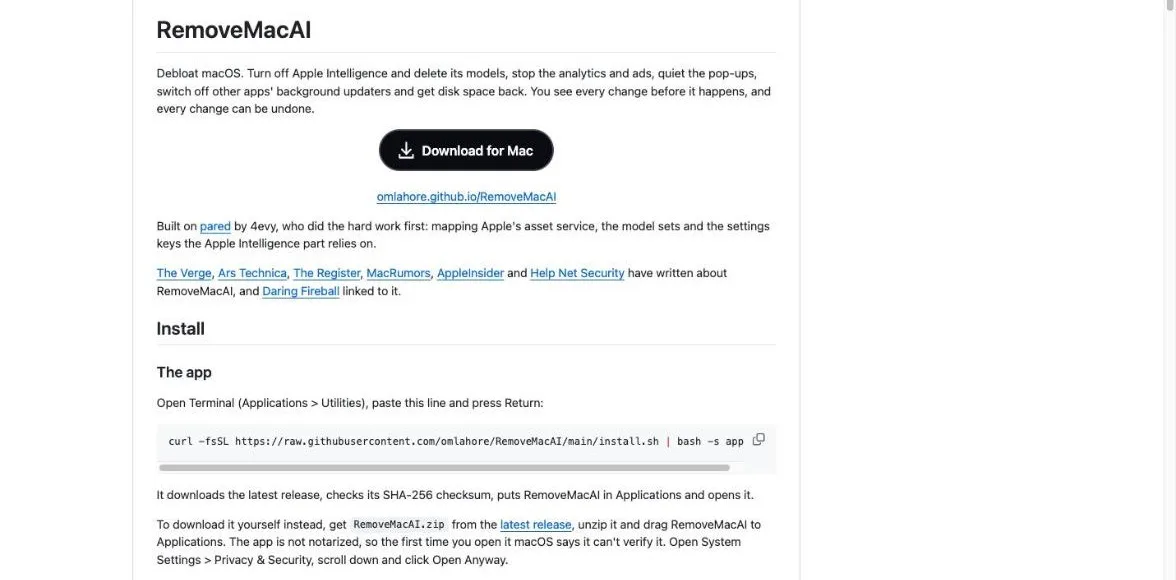
Debloat macOS. Turn off Apple Intelligence and delete its models, stop the analytics and ads, quiet the pop-ups, switch off other apps' background updaters and get disk space back.(README introduction)— from GitHubView official source →
How to turn off Apple Intelligence with RemoveMacAI
To turn off Apple Intelligence with RemoveMacAI, install the app, choose a preset, review the changes and approve the profile macOS asks about. You can do all of it in the app without typing commands.
Install the app and click Open Anyway the first time
Install RemoveMacAI either by pasting the one-line install command from its README into Terminal or by downloading the zip file yourself. The Terminal command handles three steps for you:
- Downloads the latest release
- Checks the file against its SHA-256 checksum
- Puts RemoveMacAI in Applications and opens it
To do it by hand, download RemoveMacAI.zip from the latest GitHub release, unzip it and drag the app into Applications. The first time you open it, macOS warns that it can't verify the app, because RemoveMacAI isn't notarized.
Notarization is Apple's automated check of apps distributed outside the App Store. To open it anyway, go to System Settings > Privacy & Security, scroll down and click Open Anyway.
Pick the Recommended preset and review the changes
In the RemoveMacAI app, choose the Recommended preset, look over the list of changes, and then apply them. Recommended turns off Apple Intelligence, analytics and ads and removes pop-ups, while leaving alone anything you rely on. Maximum privacy goes further and also turns off Game Center and Safari's search suggestions.
Choosing a preset doesn't change anything by itself. You see every change first, and only then does it apply.
Apple Intelligence settings go into a configuration profile, which is a bundle of settings macOS only accepts after you approve it. When RemoveMacAI asks, approve the profile in System Settings.
From the command line, check status and then turn it off
If you prefer Terminal, run removemacai status to see each feature and the size of its models, then run removemacai to turn Apple Intelligence off. You can run the command-line version from a temporary folder without installing anything, or install it with brew install omlahore/tap/removemacai.
| Command | What it does |
|---|---|
removemacai status |
Shows each feature and the size of its models |
removemacai |
Shows the current state, then turns Apple Intelligence off |
removemacai off --keep <features> |
Turns it off but keeps the features you list |
Commands that change something show the change first and ask before going ahead. Add --dry-run to see the changes without applying them. The app and the command line share one undo history.
It downloads the latest release, checks its SHA-256 checksum, puts RemoveMacAI in Applications and opens it. / Both add to what is already applied, and nothing changes until you review it.(Install and What it does)— from GitHubView official source →
What to know before you remove it
Before you run RemoveMacAI, know three things: the app isn't notarized, some features beyond Apple Intelligence stop working, and your storage settings won't reflect the change right away. All three come straight from the developer's own documentation.
The app isn't notarized by Apple
RemoveMacAI hasn't gone through Apple's notarization, so you have to override macOS's warning to open it. That means Apple hasn't scanned this build.
According to the developer, System Integrity Protection stays on and nothing under /System is modified. The README also says the app makes no network requests and collects no data. The source code is public on GitHub, so you can read it before deciding whether to install it.
Apps and features that use the models stop working
Turning off Apple Intelligence also disables other apps and features that depend on Apple's on-device models. The README lists four:
- Apps that use Apple's on-device models through the Foundation Models framework
- The Use Model action in Shortcuts
- Visual Intelligence
- Natural-language editing in Calendar
Dictation isn't affected. It has its own setting, and its speech models stay on the Mac.
Storage settings don't update right away
After the models are deleted, System Settings > General > Storage keeps counting them under Apple Intelligence for a while. Apple's asset service lets go of the models immediately, but macOS removes the actual files on its own schedule.
So if your free space hasn't changed right after you run RemoveMacAI, that's expected. Check the storage view again later.
The app is not notarized, so the first time you open it macOS says it can't verify it. / RemoveMacAI makes no network requests and collects no data. / The features listed above, apps that use Apple's on-device models (the Foundation Models framework and the Use Model action in Shortcuts), Visual Intelligence and natural-language editing in Calendar.(Install, How it works and FAQ)— from GitHubView official source →
How to undo RemoveMacAI's changes
Everything RemoveMacAI changes can be undone, either all at once or just the Apple Intelligence part. Both take one click in the app or one command in Terminal.
Undo every RemoveMacAI change at once
To reverse everything, click Undo Everything in the app or run removemacai revert in Terminal. RemoveMacAI records each setting's previous value before changing it, and undo puts that exact value back.
If you want to remove RemoveMacAI itself, undo everything first and then delete the app. If you installed it with Homebrew, run brew uninstall removemacai.
Turn only Apple Intelligence back on
To bring back just Apple Intelligence, run removemacai on. This turns Apple Intelligence on again and keeps your other changes, such as the privacy settings.
The configuration profile survives macOS updates, so you don't need to redo anything after updating. If an update resets one of the other settings, the app shows it as not applied.
click Undo Everything in the app / Turn Apple Intelligence back on and keep the other changes(Uninstall and Command line)— from GitHubView official source →
Summary: delete the models with RemoveMacAI, or keep them
On macOS 27, Apple's settings can turn off Apple Intelligence features but can't delete the models, which take up to 14 GB. If you don't use Apple Intelligence and want that space back, RemoveMacAI's Recommended preset is the quickest way to do it.
The trade-offs are an app Apple hasn't notarized and the loss of features that rely on the models. Every change can be undone, so you can weigh those points and decide for yourself.
FAQ
- Does dictation still work after RemoveMacAI turns off Apple Intelligence?
- Yes. Dictation has its own setting, and RemoveMacAI leaves its speech models in place. What goes away are the Apple Intelligence features themselves, such as Writing Tools and summaries.
- Will a macOS update bring Apple Intelligence back?
- The configuration profile that keeps Apple Intelligence off stays in place after macOS updates. If an update resets one of the other settings, RemoveMacAI marks it as not applied, and you can apply it again.
- Can RemoveMacAI delete Apple's built-in apps?
- No. Built-in apps live on the sealed system volume, and deleting them would mean turning off System Integrity Protection, which can leave the Mac unable to start if it goes wrong. RemoveMacAI only removes the optional apps Apple lets you delete, such as GarageBand and iMovie.
Related articles
 Apple Intelligence launches in China with QwenApple Intelligence comes to iPhones in China with iOS 27.3 in December. Alibaba's Qwen handles some Siri and Writing Tools requests, but Siri AI is left out.
 Siri AI supported devices and the waitlist stepsSiri AI supported devices start at iPhone 15 Pro. Here is the storage each needs, the six languages in iOS 27.2, and how to join the waitlist in Settings.
 Flash prices up 5x on AI, eroding Apple's leverageAI demand made flash 5x pricier in a year, the WSJ reports. Cloud giants now buy twice as much as Apple, and doubling iPhone 17 Pro storage costs Apple $66.
 ChatGPT now works with iCloud Mail and CalendarOpenAI added iCloud Mail and Calendar plugins to ChatGPT on Oct 27 for all plans. You connect with an Apple app-specific password that outlives a disconnect.