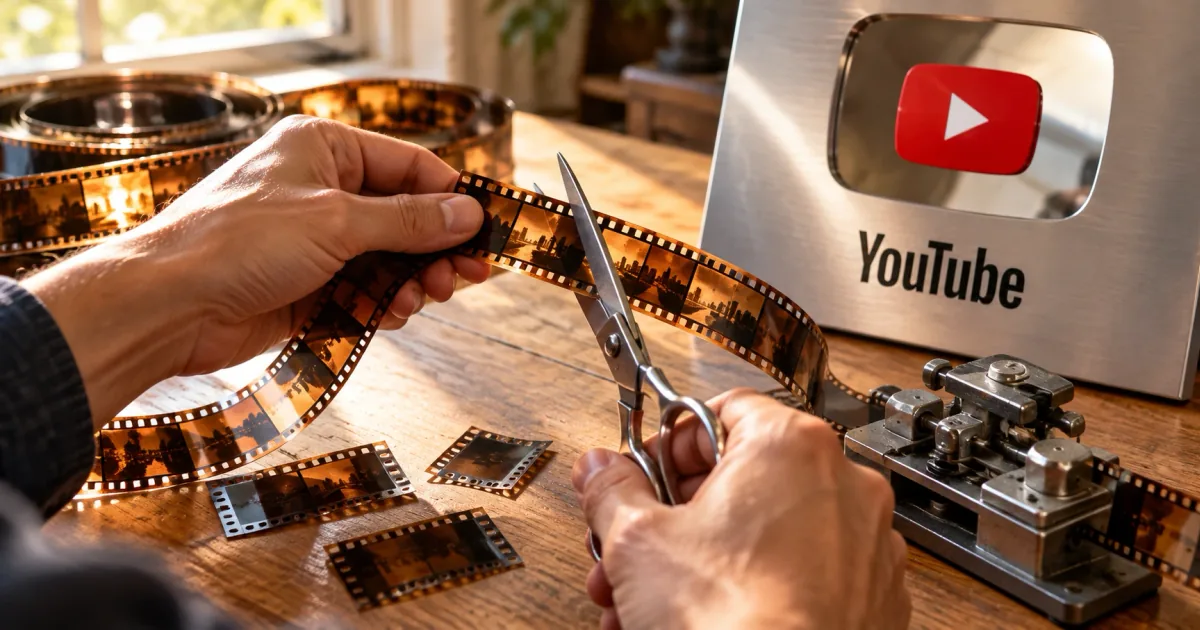
What is YouTube clipping?
Clipping at a glance
YouTube clipping is the practice of taking a funny, surprising or useful moment from another creator's stream or video, editing it into a short clip, and uploading it to your own channel. The people who do it are called clippers. The work depends on the original creator agreeing to it, and the clips that last are the ones where the clipper adds context of their own.
Clippers turn long streams into short highlight videos
Gaming and talk streams often run for hours, and watching one from start to finish takes a whole evening. A clip channel pulls out the moments worth seeing and packages them into a few minutes or less. Viewers get the highlight, and the ones who like it may go on to follow the original streamer.
That is why many streamers welcome clippers. Clips put their name in front of people who missed the live broadcast.
Clips can go out as Shorts or regular YouTube videos
You can post a clip as a Short or as a regular horizontal video. Shorts are vertical, and YouTube's Shorts tools handle videos up to 3 minutes long. They suit a single reaction or one sharp line.
A regular video works better when you stitch several moments together or talk over the footage at length. Limits differ by platform, and Social media video length: TikTok, Instagram, X lists them side by side.
Get permission before clipping YouTube videos
Check before you clip
The creator owns their footage, so clipping without permission is copyright infringement. On YouTube, a rights holder can report a clip, and YouTube handles the claim through its Copyright Center process, which can end with the clip being removed. Accounts that keep infringing can lose access to YouTube altogether, under the Terms of Service.
"YouTube's policies provide for the termination, in appropriate circumstances, of repeat infringers’ access to the Service."(Protecting Copyright section)— from the YouTube Terms of ServiceView official source →
Check the creator's clipping policy first
Many streamers and talent agencies publish a clipping policy on their website or in their channel description. These pages spell out what you may clip and how you should credit the source. Look for three things in particular:
- Whether clipping is allowed at all
- Whether you may monetize clips, and whether revenue has to be shared
- How the original video and creator should be credited in your description
Policies change. If you clip the same creator for months, check their page again from time to time.
Ask the creator directly when there is no policy
If a creator has no public policy, message them or their team and ask before you post anything. Contact details are usually in the channel's About section or on their website.
Say who you are, which videos you want to clip, how you plan to use them, and whether you intend to monetize. Silence is not a yes. Keep the reply somewhere you can find it later, such as your email.
Downloading YouTube videos breaks the Terms of Service
YouTube's Terms of Service do not let you download, copy or alter videos on the platform. There are only two exceptions: YouTube itself offers the option, or YouTube and the rights holders have given written permission in advance.
Plenty of clipping guides point to downloader sites anyway. Using them without that authorization still breaks the terms, so get the source files from the creator or through another route they approve.
"access, reproduce, download, distribute, transmit, broadcast, display, sell, license, alter, modify or otherwise use any part of the Service or any Content except: (a) as expressly authorized by the Service; or (b) with prior written permission from YouTube and, if applicable, the respective rights holders;"(Permissions and Restrictions section)— from the YouTube Terms of ServiceView official source →
How to make clips from YouTube videos in 6 steps
The six-step clipping workflow
Every clip goes through the same six steps, whether you edit on a phone or a computer. Sort out permission before you start the first one.
Pick the moment and your niche
Decide which moment you are clipping before you open an editor. Scrubbing through a three-hour stream without a target eats most of your time.
Good candidates make sense in a few seconds: a big reaction, a quick answer to a chat question or a line that sums up the streamer. Pick the creators and the niche for your channel at this stage too, so every upload feels like it belongs.
Import footage you are allowed to use
Only bring in footage the rights holder has approved, such as files the creator sent you. On a phone you pick the video from your camera roll. On a computer you add the file through the editor's import menu.
Leave a few seconds of padding on each side of the moment. You will cut it in the next step, and it gives you room to find a clean start.
Trim the dead air from each clip
Cut everything that is not the moment. Pauses before someone speaks, false starts and tangents all slow a clip down.
Do not trim so hard that the joke or the point loses its setup. Watch the clip once from start to finish and listen for jumps at each cut.
Add captions and your own commentary
Add captions for what is said, and add your own commentary on top. Captions let people follow along with the sound off, for example on a train or in a quiet office.
Commentary is where the clip becomes yours: why the moment matters, what led up to it, or how it compares with an earlier stream. This step is what separates a clip channel from a re-upload channel. It is also what YouTube looks at for monetization and for Shorts recommendations.
Make a thumbnail that tells the story
A thumbnail is the first thing viewers see in search and recommendations. Show the reaction and a few words about what happened.
Keep it honest. A thumbnail that promises more than the clip delivers makes viewers leave early.
If you want a head start, SAKUTTO's AI Thumbnail Maker builds thumbnail options from a photo and a short description of the video, in YouTube and Shorts sizes. Use only images you have permission to use.
Export and post as a Short or a regular video
Export with your editor's YouTube preset and upload. Use a vertical frame for Shorts and a horizontal frame for regular videos.
In the description, link the original video and name the creator. If their clipping policy asks for a specific credit format, follow it exactly.
Tools you need for clipping videos
Phone or computer
All you need is a phone or a computer and a video editor. No extra gear is required to start. Choose based on how long your source streams are and how much editing you plan to do.
A phone and a free editor are enough for Shorts
Phones handle vertical video natively, so they are the quickest way to make Shorts. Free editing apps include trimming, captions, music and export. YouTube itself says anyone can make Shorts with just a smartphone and its Shorts camera.
The small screen is the trade-off. Finding one moment in a long stream and placing captions precisely both take longer on a phone.
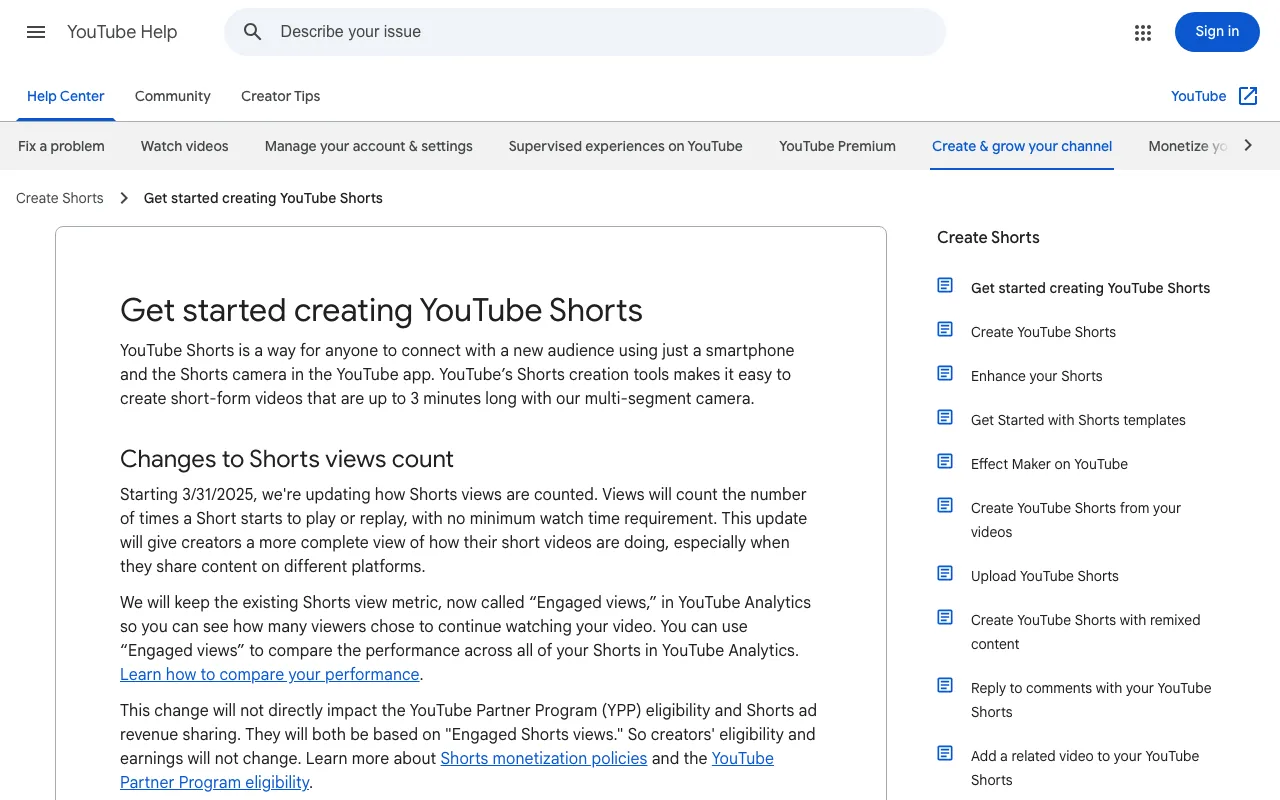
"YouTube Shorts is a way for anyone to connect with a new audience using just a smartphone and the Shorts camera in the YouTube app."(opening paragraph)— from YouTube HelpView official source →
Desktop editors handle long streams better
For multi-hour streams or caption-heavy edits, a desktop editor is the better fit. A wide timeline lets you see what comes before and after each cut.
Adobe Premiere Pro and Apple Final Cut Pro are the usual picks. Starting on a free editor and upgrading later works fine.
Can you monetize YouTube clipping?
Two checks for clip monetization
Yes, but only if your channel meets the YouTube Partner Program thresholds and your clips add something of your own. Hitting the numbers is not enough on its own. YouTube also reviews whether your channel mostly re-uploads other people's work without commentary or real editing, and that review applies even when you have the creator's permission.
Monetization and recommendations are separate systems. Both, though, now reward clips that carry your own commentary.
The Partner Program sets subscriber and view thresholds
To join the YouTube Partner Program, a channel needs at least 1,000 subscribers. On top of that, it needs one of the following:
- 4,000 qualified watch hours in the last 12 months
- 10 million Shorts views in the last 90 days
Watch hours from Shorts viewed in the Shorts Feed do not count toward the 4,000-hour mark. A Shorts-first clip channel is more likely to qualify through the views route.
"Get 1,000 subscribers with 4,000 qualified watch hours in the last 12 months, or"/"Get 1,000 subscribers with 10 million qualified Shorts views in the last 90 days."(eligibility section)— from YouTube HelpView official source →
Clips with nothing added count as reused content
YouTube won't monetize a channel that takes existing videos and reposts them without real commentary or editing. The policy calls this reused content, and it judges the whole channel. One offending pattern can switch off monetization across every video.
Permission does not get you out of it. The policy applies even when the original creator agreed, because it is a monetization rule, not a copyright one. The table lists examples from the policy that are closest to clipping.
| Verdict | Example |
|---|---|
| Allowed | Clips used for a critical review |
| Allowed | Reaction videos that comment on the original |
| Allowed | Another creator's footage edited with your own storyline and commentary |
| Not allowed | Moments from a show strung together with little or no narration |
| Not allowed | Short videos gathered from other social media sites |
These are a subset of the policy's examples, not the full list. What the allowed rows share is that the clipper's own voice or structure sits on top of the footage.
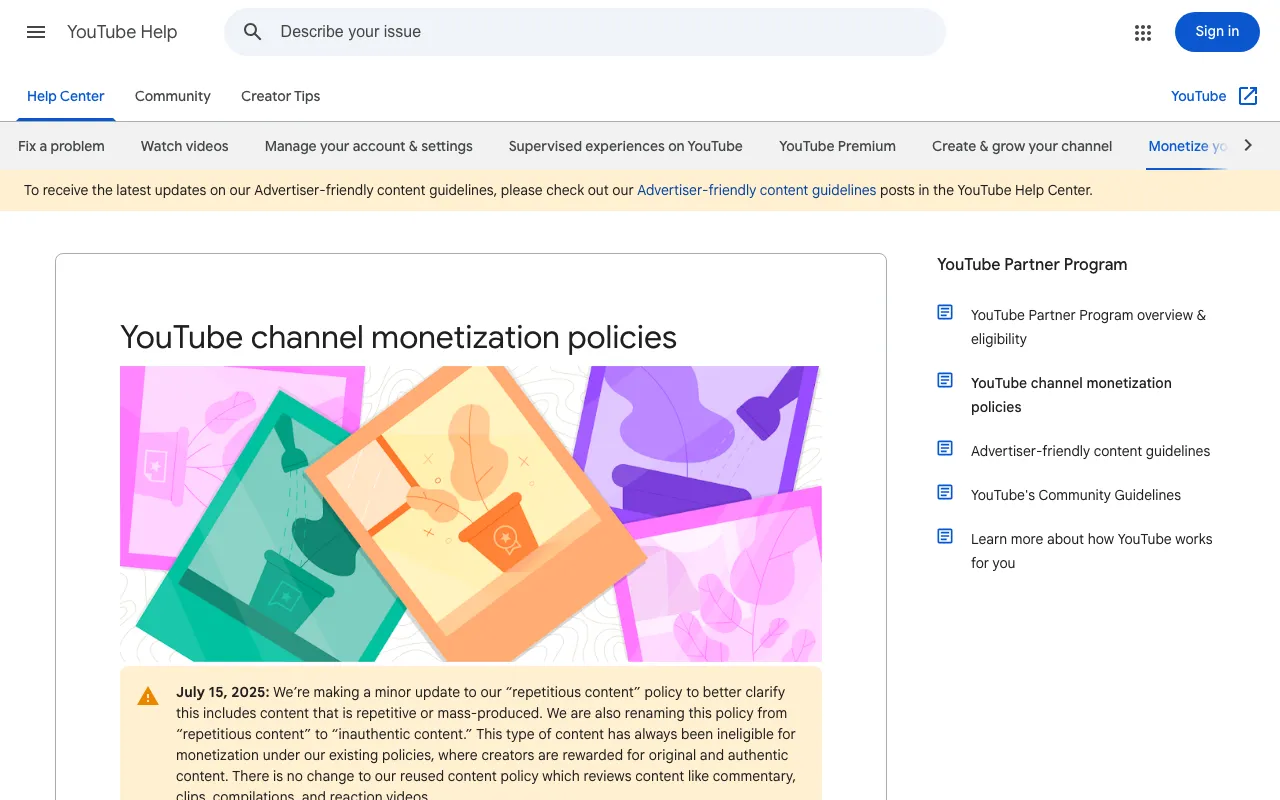
"Reused content refers to channels that repurpose content that’s already on YouTube or another online source without adding significant original commentary, substantive modifications, or educational or entertainment value."/"This policy applies even if you have permission from the original creator."(Reused content section)— from YouTube's monetization policiesView official source →
Shorts recommendations now favor original content
On October 1, 2026, YouTube said Shorts recommendations would lean further toward original content. Re-uploads with nothing of the uploader's own will reach fewer people. Creators who use someone else's clips were told to bring their own commentary, edits or storytelling.
For clippers, the caption-and-commentary step is no longer optional on Shorts either. Our breakdown of the announcement covers the details: YouTube Shorts algorithm cuts reach for reuploads.
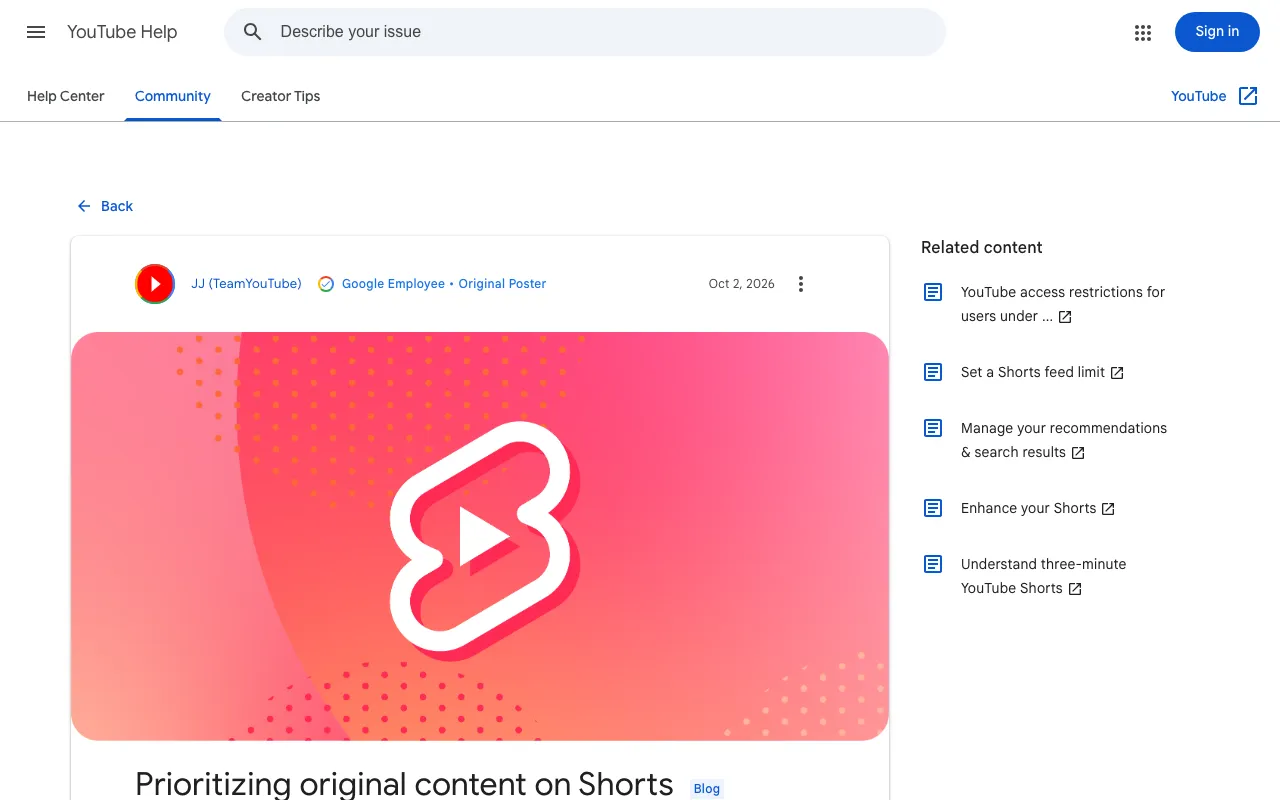
"If you use clips from another creator, make sure you're adding real value through your own original commentary, unique edits, or storytelling."(What this means for you section)— from the TeamYouTube announcementView official source →
Clipping mistakes that cost you the channel
Two mistakes to avoid
Two mistakes put a clip channel at risk: skipping permission and skipping commentary. You can fix both before your first upload.
Treating fair use as a plan
Fair use is a legal defense you argue after a dispute, not permission you have in advance. A channel built on "it's probably fair use" is one claim away from losing videos.
YouTube's reused content review also ignores fair use entirely. Get the creator's yes, and keep it on file.
Posting clips with nothing of your own
A clip with no captions and no commentary is exactly what YouTube now deprioritizes and refuses to monetize. Even a few seconds of your own take changes how the clip is judged.
Make the commentary step a habit for every upload. Over time it can also become the reason viewers follow your channel rather than the next one.
YouTube clipping comes down to permission and commentary
YouTube clipping works when you get the creator's permission, edit footage you are allowed to use, and add your own captions and commentary before posting. The six steps are the same on a phone or a computer.
Skip downloader sites, since they break YouTube's terms. Clips with nothing added can't be monetized and now get less reach in Shorts, so decide what you will add before you start editing. When you get to the thumbnail, SAKUTTO's AI Thumbnail Maker can draft options for you.
FAQ
- Can I clip someone's YouTube videos without permission?
- No. The creator owns the footage, and a rights holder can file a copyright claim that gets your clip taken down. YouTube's Terms of Service also bar downloading or altering videos unless YouTube expressly allows it or the rights holders give written permission. Check the creator's clipping policy, or ask them directly before you post.
- Do I need paid software to start clipping?
- No. A phone and a free editing app cover cutting, captions and export, which is all a Short needs. YouTube itself says anyone can make Shorts with nothing more than a smartphone and the Shorts camera in its app. Paid desktop editors help once you are working through multi-hour streams.
- What is the difference between a clip channel and YouTube's Clip feature?
- YouTube's Clip feature lets a viewer mark 5 to 60 seconds of a video or live stream and share a link to it. It does not let you edit or add commentary. A clip channel edits the footage, adds captions and commentary, and uploads each clip as its own video.
Related articles
 YouTube Shorts algorithm cuts reach for reuploadsThe YouTube Shorts algorithm now favors originals and cuts reach for channels reuploading others' clips. Monetization still follows the reused content policy.
 AI fact check: only 40% of cited stats hold upAI fact check: Trakkr traced 1,285 stats cited by ChatGPT, Perplexity, Gemini, Claude and AI Overviews. Only 40% led to a matching study. How to check one.
 Reddit to require logins as search referrals fallReddit will test a logged-in-only site outside the US in Q4. Search referrals fell over 1M a week in October; its CEO says Google's AI Mode drives no traffic.
 AI crawler training opt-out in one robots.txt ruleAI crawler training opt-out now takes one robots.txt rule. OpenAI, Google and Microsoft will honor it, Microsoft from Feb. 1, 2027. Until then, name each bot.