
ChatGPT iMessage and SMS: what the Apple Messages plugin does
In Codex and ChatGPT Work, the plugin finds conversations, summarizes them, drafts replies, and sends messages from the Mac's Messages app. A user back from a day away can ask ChatGPT to find the chats that came in and draft an answer. The same ChatGPT iMessage integration also covers SMS and RCS chats.
What the Apple Messages plugin supports
| Item | Supported |
|---|---|
| Message types | iMessage, SMS, RCS |
| Actions | Read, search, find, summarize, draft, send |
| Where it runs | ChatGPT desktop app for macOS |
| Chat types | Codex and ChatGPT Work |
| Plans | All plans |
| Hardware | Apple Silicon (arm64), for this release |
OpenAI's documentation also lists three things the plugin does not do. Each one names a use that might be expected and is not offered.
- It does not let a user reach ChatGPT remotely by texting through Messages.
- It does not work in regular ChatGPT chats.
- It is not directly available in ChatGPT on the web or mobile, in Codex CLI, or in the IDE extension.
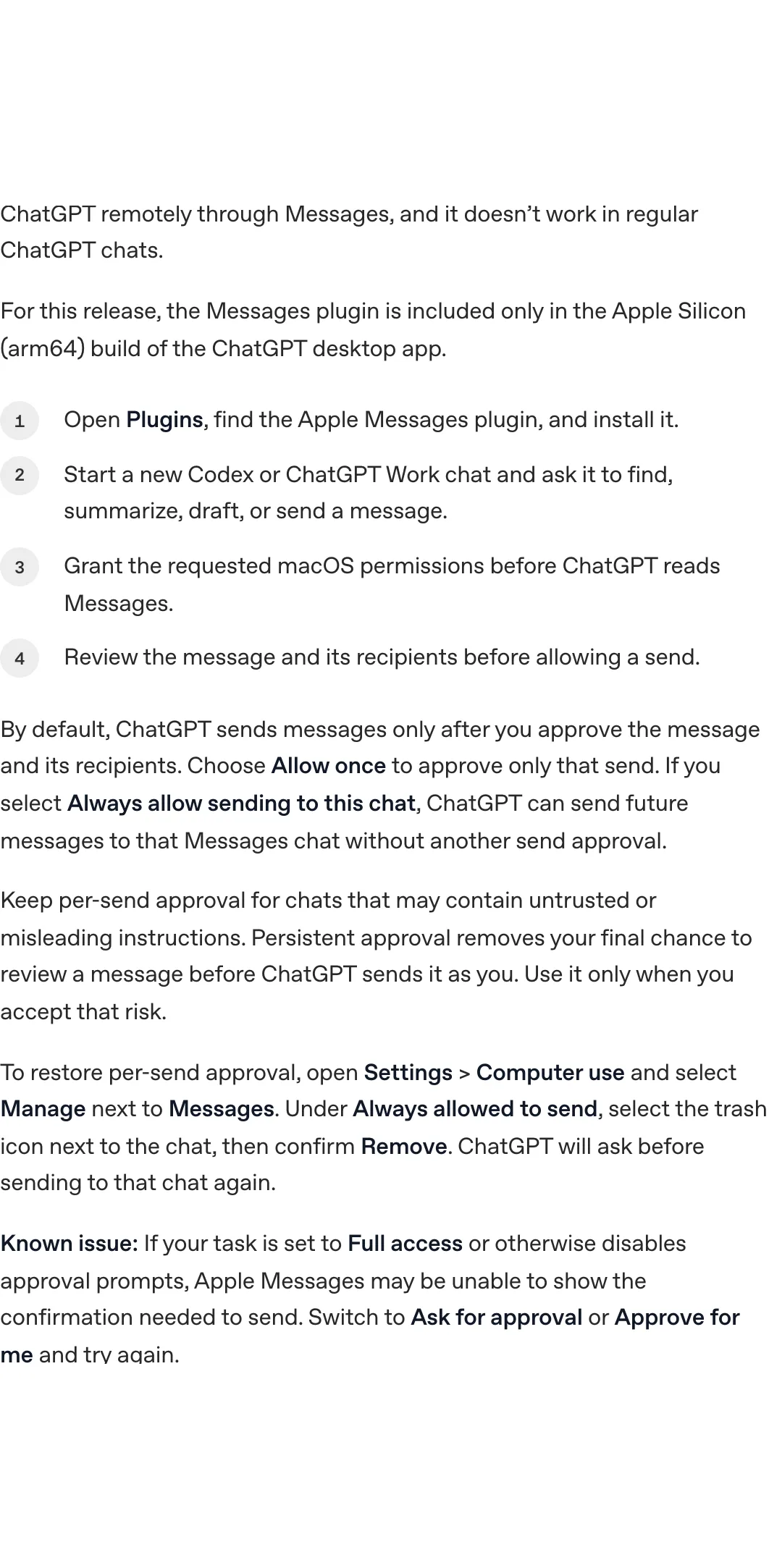
"The Apple Messages plugin is available on all plans in the ChatGPT desktop app for macOS. In Codex and ChatGPT Work, it can read and search iMessage, SMS, and RCS chats on your Mac and send messages on your behalf through the Messages app. It doesn't let you interact with ChatGPT remotely through Messages, and it doesn't work in regular ChatGPT chats."/"Apple Messages runs on your Mac. It isn't directly available in ChatGPT on the web or mobile, Codex CLI, or the IDE extension."— from OpenAI's Codex plugin documentationView official source →
Codex plugins: Apple Messages requires Apple Silicon and ChatGPT Work
Two conditions decide whether the plugin is available: the Mac and the chat type. On the Mac side, the plugin is included for this release only in the Apple Silicon build of the ChatGPT desktop app, the build for Macs on Apple's own chips (the arm64 architecture). OpenAI's documentation does not mention Intel Macs and does not describe a workaround; the only qualifier it gives is "for this release".
The second condition is the chat type: plugins are shared across ChatGPT and Codex, but the Apple Messages plugin works only in Codex and ChatGPT Work. Codex is OpenAI's coding agent, available as a chat type in the desktop app. A regular ChatGPT chat cannot use the plugin, even when it is installed.
Conditions for using the plugin
| Condition | Required |
|---|---|
| Operating system | macOS |
| App | ChatGPT desktop app, Apple Silicon (arm64) build |
| Chat type | Codex or ChatGPT Work |
| Plan | Any plan |
Because the plugin is available on all plans, the limit is technical, not a paid tier. A user on any plan needs the Apple Silicon build of the Mac app and a Codex or ChatGPT Work chat.
"For this release, the Messages plugin is included only in the Apple Silicon (arm64) build of the ChatGPT desktop app."/"The Apple Messages plugin is available on all plans in the ChatGPT desktop app for macOS."— from OpenAI's Codex plugin documentationView official source →
Install the plugin in the ChatGPT Mac app
Installing the plugin is the first of four steps in the ChatGPT Mac app, which is the desktop app for macOS. The documentation lists them in this order:
- Open Plugins, find the Apple Messages plugin, and install it.
- Start a new Codex or ChatGPT Work chat and ask it to find, summarize, draft, or send a message.
- Grant the macOS permissions that are requested, before ChatGPT reads Messages.
- Review the message and its recipients before allowing a send.
There is one known issue. If a task is set to Full access, or otherwise has approval prompts turned off, Apple Messages may be unable to show the confirmation it needs to send. The fix is to switch the task to Ask for approval or Approve for me and try again.
For another Codex feature on the Mac, see Codex Record and Replay: Mac Workflows as Skills. It is a separate feature with its own requirements.
"Open Plugins, find the Apple Messages plugin, and install it."/"Known issue: If your task is set to Full access or otherwise disables approval prompts, Apple Messages may be unable to show the confirmation needed to send. Switch to Ask for approval or Approve for me and try again."— from OpenAI's Codex plugin documentationView official source →
ChatGPT iMessage send approval in ChatGPT Work and Codex
By default, ChatGPT sends a message only after the user approves the message and its recipients. The approval prompt offers two choices:
- Allow once approves that send only.
- Always allow sending to this chat lets ChatGPT send future messages to that Messages chat without another approval.
OpenAI advises keeping per-send approval for chats that may contain untrusted or misleading instructions. Its documentation also states the cost of the second choice, which it calls persistent approval: it removes the final chance to review a message before ChatGPT sends it as the user. OpenAI says to use persistent approval only when that risk is acceptable.
The documentation adds that when a plugin capability runs through a Codex host, the host's sandbox and approval policy applies. This holds for plugin capabilities in general, not only for Apple Messages.
"By default, ChatGPT sends messages only after you approve the message and its recipients. Choose Allow once to approve only that send. If you select Always allow sending to this chat, ChatGPT can send future messages to that Messages chat without another send approval."/"Keep per-send approval for chats that may contain untrusted or misleading instructions. Persistent approval removes your final chance to review a message before ChatGPT sends it as you. Use it only when you accept that risk."/"When a plugin capability runs through a Codex host, the host's sandbox and approval policy applies."— from OpenAI's Codex plugin documentationView official source →
Revoke Apple Messages plugin approval: ChatGPT Computer use
Computer use is the ChatGPT setting for letting ChatGPT operate apps on the Mac, and it is also where approvals for Apple Messages are managed. Chats with persistent approval are listed under Always allowed to send. To restore per-send approval for a chat:
- Open Settings > Computer use.
- Select Manage next to Messages.
- Under Always allowed to send, select the trash icon next to the chat.
- Confirm Remove.
After that, ChatGPT asks before sending to that chat again. The trash icon sits next to each chat on the list, so the steps repeat for every chat that should return to per-send approval.
For a related Mac feature that is opt-in and limited to apps the user picks, see ChatGPT Computer History: What It Records for You. That article covers what the feature records and what the user controls.
"To restore per-send approval, open Settings > Computer use and select Manage next to Messages. Under Always allowed to send, select the trash icon next to the chat, then confirm Remove. ChatGPT will ask before sending to that chat again."— from OpenAI's Codex plugin documentationView official source →
Managed workspaces: Apple Messages plugin and ChatGPT Work
In managed workspaces, administrators can disable Apple Messages through the existing Computer Use control. OpenAI's documentation names no separate switch for the plugin, so an administrator looking for one should start at that control.
ChatGPT Apple Messages is limited to the Apple Silicon Mac app and to Codex and ChatGPT Work chats. It asks for approval before each send unless a user has chosen otherwise for a chat, and that choice can be removed from the Computer use setting described above. For a security review or an internal policy note, the exact wording of the documentation page is the thing to record.
"In managed workspaces, administrators can disable Apple Messages through the existing Computer Use control."— from OpenAI's Codex plugin documentationView official source →
FAQ
- Do I need a paid plan for the ChatGPT Apple Messages plugin?
- No. OpenAI states the plugin is available on all plans in the macOS desktop app. What limits it is the setup: an Apple Silicon build of the app and a Codex or ChatGPT Work chat.
- Does the ChatGPT Apple Messages plugin work on an Intel Mac or on mobile?
- For this release, the plugin is included only in the Apple Silicon (arm64) build of the desktop app. OpenAI's documentation does not name Intel Macs or describe a workaround. It also says the plugin is not directly available in ChatGPT on the web or mobile, in Codex CLI, or in the IDE extension.
- Can people text ChatGPT through iMessage with this plugin?
- No. The plugin lets ChatGPT work with the Messages app on your Mac. It does not let you use ChatGPT remotely through Messages, and it does not work in regular ChatGPT chats.
- Will ChatGPT send iMessages without asking me?
- Not by default. ChatGPT sends only after you approve the message and its recipients. The exception is a chat where you chose Always allow sending to this chat; you can undo that in Settings > Computer use.
- Can an administrator turn the Apple Messages plugin off?
- Yes. In managed workspaces, administrators can disable it through the existing Computer Use control. OpenAI's documentation names no separate switch for it.
Related articles
 ChatGPT and Codex usage limits merge in DecemberFrom December, Plus, Pro and Business plans will share one token-based allowance across ChatGPT and Codex. Instant chat won't count, and no start date is set.
 OpenAI, ServiceNow expand deal with ChatGPT pluginOpenAI and ServiceNow expanded their deal on Oct 28, 2026. A ServiceNow MCP plugin for ChatGPT is live now; Codex, security and voice tools follow in 2027.
 ChatGPT now works with iCloud Mail and CalendarOpenAI added iCloud Mail and Calendar plugins to ChatGPT on Oct 27 for all plans. You connect with an Apple app-specific password that outlives a disconnect.
 Shared ChatGPT link flaw could hijack accountsOpening a malicious shared ChatGPT link could run its creator's code in your account and read private chats, Parameter says. OpenAI fixed it on October 26.