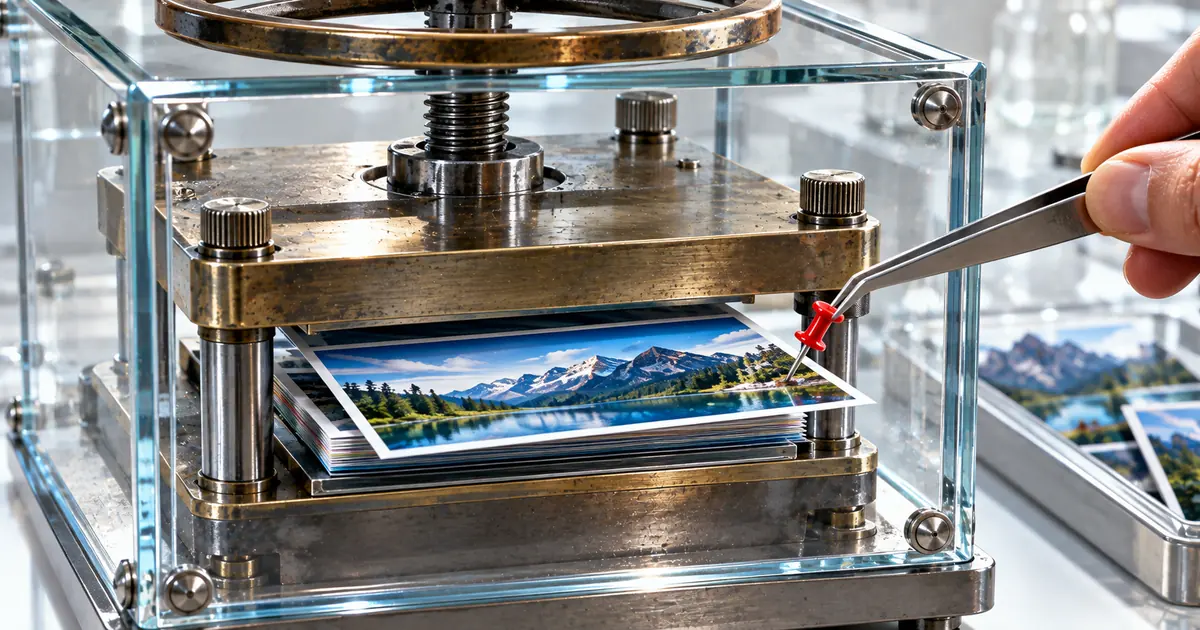
To convert HEIC to JPG for free, open sakuttoAI's converter in your browser, drop in your iPhone photos and save the results one at a time or as a single ZIP. The same tool can also output PNG or WebP, and your photos never leave your device. The JPG does differ from the original, though: it usually takes up more space than the HEIC did, and the location and date stored inside the photo are not copied into it.
How to convert HEIC to JPG free, one photo or a whole batch
sakuttoAI's HEIC to JPG converter runs in the browser, so there is nothing to install: add the photos, choose a format and a quality preset, convert, then save. The work happens on your own computer or phone, so your photos are never uploaded to a server.
You do need to log in first. The free plan gives you three tasks a day, and that allowance is shared by every sakuttoAI tool. Inside a single task, the converter sets no fixed limit on how many photos you add.
Add HEIC or HEIF photos, then pick JPG, PNG or WebP
The converter takes files ending in .heic or .heif, and .heic is what an iPhone saves when its camera is set to High Efficiency. Drag several in together or select them from a folder.
Next, choose what you want the photos converted to. If a website or program refused the .heic file, JPG is usually the one you need. PNG and WebP are there for the cases where JPG isn't the right fit, and the next section explains what separates the three.
Pick a quality preset and download multiple files as one ZIP
JPG and WebP are saved with one of three quality presets. Standard is already selected when the tool opens, so you can leave it alone unless the files come out too heavy or too soft.
| Preset (compression) | Quality value | What you get |
|---|---|---|
| Low | 0.9 | Most detail, biggest files |
| Standard (default) | 0.75 | The middle ground |
| High | 0.5 | Smallest files, most visible loss |
PNG ignores the preset and is always written at full quality. When the conversion finishes, save each image on its own or take everything at once as a ZIP named heic-converted-images.zip.
Your original HEIC files are left as they were, because the converted images arrive as new files. For converting whole folders of photos, see HEIC to JPG in Bulk: Where Free Batches Stop.
HEIC vs JPEG: what changes in size, image detail and metadata
Converting a HEIC photo to JPEG changes three things: the file usually gets bigger, some detail is lost (how much depends on the preset), and the Exif metadata is left behind. The size difference comes from how HEIC was designed.
Apple describes HEIF, the format behind .heic files, as storing photos in a smaller file than JPEG at comparable image quality. Apple lists iPhone 7 and later models running iOS 11 or later as able to save photos this way. For a fuller introduction to the format, see What is a HEIC file? How it compares with JPG.
Why the JPG file is bigger than the original iPhone HEIC
JPEG packs image data less tightly than HEIC, so the same photo saved as a JPG usually needs more storage than the file it came from. The gap varies from photo to photo, and the preset moves it too: High compression keeps the JPG closer to the HEIC's size and gives up more detail to do so, while Low compression keeps detail and lets the file grow.
JPG and WebP are both lossy formats. Each time an image is saved in them, some information is thrown away to make the file smaller, and the preset decides how much.
HEIC to PNG: convert without losing quality
Choose PNG when you want no further loss: it is lossless, meaning it stores every pixel of the decoded photo exactly. Converting to PNG adds nothing on top of whatever loss the HEIC already had, which is why the converter writes PNG at full quality regardless of the preset.
The trade-off is weight. A PNG of a camera photo is heavier than the JPG version of the same shot, which makes PNG a better fit for editing or keeping an untouched copy than for attaching to an email.
Exif data such as location isn't carried over to the JPG
Exif, the information a camera stores alongside the picture such as the date taken, camera settings and GPS location, is not copied into the converted file. The converter decodes the HEIC and redraws it in the browser before saving, and the redrawn image has no Exif attached, whether you choose JPG, PNG or WebP.
For photos you pass on to other people, losing the location is often a plus. If you sort your albums by the date taken, keep the original HEIC files, which the converter never modifies.
Can't open HEIC on Windows or Mac? Fixes from Microsoft and Apple
If you only need to look at a photo, you may not have to convert it at all. Windows can open HEIC once the right extensions from the Microsoft Store are installed, and on a Mac, Preview opens HEIC and can also export it to JPEG or PNG.
Windows: install HEIF Image Extension and HEVC Video Extensions
Windows can open HEIC once you add HEIF Image Extension, a free download from the Microsoft Store. A HEIC compressed with HEVC also needs HEVC Video Extensions, which costs US$0.99 in the US Microsoft Store. The full walkthrough is in Open HEIC files on Windows: the missing codec.
Mac: save a HEIC file in another format with Preview
Open the HEIC in Preview, choose File > Export, pick a format such as JPEG or PNG, and save. Preview writes the exported image as a separate file, so the original HEIC is left unchanged.
Set the iPhone camera to Most Compatible to shoot JPEG, not HEIC
Switching the iPhone camera to Most Compatible makes each new photo a JPEG, which leaves nothing to convert later. Go to Settings > Camera > Formats and choose Most Compatible; High Efficiency is the HEIF option. The change only affects photos taken from then on, so pictures already in your library stay HEIC.
Even on High Efficiency, a photo you share can arrive as a JPEG without you converting anything. Apple notes that photos shared through AirDrop, Mail and similar routes may be sent in a more compatible format such as JPEG.
Separately, under Settings > Photos > Transfer to Mac or PC, choosing Automatic converts photos to a compatible format when you import them to a computer, while Keep Originals brings them over as HEIC. The camera format and this transfer setting are covered in more depth in iPhone photo format: save new photos as JPEG.
Summary
Convert HEIC to JPG in the browser with sakuttoAI: add .heic or .heif photos, choose JPG, PNG or WebP and a quality preset, then save the images one by one or as a ZIP, with nothing uploaded. Expect the JPG to be bigger than the HEIC and the location data to be gone, and pick PNG if you want no extra loss. If you would rather not convert, Windows extensions and Preview on a Mac handle HEIC directly, and an iPhone set to Most Compatible shoots JPEG from the start.
FAQ
- Does converting HEIC to JPG reduce quality?
- JPG always drops some detail, and how much depends on the preset you pick: Standard is the default, and the low-compression preset keeps the most. If you want no further loss at all, choose PNG instead.
- Is the location data kept after conversion?
- No. The converted file carries no Exif, so GPS coordinates and the date taken are not copied over. Your original HEIC still has them.
- How many files can I convert at once?
- The converter has no fixed cap on the number of photos. The free plan allows three tasks a day, counted across all sakuttoAI tools.
- Are my photos uploaded to a server?
- No. Conversion runs inside your browser, so the photos stay on your device.
- Can I use it on my phone?
- Yes. The converter is a web page, so it opens in the browser on a phone as well as on a computer, with nothing to install.
Related articles
 HEIC to JPG Converter: 4 Tools Compared for 2026Four HEIC to JPG converters compared on where files are processed, how long a server keeps them, and price, so you can pick the safest option for your photos.
 ChatGPT now works with iCloud Mail and CalendarOpenAI added iCloud Mail and Calendar plugins to ChatGPT on Oct 27 for all plans. You connect with an Apple app-specific password that outlives a disconnect.
 Keyboard symbols: names and how to type all 33Keyboard symbols: names and the keys that type them in a searchable list, plus Alt codes and Mac Option shortcuts for special characters not on the keyboard.
 How to scan documents to PDF: phone, PC, or storeHow to scan documents to PDF on iPhone, Android, Windows, or Mac, or at a FedEx Office copier, and where each method saves the file.