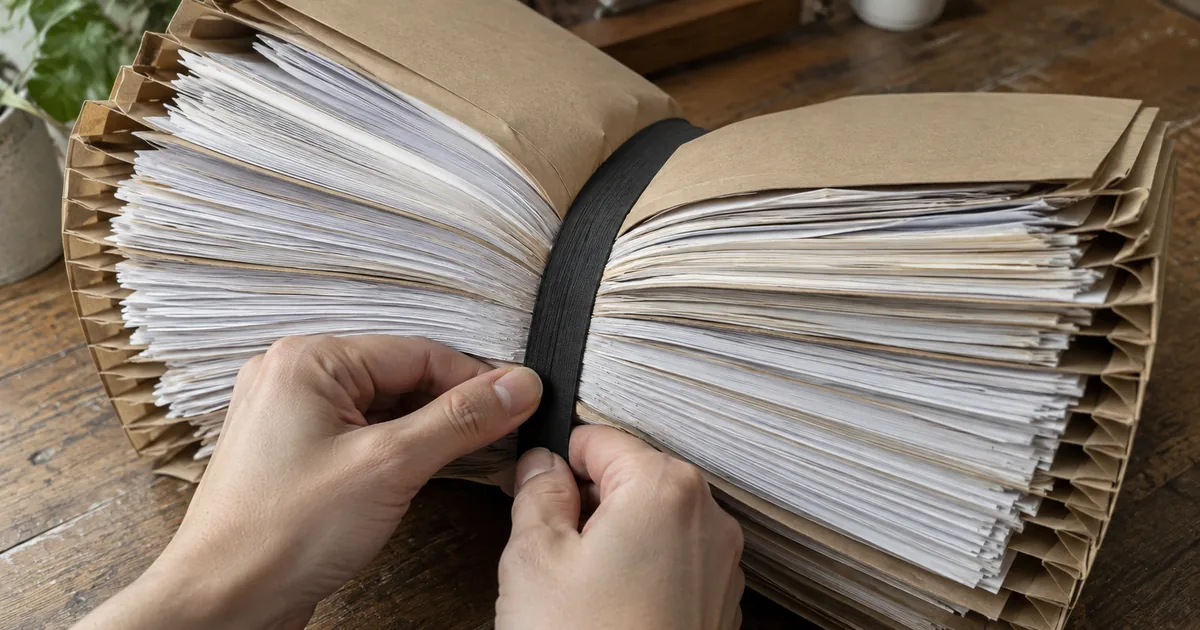
Windows, Mac, Linux, iPhone and Android all make a zip file with tools already on the device. Two limits catch people out: Windows cannot add a password, and photos barely shrink inside an archive.
Zip a file or folder on Windows
The right-click menu builds the archive, so nothing extra has to be installed. Per Microsoft, right-click or press and hold the file or folder, choose Show more options, choose Send to, then choose Compressed (zipped) folder.
A new zipped folder with the same name appears in the same location, and a folder keeps everything beneath it. This is how to create a zip file or make a zip file on Windows without software.
To add something forgotten later, drag it onto the zipped folder made earlier. Windows 11 version 24H2 supports the ZIP, RAR, 7z and TAR archive formats.
"A new zipped folder with the same name is created in the same location."/"To add files or folders to a zipped folder you created earlier, drag them to the zipped folder."/"Windows 11, version 24H2 supports ZIP, RAR. 7z and TAR archive formats."— from Microsoft SupportView official source →
Compressing a file or folder on a Mac
A Control-click on the item is enough, because the menu entry sits in the Finder itself. Per Apple, Control-click the item and choose Compress from the shortcut menu, and the archive is created beside the original. A folder keeps its subfolders inside the archive.
One item keeps its own name with .zip added, while several items compressed at once become Archive.zip. Rename the archive before sending it, because Archive.zip tells the recipient nothing about what is inside.
"Control-click it, then choose Compress from the shortcut menu."/"If you compress a single item, the compressed file has the name of the original item with the .zip extension. If you compress multiple items at once, the compressed file is called Archive.zip."— from Apple SupportView official source →
The Linux terminal command to zip a folder
The recursive flag is what pulls in every subdirectory, as the manual page spells out. The command zip -r archive.zip folder travels the directory structure recursively, and -R does the same starting at the current directory while matching a pattern.
Stored names include relative file paths by default, and -j stores just the file name and drops the directory names. Use -r to zip a folder with its structure intact. Running unzip -l archive.zip afterwards lists the entries, which shows whether the layout survived or was flattened by -j.
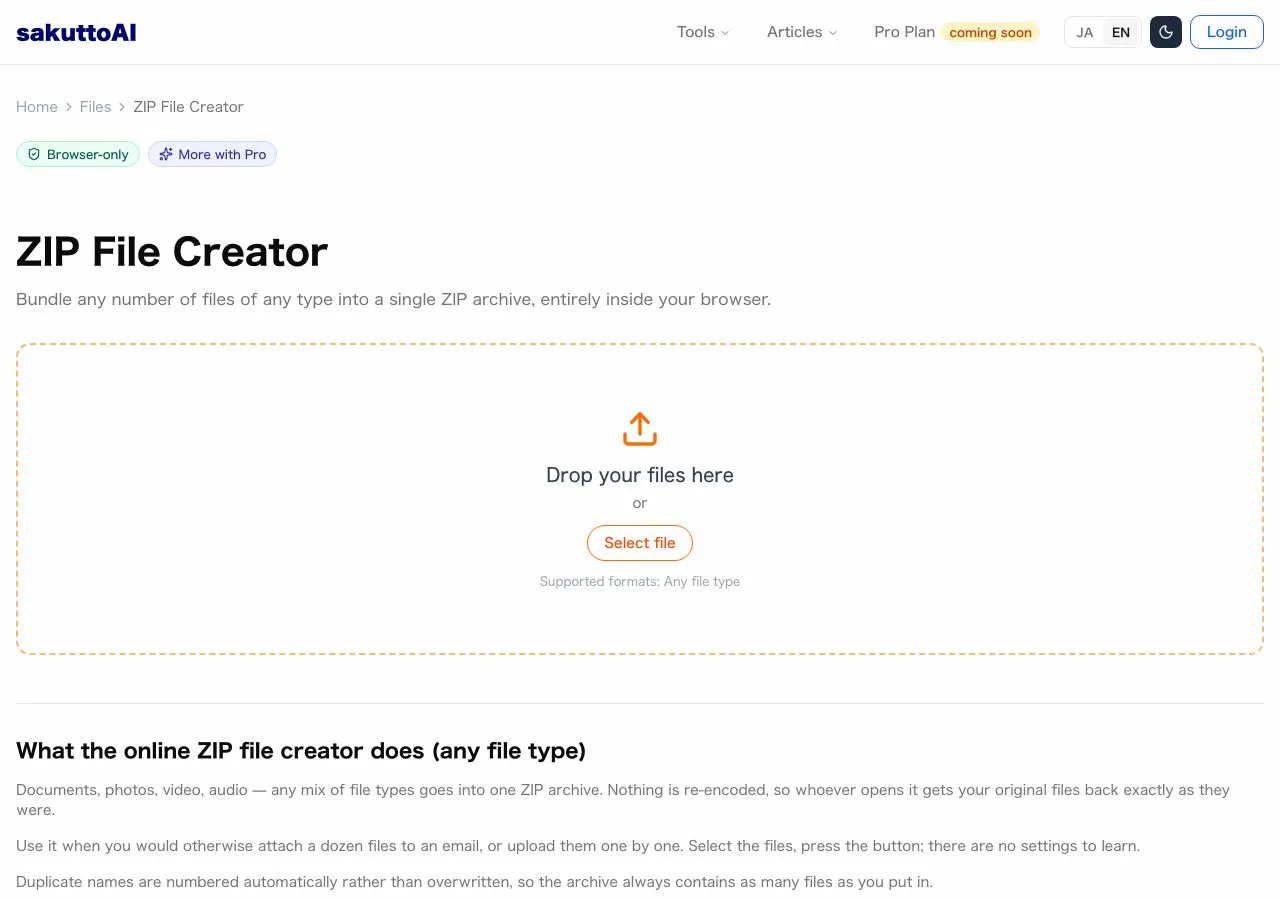
On a machine where the terminal is off limits, the sakutto AI ZIP file creator zips files or a whole folder in a browser tab and returns one archive. The drop area takes the files or the folder directly.
"Travel the directory structure recursively; for example: zip -r foo.zip foo"/"Travel the directory structure recursively starting at the current directory"/"Include relative file paths as part of the names of files stored in the archive. This is the default."/"Store just the name of a saved file (junk the path), and do not store directory names."— from the Info-ZIP zip(1) manual pageView official source →
Zip a file on an iPhone or Android phone
A menu button in the storage browser starts it, and the Android route needs a recent enough version. On iPhone and iPad, open the Files app, choose a location, tap the More button, tap Select, choose the files, tap the More button in the lower right, then tap Compress. One file gives a ZIP with the same file name, and several files give Archive.zip, which can be renamed by touching and holding it.
On Android, Files by Google compresses files to zip format only, so there is no format to pick. It needs Android 8 or newer.
"Open the Files app, then choose a location like On My iPhone or iCloud Drive. Tap the More button, then tap Select."/"Tap the More button in the lower right, then tap Compress."/"If you selected one file, a ZIP file with the same file name saves to that folder. If you selected multiple files, a ZIP archive named Archive.zip saves to that folder. To change its name, touch and hold on the ZIP archive, then select Rename."— from Apple SupportView official source →
"To compress files with Files by Google, you need Android 8 version or up."/"Files will be compressed to zip format."— from Files by Google HelpView official source →
How to password protect a zip file
Windows has no way to set one, while Mac and Linux set it with a single flag at a hidden prompt. Microsoft states that Windows does not support operations on encrypted archive files, and it names non-Microsoft applications such as 7-zip or WinRAR for creating or decompressing them. On Mac and Linux, zip -er secret.zip folder asks for the password at a terminal prompt that is not echoed, and the prompt is repeated to catch typing errors.
The -P flag takes the password on the command line instead, and the manual page marks it THIS IS INSECURE because other users can see the command line and someone can peek over the shoulder. Use -e. The manual page also notes that standard zipfile encryption is relatively weak, and where security matters it recommends strong encryption such as Pretty Good Privacy.
Files that Windows has already encrypted should not go into the archive, because they come out unencrypted when unzipped. Put the password on the archive itself.
"Encrypt the contents of the zip archive using a password which is entered on the terminal in response to a prompt (this will not be echoed; if standard error is not a tty, zip will exit with an error). The password prompt is repeated to save the user from typing errors."/"Use password to encrypt zipfile entries (if any). THIS IS INSECURE! Many multi-user operating systems provide ways for any user to see the current command line of any other user; even on stand-alone systems there is always the threat of over-the-shoulder peeking."/"where security is truly important, use strong encryption such as Pretty Good Privacy instead of the relatively weak standard encryption provided by zipfile utilities"— from the Info-ZIP zip(1) manual pageView official source →
"it does not support operations on encrypted archive files"/"To create/decompress encrypted archives, consider using non-Microsoft applications such as 7-zip or WinRAR."/"If you add encrypted files to a zipped folder, they'll be unencrypted when they're unzipped, which might result in unintentional disclosure of personal or sensitive information. For that reason, we recommend that you avoid zipping encrypted files."— from Microsoft SupportView official source →
Why your zip file is not smaller, and what else goes wrong
Photos arrive already squeezed by their own format, so packing them saves almost nothing. Microsoft notes that some file types, like JPEG images, are already highly compressed.
One archive still beats many attachments, because zipping combines several files into a single zipped folder that is easier to share. Ways to shrink the photos themselves are covered in Reduce image file size without losing quality, and Compress Images Online, Free: JPEG, PNG, WebP covers the browser route.
A stray __MACOSX folder appears when an archive is built with ditto and --sequesterRsrc. A folder holding 2 text files came out as an archive of 7 entries: the folder, the 2 files, a _MACOSX folder, its subfolder, and 2 companion entries named . followed by the file name. These entries are harmless metadata, and unzip -l archive.zip lists them before the archive goes out.
A personal Gmail account allows attachments up to 25 MB (as of October 2026), and past that Gmail removes the attachment and adds it as a Google Drive link in the email. The limit applies to the total attachment size, so a zip full of photos weighs what the photos weighed.
"Some types of files, like JPEG images, are already highly compressed."/"Combine several files into a single zipped folder to more easily share a group of files."— from Microsoft SupportView official source →
"For personal Gmail accounts, the limit is 25 MB."/"If your total attachment size is greater than the limit, Gmail automatically removes the attachment and adds it as a Google Drive link in the email."— from Gmail HelpView official source →
Summary: pick the built-in route, then check the result
Each device already has the feature, and two limits decide whether zipping fits the job. Windows cannot add a password and photos barely shrink, so the right choice depends on what the archive is for. Listing the archive once with unzip -l before sending catches a flattened or cluttered zip.
Which route fits which situation
| Situation | Route |
|---|---|
| Windows, no password | Right-click menu, Compressed (zipped) folder |
| Windows, password needed | 7-zip or WinRAR, the tools Microsoft names |
| Mac, no password | Control-click, Compress |
| Mac or Linux, password needed | zip -er at the prompt, never -P |
| Linux folder with its structure | zip -r |
| iPhone or iPad | Files app, Compress |
| Android | Files by Google, Compress |
| Photos too big to email | A Drive link, since the archive stays as large as the photos |
FAQ
- Can Windows password protect a zip file on its own?
- No. Microsoft states that Windows does not support operations on encrypted archive files, and for creating or decompressing them it names non-Microsoft applications such as 7-zip or WinRAR.
- Why did my zip come out the same size as the original files?
- Because the originals were already compressed. Microsoft notes that some file types, like JPEG images, are already highly compressed, so a zip of photos saves almost nothing. The archive still turns many files into one.
- Why is my zip called Archive.zip instead of the folder name?
- Because several items were selected before compressing. Apple names the archive after the original only when a single item is compressed, and several items at once give Archive.zip. Rename the archive before sending it.
- Does zipping files get me under the Gmail attachment limit?
- Not for photos. Gmail measures the total attachment size, and a zip of photos weighs what the photos weighed. Past the 25 MB <small class="as-of">(as of October 2026)</small> limit on personal accounts, Gmail removes the attachment and adds a Google Drive link.
Related articles
 Keyboard symbols: names and how to type all 33Keyboard symbols: names and the keys that type them in a searchable list, plus Alt codes and Mac Option shortcuts for special characters not on the keyboard.
 How to scan documents to PDF: phone, PC, or storeHow to scan documents to PDF on iPhone, Android, Windows, or Mac, or at a FedEx Office copier, and where each method saves the file.
 Mac keyboard shortcuts vs Windows: 58 comparedMac keyboard shortcuts mapped to the Windows keys they replace, 58 in one searchable table with Chromebook alongside, plus the two places that mapping breaks.
 Excel shortcut keys cheat sheet, Windows and MacExcel shortcut keys cheat sheet for Windows and Mac, grouped by task: copy and paste, insert row, undo and redo, save as, merge cells, and Mac differences.