
The National Tax Agency (NTA) publishes the year-end adjustment forms as PDFs, and the copies you can type into are meant to be opened in Adobe Reader. Before the forms go to your employer, you download the right file, fill it out, fix any typing or printing problems, and then password protect, merge and compress the result.
The forms are in Japanese only. As of October 1, 2026, NTA marks the foreign-language versions of the declaration forms as in preparation, so you will be typing into the Japanese originals.
What the year-end tax adjustment (nenmatsu chosei) forms are
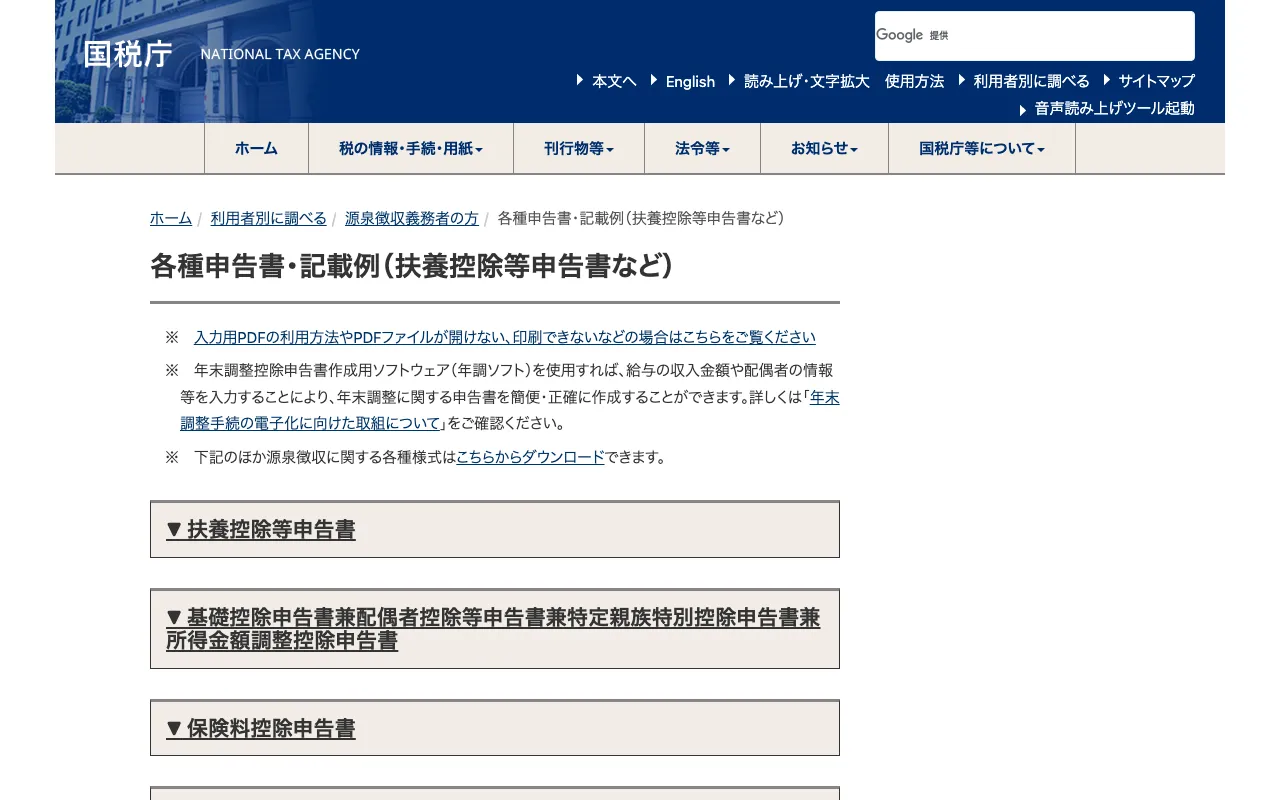
Nenmatsu chosei (年末調整) is the year-end tax adjustment your employer carries out, and your part is to hand declaration forms to your workplace so the deductions that apply to you can be taken into account. NTA keeps these forms in its section for withholding agents, which means employers. The table lists four form types from that section.
| Form | Japanese name | What to know |
|---|---|---|
| Dependent deduction declaration | 扶養控除等(異動)申告書 | Listed per tax year. A simplified version is also listed for Reiwa 9 (2027) |
| Combined basic deduction form | 基礎控除申告書兼配偶者控除等申告書兼特定親族特別控除申告書兼所得金額調整控除申告書 | One form that carries four declarations: basic deduction, spouse deduction and similar, specified-relative special deduction, and income adjustment deduction |
| Insurance premium deduction declaration | 保険料控除申告書 | Listed per tax year |
| Housing loan special deduction declaration | 住宅借入金等特別控除申告書 | Not a blank download. The tax office hands it to you |
The combined form is easy to misread as a single declaration, but its long name lists four, one per part. Every name in the table is the one printed on NTA's page, so you can search the page for it. Your employer will say which of the four you need to hand in.
Where to download the fillable year-end adjustment PDF forms in Japan
Download the input PDF for your tax year from NTA's forms page, which lists the forms per year, most of them with a standard PDF, an input PDF (入力用) and a filled-in sample. The page is titled as the list of declaration forms and filled-in samples, and it gives the dependent deduction declaration as an example.
The input PDF is the one with fields you can type into. The standard PDF is the version without input fields, and the filled-in sample shows a completed example. Keep the sample open next to the form while you type.
NTA writes tax years in the Japanese era form, so Reiwa 8 is 2026 and Reiwa 9 is 2027. The dependent deduction declaration is listed for both years. Take the year your employer asks for.
For Reiwa 9 there is also a simplified version (簡易対応様式) of the dependent declaration. NTA says it can be used when the form is handed in as a "simple declaration". The Reiwa 8 input PDFs run from 1,239KB (the combined form) to 2,359KB (the insurance premium form) before you type anything.
The housing loan form works differently. NTA lists only a filled-in sample, and the tax office issues the real form to you for each year you claim the deduction.
- If you chose electronic delivery when you filed your tax return, the file goes to your e-Tax message box around mid-November (about October under the certificate method).
- Otherwise the paper forms for all the years arrive together around late November of the second year after you moved in (late October under the certificate method).
- NTA adds that the timing can differ depending on the date you filed the return for the first year you claim the deduction.
The page also has a foreign-language section, where the declaration forms and the English leaflet for salaried employees carry a 準備中 ("preparing") label. Until that changes there is no English version of the forms to download. The other languages listed are Chinese, Portuguese, Spanish, Vietnamese and Filipino.
How to fill out a PDF form in Adobe Reader
Save the input PDF to your computer, then open it from inside Adobe Reader with Open file and type into the fields. NTA gives this method on the same forms page, with one warning: the input PDF does not support viewing or use in a web browser.
- Download the input PDF and save it to your desktop or another working folder.
- Start Adobe Reader, choose Open file, open the PDF you just saved, and type into the form fields.
If you do not have Adobe Reader, NTA points to Adobe's download site. The filled-in sample on the same page is a separate file, so download it too if you want a reference.
Can't type in a fillable PDF? Fixes for Adobe Reader and printing
If you cannot type into the fillable PDF, or some characters go missing when you print, check the three causes NTA names: a browser, other PDF software, or an old Adobe Reader. The fix for each is below.
- Browser. The input PDF has to be downloaded to your desktop or a similar folder. It does not support use in a browser.
- Other PDF software. Use Adobe Reader. With other PDF viewers, typing may fail and some characters may not print.
- Old Adobe Reader. Update to the latest version. With any version but the latest, typing may fail and some characters may not print.
NTA also warns that the input PDF may not work at all, depending on your environment. It names security settings and use on a smartphone or tablet. If you are on a phone or tablet, switch to a computer.
If the form prints with an edge cut off, that depends on the printer. NTA's advice is to print at reduced size.
Password protect a PDF before you email your year-end adjustment forms
Put a password on the filled form before it leaves your computer, and send the password by a different route from the file. A filled form holds your family and insurance details, which is why a plain attachment is a poor idea. A password sent in the same email gives little protection, so use a separate chat message, a call, or hand it over in person.
Fill out the form first and add the password afterwards. If you will also merge or compress it, do those first and add the password last, so it sits on the file you actually send. Your employer opens the protected file with the password you give them, so tell them to expect it.
sakuttoAI's PDF password tool runs in your browser and does not upload the file. That means the filled form stays on your computer while the password is added.
Merge PDF files and reduce the PDF file size before you submit
If your employer wants one file, merge the filled forms and your scanned certificates into a single PDF, and compress it only if the file is rejected for being too large. Do the merge first, then check the size.
A filled form starts from the input PDF sizes above. Check the size of the file you actually have before you compress anything.
How much a PDF shrinks depends on what is inside it as well as on the level you pick. Compress PDF Online Free: Pick the Right Level shows how far scans and text-only PDFs shrink at each setting.
- Standard shrinks and re-encodes the images in the PDF. It cuts around 60–90% for image-heavy PDFs, such as scanned insurance certificates.
- High cuts around 70–90% for image-heavy PDFs.
- Low keeps the images as they are and barely shrinks the file.
- A text-only PDF barely shrinks at any level (about 1% in sakuttoAI's own test).
If the file is large because of scans, Standard is the level to try first. If it is mostly text, compressing is unlikely to help, so ask your employer how else to send it.
Submit your year-end tax adjustment forms to your employer in Japan
What to hand in, and in what form, is your employer's rule, so ask before you send anything. NTA's pages sit under the section for withholding agents and do not say employees may send these forms by email. Ask whether your employer wants paper, a PDF, or a file made with NTA's year-end adjustment software (年調ソフト).
NTA describes the software as a way to create the declaration forms simply and accurately by entering salary income and spouse information. The deadline for handing in the forms is not on NTA's pages either, so ask your employer for it. Before you hand the forms in, run through this list.
- The tax year on each file is the one your employer asked for
- You typed into the input PDF in Adobe Reader, not in a browser
- Nothing is cut off on the printed page, if you are printing
- The housing loan form, if you claim that deduction, is the one the tax office sent you
- The file has a password if it is going by email, and the password goes by another route
- The file is small enough for your employer's system to accept
FAQ
- Where can I download the year-end adjustment PDF forms?
- From the National Tax Agency (NTA) page for declaration forms and filled-in samples. Each form is listed per tax year, and most entries offer a standard PDF, an input PDF and a filled-in sample. Download the input PDF if you want to type on a computer. Of the four forms, the housing loan form is the exception: the tax office hands it to you.
- Is there an English version of the forms?
- Not yet. NTA lists foreign-language versions of the declaration forms and the English leaflet for salaried employees with a label that means "preparing", so you fill in the Japanese forms.
- Why can't I type into the year-end adjustment PDF?
- NTA names three causes. You opened the input PDF in a browser instead of saving it and opening it in Adobe Reader, you used other PDF software, or your Adobe Reader is not the latest version. Phones, tablets and some security settings may not work either.
- Can I submit the forms as PDFs?
- That is your employer's decision. NTA's pages do not say employees may email these forms, so ask which form your employer accepts: paper, a PDF, or a file made with NTA's year-end adjustment software. If you email a PDF, password protect it first.
- What if the PDF is too large to submit?
- Use sakuttoAI's PDF compressor, but how much you save depends on what is inside the PDF as well as on the level you pick. Image-heavy files such as scanned certificates shrink by around 60–90% on Standard. A text-only PDF barely shrinks at any level (about 1% in sakuttoAI's own test).
Related articles
 Claude Fable 5.2: 20% price cut, up to 30% fasterAnthropic released Claude Fable 5.2 on November 9, 2026. API prices fall 20% to $8/$40 per million tokens, and output is up to 30% faster than Fable 5.1.
 PayPay security and passkeys in 10 Japan pay appsPayPay security compared with 9 other Japanese payment apps: passkeys, extra checks to send or pay, and fraud compensation deadlines.
 AI fact check: only 40% of cited stats hold upAI fact check: Trakkr traced 1,285 stats cited by ChatGPT, Perplexity, Gemini, Claude and AI Overviews. Only 40% led to a matching study. How to check one.
 Akamai: online scams double and overtake phishingAkamai's fraud report says online scams doubled to about 6.4 million and passed phishing in Q1 2026, while phishing sites now last 22 days instead of 48.