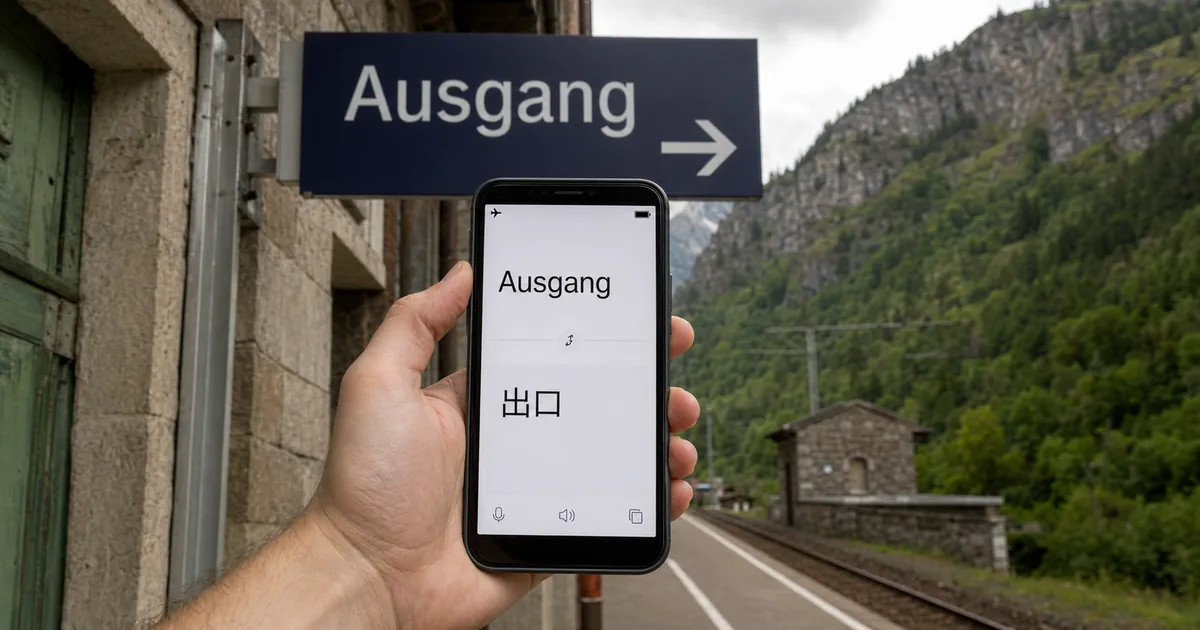
What is Offline Translator, a free offline translation app?
Offline Translator translates text, images and PDF or ODT files on an Android phone, and it is free and open source. Once its language packs are downloaded, translating needs no internet connection, with one exception: a shared web link has to load first. David Ventura developed it, and the project is funded through NLnet's NGI Mobifree Fund.
Offline Translator at a glance
It runs every translation on your phone
A cloud translator sends what you type to a server and waits for the reply. Offline Translator does the translating, the reading of text in photos and the dictionary lookups on the phone itself. Its F-Droid listing says the app translates "without sending your data to external servers".
That matters for two reasons. The app still works on a plane, on a trip abroad without a data plan or in a basement with no signal. And the text you translate on the phone is not sent to a translation company's server.
One case differs. When you share a web link, the app opens the page in its own browser view, and that view loads the page from the web. Only the translation of the page happens on the phone, so a link needs a connection, and the site that hosts the page receives the request.
"A translator app that performs on-device translation of text, images and pdf/odt documents without sending your data to external servers." — F-Droid listingView official source →
Free, open source and Android only
The app costs nothing, its code is public under the GPL-3.0-or-later license, and it runs only on Android. The GPL is an open-source license that lets anyone read, change and share the code. The project is hosted on GitHub, with a mirror on Codeberg.
As of September 29, 2026, the version on F-Droid is 0.8.5, added on September 12, 2026. The README points to F-Droid for installation and shows no other store.
"GNU General Public License v3.0 or later"/"Added on Sep 12, 2026"/"This version requires Android 6.0 or newer." — F-Droid listing, version 0.8.5View official source →
What can an offline translator app translate?
Offline Translator takes typed or shared text, web links, images and PDF or ODT files, and its language list has 61 entries. It also looks up single words in a dictionary, reads results aloud in most languages and translates text that other apps show on screen.
61 language entries, from Albanian to Vietnamese
As of September 29, 2026, the README and the F-Droid listing show the same list of 61 entries, in alphabetical order. The list includes Arabic, English, Hindi, Japanese, Korean, Thai, Urdu, Uyghur and Vietnamese.
That 61 counts list entries, not distinct languages. Chinese appears twice, once in simplified and once in traditional script. Three entries cover Norwegian: plain Norwegian, Bokmål and Nynorsk.
Japanese gets one extra: a second dictionary, Mecab, that transliterates kanji. For other non-Latin scripts the app offers transliteration too, which shows how a word is pronounced in Latin letters.
"Supports 61 languages:" — F-Droid listingView official source →
"For Japanese specifically, there's a second \"word dictionary\" (Mecab) for transliterating Kanji" — official repository READMEView official source →
Text, links, images and PDF or ODT files
Text, links and images go in through Android's share menu, and text can also be typed straight into the app. A PDF or ODT file is the only input that starts from the app's documents tab.
How to send each kind of input to Offline Translator
| What you want translated | How to send it |
|---|---|
| Text | Share it from any app, or type it in |
| A web link | Share the link from any app; the page has to load from the web first |
| An image | Share the image from any app |
| A PDF or ODT file | Open the documents tab in the app |
For an image, the app reads the text with OCR (optical character recognition, software that turns the letters in a picture into text). It then draws the translation over the picture in the original layout, so it works as an offline image translator. A document goes through the same on-phone translation: the app translates PDF files, along with ODT files in the OpenDocument text format.
"Translate text"/"Share text from any app, or type directly"/"Translate a URL"/"Share a link from any app"/"Translate an image"/"Share an image from any app"/"Translate a document"/"Open the documents tab inside the app" — feature table in the official repository READMEView official source →
Dictionary, speech and on-screen translation
Long-press a word inside the app for its dictionary entry, which is built from Wiktionary data. Long-press the play button to change the voice or the speed of text-to-speech.
In other apps, long-press some text and tap Translate in the copy and share bar to get a small popup with the result. The F-Droid listing adds that the app can translate what is on screen through the Accessibility service or the Device Assistant role. Developers can also request translations from their own apps through the API the app exposes, defined in ITranslationService.aidl.
"Quick translation of on-screen content via Accessibility service or Device Assistant role" — F-Droid listingView official source →
"Dictionary lookup"/"Long-press a word inside the app"/"Change TTS voice / speed"/"Long-press the play button" — feature table in the official repository READMEView official source →
How does Offline Translator translate with no connection?
It translates offline because the files a translation needs are downloaded to the phone first, as language packs. After the download, the translation model lives on the device, so translating needs no connection. Only two steps need a connection: downloading the packs, and loading a web link you share.
Language packs hold the full translation models
A language pack is the bundle of files the app downloads for one language. In Offline Translator a pack contains the full translation model, so after the download the translation runs on the phone and sends no request out. The project's own screenshot of the language screen shows the Dutch entry split into three parts, a translation model, a dictionary and a text-to-speech voice, and each part has its own delete button.
The packs come from a content delivery network (CDN), a network of servers that hands out large files quickly. Every first download is therefore a network request to that CDN.
"download language packs once, translate forever without internet."/"Language packs contain the full translation models, translation happens _on your device_, no requests are sent to external servers." — "How It Works" section of the official repository READMEView official source →
Open components behind the translation
The README names the open projects the main parts of the app are built on, so anyone can look up what runs on the phone. Translation uses the Firefox translation models from Mozilla. PaddleOCR reads text in images, and cld2 works out which language a text is in.
The dictionary is built on Wiktionary data exported by Kaikki. The voices come from projects including Piper, Coqui and Kokoro. PDF files are handled with mupdf and lopdf.
"Translation models are Firefox' translations models"/"OCR models are PaddleOCR"/"Automatic language detection is done via cld2"/"Dictionary is based on data from Wiktionary, exported by Kaikki" — "Tech" section of the official repository READMEView official source →
Setting up a phone that has no internet
A phone that never goes online can still use the app, as long as the language files are copied onto it by hand. Normally the app fetches everything itself; this route is only for files you download on another device. A helper script in the project, download_offline.py, pulls the prebuilt files from the CDN for the languages you name.
On the phone, turn on Use external storage under Advanced in the app's settings. Copy the files, uncompressed, into Documents/dev.davidv.translator.
Include both directions for each language, into English and out of it, or that language will not show up. Then restart the app, and the installed languages appear on their own.
"You only need this guide if you want to download files on another device and then copy them to where you intend to use the translator. In the normal case the app downloads everything itself."/"After copying files, restart the Translator app. Available languages, and their OCR/TTS icons, appear automatically." — offline setup guide in the official repositoryView official source →
How do you set up an offline translator app on Android?
Setting up takes three steps: install Offline Translator from F-Droid, download the language packs you need while you are on Wi-Fi, then share or type something to translate. Only the first two steps need a connection. From the third step on, the app works without one, except when it loads a web page you shared.
Getting started on Android
- Install Offline Translator from F-Droid
- Download the language packs you need, on Wi-Fi
- Share text, a link, an image or a document to the app
Install from F-Droid
F-Droid is a catalog of free and open-source Android apps, and it is where the README sends you for Offline Translator. Install the F-Droid client, search for Offline Translator and install it from there. The listing also offers the installer file directly, at 42 MiB for arm64-v8a phones. F-Droid recommends its client over that file, because an installer file saved by hand gets no update notifications.
"We recommend that you install the F-Droid client and use that." — F-Droid listingView official source →
Download the language packs you need
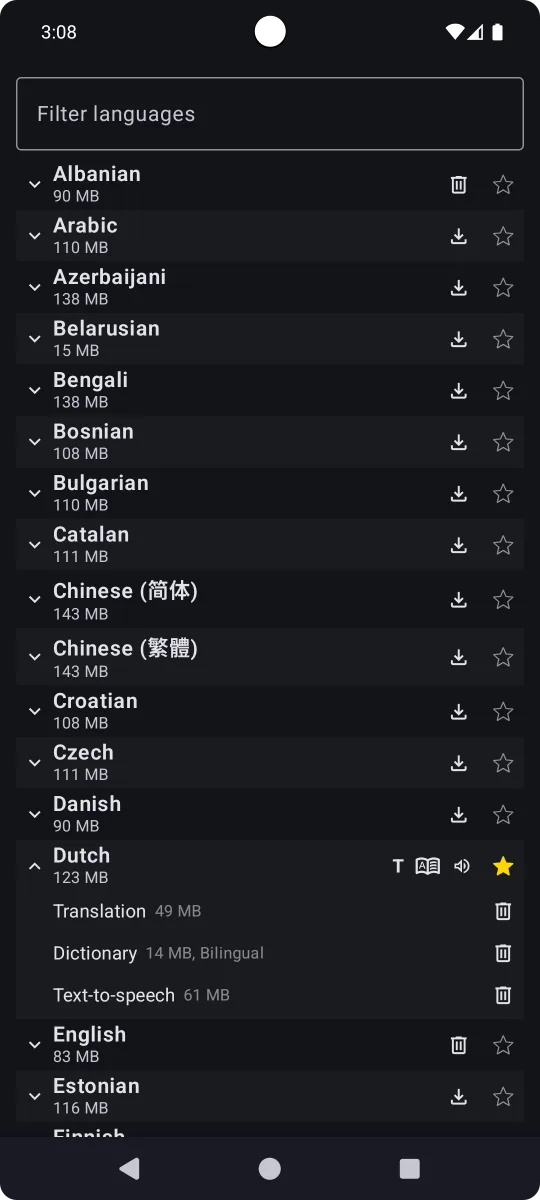
Open the language list in the app and tap the download button next to each language you want. Each row shows its size before you download. For an installed language, you can open the row and delete the dictionary or the voice if the translation alone is enough.
Do this on Wi-Fi before you travel. Once the packs are installed, the app no longer needs a connection to translate.
Translate text, images and documents
In any app, tap Share on a piece of text, a link or a photo and send it to the translator. For a PDF or ODT file, open the documents tab inside the app instead.
Offline Translator vs Google Translate offline
Both apps translate with no connection once a language is downloaded. They differ in who makes them and which phones they run on. Offline Translator is Android only, and it publishes its code and names its components. Google Translate runs on Android, iPhone and iPad. Neither the project's pages nor Google's help page compares the quality of the two apps' translations.
What both do without a connection
Google Translate has an offline mode of its own. Google's help page says you can download languages to your device and then translate them without an internet connection, on Android as well as on iPhone and iPad. Google adds that camera translation may also work for a downloaded language.
The same page tells you to connect to Wi-Fi before downloading, and notes that language files are small enough to fetch over mobile data if you have to. That is the same pattern as Offline Translator: download while you are online, translate later without a signal.
"You can download languages onto your device. This lets you translate them without an internet connection."/"Before you download languages, connect to Wi-Fi." — Google Translate HelpView official source →
Where the two differ
The clearest practical difference is the phone: Offline Translator is Android only, while Google Translate's offline languages also work on iPhone and iPad. The comparison "Offline Translator and Google Translate side by side" lists who makes each app, which devices it runs on and what works without a connection.
Offline Translator and Google Translate side by side
| Offline Translator | Google Translate | |
|---|---|---|
| Made by | David Ventura | |
| Runs on | Android 6.0 or newer | Android, iPhone and iPad |
| Offline use | Text, images, PDF and ODT files; a shared link needs a connection to load | Downloaded languages; camera translation may work |
Offline Translator's code is public and its README names the components it is built on, so anyone who reads code can check what happens to the text on the phone. On an iPhone, Google Translate is the only one of the two that runs. On Android, Offline Translator is the one to try when being able to inspect the software matters.
"You can download languages onto your device. This lets you translate them without an internet connection." — Google Translate Help, iPhone & iPad versionView official source →
What are the limits of an offline translation app?
Offline Translator has three limits: it runs only on Android, every language takes storage space, and the project publishes no comparison of its translations with cloud services. Check all three before you travel, because abroad a full phone or the wrong phone is hard to work around.
Android only, with no iPhone version listed
iPhone users need a different app: the README describes an Android app and lists no iPhone version. F-Droid, where the README sends you, is a catalog of Android apps, and the listing requires Android 6.0 or newer. Between Offline Translator and Google Translate, only Google Translate has offline languages for iPhone.
"An Android translator app that performs text, PDF/ODT documents and image translation completely offline using on-device models." — official repository READMEView official source →
Language packs take up storage
Because a pack holds a whole translation model, each language you add takes up space on the phone. The README gives no size table. In the project's own screenshot of the language list, Dutch with all three parts installed comes to 123 MB: 49 MB for the translation model, 14 MB for the dictionary and 61 MB for the voice. The screenshot shows whole megabytes, so the parts do not add up exactly.
The app itself is a 42 MiB download from F-Droid for arm64-v8a phones, before any language. Install only the languages you expect to need. Sizes in a screenshot can change between releases, so check the list in the app before a trip.
The project publishes no cloud comparison to lean on
Neither the README nor the F-Droid listing compares Offline Translator's output with cloud services, so there is no official basis for calling it better or worse. Mozilla has published automatic scores comparing its Firefox translation models with Google's and Microsoft's translation APIs, but those scores test the models, not this app.
The F-Droid changelog does flag a weak model. For version 0.8.4, the developer called Georgian support not very good yet and asked users for feedback.
For anything that matters, such as a message you will send or a document you will sign, have a fluent speaker check the result. That holds for any machine translation, online or offline.
"Support Georgian (v1, not very good yet, share feedback)" — F-Droid listing, "New in version 0.8.4"View official source →
Who Offline Translator suits, and when to use another app
Offline Translator suits Android users who want to translate text, images and PDF or ODT files with no signal, or who want the translation to stay on the phone. It is free, lists 61 language entries and is built from open components. The right choice depends on the phone and the job:
- An Android phone, with text, photos or PDF files to translate away from a connection: install Offline Translator from F-Droid and download the language packs on Wi-Fi beforehand.
- A phone that never goes online: copy the language files onto it by hand, with both directions for each language, as the offline setup guide describes.
- An iPhone or iPad: use Google Translate, whose help page confirms downloadable offline languages on those devices. Offline Translator lists no iPhone version.
- A message to send or a document to sign: use either app for a first draft, then have a fluent speaker check it, because neither app's pages publish a quality comparison.
- A web page: the app needs a connection to load a shared link, so download the text of the page first if there will be no signal.
Offline Translator accepts a shared link directly, but a text copy of a public web page is easier to keep or to translate in parts. The URL to Markdown Converter below turns a page into Markdown text.
The converter fetches the page through sakuttoAI's server, so use it only for public pages. If the translation is headed for your own site, Meta Description Length and SEO Title Length covers where search results cut off the title and description.
FAQ
- Does Offline Translator work without an internet connection?
- Yes, once the language packs are on the phone. Translation, text recognition and dictionary lookups then run on the device, and no translation requests go to outside servers. Downloading a pack in the first place, and loading a shared web link, do need a connection.
- Is Offline Translator available for iPhone?
- No iPhone version is listed. The README describes an Android app and points to F-Droid, and the F-Droid listing requires Android 6.0 or newer.
- Is Offline Translator free to download?
- Yes. It is a free download from F-Droid, and its source code is public under the GNU General Public License v3.0 or later.
- Can Offline Translator translate images and PDF files offline?
- Yes. It reads the text in an image and lays the translation over the picture in the original layout, and it translates PDF and ODT files from the documents tab inside the app.
- Can Google Translate be used offline too?
- Yes. Google's help page says you can download languages to your device and then translate them without an internet connection, on Android as well as on iPhone and iPad. Google suggests connecting to Wi-Fi before downloading.
- Can I set up Offline Translator on a phone that never goes online?
- Yes, by copying the language files onto it. Download them on another device, turn on Use external storage in the app's advanced settings, and place the files in Documents/dev.davidv.translator with both directions for each language.
- Does Offline Translator handle Japanese?
- Yes. Japanese is on the language list, and the app includes a second dictionary, Mecab, to transliterate kanji.
Related articles
 Survival LLM: offline AI assistant for emergenciesSurvival LLM is a free offline AI assistant that keeps a local model and 1.5 million reference articles on your computer and cites sources with no internet.
 Google Messages not sending? Restart after new SIMGoogle Messages not sending after you added a SIM to your Pixel? A restart fixed it on my Pixel 10a. If it doesn't, try these four fixes in order.
 Keyboard symbols: names and how to type all 33Keyboard symbols: names and the keys that type them in a searchable list, plus Alt codes and Mac Option shortcuts for special characters not on the keyboard.
 How to scan documents to PDF: phone, PC, or storeHow to scan documents to PDF on iPhone, Android, Windows, or Mac, or at a FedEx Office copier, and where each method saves the file.