
A single PDF often holds more than one recipient needs, such as a contract with two relevant pages or a report written for three teams. Splitting turns that one file into separate PDFs, and a free browser tool can do it without any installation.
What is a PDF splitter and what can it do?
Cutting a file apart by page produces new PDFs, so each recipient gets only the pages meant for them. A PDF splitter is the tool that does the cutting: it takes one file and returns several, and the original stays where it was.
Three jobs come up most often. One person sends a client two pages of a contract instead of the whole document, and another saves every page of a scan as its own file. A team lead hands each chapter of a report to the person who owns it.
Split PDF pages free in your browser with sakuttoAI
Three moves cover the whole job, and no software has to be installed first. Add the PDF, choose how it should be cut, then start the split and download the new files.
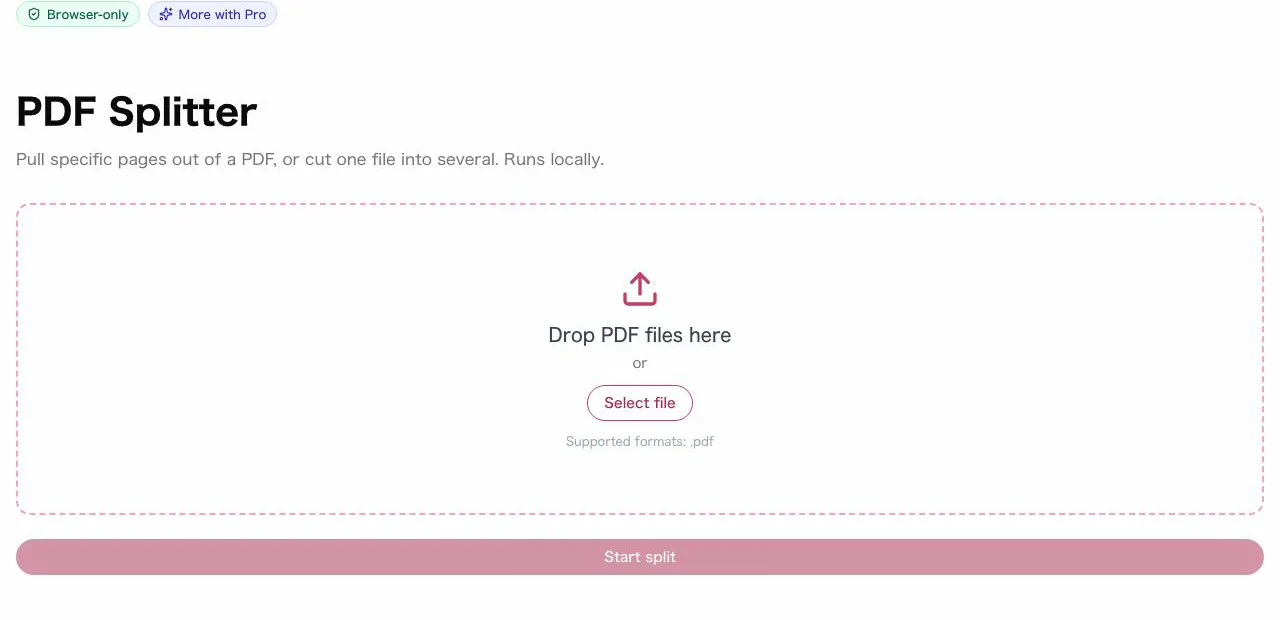
- Drop the PDF onto the dashed zone labeled "Drop PDF files here", or press "Select file".
- Choose a split mode: page range, fixed page count, or extract pages.
- Press "Start split" and download the new PDF files.
The file tools need a free account (email link or Google, no password). Free accounts get 3 tasks per day(as of October 2026) in total across all file tools, and Pro is unlimited. The split itself runs in the browser tab, so the PDF stays on the computer in use.
Which split mode fits: page range, fixed count or extract
The choice depends on how many pages are wanted and whether the result should be one file or many. The tool offers three modes, and "The three split modes and the job each one fits" sets each one against the job it fits.
The three split modes and the job each one fits
| Mode | Fits | Result |
|---|---|---|
| Page range | Chapters or sections | One file per range entered |
| Fixed page count | One file per page, or equal parts | A new file every N pages |
| Extract pages | A few pages from a long file | Only the pages chosen |
Matching a job to a mode takes one question. Pick by the outcome wanted:
- A few pages from a long file: extract pages.
- One file for every page: fixed page count, set to 1.
- A long file cut into sections: page range, with one range per section.
Separate PDF pages: save each one as its own file
A count of 1 turns every sheet into a standalone document, which suits scans headed to different people or folders. The tool describes the fixed count mode as "Auto-split every N pages", so a count of 1 starts a new file after each page.
A 20-page PDF therefore comes out as 20 separate files. The original stays untouched, so the same file can be split again later with different settings. This route also answers "split pdf into individual pages", because the result is one document per page with no page left over.
Extract pages from a PDF without the rest
Pulling out a few sheets from a long file is quicker in this mode, because the remaining ones never reach the output. Extract pages creates a new file that holds only the pages that were chosen.
A typical case is a contract of many pages where the client needs only the signature page and the price list. Extract those two, send the new file, and the rest of the contract never leaves the computer. If every page is wanted as its own file instead, the fixed count mode with a count of 1 is the better fit.
Split a long PDF into chapters by page range
Sections handed to different teams follow natural breaks in a long document, and one range per section keeps each team's file self-contained. "A 30-page report cut into three parts" shows one range per section.
A 30-page report cut into three parts
| File | Pages |
|---|---|
| Part 1 | 1-10 |
| Part 2 | 11-20 |
| Part 3 | 21-30 |
Three ranges give three files, each as long as its range. Ranges should not overlap and should cover every page that someone needs, otherwise a page is repeated in two files or lost from all of them. Checking the first and last page of each new file against the original takes a minute and catches both problems.
Is it safe to split a PDF online?
The sakuttoAI tool keeps the document on the computer in use, because the cutting runs inside the browser tab rather than on a remote server. The tool's own FAQ answers the upload question with "No. The split happens in the browser tab, on your own machine." The screen also carries a "Browser-only" badge.
Each online service handles files in its own way, and sakuttoAI's statement covers only its own tool. Splitting creates new PDFs and leaves the source file where it was, so keep the original until the pieces have been checked and sent.
Online splitter or desktop app: which to use
Whether software can be installed on the computer in use, and whether the work must happen without a connection, settle the question. A browser tool needs nothing installed and runs in any browser. Desktop programs work offline: PDFgear's page offers an offline split option, and PDF Chef describes a desktop PDF editor.
Each case points to one choice. The usual situations sort as follows:
- A work computer or a borrowed laptop where installing software is not an option: the browser tool.
- A one-off job that should take a minute: the browser tool.
- Work that has to continue with no connection: a desktop app installed beforehand.
If the pieces are still large, compress them
Splitting decides which pages a file holds, not how heavily they are compressed, so a piece can still be too big for an email or upload form. The fix is a second step: split first, then run the pieces through the sakuttoAI PDF compression tool.
Picking a compression level is covered in Compress PDF Online Free: Pick the Right Level. If the pieces later need to be put back together in a new order, Merge PDF Files Free: Combine PDFs Online shows the reverse step.
Summary: pick the mode that matches the pages you need
Each of the three options answers a different job, and none of them touches the original file. The rule for each is short:
- A few pages from a long file: extract pages.
- One file for every page: fixed page count, set to 1.
- Chapters or sections: page range, with one range per part.
The next action is to open the splitter, drop in the PDF and run the mode that fits. Pieces that are still too large go through the compression tool afterwards, and the original stays in its folder as the backup.
FAQ
- Is PDF splitting free?
- Yes. sakuttoAI's PDF splitter is free once you sign in with a free account (email link or Google, no password). Free accounts get 3 tasks per day in total across all file tools; Pro is unlimited.
- How do I save each page of a PDF as a separate file?
- In sakuttoAI, choose "Split by fixed page count" mode and set the count to "1." Every page will be saved as an individual PDF file.
- Can I split PDFs on my phone?
- The sakuttoAI PDF splitter is a regular web page, not an app, and the split runs inside the browser tab on your own device. Nothing has to be installed first.
- Are there limits on page count or file size?
- The tool lists "no page limit." File size depends on your browser's available memory.
- Are my files uploaded to a server?
- No. The sakuttoAI tool states that the split happens in the browser tab, on your own machine. Keep the original file anyway, because splitting creates new PDFs and leaves the source untouched.
Related articles
 Merge PDF Files Free: Combine PDFs OnlineMerge PDF files free in your browser with a free account and nothing to install. Covers page order, daily plan limits and how it compares with desktop tools.
 Are Online PDF Tools Safe? Merging and UploadsAre online PDF tools safe for a confidential file? See how server-upload and in-browser merging differ, and four checks that show which one a tool uses.
 Image Compressor Limits: 5 Free Tools MeasuredA free image compressor is capped three ways: file size, batch count, and where the file goes. TinyPNG stops at 20 images and 5 MB. What each tool allows.
 Full Width to Half Width Character Converter, FreeConvert full width to half width characters free online: alphanumerics, katakana, symbols, and spaces, plus katakana to hiragana, all in your browser.