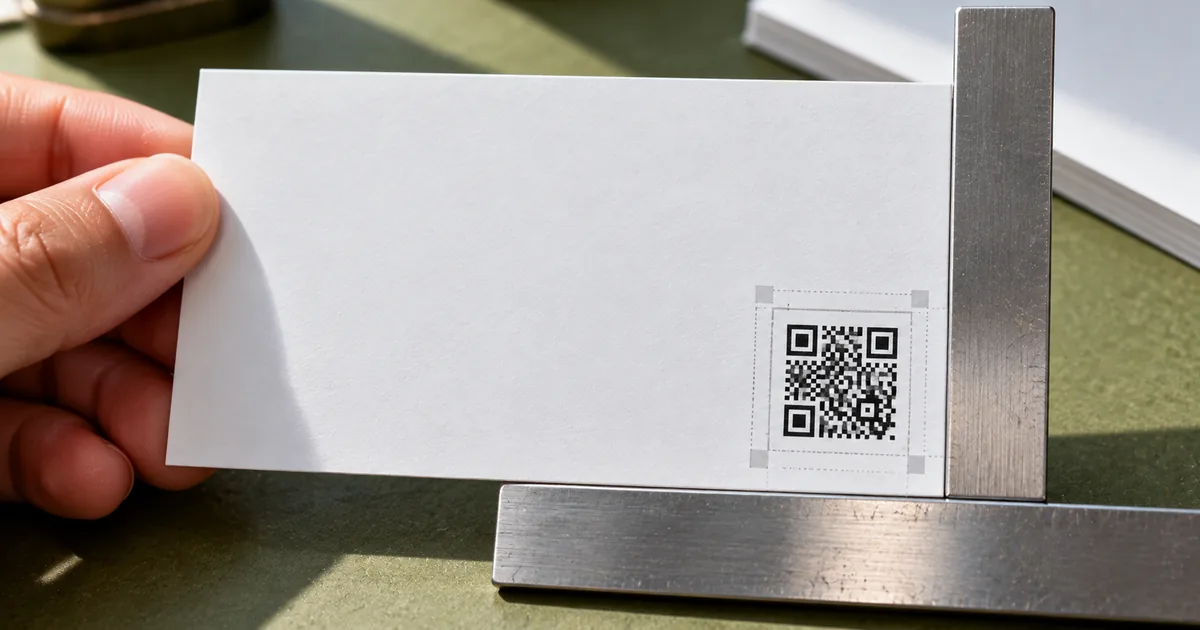
A QR code on a business card lets recipients open your website, save your contact details, or follow your social profile with a single scan. Whether people actually scan it comes down to four things: what it links to, how big it is, where it sits, and how it's designed.
What to embed in your business card QR code
What the code should point to depends on what you want the recipient to do next. That choice also shapes how small the code can go, because simpler data makes a simpler, more scannable code.
Website URL: the simplest option to scan
A URL is the most common choice. It keeps the encoded data short, which keeps the QR code's internal pattern simple and easier to scan even at a small size. It works well for sales professionals and freelancers pointing to a single site or portfolio page.
vCard: save contact details in one scan
A vCard embeds your name, phone number, email, and address directly in the code. Scanning it lets the recipient save you as a contact in one step, with no separate page to visit. The tradeoff is more encoded data, which produces a denser code — give it a little more room than a URL-only code would need.
Social profile or link aggregator page
A single social profile link suits marketers and creators who want to grow a following. Linking to LinkedIn, X, or Instagram works well for that goal. If you have several links to share — a site, a portfolio, multiple social profiles — a link aggregator page (Linktree and similar services) combines them behind one QR code.
Static or dynamic QR code: which one to use
Decide whether the code's destination needs to stay editable before you order printed cards. This is separate from what the code links to: it decides whether that link can change later.
A static QR code encodes the destination directly and permanently. A dynamic QR code instead encodes a short redirect URL that you control, so you can repoint it to a new destination after the cards are already printed.
What breaks if the URL changes after printing
Printed business cards can't be edited, so a dead destination stays dead until you reprint. If a static code's destination goes offline, moves, or gets renamed, every card already handed out points to a dead link. A dynamic QR code, or a static code that points to a redirect URL or shortener you control, avoids that: you update the destination once, and every printed card follows the change automatically.
How to create a QR code for a business card
With the destination decided, generating the code itself is quick. The two choices that matter most are which generator you use and whether you start from a business-card-specific template.
Pick a QR code generator and enter your destination
Use sakuttoAI's QR code generator to create your code. Enter the destination, then customize the foreground color and dot style to match your brand.
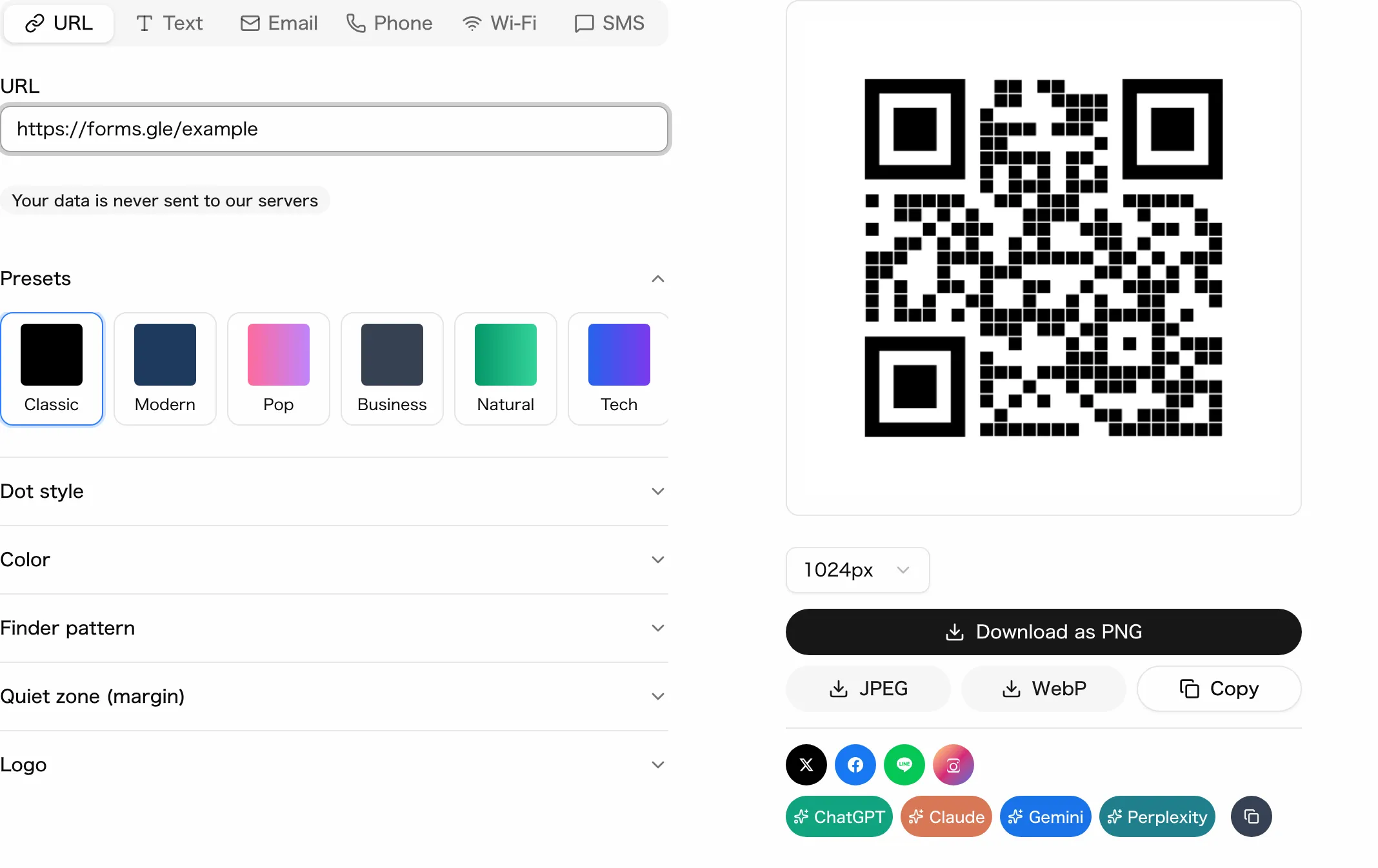
Use a template made for business cards
A business-card-specific QR template saves you a resizing step later. If your card design software offers one, use it: it already accounts for the card's small dimensions and standard print margins. Export as SVG (vector) if your printer accepts it, since it scales to the exact print size without losing sharpness the way a low-resolution PNG can.
Size and placement on the business card
Size and placement decide whether the printed card scans at all. Get either one wrong and the code fails no matter what it links to.
Minimum size: how small is too small
There's no single official minimum every printer and phone camera agrees on. Treat any centimeter figure you see online as a starting point, not a guarantee.
What sets the floor is the amount of data encoded (a plain URL can go smaller than a dense vCard) and the print quality of the specific printer and paper you're using. The reliable check is a physical one: print a sample card at the size you're planning, then scan it with more than one phone under normal light — not a screen preview, which will always look scannable.
Best placement: front, back, or both
A lower corner on the back of the card is a safe default placement. It keeps the front of the card focused on your name and title and reads as a deliberate design choice rather than a late addition.
A front placement, in a lower corner or along one edge, can work too, especially on vertical layouts with room for it. Wherever you place it, keep it away from the card's trim edge — printers cut with some tolerance, and a code sitting right at the edge risks having part of it clipped off.
Design choices: color, contrast, and background
A QR code doesn't have to be plain black on white to work. Color, contrast and background can still help or hurt scannability.
Using your brand color without losing contrast
Swapping the foreground color for your brand color is fine as long as it stays clearly distinct from the background. This is the same underlying logic web accessibility guidelines use for text contrast — a phone camera has to tell the dark modules apart from the background, and low contrast makes that harder.
"a contrast ratio of at least 4.5:1 for normal text and 3:1 for large text"— from WebAIM (web content contrast guidance, cited here only as an analogy — it is not a QR-specific scanning standard)View official source →
Black-and-white vs colored codes
Standard black-on-white remains the safest default because it maximizes contrast with the least effort. If you do color it, keep the foreground dark and the background light (not the reverse) and avoid pairing two similarly light or two similarly dark tones. If you add a logo in the center, keep it small relative to the whole code — the code needs enough of its pattern intact around the logo to still resolve correctly when scanned.
Turn the QR code into a marketing tool
Once the code exists, what you point it at can do more than share a single link. The destination itself can double as a lead-capture or campaign tool.
Add a call-to-action next to the code
A code with no explanation gets ignored, so pair it with a short label. A bare code gives the recipient no reason to reach for a phone. A short label like "Scan to save my contact" or "Scan for my portfolio" tells them what they'll get for the effort.
Point it at a booking form, message account, or campaign
Pointing the code at a booking or inquiry form shortens the path from handing over a card to getting a reply. This works well for consultants and service providers.
Pointing it at a messaging account, such as a business WhatsApp, turns a card exchange into an open conversation. If you're using a dynamic code or a link aggregator page, you can swap the destination for a seasonal campaign or a new portfolio without reprinting a single card.
Why QR codes fail to scan on a card
Scan failures on a card usually come from one of two causes: a missing quiet zone or an untested print. Both can be caught before a full print run.
Not enough quiet zone around the code
The quiet zone is the blank margin that has to surround a QR code for scanners to reliably locate its edges. Cropping the code tightly, printing text or graphics right up against it, or placing it too close to the card's own trim edge can all eat into that margin. The result is a code that looks fine on screen but fails intermittently in someone's hand.
Test the printed card, not just the screen
A code that scans perfectly on your monitor can still fail once it's printed. Glossy or textured paper stock can create reflections that confuse a phone camera, ink can spread slightly on absorbent paper, and card colors close to the code's own colors can reduce contrast in ways a screen never shows. Test the actual printed card, not a digital proof, on more than one phone before ordering the full batch, because iPhone and Android cameras don't scan the same way.
Summary: decide the destination, then test the printed card
Decide what the code should link to and whether it needs to stay editable before you order printed cards. Size and place it so it scans comfortably at normal handling distance with the quiet zone and contrast intact, and always test the physical print — not just the screen — before committing to a full batch. Start by creating a QR code with your chosen destination and adding it to your next batch of business cards.
FAQ
- What information should I put in my business card QR code?
- A website URL is the simplest choice — it keeps the QR code small and easy to scan. A vCard adds your contact details directly to the recipient's phone but needs a slightly larger code. A social profile or link aggregator page works well if you want to point to several places at once.
- What's the recommended QR code size for a business card?
- There's no single official number to copy — how small a code can go depends on how much data it holds and how it's printed. Keep the destination simple (a short URL scans more reliably than a dense vCard at a small size), leave clear white space around the code, and test the actual printed card at normal handling distance before ordering a full batch.
- Where should I place the QR code on my business card?
- The back, lower-right corner is the most common choice — it keeps the front clean and reads as an intentional design element rather than an afterthought. Front placement works too if your layout has room for it. Either way, keep the code away from the card's trim edge.
- Can I change the QR code's destination after printing?
- Not with a standard static QR code — its destination is fixed at creation. If the URL might change, use a dynamic QR code or a redirect URL you control, so you can update the destination without reprinting the cards.
Related articles
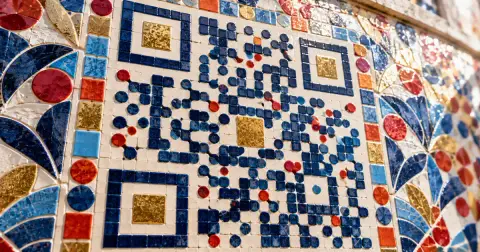 Custom QR code design: color, logo, and shape tipsCustom QR code design with brand colors, a logo, and a dot shape, without breaking the scan. Covers contrast, logo size, error correction, and print size.
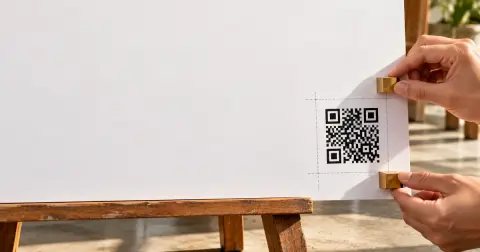 QR Code Flyer Size and Placement: The 10:1 RuleQR code flyer size and placement: size the code with the 10:1 scan-distance rule, keep the four-module quiet zone clear, and add a short call to action.
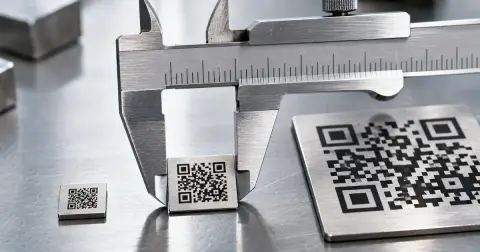 QR code minimum size: how small can it be?QR code minimum size is about 2 cm in practice, but the physical floor is 3.57 mm. See how module size, version and error correction set your own limit.
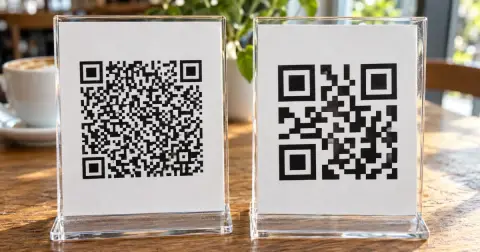 What is a dynamic QR code? Static vs dynamicA dynamic QR code stores a short link the provider forwards, so you can edit where it goes after printing. If the service ends, the code won't open your page.