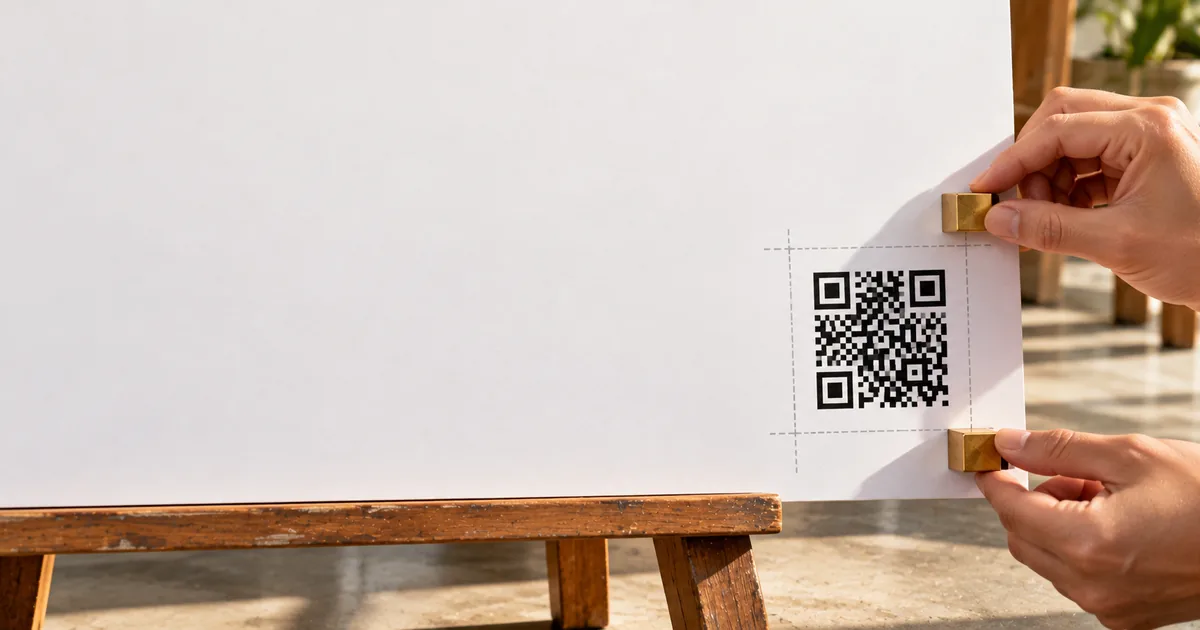
A QR code flyer fails for one common reason: the code was printed too small for the distance people scan it from. A flyer layout and a QR code file are enough to fix that, because one measurement and one division give the width. The blank border and the file format decide whether the printed code scans on the first try, and so does its spot on the page.
What size should a QR code on a flyer be?
Scan distance sets the width: measure how far a phone will be from the printed code, then divide by ten. This is the 10:1 rule.
A code read from 30 cm needs about 3 cm, so the width doubles whenever the distance doubles. Worked examples show how the rule plays out for a flyer in different hands:
Code width by scan distance (cm)
| Flyer is | Distance | Width |
|---|---|---|
| Held in the hand | 30 | 3 |
| Pinned to a board, read a step back | 100 | 10 |
| Hung where readers stand across a room | 300 | 30 |
The 10:1 ratio is a working estimate for the first layout, not an official standard, so one printed copy scanned from the real distance has the final say. Longer data also means more modules in the pattern, which means a longer link needs a bigger print. For the smallest code that still scans, see QR code minimum size: how small can it be?.
QR code on a poster: size by viewing distance
Readers stand where the wall, window, or counter lets them stand, whatever the paper format. A poster on a train platform needs a far bigger code than a poster of the same paper on a café wall, because the platform crowd stops several steps back. Measure from that spot and divide by ten.
Code width by where the poster hangs (cm)
| Where it hangs | Distance | Width |
|---|---|---|
| Beside a counter | 100 | 10 |
| In a window, read from the sidewalk | 300 | 30 |
| On the far wall of a room | 300 | 30 |
If the calculated width does not fit the layout, move the poster closer to where people stop instead of shrinking the code. For a window poster, measure from the sidewalk and test from there.
The quiet zone is part of the QR code, not decoration
DENSO WAVE requires a four-module wide margin on every side of the symbol, and nothing may be printed in it. A module is one of the small squares that make up the code, so the margin is four of those squares wide. The scanner needs that empty band, which makes it part of the code itself.
The margin takes space on the page and scales with the code. A code shrunk to fit a layout gets a narrower margin, and that narrower margin still has to stay clear. Cropping it to squeeze in a logo or a line of text turns a well-sized code into one that phones struggle to read.
"The QR Code symbol area requires a margin or "quiet zone" around it to be used." / "The margin is a clear area around a symbol where nothing is printed. QR Code requires a four-module wide margin at all sides of a symbol." — from DENSO WAVE's guidance on the print area a QR code needsView official source →
Print resolution and file format for a QR code flyer
Raster files blur when enlarged, while vector files stay sharp at any scale. A PNG or JPEG holds a fixed number of pixels, so stretching it spreads each pixel over more paper and softens the edges of every module. A vector file stores the squares as shapes and keeps hard edges at any size.
When only a raster file is available, export it larger than the print needs and scale it down in the layout. Scaling down keeps the edges crisp, and scaling up is where the blur starts. Enlarging a small file is how a code that looks fine on screen comes to fail on paper.
QR code placement on a flyer: folds, edges, and a call to action
A flat panel and a short reason to scan keep a correctly sized code working. Keep the code and its quiet zone clear of folds, staples, binding, and trim edges. Creases and staples damage modules directly, and a cut that lands slightly off can take part of the border with it.
A code alone does not say why anyone should scan it. Put a few words beside it that name what the scan gives, such as "Scan for the menu" or "Scan to book a table", and an event flyer can name the event page the same way. The line sits next to the quiet zone, never inside it.
Sizing the QR code in the sakutto QR code generator
Download the largest image the generator offers, then shrink it in the layout. The generator exports raster images, so a download larger than the code will appear on paper scales down cleanly. When in doubt, take the biggest one, since scaling down costs nothing and gives every module the most pixels.
To make the code for a flyer, create it in the QR code generator, download the image, and set its width from the scan distance. Keep the four-module border empty around it.
Summary: measure, divide by ten, keep the margin clear
A printed code that scans from the real distance needs one measurement, one division, and a clean border. Flyers held in the hand need a few centimeters, while posters read across a room need far more. Printing one test copy and scanning it from the spot where readers stand catches a failed layout before the full run.
- Divide the scan distance by ten to get the width of the code.
- Keep four modules clear on every side, with no text or border inside.
- Export larger than needed and scale down in the layout.
- Keep the code off folds, staples, and trim edges, and put a short call to action beside it.
FAQ
- How much blank space does a QR code need around it?
- A QR code needs four modules on every side. DENSO WAVE's guidance calls this margin the quiet zone and says nothing is printed in it, so text and borders stay outside it, and so do background patterns.
- Does the quiet zone count toward the printed size of a QR code?
- Yes, in the sense that the layout has to reserve it. DENSO WAVE says the code area requires a quiet zone around it, so the space you set aside is the pattern plus its border, not the black-and-white squares alone.
- Can I put a call to action inside the blank border of a QR code?
- No. DENSO WAVE describes the margin as a clear area where nothing is printed, so a line such as "Scan for the menu" goes beside the border, never inside it.
Related articles
 Custom QR code design: color, logo, and shape tipsCustom QR code design with brand colors, a logo, and a dot shape, without breaking the scan. Covers contrast, logo size, error correction, and print size.
 QR code minimum size: how small can it be?QR code minimum size is about 2 cm in practice, but the physical floor is 3.57 mm. See how module size, version and error correction set your own limit.
 What is a dynamic QR code? Static vs dynamicA dynamic QR code stores a short link the provider forwards, so you can edit where it goes after printing. If the service ends, the code won't open your page.
 Do QR codes expire? How to make one that won'tDo QR codes expire? A QR code never does, but a dynamic code stops when its provider turns off forwarding. Find the cause, fix it, and make a code that lasts.