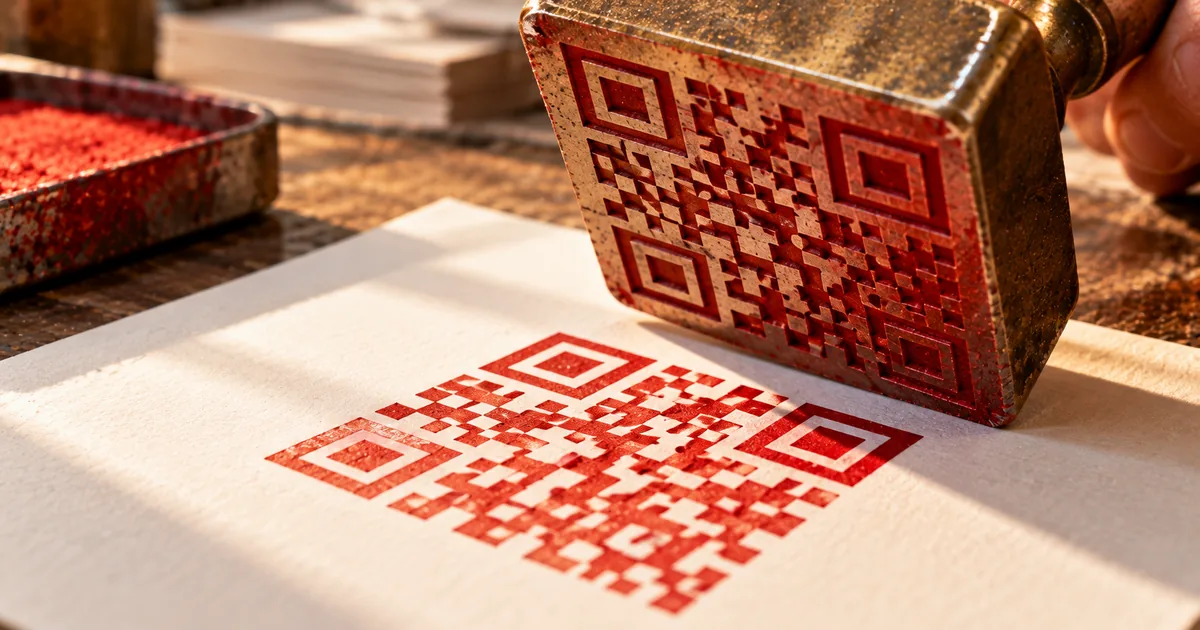
Need a QR code and don't want to sign up for another account? Here's how to generate one for free, straight in your browser, and get it sized correctly for print.
What is a QR code?
A QR code (Quick Response Code) is a two-dimensional barcode developed by Denso Wave in 1994. It packs far more data into the same space than a standard barcode — a URL, a block of text, or a full contact card.
That capacity is why QR codes show up everywhere print meets digital: business cards, flyers, posters, restaurant tables. Anyone with a smartphone camera can scan one and land on your page in a second, no app or typing required.
How to create a QR code for free (3 steps)
You don't need design software or a paid subscription to get a working QR code — three short steps get you from data to a downloadable file. Deciding what the code should open is the only step that takes any thought.
Step 1: Decide what data to embed
Pick what you want the code to open or display before you touch a generator, since that choice decides everything downstream. These are the common options:
- URL: your website, a landing page, or a social profile
- Text: a message or any free-form note
- Email address: opens a pre-filled compose screen on tap
- Phone number: starts a call on tap
- Wi-Fi credentials: shares your network name and password
Step 2: Generate the QR code
With your data ready, sakuttoAI's QR code generator turns it into a code entirely in your browser, with no account, no watermark, and no expiry on the code itself. The preview updates live as you type, so you can confirm the destination before you download anything.
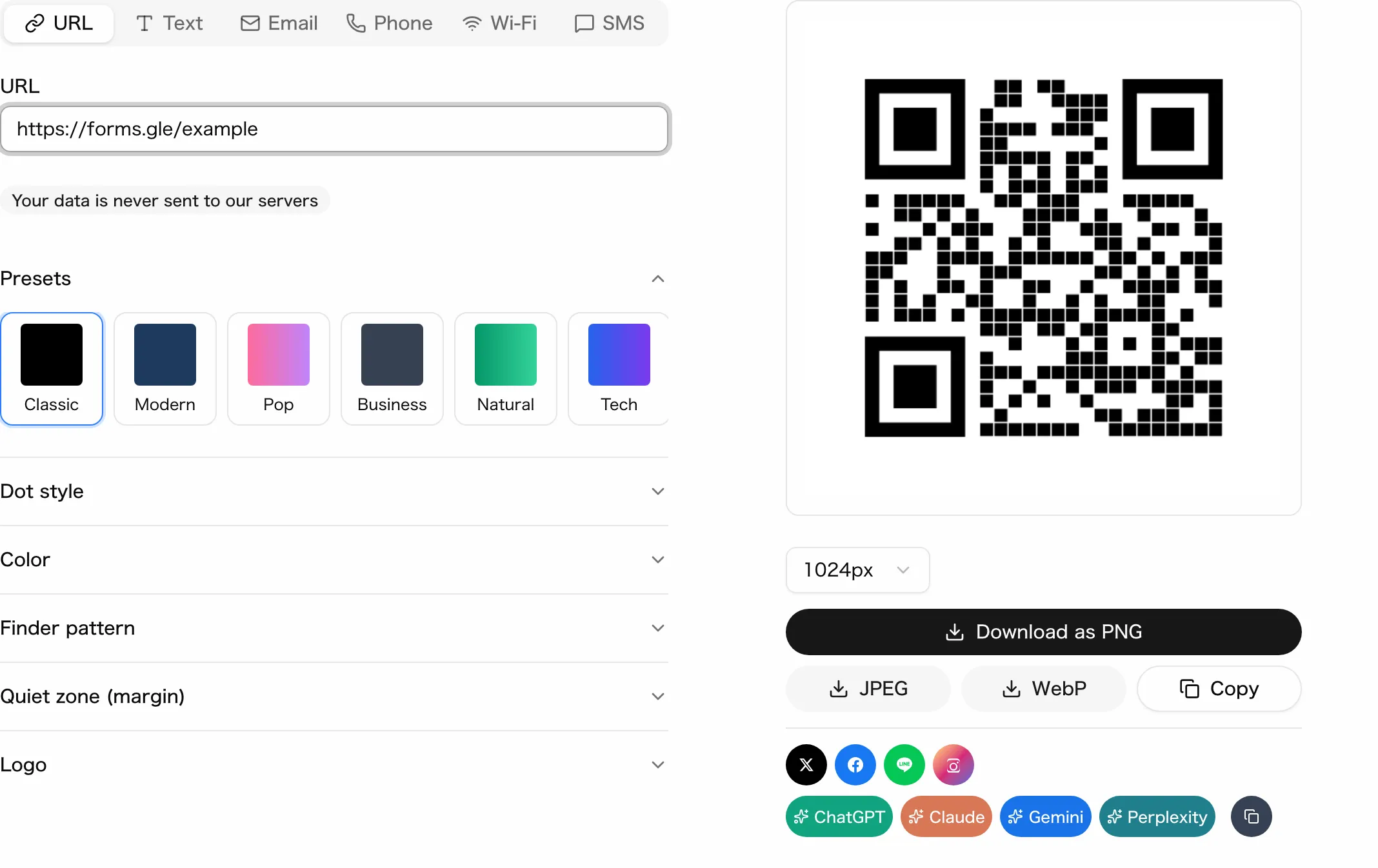
Step 3: Download and use it
Export the finished code as a PNG or JPEG and drop it straight into your business card, flyer, or poster layout. No further conversion is needed before you send the file to print or upload it to a design tool.
Understanding QR code error correction levels
QR codes carry built-in redundancy that the standard defines in four levels. They still scan even when part of the pattern is smudged, torn, or covered by a logo — picking the right level balances how much damage the code can survive against how large it needs to print.
| Level | Recoverable data | Best for |
|---|---|---|
| L (Low) | ~7% | On-screen use only |
| M (Medium) | ~15% | Standard print — flyers, business cards |
| Q (Quartile) | ~25% | Codes with a logo, outdoor signage |
| H (High) | ~30% | Harsh environments — factory or warehouse labels |
The tradeoff: higher error correction packs in more dots, so the code needs to be physically larger to stay scannable. A code with a logo in the center needs Q or H to offset the area the logo covers.
Designing a custom QR code
A plain black-and-white square works, but a branded one is easier to recognize, and three settings control that look. None of them change how the code scans as long as contrast stays high.
- Color: swap the foreground color to match your brand palette
- Logo: drop your logo into the center so people recognize it before they even scan
- Dot style: switch square modules for rounded or diamond dots for a softer look
Printing a QR code that actually scans
Four factors decide whether a printed QR code scans reliably. A code that looks fine on screen can still fail once it's printed small or placed poorly — get these right before the file goes to the printer, not after the first batch comes back unscannable.
- Minimum size: at least 2 cm × 2 cm for anything held in the hand, like a business card or flyer
- Distance-based sizing: for posters and signage, plan on roughly 1 cm of code width for every 10 cm of expected scanning distance
- Quiet zone: leave at least 4 modules (dots) of blank space on all four sides
- Resolution: export at 300 dpi or higher — anything lower turns the fine modules to mush on paper
For size tables by flyer and poster format, see QR Code Flyer Size and Placement: The 10:1 Rule. It also covers where the call to action should sit next to the code.
QR codes for business cards and vCards
There are two ways to put a QR code on a business card: a simple link, or a self-contained vCard. Which one to pick depends on how much you want the recipient to do after they scan.
The simple version links to your website or a single social profile — anyone who scans it opens a page. The richer version encodes a vCard: your name, phone, email, and company in one static QR code, so a single scan lets the other person save your contact directly, with no page to visit and no data entered by hand.
Because a vCard QR code is static, its content is fixed at creation — if your phone number changes, you'll need a new code. That tradeoff is usually worth it for how much friction it removes from a first meeting.
More use cases: flyers, posters, and menus
- Flyers and posters: point a QR code at an event registration page or ticket link to bridge a printed piece straight to a digital action
- Restaurant menus: a code on the table that opens a digital menu is now common — updates take minutes instead of a reprint, and it cuts ongoing printing costs
- Packaging and signage: link to setup instructions, warranty registration, or a product page without adding text to the package itself
FAQ
- Can I create a QR code for free?
- Yes. With sakuttoAI's QR code generator, you can create QR codes for free. Everything runs in your browser.
- What kind of data can a QR code hold?
- You can embed URLs, plain text, email addresses, phone numbers, and Wi-Fi credentials. The most common use is linking to a website.
- Can I change the color or design of a QR code?
- Yes. You can change the foreground color, background color, and dot style. Just make sure the contrast between the foreground and background is high enough for reliable scanning.
- What size should a printed QR code be?
- At least 2 cm × 2 cm is recommended for anything held in the hand, such as business cards and flyers. For posters and signage, use roughly 1 cm of width for every 10 cm of expected scanning distance.
Related articles
 Custom QR code design: color, logo, and shape tipsCustom QR code design with brand colors, a logo, and a dot shape, without breaking the scan. Covers contrast, logo size, error correction, and print size.
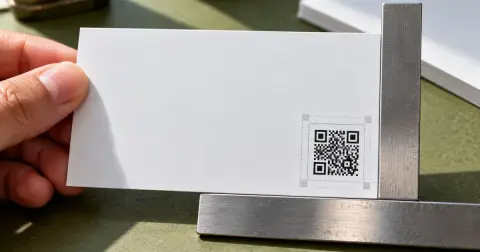 QR Code Business Card: Size and PlacementQR code business card done right: what to link to, how small it can be, where to place it, and how to design it so recipients actually scan it.
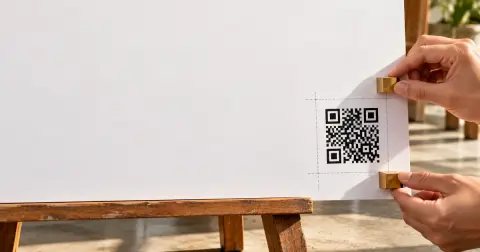 QR Code Flyer Size and Placement: The 10:1 RuleQR code flyer size and placement: size the code with the 10:1 scan-distance rule, keep the four-module quiet zone clear, and add a short call to action.
 QR code for fundraising at a school fairQR code for fundraising at a school fair: short links on flyers, pre-filled Google Form check-in, and PayPal or Venmo booth sales taken the right way.