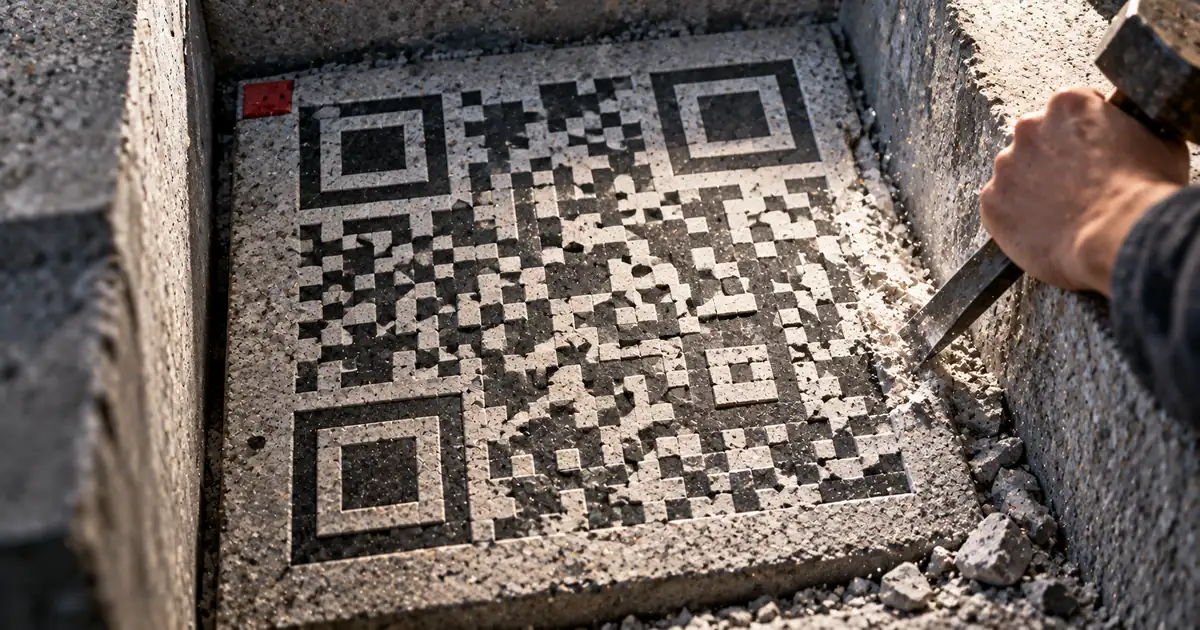
A QR code that scans on your screen can still fail on paper. The artwork looked fine, the proof looked fine, and then nobody's phone could pick it up.
The usual reason is the quiet zone: the band of empty space around the symbol. Scanners use it to find where the code starts and stops, and layouts tend to squeeze it.
You can settle this question before anything is printed. The margin is the one cause you can measure in the image file you already have.
A QR code that is not scanning: check margin, size, contrast
Listing every possible cause does not narrow anything down. Deciding what to look at first does, because the first check often ends the search.
Check the margin, then the printed size, then the contrast. That order has nothing to do with how often each one fails. It ranks them by what you can settle without spending a print run.
Margin, size and contrast, in that order
The margin is the empty band around the symbol. Squeeze it and the scanner cannot tell where the code ends and the flyer begins.
Size is how wide the code lands on the paper. Contrast is the difference in lightness between the dark modules and whatever sits behind them.
Only the margin can be judged before printing
Open the image and count the margin. Nothing else in the list can be settled that way.
Size and contrast need a physical proof, held at the distance and in the light where the code will actually be scanned. So the margin comes first: it is free to check and free to fix.
The QR code quiet zone is four modules wide on every side
The amount of clear space is not a matter of taste. Denso Wave, which developed the QR Code, states it as a number of modules.
What Denso Wave requires: clear space four modules wide
Every side needs a band of clear space four modules wide. A module is one of the small squares the pattern is built from, so the required margin scales with the code instead of being a fixed measurement.
That framing matters when you resize. Scale the code and you scale the modules, so the margin it needs scales too. A margin that was adequate at one size stops being adequate at another.
QR Code requires a four-module wide margin at all sides of a symbol. — from the Margin section of the same pageView official source →
A border or a caption eats into the QR code margin
A hairline box drawn snugly around the code lands inside the quiet zone. So does a "scan me" caption set tight underneath, and so does a logo tucked into the corner to save space.
None of these look like mistakes in the layout. They only show up as a code that some phones cannot scan.
Count four modules: divide the finder pattern by seven
The four-module rule is easy to repeat and hard to apply on a real image. The missing step is measuring how many pixels one module takes up.
The finder pattern is always seven modules wide
The three large squares in the corners are finder patterns, and their dark band is seven modules wide in every QR code. That fixed width is what makes the count possible.
Measure that band in pixels, divide by seven, and you have the pixel size of one module. Multiply by four and you have the margin the standard asks for.
A worked example on a 512 px export
Take a 512 px image exported from sakuttoAI's QR code generator. The finder band came to 102 pixels, so one module runs about 14.6 pixels and four modules about 59.
Then read the clear space: open the image and count from the edge of the canvas to the first dark pixel. If that count comes in under the number you calculated, the margin is short.
Fixing a margin that is too tight
A short margin does not mean the code is broken. The symbol itself is fine and you can leave it alone.
Pad the image, not the code
Extend the canvas in an image editor and fill the new area with white. On an image where a module runs about 14.6 pixels, roughly 60 pixels on each side covers the requirement.
In a layout tool you can get the same result by putting a white rectangle behind the code and letting it overhang. Either way the requirement is the same: clear space between the code and everything around it.
Watch the surface the code is going onto
White padding stops working when the code sits on a dark panel and the edge of the padding disappears into it. On dark stock, give the code more room than the minimum.
Exports with a transparent background need the same care. Whatever is underneath shows through where the quiet zone should be, so flatten onto white before you place it.
Proving it before the print run
The last check happens on paper. A code that scans on a monitor is read off a backlit screen, and that flatters it.
Scan the printed proof, not the screen
Print on the stock you are actually using, at the size you are actually using, and scan that. If the code is going outdoors, scan it where it will hang.
Vary the conditions as well: the distance, the light, the handset. A code that works from one angle on one phone has not been tested.
Making the code again in the browser
If you need to regenerate, make a QR code again in sakuttoAI's QR code generator, which takes a URL, plain text, an email address, a phone number, Wi-Fi credentials, or an SMS. It hands back an image, with nothing to install.
You also get presets, dot styles, colors, finder pattern shapes, and a margin setting. Adjust the margin, export, and run the count above on the result.
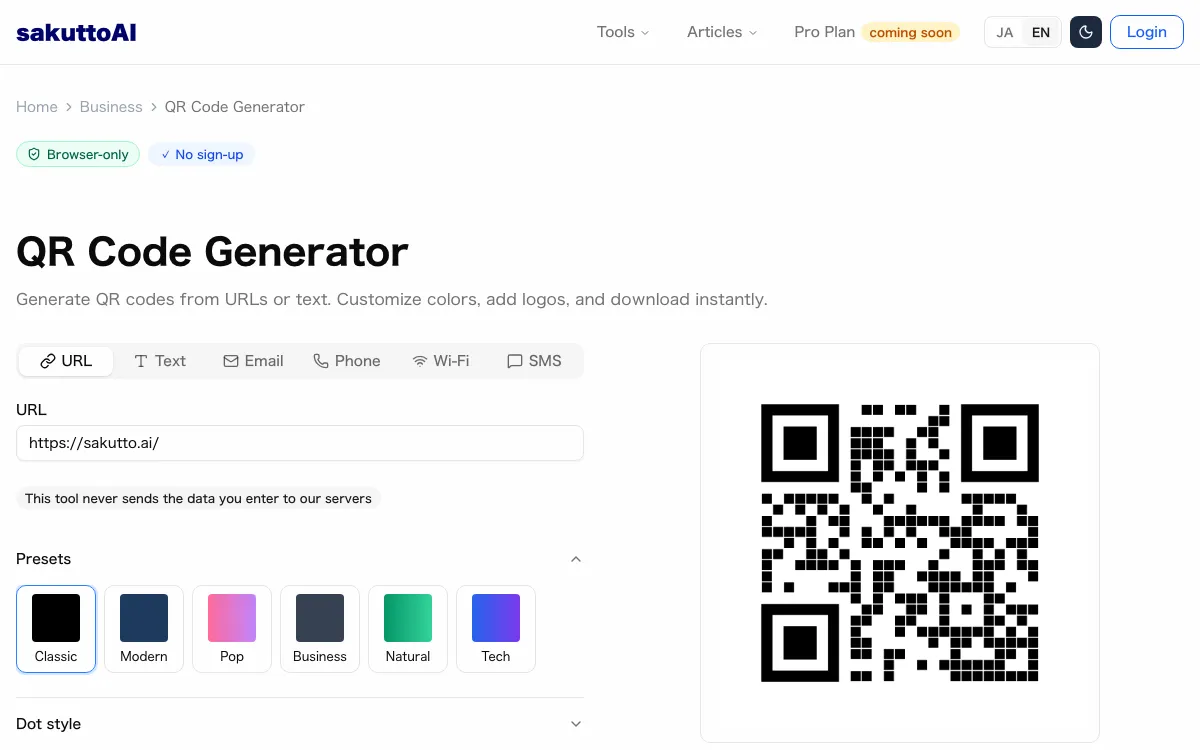
Codes can be generated one after another with no cap, which keeps the adjust-and-count loop practical. Nothing you type leaves the browser either, so an internal URL is safe to encode.
It needs a connection only for the first code. After one online generation we cut the network and a new code was still drawn each time the input changed, while cutting it right after opening the page left the preview blank.
Counting is not the only thing worth doing before a run goes out. If the copy beside the code has a length limit to hit, Essay word count: what actually gets counted sets out where the tallies disagree.
FAQ
- How much margin does a QR code need?
- Four modules on every side. A module is one of the small squares the code is built from, and the company that developed the QR Code states the requirement in those terms rather than in millimeters or percentages.
- How do I count modules in a QR code image?
- A finder pattern is the large square in a corner, and its dark band is seven modules wide in every QR code. Measure that band in pixels, divide by seven, and you have the pixel size of one module. Four times that figure is the margin the standard asks for.
- Does this QR code generator send my URL anywhere?
- No. We recorded the network traffic while generating codes, and nothing carrying the typed string left the browser, so an internal link you cannot publish is still safe to encode here.
- Can I make a QR code with no internet connection?
- Yes, once the page has generated one code online. After that we cut the network and a new code was still drawn each time the input changed. With the network cut right after opening the page, nothing was drawn, so make the first code while you are online.
- Is there a limit on how many codes I can generate?
- No. Generating one after another never produced a limit notice, so you can keep adjusting the content and the margin until the export is right.
Related articles
 QR code minimum size: how small can it be?QR code minimum size is about 2 cm in practice, but the physical floor is 3.57 mm. See how module size, version and error correction set your own limit.
 What is a dynamic QR code? Static vs dynamicA dynamic QR code stores a short link the provider forwards, so you can edit where it goes after printing. If the service ends, the code won't open your page.
 Do QR codes expire? How to make one that won'tDo QR codes expire? A QR code never does, but a dynamic code stops when its provider turns off forwarding. Find the cause, fix it, and make a code that lasts.
 QR Code Flyer Size and Placement: The 10:1 RuleQR code flyer size and placement: size the code with the 10:1 scan-distance rule, keep the four-module quiet zone clear, and add a short call to action.