
What live transcription is and when to use it
Live transcription is speech recognition that puts words on screen while someone is still speaking. Instead of uploading a recording after a meeting and waiting for a transcript, you watch a running text version of the conversation as it happens.
Live transcription vs. file transcription
| Type | When text appears | Typical use |
|---|---|---|
| Live transcription | While people are talking | Following a meeting or lecture, taking notes |
| File transcription | After the recording ends | Turning a finished recording into a full transcript |
Text appears while people are still talking
The main benefit of live transcription is that you can read along without waiting. If you miss a sentence in a lecture or a call, you can glance at the screen and catch up right away. It also helps people who are deaf or hard of hearing follow a conversation in the room.
The text is a rough, running version of what was said, so expect some wrong words and missing punctuation. Plan to read it back and fix names and terms after the meeting.
File transcription only starts after the recording ends
File transcription works on audio that has already been recorded. You upload the file once the meeting is over and get the transcript back later, which suits long interviews you want written up in full. If you need words on screen during the meeting itself, start with the free live options below.
Free live transcription on a PC
A Windows PC already gives you three free ways to transcribe speech live, and one of them works in a browser on any computer. Two of them type your words into a document, and one only shows captions on screen.
- Google Docs voice typing
- Windows voice typing
- Windows 11 Live Captions
The first two are dictation tools. They work best when one person speaks into the microphone, while Live Captions can also caption the audio playing on your PC.
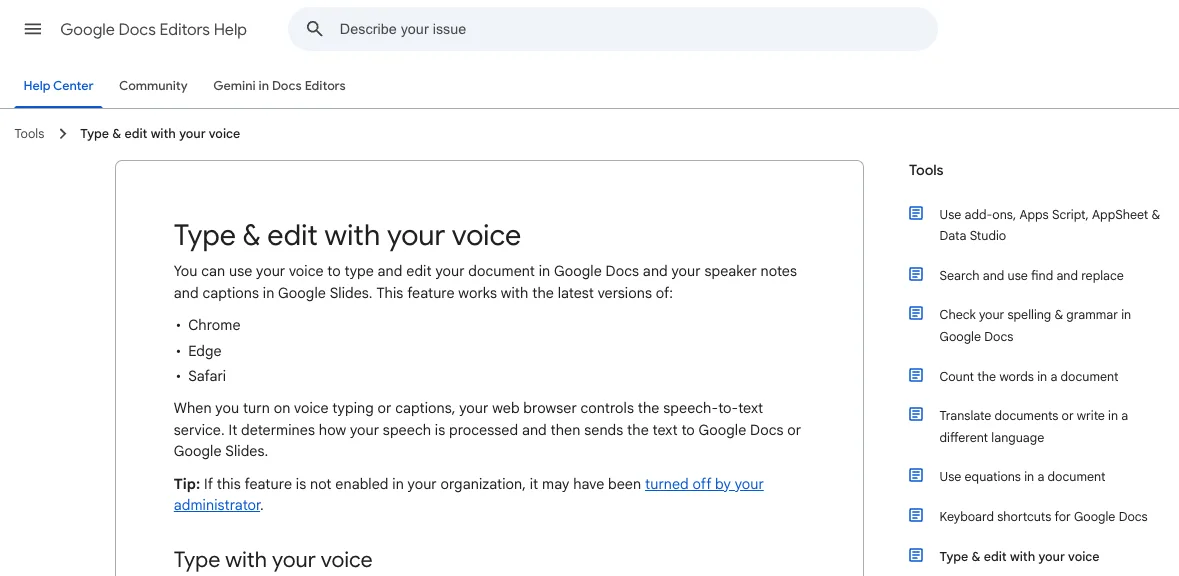
Google Docs voice typing works in Chrome, Edge, and Safari
Google Docs voice typing turns your speech into text inside a Google Doc, with nothing to install. It works in the latest versions of Chrome, Edge, and Safari. Open a document, choose Voice typing from the Tools menu, click the microphone, and start talking.
When you're done, click the microphone again or say "Stop listening." The words stay in the document, so you can tidy up your meeting notes and share them right away.
This feature works with the latest versions of:— Google よりView official source →
Windows voice typing opens with Windows logo key + H
Windows voice typing lets you dictate into any text box on your PC. Click into a text field, press the Windows logo key + H, and start speaking once it's listening. It works anywhere you can type, from Notepad and Word to email.
It doesn't work offline, though. Voice typing uses Microsoft's online speech recognition, so you need an internet connection and a working microphone.
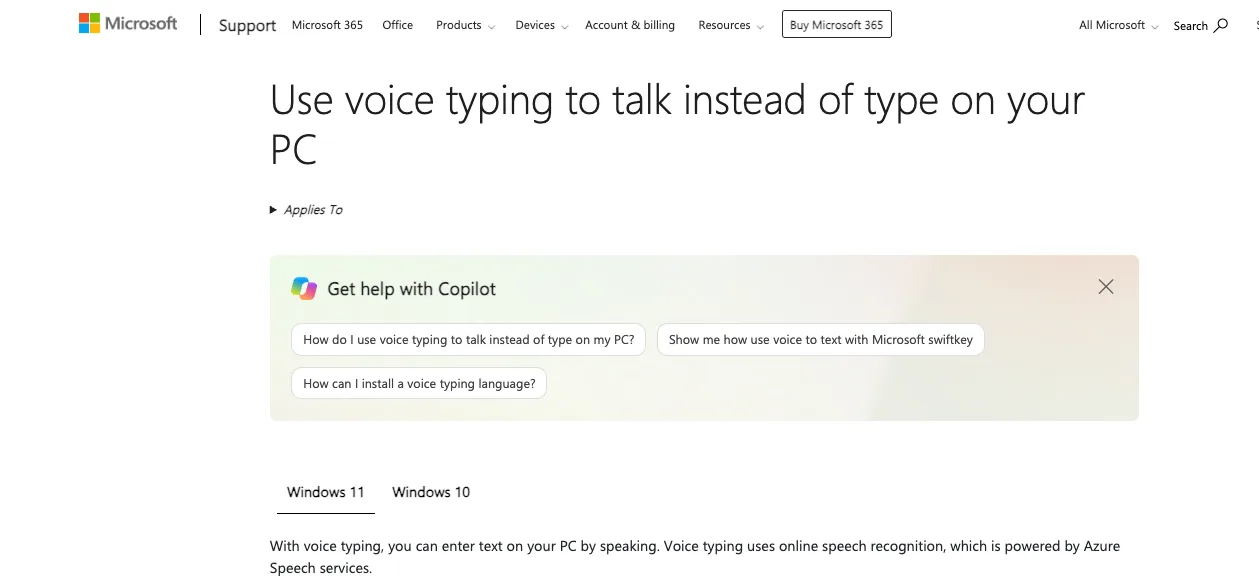
Voice typing uses online speech recognition, which is powered by Azure Speech services./To use voice typing, you'll need to be connected to the internet, have a working microphone, and have your cursor in a text box.— Microsoft Support よりView official source →
Windows 11 Live Captions subtitles audio but saves nothing
Live Captions puts captions on screen for any audio your Windows 11 PC plays, and it can caption your microphone too. It's available in Windows 11, version 22H2 and later, and you can turn it on with Windows logo key + Ctrl + L.
The catch is that the captions disappear. Microsoft says they aren't stored anywhere, so if you want to read the meeting back later, use Google Docs or Windows voice typing instead.
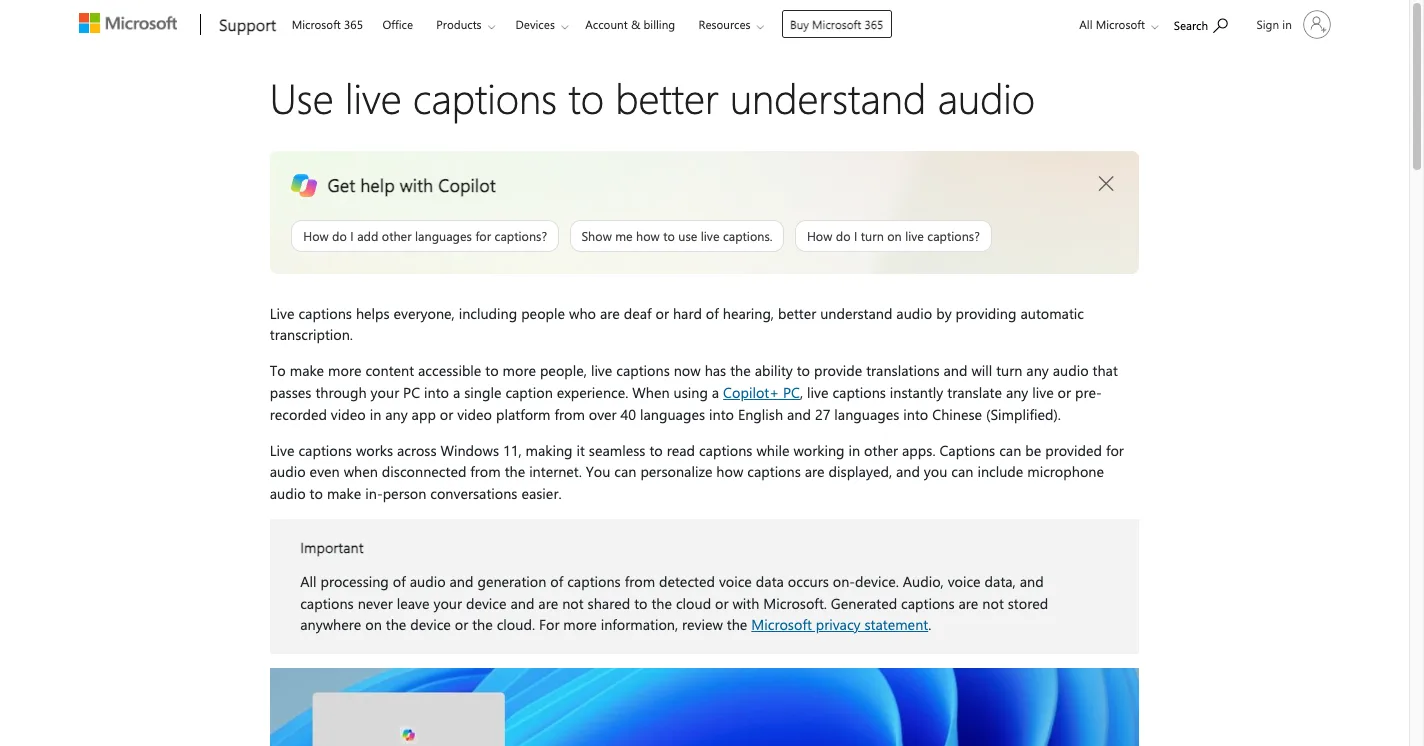
Live captions is available in Windows 11, version 22H2 and later.— Microsoft Support よりView official source →
Free real-time transcription on a phone
Your phone can often transcribe a conversation live with an app it already has: Android has Live Transcribe, and iPhone has Voice Memos. Put the phone on a desk during a meeting or class and the words appear on screen as people speak.
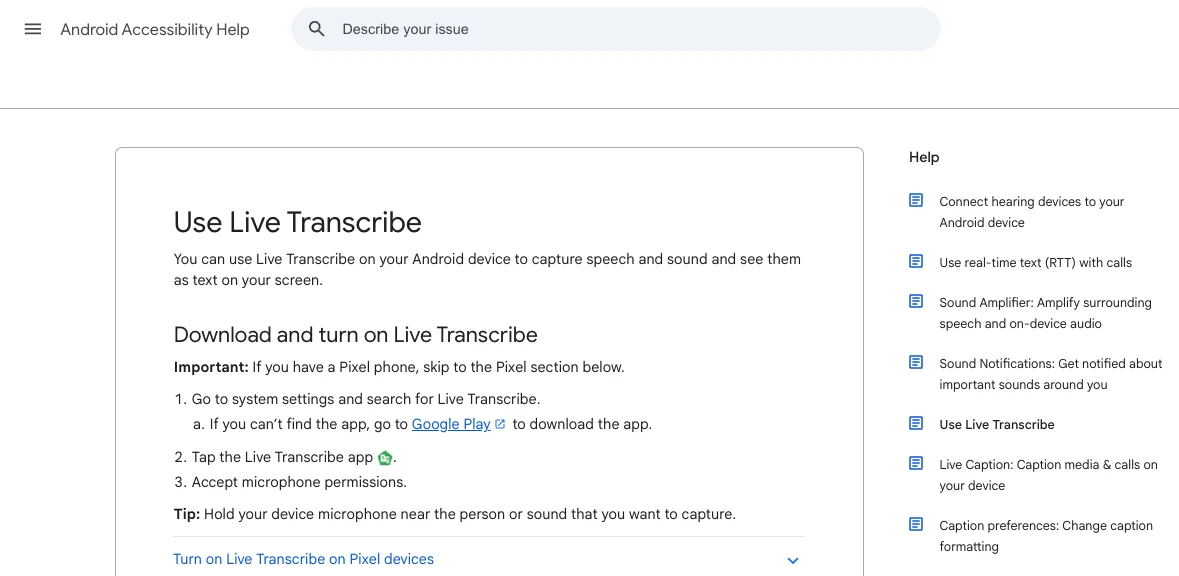
Google Live Transcribe keeps up to three days of history
Live Transcribe is Google's free Android accessibility app that shows speech and sounds as text on your screen. It comes preinstalled on Pixel phones and select other Android phones. You need an internet connection unless you've downloaded an offline language.
Transcripts don't stay forever. You can scroll back through up to three days of history, and if history is turned off, transcripts are deleted after 24 hours, so copy anything you want to keep.
You can find your transcription history in Live Transcribe for up to three days.— Google よりView official source →
Voice Memos on iPhone 12 or later shows text as you record
The Voice Memos app on iPhone 12 or later can show a live transcript while it records. Start a recording, swipe up on the waveform, and the transcript appears with the current word highlighted. After recording, you can open the transcript again and copy the text.
Transcription supports 10 languages, including English, Spanish, French, and German. Apple notes that it isn't available in every country or region.
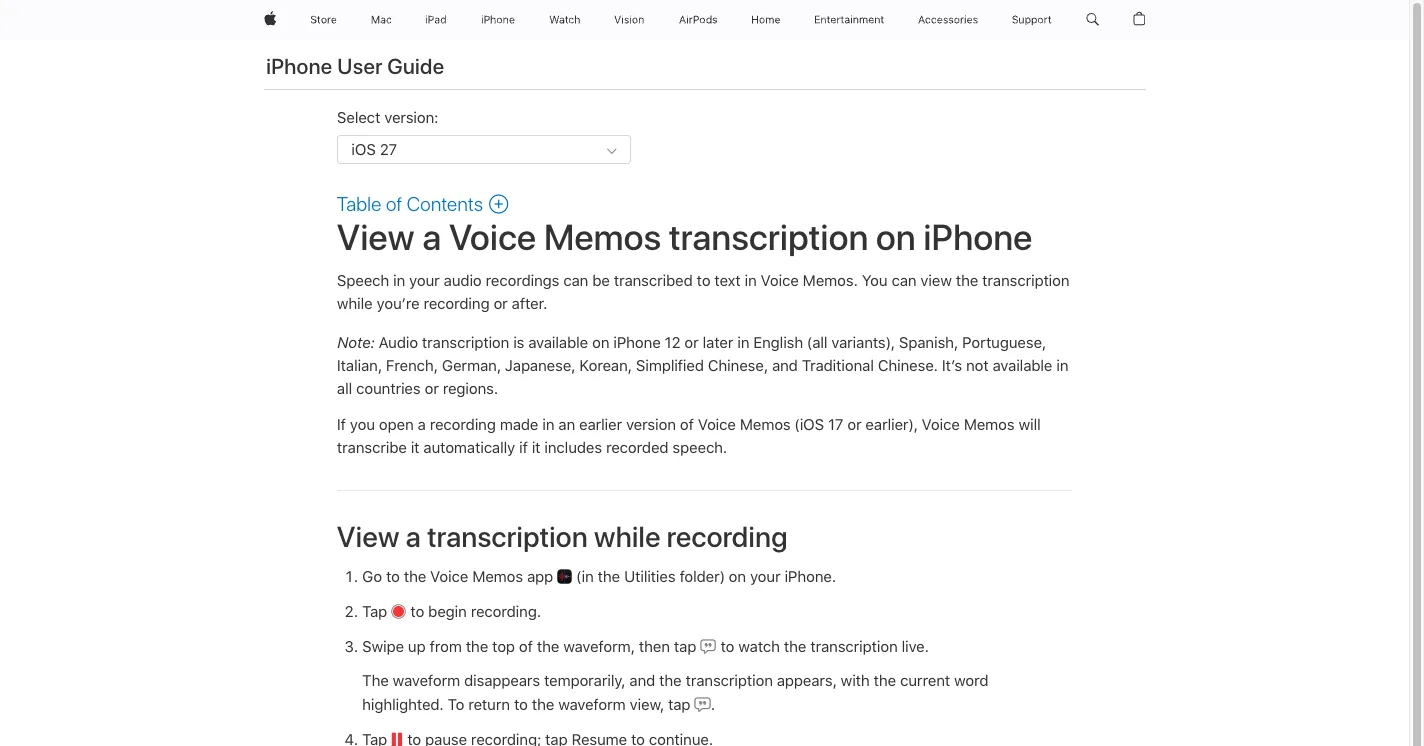
You can view the transcription while you’re recording or after.— Apple Support よりView official source →
Transcription that keeps audio on your device
If a meeting is confidential and the audio shouldn't leave your computer, use a tool that does the speech recognition on the device itself. Here's how the three local options compare.
Local transcription options
| Option | Live text | Saved text |
|---|---|---|
| Windows 11 Live Captions | Yes | No |
| Whisper | No (recordings only) | Yes |
| Hayamimi | Yes | Yes, with an option |
Live Captions runs on your PC and works offline
Live Captions processes audio and creates captions entirely on your PC, and it doesn't send the audio to the cloud or to Microsoft. The first time you turn it on, it downloads a language file for on-device recognition. After that, it keeps working even without an internet connection.
That makes it a solid privacy choice for following a call. Just remember that the captions aren't saved anywhere, so it won't give you a record of the meeting.
Audio, voice data, and captions never leave your device and are not shared to the cloud or with Microsoft./Generated captions are not stored anywhere on the device or the cloud.— Microsoft Support よりView official source →
Whisper transcribes recordings, not live speech
OpenAI's Whisper is a free speech recognition model you can run on your own computer, but it's built for recorded files rather than live audio. The code and model weights are MIT-licensed, and you'll need ffmpeg installed to use it.
According to the README, Whisper reads the whole audio file and works through it in 30-second windows. That's great for transcribing a meeting after you've recorded it, but it won't show words on screen while people talk.
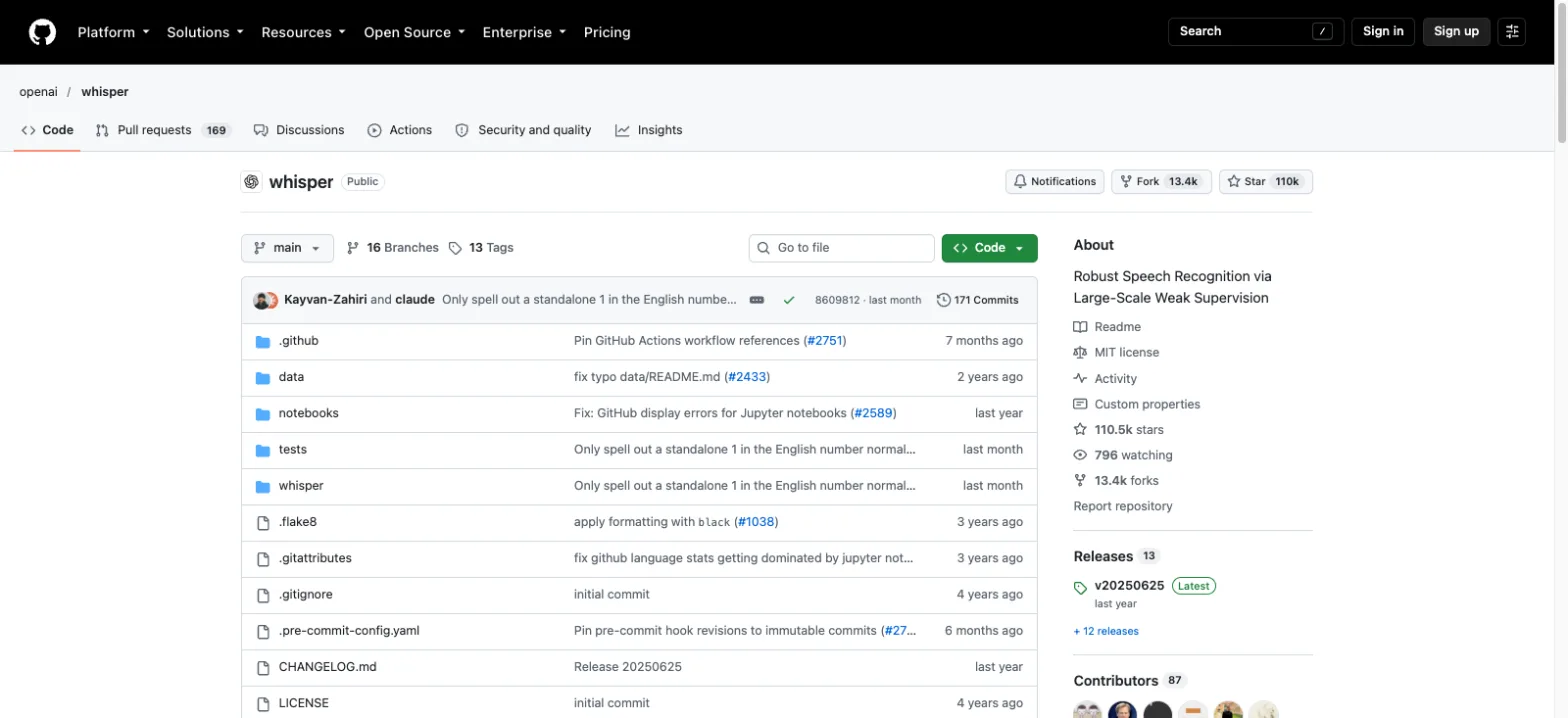
Whisper's code and model weights are released under the MIT License.— GitHub よりView official source →
Hayamimi gives live subtitles on a PC without a GPU
If you want live text that stays on your computer and can also be saved, Hayamimi is a free speech recognizer that runs on the CPU alone. It needs no GPU and no cloud service, and its models use under 2GB of memory. Add the --transcript option and it appends the cleaned-up subtitles to a file.
Setting it up takes a few Python commands, and its developer has only tested it on Windows 11. "Free OBS captions on CPU only: setting up Hayamimi" walks through the setup step by step.
How to choose: saved text or audio that stays on your device
Choosing between these free tools comes down to two questions: do you need the text saved, and does the audio have to stay on your device? Accuracy depends a lot on your microphone and the room, so the quickest way to judge is to try one on your next meeting.
Two questions to ask
| Question | Ask yourself |
|---|---|
| Do you need the text saved? | Will you read or share the notes after the meeting? |
| Must the audio stay on your device? | Is the conversation confidential? |
For saved text, use Google Docs or Windows voice typing
If you want notes you can edit and share, Google Docs voice typing or Windows voice typing is the right pick on a PC. Both type straight into a document, so the notes are ready as soon as the meeting ends. On a phone, iPhone Voice Memos keeps the recording and the transcript together.
To keep audio on your device, use Live Captions or Hayamimi
For confidential conversations, pick a tool that recognizes speech on your PC, such as Live Captions or Hayamimi. Live Captions starts with one shortcut but saves nothing, while Hayamimi takes longer to set up and can write the text to a file.
Windows voice typing relies on Microsoft's online speech recognition, and Google Docs leaves the audio processing to your browser. If your company has rules about cloud services, check them before you use either one for work meetings.
All options compared side by side
"Free live transcription options compared" lines up every free option by device, saved text, and internet use. Most tools that save text need an internet connection, and Hayamimi is the only one documented to run without one.
Free live transcription options compared
| Option | Device | Saved text | Internet |
|---|---|---|---|
| Google Docs voice typing | Any computer (browser) | Yes | Not stated by Google |
| Windows voice typing | Windows | Yes | Needed |
| Live Captions | Windows 11 | No | Not needed |
| Voice Memos | iPhone 12 or later | Yes | Not stated by Apple |
| Live Transcribe | Android | Up to three days | Needed, except offline languages |
| Hayamimi | PC (tested on Windows 11) | Yes, with an option | Not needed after models download |
Live Transcribe can work offline on some phones if you download a language first. Which languages you can download depends on the phone, so check the app's settings before relying on it.
Bottom line: your devices already transcribe live for free
You don't need a paid meeting bot for live transcription, because the computer and phone you already use can do it. For notes you can keep, use Google Docs voice typing, Windows voice typing, or iPhone Voice Memos. When the audio has to stay on your device, use Windows 11 Live Captions or Hayamimi.
Whisper is the free choice for transcribing recordings after the fact, not for text on screen during a call. You can set one of these up in a few minutes before your next meeting. A quick setup looks like this:
- On a Windows 11 laptop, press Windows logo key + Ctrl + L to follow the call, and open a Google Doc with voice typing if you also want notes you can keep.
- On a phone, start Live Transcribe on Android (copy the text out within three days) or a Voice Memos recording on iPhone.
- For a confidential meeting, stick with Live Captions or Hayamimi so the audio never leaves your computer.
If one of these covers your needs, you can skip a paid service's sign-up and meeting-bot invite. Try the built-in option first, and pay for a meeting tool only if it falls short.
FAQ
- Can I use Google Live Transcribe on a PC?
- Live Transcribe is a feature for Android devices, and Google has not announced a Windows or Mac version. On a Windows 11 PC, turn on Live Captions with Windows logo key + Ctrl + L to see speech as text, or use Windows voice typing with Windows logo key + H if you want the words typed into a document.
- Can Live Captions transcribe a Zoom or Teams call?
- Yes. Live Captions shows captions for any audio playing on your Windows 11 PC, so what the other people in a Zoom or Teams call say appears as text. It won't save anything, though, so if you need a record of the call you'll have to use the meeting app's own transcript feature if it has one.
- Can Whisper do live transcription?
- Not out of the box. OpenAI's README describes Whisper reading a whole audio file and working through it 30 seconds at a time, and it doesn't cover live microphone input. Use Whisper on recordings after the meeting, and use Live Captions or Hayamimi when you need text on screen as people speak.
Related articles
 Free OBS captions on CPU only: setting up HayamimiFree OBS captions on CPU alone: Hayamimi is an MIT-licensed speech recognizer that runs in under 2GB of RAM. Set it up in OBS and learn its limits.
 Embedding Gemma Transcribe: speed and accuracyEmbedding Gemma Transcribe turns Google's EmbeddingGemma 2 into a free Mac speech to text app: an hour of English in 12.6 s, at about 5% word error rate.
 PC shipments fell 20.1% in Q3 as prices stay highIDC says worldwide PC shipments fell 20.1% to 62.7 million in Q3 2026 after a first-half stock-up. AI data center demand keeps prices high, and HP fell 30.9%.
 Claude Fable 5.2: 20% price cut, up to 30% fasterAnthropic released Claude Fable 5.2 on November 9, 2026. API prices fall 20% to $8/$40 per million tokens, and output is up to 30% faster than Fable 5.1.