What Hayamimi is and why it runs on a CPU
Hayamimi is a free speech recognizer that oboroge0 publishes on GitHub, and it turns your voice into live captions while you're still talking. The name is Japanese for "quick ear." That makes it an option for anyone who wants captions without paying for a cloud service or owning a spare graphics card.
Your CPU is the general-purpose processor in every PC, while a GPU is a separate graphics chip. Hayamimi doesn't use the GPU at all. That means it runs on a laptop with integrated graphics, or on a gaming PC whose GPU is already busy with the game and the encoder.
It runs in under 2GB of RAM with no GPU or cloud API
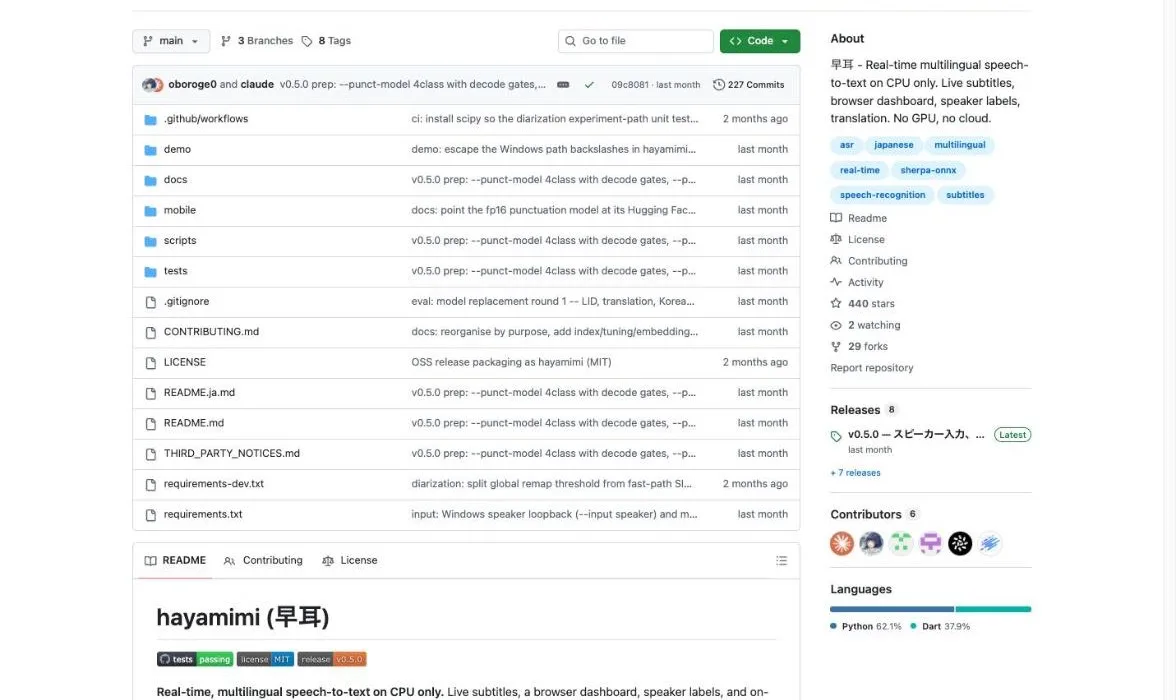
Hayamimi does all of its recognition on your CPU, with no GPU and no cloud API involved. By default the models it keeps loaded stay under 2GB of RAM, and you can trim that to 1.35GB.
Cloud transcription APIs charge for the audio you send them, as "Gemini 3.5 Transcribe: pricing and API limits" shows. Because Hayamimi never sends audio anywhere, a six-hour stream costs the same as a five-minute test: nothing.
Japanese captions lock in about 100ms after you stop
Captions update about every 0.5 seconds while you speak, and a Japanese line locks in about 100ms after you stop. Those are the author's own measurements. With five languages mixed and every feature switched on, the average delay rose to 236ms, which still keeps the text close behind your voice.
The code is MIT-licensed and free to use
The source code is under the MIT license, so you can use Hayamimi for free on personal and monetized streams alike. The first release, v0.1.0, came out on August 25, 2026, and v0.5.0 added system-audio capture on September 16. As of October 13, the repository had 440 stars on GitHub.
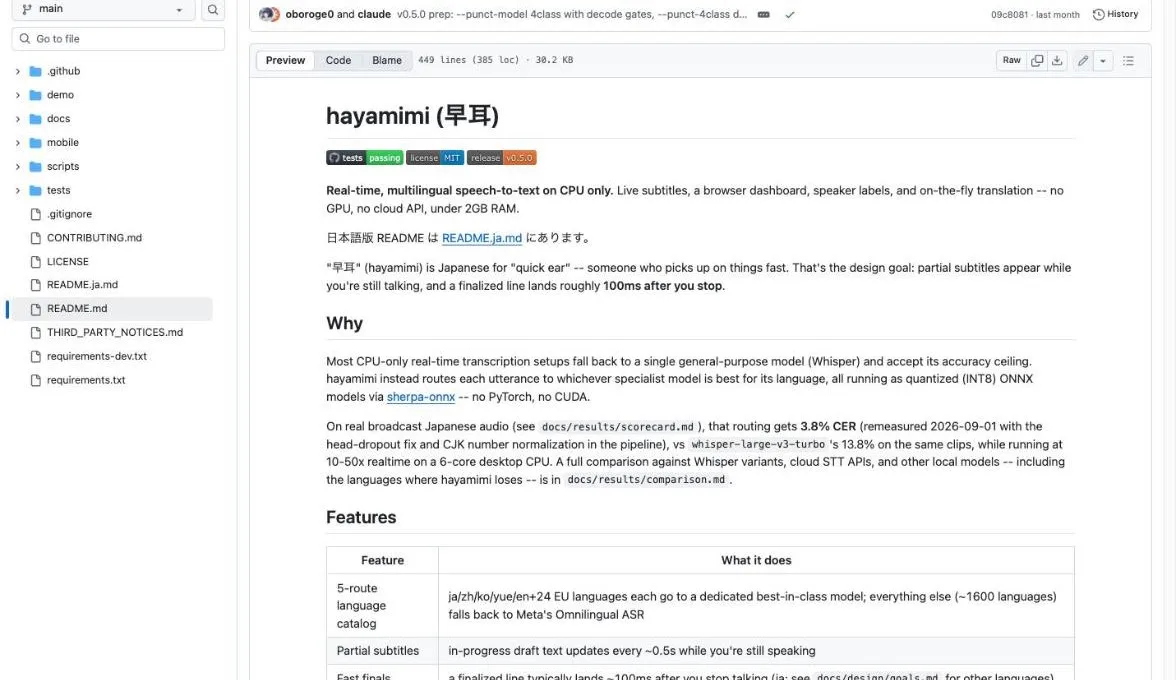
Live subtitles, a browser dashboard, speaker labels, and on-the-fly translation -- no GPU, no cloud API, under 2GB RAM.(README intro)— GitHub よりView official source →
How Hayamimi stays accurate without a GPU
Hayamimi detects the language of each utterance and hands it to a model built for that language, instead of running one general-purpose model for everything. Japanese goes to a Japanese model, English to an English model, and so on. That's how it gets good accuracy without a GPU.
Every model is quantized to INT8, which means its numbers are stored with fewer bits so it needs less memory ("What is LLM quantization? 4-bit vs 8-bit explained" covers the idea). The models run on sherpa-onnx, so you don't need PyTorch or CUDA.
Which model handles which language
| Language | Model |
|---|---|
| Japanese | ReazonSpeech |
| English and 24 European languages | NVIDIA Parakeet TDT v3 |
| Chinese | Paraformer-zh |
| Korean and Cantonese | SenseVoice small |
| About 1,600 other languages | Meta Omnilingual ASR |
Each language goes to its own specialist model
Japanese is handled by ReazonSpeech, while English and 24 European languages go to NVIDIA's Parakeet. Chinese uses Paraformer, Korean and Cantonese use SenseVoice, and about 1,600 other languages fall back to Meta's Omnilingual ASR. Language detection runs during roughly the first 4 seconds of speech, and by default Hayamimi only switches languages when two detectors agree.
In Japanese tests, 3.8% errors vs Whisper's 13.8%
On real Japanese broadcast audio, Hayamimi's character error rate was 3.8%, while whisper-large-v3-turbo scored 13.8% on the same clips. Lower is better, so Hayamimi made fewer than a third as many mistakes. On English, the author's scorecard shows a 2.3% word error rate.
Speed came in at 10-50x faster than real time on a 6-core desktop CPU, which is far more headroom than live captions need. Keep in mind that the author ran all of these tests, and the README says the pipeline hasn't been independently verified yet.
Switching languages mid-sentence breaks it
Hayamimi picks one language per utterance, so a Japanese sentence with English words dropped into it comes out garbled or with words missing. If you switch languages sentence by sentence, it keeps up fine. That makes it a good fit for an interpreter alternating between two languages, but a poor one for heavy code-switching.
Code-switching mid-sentence is not supported.(Limitations)— GitHub よりView official source →
Installing Hayamimi and testing your microphone
Hayamimi is a Python program with no installer, so you set it up by pasting a few commands into a terminal. On Windows that's Command Prompt or PowerShell, and on a Mac it's the Terminal app. After cloning the repository and creating a virtual environment, you run three commands: install the libraries, download the models, and start Hayamimi.
What you need before you start
| Item | Requirement |
|---|---|
| Python | 3.10 or later |
| ffmpeg | Installed and on PATH |
| Disk space for models | About 3.1GB (about 1.1GB with --minimal) |
| Tested OS | Windows 11 |
You need Python 3.10 or later and ffmpeg
Before anything else, install Python 3.10 or later and ffmpeg, and make sure ffmpeg is on your PATH so any terminal window can find it. Then clone the repository with git and create a virtual environment inside it.
git clone https://github.com/oboroge0/hayamimi.git
cd hayamimi
python -m venv .venv
The models take about 3.1GB, or 1.1GB with --minimal
The full model download is about 3.1GB, and adding --minimal cuts it to about 1.1GB of Japanese and English models. The weights aren't stored in the repository. The download script pulls each one from its original publisher.
.venv\Scripts\pip install -r requirements.txt
.venv\Scripts\python scripts\download_models.py --minimal
Run it once to test your microphone
Start realtime_transcribe.py with no options, say a few words, and your speech should appear as text right away. It's worth doing this before you touch OBS, so you know the microphone and models work. On macOS or Linux, replace .venv\Scripts with .venv/bin in each command.
.venv\Scripts\python scripts\realtime_transcribe.py
Python 3.10+ and ffmpeg on PATH.(Requirements)— GitHub よりView official source →
How to add OBS captions with a Browser Source
Hayamimi serves its captions as a local web page, and OBS shows that page on stream through a Browser Source. A Browser Source is the OBS source type that renders a web page inside your scene. Since it's built into OBS, there's no plugin to install.
Start the local caption server with --serve
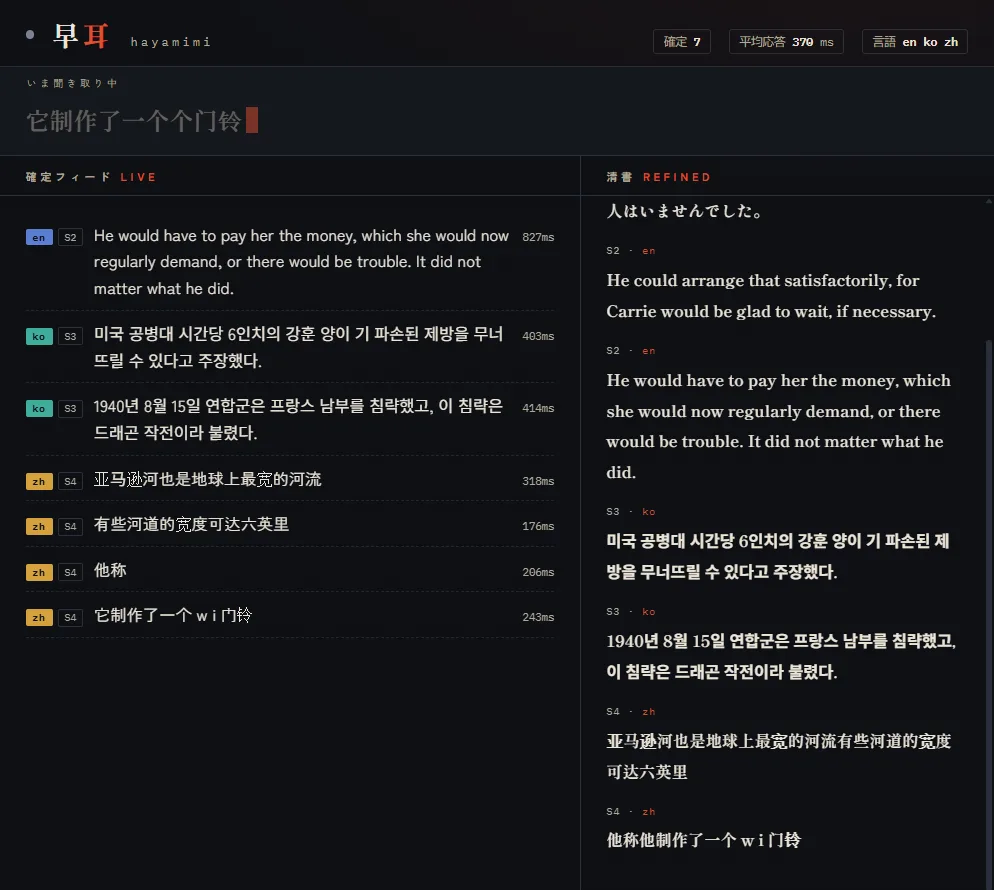
Adding --serve starts a small web server on your PC that serves three pages. The dashboard at http://localhost:8833/dashboard shows in-progress text, finalized lines, translations and a cleaned-up transcript. The page you want for OBS is http://localhost:8833/, which shows only the captions.
.venv\Scripts\python scripts\realtime_transcribe.py --serve
Add the overlay URL as a Browser Source
In OBS, add a new Browser Source to your scene and paste http://localhost:8833/ into its URL field. Set the width and height to fit your canvas, then drag the source to where you want the captions. OBS and Hayamimi need to run on the same PC, because the page only exists locally.
Put final and in-progress lines in separate sources
Adding ?show=final to the URL shows only finished lines, and ?show=partial shows only the line you're still speaking. Add each one as its own Browser Source and you can place them separately, for example finished captions along the bottom and the live line just above. The README doesn't describe settings for fonts or colors.
(add this URL as a Browser Source in OBS for stream captions)(Demo UI)— GitHub よりView official source →
Translation, speaker labels, and system audio
Hayamimi adds features through command-line options, and they combine freely. Anything you turn on alongside --serve shows up on the dashboard and in the OBS overlay too.
Options that add to your captions
| Option | What it does |
|---|---|
| --translate en | Translates Japanese captions into English |
| --translate zh,ko | Translates into Chinese, Korean and other languages |
| --speakers | Labels each line S1, S2 by speaker |
| --input speaker | Captions audio playing on the PC (Windows only) |
| --input mix | Captions the mic and PC audio together (Windows only) |
| --transcript PATH | Appends the cleaned-up transcript to a file |
--translate adds a translated line under each caption
With --translate en, every Japanese caption gets an English translation underneath it in real time. English uses FuguMT, a dedicated Japanese-to-English model, and other targets such as Chinese, Korean and Spanish use the multilingual M2M-100.
You can list several targets at once, as in --translate en,zh,ko. The author has measured translation quality for Chinese, Korean and Spanish.
--speakers labels each line by speaker (S1, S2)
Turning on --speakers tags each caption line with a speaker label based on the voice. That helps viewers follow who said what during a collab or a podcast-style stream. Expect the count to run high, though: in the author's tests on four-person meetings, it estimated 4-8 speakers.
Capturing system audio works on Windows only
--input speaker captions whatever your PC is playing, such as the other side of a call or a video, and --input mix combines that with your mic. Mix mode is handy for meeting notes that need both sides of the conversation.
Both rely on Windows audio loopback, so they don't work on macOS or Linux yet. The README recommends headphones so the call audio isn't picked up twice by your mic.
transcribes the mic and the speaker output summed into one(Speaker loopback input)/(no loopback path is wired up for other platforms yet).(same section)— GitHub よりView official source →
Limitations to know before you go live
Hayamimi was first released in August 2026, and its README is upfront about what doesn't work yet. Do a test stream with your own voice and setup before relying on it for a live audience.
Main limitations listed in the README
| Area | Limitation |
|---|---|
| Tested OS | Windows 11 only |
| Overlapping speech | Two voices at once aren't separated |
| Translation | Numbers can break in Japanese-to-Chinese and Japanese-to-Korean |
| Japanese proper nouns | --hotwords has no effect (use --replace) |
It has only been tested on Windows 11
The author developed and tested Hayamimi on Windows 11, and macOS and Linux haven't been tested end to end. Every runtime it uses is cross-platform, so the author expects them to work. If you try it on a Mac, the README asks you to report your results in an issue.
Overlapping speech is not separated
When two people talk at the same time, Hayamimi can't split their voices into separate captions. The speaker label goes to whoever was processed first, so lines can end up attributed to the wrong person during lively crosstalk. Very short phrases right after a jingle or background music can also trip up language detection.
Japanese-to-Chinese or Korean translation can garble numbers
The translation models are small, and numbers aren't reliably preserved when translating Japanese into Chinese or Korean. Hayamimi falls back to showing the original text when it detects a broken number, but don't trust translated prices or figures without checking. Separately, --hotwords doesn't affect Japanese recognition, so fix names it keeps getting wrong with a --replace dictionary written as wrong=right pairs.
Translation quality has a real ceiling(Limitations)/File an issue if your results differ from the numbers above.(same section)— GitHub よりView official source →
Summary: free OBS captions without a GPU
Hayamimi gives you free OBS captions that run entirely on your CPU, in under 2GB of RAM, with Japanese lines finalizing about 100ms after you stop talking. Start it with --serve and add http://localhost:8833/ as a Browser Source to put the captions on stream.
Translation and speaker labels are one option away, but it has only been tested on Windows 11 and it struggles when two languages share a sentence. A good first step is the --minimal install and a short test with your own voice.
FAQ
- Does Hayamimi work on a Mac?
- Probably, but nobody has confirmed it end to end yet. The author built and tested it on Windows 11 and expects macOS and Linux to work because every runtime it uses is cross-platform. On a Mac, use .venv/bin in place of .venv\Scripts in the commands. The system-audio inputs (--input speaker and --input mix) are Windows-only, so a Mac can caption the microphone only.
- Does Hayamimi work offline?
- Yes, once the models are downloaded. The install script fetches each model from its publisher, which needs an internet connection the first time. After that, recognition runs on your own CPU without any cloud API, so captions keep working if your connection drops.
- Can I use Hayamimi on a monetized stream?
- Yes. The code is MIT-licensed, and running it on a stream doesn't redistribute anything. The one model with strings attached is the Japanese-to-English translator, which is CC BY-SA 4.0. That only matters if you share the model's weights yourself, in which case you have to credit it and release them under the same license.
Related articles
 Free live transcription on your PC and phoneLive transcription turns speech into text as people talk. Do it for free with Google Docs, Windows 11 Live Captions, Live Transcribe, or iPhone Voice Memos.
 Embedding Gemma Transcribe: speed and accuracyEmbedding Gemma Transcribe turns Google's EmbeddingGemma 2 into a free Mac speech to text app: an hour of English in 12.6 s, at about 5% word error rate.
 How to turn off Apple Intelligence on macOS 27On macOS 27 you can turn off Apple Intelligence features but not delete the models. How to remove them with RemoveMacAI, what breaks, and how to undo it.
 PC shipments fell 20.1% in Q3 as prices stay highIDC says worldwide PC shipments fell 20.1% to 62.7 million in Q3 2026 after a first-half stock-up. AI data center demand keeps prices high, and HP fell 30.9%.