The Vivino app is free, and its ratings come from buyers
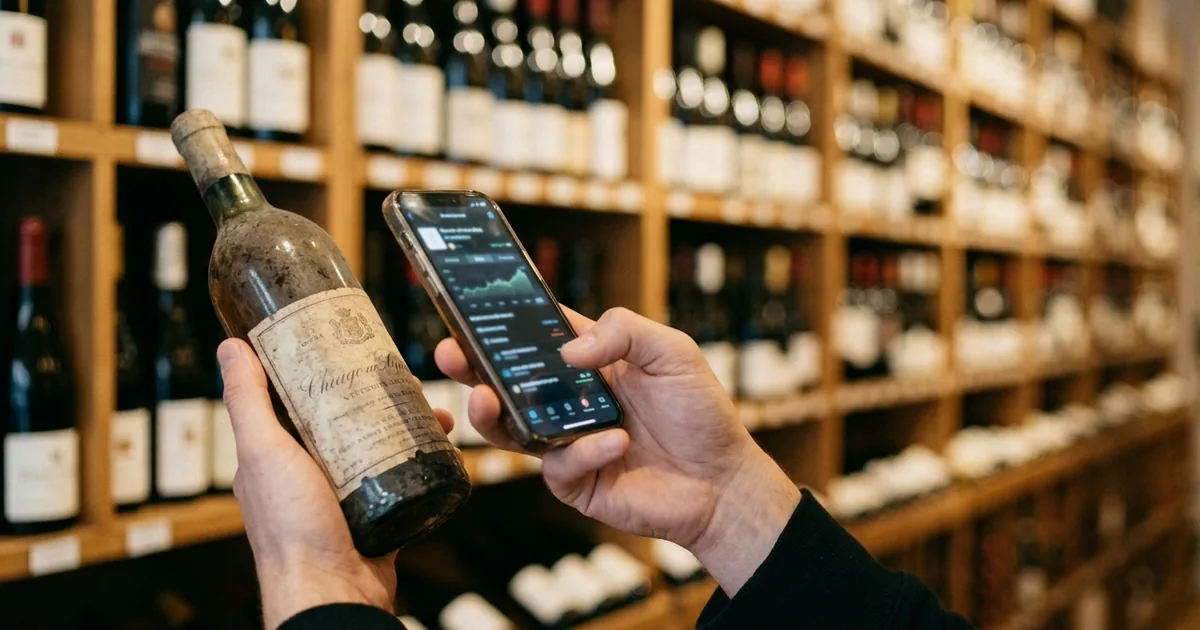
The Vivino app is free. Photograph a wine label and it shows ratings, reviews, tasting notes and food pairings from people who bought that bottle rather than from critics. You can also buy wine in the app and keep a cellar of the bottles you own.
Vivino at a glance
Snap a photo of any wine label to unlock ratings, reviews, tasting notes, and food pairings — From the listing descriptionView official source →
The official site reports more than 77.5 million users
Vivino's About page says the company has helped people discover wine since 2010. Its "Vivino in numbers" section reports more than 77.5 million users and more than 20.4 million wines.
The App Store listing gives a lower user count, over 70 million, and the label scanner guide gives a lower wine count, over 16 million. Of the three pages, About has the largest figures.
Since 2010, Vivino has empowered millions worldwide to discover and enjoy wine with confidence. / 77.5 million+ / 20.4 million+ — From the introduction and the "Vivino in numbers" sectionView official source →
A rating is a 1.0 to 5.0 average, not a critic's score
Vivino says a scan does not give you a critic's score. In its words, the ratings and reviews come from people who bought that same bottle, opened it on a Tuesday night or brought it to a dinner party.
The label scanner guide describes the community rating as an average score from 1.0 to 5.0, drawn from reviews in Vivino's database. You see it on the wine's profile as soon as a scan finds a match.
When you scan a wine with our app, you’re not getting a score from a critic speaking in tongues. You’re getting ratings and reviews from real people who bought that same bottle, opened it on a Tuesday night, or brought it to a dinner party. — From "Real. Honest. Helpful."View official source →
Community rating – an average score from 1.0 to 5.0, drawn from the millions of reviews in our database. — From the section on what you see after a scanView official source →
Premium is an in-app purchase, billed monthly or yearly
The app itself is free. Vivino Premium costs $4.99 a month or $47.90 a year in the United States, and the pricing guide lists the same prices for iOS and Android.
Premium members can scan a whole restaurant wine list at once, according to the label scanner guide. Wine you buy in the app comes from a marketplace of retailers, and payment options vary by merchant.
iOS: 4.99 USD/month, 47.9 USD/year, Android: 4.99 USD/month, 47.9 USD/year — From the United States row of the price-per-region listView official source →
Premium members can point the camera at a full restaurant wine list and scan it all at once. — From the section on scanning wine lists at restaurantsView official source →
To scan a label in Vivino, fill the frame with it
To look up a wine, point the app's camera at the label so that it fills most of the frame, as Vivino's label scanner guide advises. A clear shot is matched within a second or two against more than 16 million wines.
From scan to result
- Point the camera at the label (fill most of the frame)
- The wine is identified within a second or two
- If there is no match, search by name or submit the label
A scan identifies the wine within a second or two
You don't need to frame the label perfectly. Within a second or two, the wine is identified and its profile appears, without scanning a barcode or typing anything.
A label scanned from too far away is read less accurately, especially a small or detailed one. A brightly lit label in natural light scans faster than a dim one. If part of the label is missing, scan what remains: the vintage, producer name and appellation are usually enough for a match.
Within a second or two, the wine is identified and its full profile appears on screen. / The label should fill most of the camera frame. Scanning from too far away reduces accuracy, especially on smaller or more intricate labels. / If part of a label is missing, try scanning the part that remains – vintage, producer name, and appellation are usually enough for a match. — From the sections on how to scan a label and tips for better scansView official source →
If a scan fails, search by name or submit the label
The label scanner guide puts Vivino's database at over 16 million wines and says most scans return a result right away. Scans do fail now and then, particularly on small-production wines, very new releases and heavily worn labels.
When that happens, type the wine name into search, because the scanner and search use the same database. You can also submit the label for manual identification. Vivino's team typically adds a match within a few hours, and later scans of that label work instantly.
With over 16 million wines in our database, most scans return an instant result. But it does happen occasionally – particularly with small-production wines, very new releases, or heavily worn labels. / Second, you can submit the label for manual identification. Our team reviews these submissions and typically has a match added within a few hours. — From the section on what happens when a wine can't be identifiedView official source →
Each vintage of a wine can carry its own rating
A vintage is the year the grapes for a wine were harvested. On Vivino, older vintages sometimes have separate entries. If you scanned a wine before in a different vintage, the bottle in your hand may need a fresh scan, because each vintage can carry its own ratings and profile.
Older vintages sometimes have separate entries. A wine you've scanned before in a different vintage may need a fresh scan – each vintage can carry its own ratings and profile. — From the tips for better scansView official source →
Using the cellar to track what you own and when to drink it
Vivino's cellar is a list of your bottles kept inside the app, with quantities, notes and reminders. Vivino's guide calls it a personal wine inventory tool for tracking what you own and when to drink it.
What the Vivino cellar does
Scan or search, then tap Actions and Add to Cellar
To put a wine in your cellar, scan the label or search for it, then tap Actions and Add to Cellar. Once it is there, you can update the quantity, add tasting notes and set personal reminders.
The steps are the same whether the wine came from a scan or a search. If a scan finds no match, search for the wine by name and add it from there.
Add a bottle – Scan or search, then tap Actions and then Add to Cellar / Track it – Update quantities, add tasting notes, and set personal reminders. — From the section on how the cellar worksView official source →
Add bottles to your cellar to keep track of what you own and when to drink them — From the feature listView official source →
Filter the cellar by region, grape, vintage or food pairing
The cellar has four filters: region, grape, vintage and food pairing. It also offers sorting tools and shows community reviews.
Vivino's own example: on a Friday night when you're making pasta, filter for Italian reds that go with pasta. The filters only look through bottles you have already added, so enter what you own first.
Sip smarter – Easily find the right bottle with filters for: Region – Pick the perfect wine from your favorite areas. Grape – Zero in on the varietals you love most. Vintage – Choose by year to match your taste or the occasion. Food pairing – Discover bottles that pair beautifully with your meal. — From the list of cellar filtersView official source →
Premium suggests drinking windows and adds desktop access
A drinking window is the period when a wine is at its best. With Premium, Vivino suggests a window for each wine, and you can add your own.
Premium also shows which bottles are ready now, which to save and which suit a special occasion, and it lets you manage the cellar from a computer. To work out a drinking window yourself, see "When to Drink Wine: Drinking Window and Aging".
Never miss the peak – Get tailored suggestions on each wine’s best drinking window. Prefer your own style? Add your personal window, too. / Go bigger with desktop access – Manage your cellar from your computer and get the full picture of your collection at a glance. — From the Premium sectionView official source →
Can the cellar record which shelf a bottle is on?
Not according to Vivino's cellar guide. It explains how to add, track and filter bottles, but it gives no field for the rack, row or tier where a bottle sits.
Recording where a bottle sits
The official cellar guide mentions no field for row or tier
The guide runs from Add to Cellar through the four filters to Premium's drinking windows and desktop access, and none of it is a field for the row or tier where a bottle sits. Sorting tools and reminders don't record it either.
To record which shelf a bottle is on, you need a cellar app with a row and tier field. "Wine Inventory Apps: 5 Cellar Trackers Compared" compares five cellar trackers on this point.
Shelvin records the row and tier where each bottle sits
Shelvin's App Store listing says you can register several cellars and record which shelf each wine is on, by row and tier. The listing for version 1.9.0 describes tasting logs for wines you opened from your cellar or drank at a restaurant, with notes and dish pairings.
Shelvin's site says those tasting logs can be searched by grape variety, region and star rating. Shelvin Premium costs $6.99 a month, and on the free plan you can register up to 16 bottles.
Cellar Registration and Allocation Recording: Register multiple cellars and visually record which wines are located on which shelf (row/tier). — From the Graphical Cellar Management sectionView official source →
品種や産地、星評価によるスマートな検索にも対応。 / セラー登録 16本まで — From the tasting log feature and the Free plan column (Japanese is the page's default display/locale-specific display/ロケール別表示)View official source →
Summary: check ratings and log what you own with Vivino
The Vivino app is free and shows a 1.0 to 5.0 average from people who bought the bottle you scan. Premium costs $4.99 a month or $47.90 a year in the United States. Fill the camera frame with the label, and if the scan finds nothing, search by name or send it in for manual identification.
The cellar tracks quantities, notes and reminders, and you can filter it by region, grape, vintage and food pairing. To also record the shelf row and tier and search the wines you've drunk, try Shelvin (App Store).
FAQ
- Is the Vivino app free?
- Yes. The app is free to download, and Vivino Premium is sold as an in-app purchase. In the United States, Premium costs $4.99 a month or $47.90 a year on both iOS and Android.
- Who writes the ratings on Vivino?
- Vivino says its ratings come from people who bought the bottle, not from critics. After a scan, the community rating appears as an average score from 1.0 to 5.0.
- What should I do if Vivino can't find my wine?
- Search for it by name, since the scanner and search use the same database. You can also submit the label for manual identification, and Vivino says its team typically adds a match within a few hours.
- What can I track in the Vivino cellar?
- You can add a wine after scanning or searching for it, then update quantities, add tasting notes and set reminders. You can also filter the cellar by region, grape, vintage and food pairing.
- Can Vivino record which shelf a bottle is on?
- Vivino's guide to its cellar feature doesn't mention one. It covers adding bottles, tracking and filtering them, and Premium drinking windows, but no field for a shelf row or tier. Shelvin's App Store listing says the app records which shelf a wine is on, by row and tier.
Related articles
 CellarTracker: Languages, Pricing, Free TierCellarTracker app explained: four ways to add bottles, English as its only listed language, what the free tier covers, and subscription costs on site vs iOS.
 Best Wine Apps to Rate, Price and Log a BottleThe best wine apps sorted by job: Vivino for ratings, Wine-Searcher for prices, CellarTracker or Shelvin for tasting notes. Skip Delectable and Hello Vino.
 Build Apps With AI: Testing a Wine Tracker PromptCan you build apps with AI? We gave Claude Sonnet 5 one prompt for a wine cellar tracker. The first file ran unedited, but at phone width words broke apart.
 Bar Inventory for Wine: Records, Vintages, SharingBar inventory for wine: TTB wants a log of what you receive or every invoice. See what the IRS asks, why each vintage needs a line and how staff share a list.