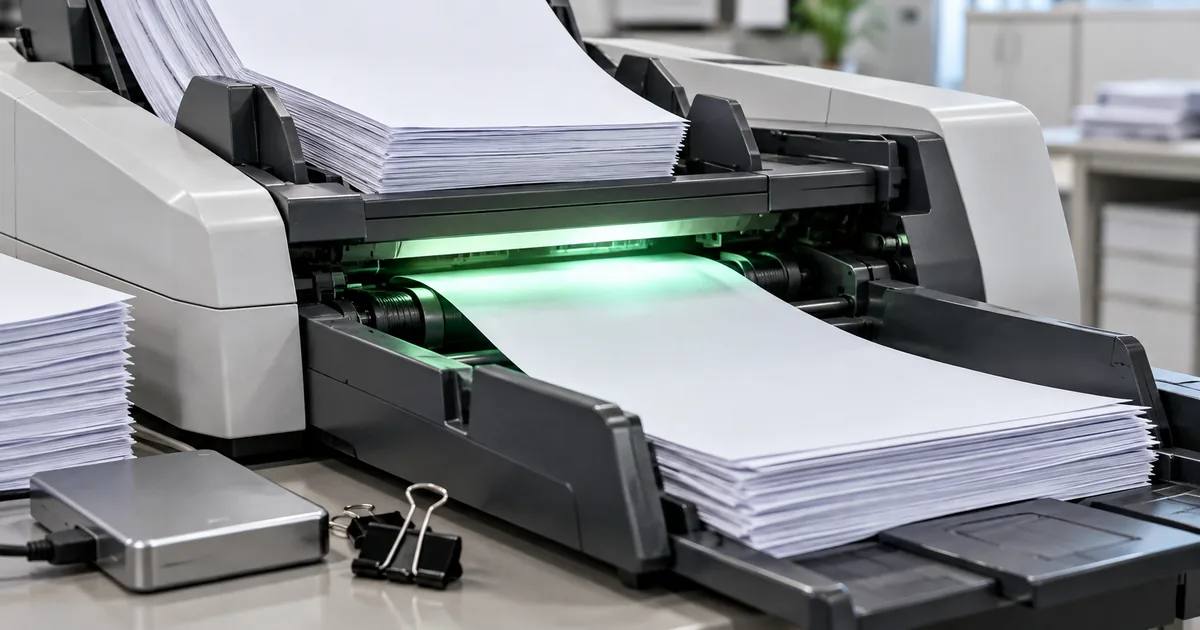
Desks buried in paperwork and contracts nobody can find are the usual reasons to digitize business documents. Going paperless can start with free browser tools and a naming rule rather than a new system.
What is business document digitization?
Paper documents are scanned or photographed into PDFs or images, then kept on a computer or in the cloud. Once they are files, they can be searched, shared and backed up in ways paper cannot.
Digitization vs. electronic conversion vs. paperless
Digitization is the act of converting paper, while going paperless is the state that results. People often use the three terms interchangeably, but each means something different:
| Term | Meaning | Scope |
|---|---|---|
| Electronic conversion | Scanning paper documents to create digital data | A literal rendering of the Japanese 電子化; in English this is simply digitization |
| Digitization | Scanning or photographing paper to create digital files | The act of converting paper to data |
| Going paperless | Reducing or eliminating the use of paper | The resulting state |
Why digitization matters now
Japan's rules on electronic transaction data, remote work and the recurring cost of paper all push documents toward files. Each one affects small businesses as much as large ones:
- In Japan, the National Tax Agency requires electronic transaction data that is sent or received to be preserved electronically, so emailed invoices cannot be kept only as printouts.
- Remote and hybrid staff need documents without coming to the office.
- Printing, paper, storage space and postage are costs that come back every year.
7 Benefits of digitizing business documents
Most of the seven benefits come from one change: a file can be searched, copied and opened anywhere, and a sheet of paper cannot. Paper gets lost, misfiled or burned with only one copy in existence, and each benefit removes one of those problems.
1. Cost reduction
Printing, copying, paper, ink and postage stop being recurring costs once documents move to files. Filing cabinets and off-site storage shrink along with them.
2. Improved searchability
Paper has to be found by hand, folder by folder. A file can be found by searching its name or date, so a consistent naming rule matters more than the scanner.
3. Remote work readiness
Digitized documents can be opened from anywhere with access to the storage. Checking a contract no longer means a trip to the office.
4. Enhanced security
Paper can be lost, stolen or burned, and there is usually only one copy. Files can be backed up and given access permissions, which paper cannot.
5. Business continuity planning (BCP)
A disaster can keep staff out of the office for days. Documents kept in cloud storage stay reachable from elsewhere while the building is closed.
6. Reduced environmental impact
Less printing means less paper used. How much that matters depends on how much the office prints today.
7. Foundation for DX and automation
Documents have to be files before any software can process them. Search, automation and AI tools all start from digital data.
Digitization concerns and how to solve them
Four concerns come up most often when an office begins going paperless. Each has a low-cost answer, and only one involves legal limits on what can be scanned.
Cost concerns when going paperless
Free browser tools are enough to start, so no system purchase is needed. The sakuttoAI tools convert, compress and merge PDFs at no cost on the free plan.
Supporting less tech-savvy team members
Start with one simple tool and add more as people get used to it. Browser tools need no installation, so anyone with a browser can use them.
Documents that can't be digitized
Scanner preservation covers contracts, invoices, receipts and similar tax documents, but not financial statements and other closing documents. Keep those on paper and digitize the rest.
"契約書、見積書、注文書、納品書、検収書、請求書、領収書など" / "決算関係書類を除く" — from the list of documents covered by scanner preservationView official source →
Risk of data loss
Keep copies in at least two places, such as cloud storage and an external drive. A single copy in a single place has the same weakness as paper.
"入力期間内にスキャナ保存したことを確認できる場合には、このタイムスタンプの付与要件に代えることができます" — from the timestamp requirementView official source →
Key points of Japan's Electronic Books Preservation Act
The Electronic Books Preservation Act (電子帳簿保存法) sets the rules for keeping tax documents in electronic form. For a small business, the part that applies first is electronic transaction data, which must be kept as data.
Three categories of preservation
The three categories are electronic ledgers, scanned paper and electronic transactions, and transaction data is the one that must stay electronic. The table shows what each covers.
| Category | Target Documents | Overview |
|---|---|---|
| Electronic ledger preservation | Ledgers and documents created with accounting software | Preserve as electronic data |
| Scanner preservation | Paper invoices, receipts, etc. | Scan and preserve electronically |
| Electronic transactions | Documents sent or received via email or cloud | Preserve as electronic data (mandatory) |
Requirements for electronic transaction data
Electronic transaction data has to be kept so that it cannot be quietly altered, can be found, and can be read. Search must work by date, amount and business partner, and a naming rule can cover that without a dedicated system.
- Tamper prevention: Apply timestamps, use a system that keeps an edit and deletion history, or adopt and follow internal rules against improper edits
- Search capability: Searchable by date, amount and business partner
- Readability: Promptly displayable on screen or printable
Practical example: File naming conventions
A file name built from date, partner, amount and document type covers the search requirement on its own. The format is {date}_{business partner}_{amount}_{document type}.pdf.
20260319_Sample_Corp_55000_invoice.pdf
20260315_Yamada_Trading_12800_receipt.pdf
Pair the naming rule with written anti-tampering rules, and no special system is needed. The National Tax Agency's leaflet lists such internal rules as one way to meet the tamper-prevention requirement.
"受領又は交付した場合、その電子取引データの電⼦保存が義務付けられています。" / "改ざん防止のための事務処理規程を策定、運用、備付け" — from the leaflet on preserving electronic transaction dataView official source →
How to go paperless: 5 steps
Scanning everything at once is the usual way these projects stall. Sorting documents first and piloting on one type keeps the change small enough to finish.
STEP 1: Inventory your documents
Start by sorting paper documents by type, frequency of use and retention period. Digitizing everything at once leads to burnout, so set priorities. Documents to digitize first:
- Documents referenced daily (contracts, manuals, internal policies)
- Documents exchanged via email (invoices, estimates, delivery slips)
- Documents that need sharing (meeting materials, reports)
STEP 2: Choose your digitization method
Pick the method by volume: a phone for a few pages, a multifunction printer for routine batches, a dedicated scanner for large runs. The table compares the three.
| Method | Advantage | Best For |
|---|---|---|
| Smartphone photo → PDF | Simple, zero cost | Small quantities, on the go |
| Office multifunction printer scan | Fast bulk processing | Routine office documents |
| Dedicated scanner | High quality, auto-feed | Large volumes, forms |
STEP 3: Start small
Begin with one department or one type of document as a pilot. Rolling out company-wide on day one tends to confuse people, so expand only after the pilot works.
STEP 4: Establish operating rules
Decide the naming rule, folders, backups and permissions before the second batch of files arrives. Rules set after the files pile up mean renaming everything.
- File naming (date, partner, amount, document type)
- Folder structure (by fiscal year or by business partner)
- Backup frequency and method
- Access permission settings
STEP 5: Measure results and improve
Compare document search times and printing costs before and after digitization. Visible results make it easier to extend the change to other teams.
Practical guide: Converting paper documents to PDF
Paper can become a PDF with a phone, a multifunction printer or a scanner. A phone and a free JPG to PDF converter are enough for small batches, and a multifunction printer handles the rest.
Photograph with your smartphone and convert to PDF
- Take a photo of the document with your smartphone camera (shoot from directly above, avoiding shadows)
- Add the photo to sakuttoAI's JPG-to-PDF converter
- For multi-page documents, add all images together
- Check the page order and click "Create PDF"
Several photos go into a PDF as one page each, in the order you set. Turning photos into a PDF this way needs no upload, and the full walkthrough is in Combine images into PDF without uploading them.
Converting iPhone photos to PDF
Photos taken on iPhone may be saved in HEIC format. Since some tools can't process HEIC files directly, convert them to JPG first. For the format itself, see What is a HEIC file? How it compares with JPG.
- Convert to JPG using sakuttoAI's HEIC-to-JPG converter
- Convert the JPG to PDF using the JPG-to-PDF converter
Scanning with a multifunction printer or scanner
Office multifunction printers and scanners convert large volumes of documents to PDF, and most models save to PDF directly. For tax documents in Japan, the scan settings follow the National Tax Agency's rules:
- Resolution: at least 200 dpi equivalent
- Color mode: Grayscale is fine for everyday files, but invoices, receipts and contracts kept under scanner preservation must be scanned in 24-bit color
- File naming: Apply your naming rule immediately after scanning
"赤色、緑色及び青色の階調がそれぞれ256階調以上(24ビットカラー)で読み取ること" / "一般書類の場合は、白黒階調(グレースケール)で読み取ることもできます(注)" — from the scanning requirementsView official source →
Managing and optimizing your PDF documents
Converting to PDF is only half the job. Scanned PDFs are large and scattered, so compress, merge and split them before they pile up.
Compress file size
Scanned PDFs contain image data and tend to be large. Compressing a PDF cuts its file size while keeping the pages readable, and the right level depends on where the file goes. Levels are explained in Compress PDF Online Free: Pick the Right Level.
| Use Case | Recommended Compression Level |
|---|---|
| Email attachment / internal sharing | Standard to High |
| Long-term archive | Standard |
| Printing or official submission | Low (high quality) |
Merge multiple PDFs into one
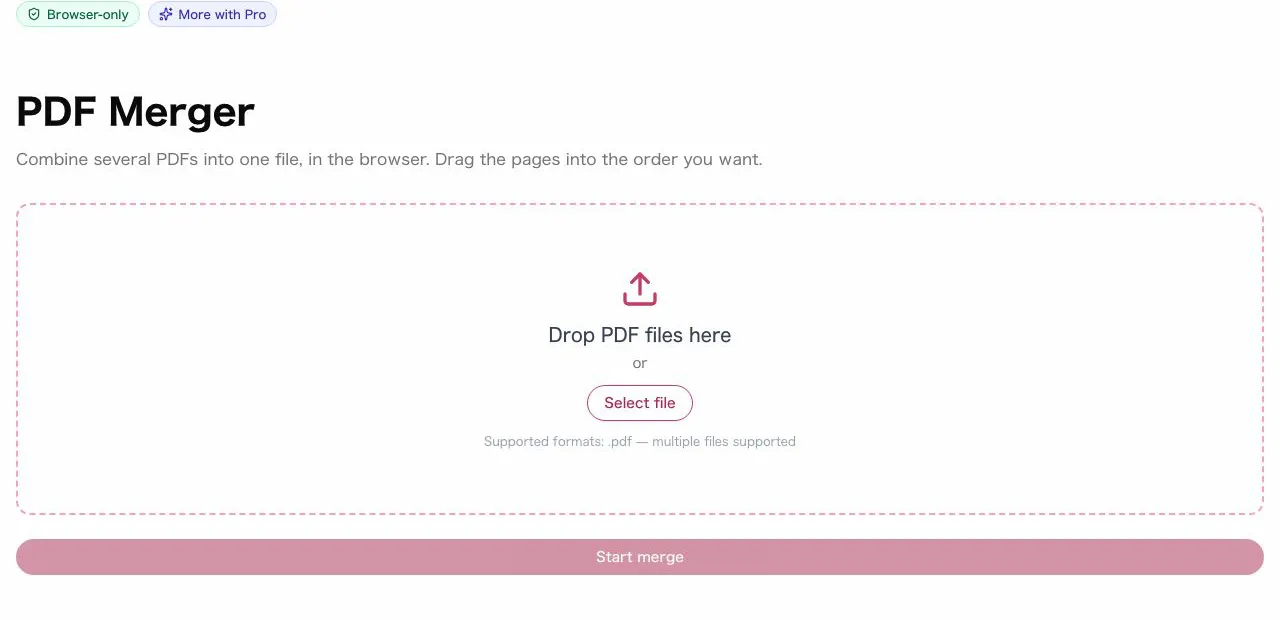
If scanned documents are split across multiple PDFs, merging them into a single file makes them easier to manage. Typical cases are a contract and its attachments, or the chapters of a report.
Split and extract pages
After scanning many pages at once, a PDF splitter pulls out the pages you need. Dropping the pages you don't need also makes the file smaller.
Use PDFs as images
Presentations and social posts sometimes need a page as an image. Converting the PDF page to JPG makes it usable anywhere an image is accepted.
Clean up text data
Text extracted from scans by OCR can mix full-width and half-width characters. A full-width/half-width converter makes the text consistent before it goes into a spreadsheet or database.
Compress photos attached to documents
Photos attached to reports or forms often make the final file too large to send. Compressing the images first keeps the PDF small without touching the text pages. Formats and levels are covered in Compress Images Online, Free: JPEG, PNG, WebP.
Start with one document and one naming rule
Convert one invoice received today into a PDF named by date, partner and amount. That one file tests the method, the naming rule and the backup before anything else is scanned.
sakuttoAI's PDF tools for compression, merging, splitting and conversion are free to start, up to 3 tasks a day on the free plan. Everything runs in the browser, and files are never sent to a server.
FAQ
- Can I dispose of the original paper documents after digitizing them?
- In Japan, if your scanned documents meet the requirements of the Electronic Books Preservation Act (電子帳簿保存法), you can dispose of the originals. Financial statements and other closing documents are outside scanner preservation, so keep those on paper. Consult a tax professional if unsure.
- Is going paperless necessary for small businesses?
- Yes — small businesses often benefit the most. Reducing storage space, speeding up document retrieval, and enabling remote work are all advantages that make better use of limited resources. With free tools like sakuttoAI, you can start at zero cost.
- Is it safe to use free tools for sensitive documents?
- sakuttoAI's PDF and image tools process everything within your browser — files are never uploaded to any server. Since your data never leaves your device, you can safely use them even with confidential business documents.
- Which documents should I digitize first?
- Start with documents you frequently access and need to search through. Prioritizing invoices, receipts, and contracts — documents referenced daily — makes it easier to see the benefits early on.
- Can I convert photos taken with my smartphone into PDFs?
- Yes. Simply add your smartphone photos to sakuttoAI's JPG-to-PDF converter to save them as PDF files. You can even combine multiple pages into a single PDF.
Related articles
 How to scan documents to PDF: phone, PC, or storeHow to scan documents to PDF on iPhone, Android, Windows, or Mac, or at a FedEx Office copier, and where each method saves the file.
 ChatGPT file upload limit: which one stops youChatGPT file upload limit: 512MB per file and 80 files every 3 hours, but the hidden quota and the Enterprise 110k-token cut are what stop most people.
 Japanese Era in Business Documents: What to UseJapanese era or Western year? The form usually decides. The tax office's portal labels every filing year in era years, and 2019 itself splits in two at May 1.
 What Is a PDF File? Edit, Convert and CompressWhat is a PDF file and what does PDF stand for? Learn to open, create, compress, merge, split, and convert PDFs free in your browser, starting from scratch.