
You printed a QR code on flyers, cards or a sign, and the page it opens has moved. Whether you can change the link without reprinting depends on the URL the code carries.
If that URL is on your own website, a redirect on your server sends people to the new page. When it belongs to a dynamic QR code service, you change the destination in that service's dashboard, and when it is neither, the code has to be replaced.
Can you change a QR code link after printing?
Yes, as long as someone can still control the address inside the code. The printed pattern never changes. What can change is where that address sends people, so the answer depends on whether the URL is on your own site, belongs to a dynamic QR service, or sits on someone else's server.
| URL in the code | How to change where it goes | Reprint |
|---|---|---|
| Your own website | Add a redirect on your server | No |
| A dynamic QR service | Edit the destination in its dashboard | No |
| Someone else's site | It cannot be changed | Yes |
If your code is in one of the first two rows, the stock you printed stays usable. Only the last row means making a new code.
A static QR code holds the final URL in its pattern
A QR code is static unless a dynamic QR service made it. The address you typed goes straight into the pattern with nothing in between, so changing the address means making a different pattern. That also makes a typo in the URL permanent.
Codes made with our QR Code Generator are static too. The URL is encoded in your browser with no forwarding address in front of it, so if the destination might move later, encode a URL on a site where you can add a redirect.
A dynamic QR code holds a redirect URL you can edit
A dynamic QR code puts an address owned by the QR service into the pattern, not the address of your page. A phone that scans it reaches the service first, and the service forwards it to the destination saved in your account.
Change that saved destination and every later scan goes to the new page, while the printed pattern stays exactly as it was. It works the same way as a redirect on your own site; the only difference is whose server holds the rule.
Dynamic QR codes let you edit the destination later and track scans. / Static QR Codes never expire and work as long as the linked content is available.View official source →— from the-qrcode-generator.com
Check which link your printed QR code carries
The domain tells you which row of that table your code falls into. It is the part right after https://, the site's own address. Read it before the page loads: once a redirect has run, the address bar shows where you ended up, not what the code holds.
Read the link on your phone before you tap it
- With the iPhone camera: in Photo mode, frame the code and a link appears at the bottom of the screen. Look at its domain before you tap.
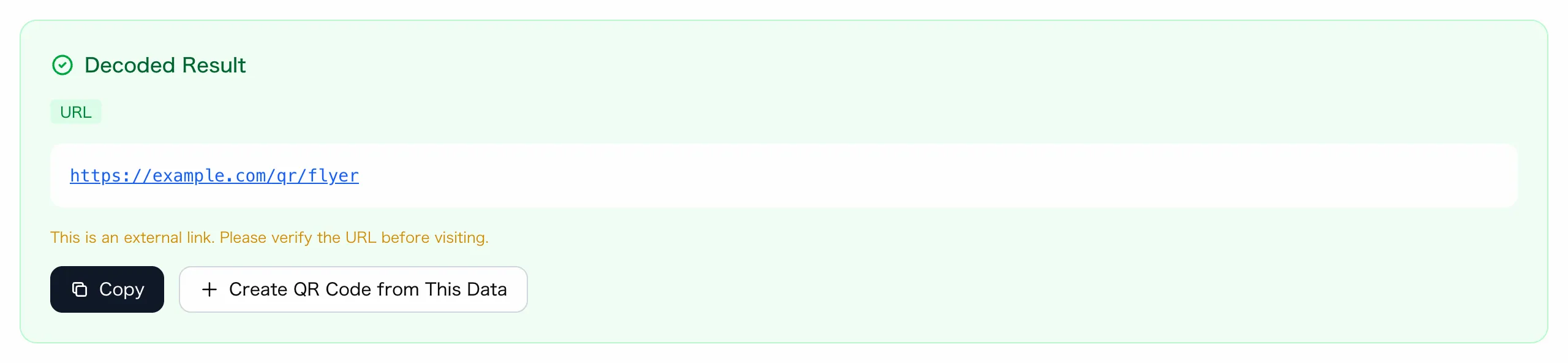
- To see the whole URL: open our QR Code Reader and upload a photo of the code, or point the camera at it. It shows the full URL under a URL label, and no page opens unless you click the link.
In Photo mode, position iPhone so that the QR code appears inside the camera frame. / Tap the link that appears at the bottom of the screen.View official source →— from the iPhone User Guide
Match the domain to one of three fixes
| Domain you read | Section to follow |
|---|---|
| The same as your website | Redirect the old URL |
| The QR service you used | Edit the destination |
| A short link such as bit.ly | Edit the destination |
| Someone else's site | Replace the QR code |
Short links can go either way. Whether you can change where one points depends on the service and your plan, and if yours cannot, treat it like the last row.
On your own domain, redirect the old URL with a 301
When the code carries an address on your own site, leave the code and the prints alone. Instead, add a rule on your server that sends anyone who requests the old address on to the new page.
Use a 301 when the change is not going to be undone
Two kinds of redirect matter here. A 301 tells browsers the page has moved for good, and a 302 says it has moved for the time being. Google Search Central recommends a permanent redirect when you are sure you will not revert it, and a temporary one when you only want to send people somewhere else for a while.
| Why the destination changes | Redirect |
|---|---|
| The site was rebuilt and the page moved | 301 |
| A campaign ended and the product page takes over | 301 |
| A service is down and a notice page stands in | 302 |
Use permanent redirects when you're sure that the redirect won't be reverted. / If you just want to send users to a different page temporarily, use a temporary redirect.View official source →— from the Google Search Central documentation
Set the redirect in WordPress, your host or the server
Where the rule goes depends on how the site was built. Pick whichever of these three matches your setup.
- A WordPress site: install a redirect plugin and enter the old and new URLs. The Redirection plugin, for example, lets you set them up without knowing how Apache or Nginx is configured.
- Your hosting control panel: if your host offers a redirect setting, enter the old address and the destination URL there.
- The server configuration: on an Apache server, you can write the redirect into the
.htaccessfile. If someone else runs the site, send them the old URL, the new URL and the words "301 redirect".
Once it is in place, scan one of the printed codes with your phone. If the new page opens, you can keep using the prints as they are.
Create and manage redirects quickly and easily without needing Apache or Nginx knowledge.View official source →— from the plugin page on WordPress.org
Keep the old domain while the prints are still out
A redirect works only while the old address still responds. The server behind the old URL has to receive the request before it can send anyone on, so canceling that domain or hosting plan cuts the codes off from the new page even though they still scan. If you move the site to a new domain or host, keep the old address and its redirects for as long as the printed material is in circulation.
On a dynamic QR code, edit the destination in the dashboard
When the domain belongs to the service that made the code, sign in there and change the destination. The code and the prints stay untouched.
Sign in, find the code, save the new URL: the Bitly steps
Menu names differ between services, so take Bitly's support article as one example. Your service may use other words for the same steps:
- Sign in with the account that created the code.
- Open the list of QR codes and find the one to change.
- Open its edit option and choose to redirect it.
- Enter the new destination URL and save.
- Scan a printed code with your phone and check that the new page opens.
Bitly's own steps stop at saving; step 5, the test scan, is our addition. If a former colleague or an agency made the code, you may not have the login at all. Get access to that account first, because there is no other way to change the destination.
Log in to your Bitly account. / Find the Bitly Code you want to redirect. / Enter the new destination URL and click / Anyone who scans the original Bitly Code will now land on the new page you've entered.View official source →— from Bitly Support
Check that your plan includes changing the destination
A dynamic code is not always editable on a free plan. These two services show how far apart the terms can be.
| Service | Free allowance | Changing the destination |
|---|---|---|
| The QR Code Generator | 2 dynamic codes | Included |
| Bitly | 2 QR codes a month | Paid plans only |
If the code was made on a free plan, open that service's pricing page before telling anyone the link will change. QR Code Generator: What Free Actually Gets You goes through what each free tier allows.
The QR Code Generator offers 2 lifetime free dynamic QR Codes to its users / Create up to 2 dynamic QR Codes for free and update their content anytime without making a new oneView official source →— from the-qrcode-generator.com
2 QR Codes/month / Custom Redirects Change the destination page for links and QR Codes - 5/mo 20/mo 110/mo CustomView official source →— from bitly.com
When the link cannot be changed, replace the QR code
A code that carries someone else's URL, or a short link you cannot change, leaves you nowhere to set a redirect. Make a new code for the new URL and replace the old one wherever it appears.
Swap the image on websites, social profiles and PDFs
Anything you share online only needs a new image. How you swap it depends on where the code sits.
| Where the code appears | What to do |
|---|---|
| Your website | Replace the image on the page |
| A social profile or pinned post | Change the image, or post again |
| A PDF or other handout | Send out the corrected file |
| An email signature | Change the image; sent mail stays as it was |
To make the new code, read the old one in our QR Code Reader and click Create QR Code from This Data. The generator opens with the old URL already filled in, so you only edit the part that changed.
Cover printed codes with a sticker, margin included
Flyers you have already handed out cannot be fixed. Cards, flyers and counter displays you still hold can get a sticker with the new code. If you have a lot of stock left, or a sticker would spoil the design, reprint instead.
| Option | Suits | Watch for |
|---|---|---|
| Sticker | Stock you still hold | Cover the old code and its margin |
| Reprint | Large stock or a clean look | Use an editable URL this time |
The sticker needs clear space around the new code as well. Denso Wave, which developed the QR Code, calls for a margin four modules wide on every side (a module is one of the small squares in the pattern). Size the sticker to fit the code plus that margin; QR code minimum size: how small can it be? covers how small the code itself can go.
QR Code requires a four-module wide margin at all sides of a symbol.View official source →— from the Margin section of Denso Wave's guide
Make the next QR code you print editable
If you are reprinting anyway, make the next code one whose destination you can change. There are two ways to do it, and both put an address in the pattern that you can point somewhere else later.
Put a QR-only URL on your own domain and redirect it
Create one address on your site that exists only for the code, such as https://example.com/qr/flyer, and redirect it to the page you want people to see. During a promotion it can point at the campaign page, and when the promotion ends you switch it to the product page. The flyers keep working because the code still carries the same address.
- No outside service can close down or change its prices on you.
- It lasts only as long as you keep paying for the domain and hosting.
Any static generator can make the code for that address, ours included. Create QR Code Free: Cards, Flyers and Print walks through making one for print.
A dynamic QR code lasts only as long as its provider
Without a website or anyone who can edit redirects, a dynamic code is the easier option. The forwarding runs on the provider's server, though, so the code stops reaching your page when that service ends, and some providers switch codes off when a trial runs out.
Google's own URL shortener went through this. Google announced that goo.gl links would stop responding after August 25, 2025. An update on August 1, 2025, narrowed that: links still in use would keep working, and only those with no activity in late 2024 were marked for deactivation.
For print that stays in circulation for years, assume the redirect ends when the service does. You do not get to choose that date.
these URLs will no longer return a response after August 25th, 2025 / All other goo.gl links will be preserved and will continue to function as normal. / these are the only links targeted to be deactivatedView official source →— from the Google Developers Blog
Dynamic QR Codes can be updated, but their validity depends on the provider / Some tools deactivate codes after a trial ends.View official source →— from the-qrcode-generator.com
Static code with your own redirect or a dynamic code
Weigh the two on four points: how the destination is changed, what it costs, what happens if a service ends, and how you see scans. The first two matter day to day, and the last two over the long run.
| Point | Static code and your URL | Dynamic code |
|---|---|---|
| Changing the destination | Edit your own redirect | Edit it in the dashboard |
| Cost | Your domain and hosting | Free tiers vary by service |
| If a service ends | Unaffected | The code stops working |
| Scan counts | Your site's analytics | Some services track scans |
If you have a website and someone who can edit its redirects, a static code pointing at your own URL is the better fit. If you have no website, or nobody to edit redirects, use a dynamic code.
FAQ
- Can I turn a printed static QR code into a dynamic one?
- No. A static code holds the final address in its pattern, and only a dynamic code lets you edit its destination later. If the address in your static code is on your own website, you can still redirect that address, so check the domain before you decide the prints are wasted.
- How can I see where a QR code goes without opening the page?
- On an iPhone, frame the code in the Camera app's Photo mode and a link appears at the bottom of the screen; it opens only when you tap it. The sakuttoAI QR Code Reader shows the full URL from a photo or the camera and does not open it unless you click the link.
- I printed the wrong URL. Can I fix it without reprinting?
- Yes, if the wrong URL is on your own domain. Add a 301 redirect from the wrong address to the right page, and scans of the printed code will land there. Google recommends a permanent redirect when you are sure it will not be reverted. If the domain itself was mistyped and belongs to someone else, you cannot set a redirect there, so the code has to be replaced.
- Can I change a short link that a QR code points to?
- It depends on the service and the plan. Bitly lets you redirect a Bitly Code on paid plans, and anyone who scans the original code then lands on the new page. On Bitly's pricing page, the Free column lists no allowance for Custom Redirects.
Related articles
 What is a dynamic QR code? Static vs dynamicA dynamic QR code stores a short link the provider forwards, so you can edit where it goes after printing. If the service ends, the code won't open your page.
 Do QR codes expire? How to make one that won'tDo QR codes expire? A QR code never does, but a dynamic code stops when its provider turns off forwarding. Find the cause, fix it, and make a code that lasts.
 QR code not scanning? Count the quiet zone firstQR code not scanning? The quiet zone is usually why. Here is how to count four modules in the image you already have, and how to fix it before you print.
 QR Code Flyer Size and Placement: The 10:1 RuleQR code flyer size and placement: size the code with the 10:1 scan-distance rule, keep the four-module quiet zone clear, and add a short call to action.